| Audience | Marketers, creative teams, platform admins |
Lifecycle Studio is a workspace for planning and producing lifecycle marketing campaigns. Describe a campaign goal, and the agent drafts a brief, plans the messages, and generates channel-specific content you refine, approve, and export to your connected ESP.
Overview
Lifecycle Studio is a campaign planning and content production workspace for lifecycle marketing. It covers the path from campaign idea to deliverable message: you provide a goal or brief, the agent plans the messages and generates candidates, you refine the content, and then export approved content to your connected email service provider (ESP) or marketing platform.
You can start from a rough goal and use the agent to draft a campaign plan, or bring a fully formed brief and move straight to content production.
How it works end to end
Before your first campaign, set up your workspace once: add business context, brand guidelines, and guardrails in Context Hub and configure a default parent model in Agents settings. This gives the agent the brand, audience, and channel context it uses when generating content. Connecting an ESP is optional — it unlocks export and template import workflows but is not required to draft and review content.
A campaign then moves through three stages:
- Plan — The agent drafts a brief and a message plan, a checklist of the messages it intends to create. You review and refine both, or skip review and generate immediately.
- Create — The agent generates candidate messages for each item in the plan. You review, edit, and save the ones you want.
- Launch — You pair each saved candidate with an audience and export it to your connected ESP for delivery.
Lifecycle Studio shares agent infrastructure with other Hightouch products, including a shared context layer for business context, brand guidelines, and guardrails. See Context Hub for the shared workspace configuration.
Access Lifecycle Studio
- Go to app.hightouch.com/lifecycle-studio.
- Select Campaigns or Messages to begin.
Core features
Lifecycle Studio has two creation modes and two supporting asset libraries.
Creation modes
| Mode | When to use it |
|---|---|
| Messages | You're launching a one-off send, like a promo or an announcement. Start from a template, prompt the agent, and iterate until it's production-ready. |
| Campaigns | You're running an ongoing lifecycle program, like a welcome series or a win-back. The agent plans a coordinated set of messages that you refine and extend over time. |
Messages are the fastest path from idea to a finished email. You select a template, describe what you need, and iterate with the agent in a chat-style editor. You refine each message in the editor — visually or in HTML — and approve it before export. When a campaign generates multiple candidates, each one appears as a separate message card you can open and refine individually. See Messages for more detail.
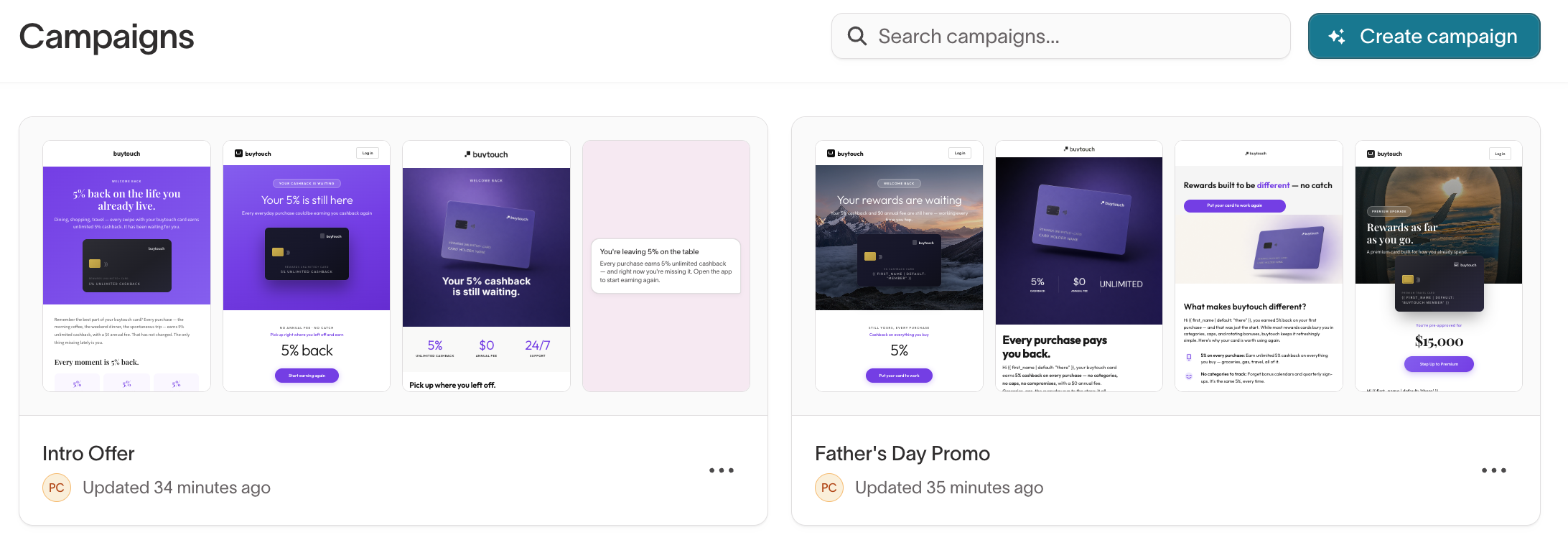
Campaigns are where you run a lifecycle program over time. You describe a goal, like "re-engage lapsed customers" or "launch a seasonal promotion," and the agent drafts a brief, plans the messages it will create, and generates candidates you refine and send. Because a campaign holds a whole program rather than a single message, you can keep adding to it as the program grows. See Campaigns for more detail.
Templates
Templates are the structural starting points the agent uses when generating messages. Import them from raw HTML or an .eml file, from a connected ESP, or from Figma, and the agent builds new content on top of them. The agent selects templates based on the campaign context and message content. You can also save any finished message back to the template library. See Templates for more detail.
Images
The image library stores the visual assets the agent can use in generated messages. You can upload images, edit them in place, tag them for better agent selection, and browse edit history. You can also connect external asset sources to import images automatically. See Images for more detail.
Use Lifecycle Studio with other Hightouch products
Lifecycle Studio uses context, audiences, and creative assets from your Hightouch workspace to generate messages, then exports the approved ones to your connected ESP.
Context, audiences, and assets the agent uses
- Business context, brand guidelines, and guardrails — Configured in Context Hub and applied to every campaign the agent runs. The agent uses this context when generating briefs, plans, and messages.
- Customer Studio audiences — Used for targeting when you export. You select which audiences receive which candidates.
- Campaign history — When you connect an ESP, Lifecycle Studio can import your existing campaign history for context.
- Templates and images — Your existing email templates, HTML, and brand imagery provide the structural and visual foundation for generated content.
Messages you export, audiences you sync
- Messages to your ESP — Approved messages are exported to your connected ESP, where they enter the platform's campaign or journey workflow.
- Audiences to destinations — When you export, selected audiences are synced to your delivery platform. Candidates are exported separately.
Lifecycle Studio vs. Ad Studio
Both products generate marketing content, but they serve different channels. Lifecycle Studio focuses on lifecycle campaigns (email, push, and SMS) delivered through an ESP. Ad Studio focuses on paid media creative (display and social ads) published to ad platforms. The two products share the same agent infrastructure and context layer but have distinct workflows.
Use cases
| Use case | Example |
|---|---|
| Welcome series | Create a three-email welcome campaign for new signups, with each message personalized to the user's signup source and first action. |
| Re-engagement | Generate a lapsed-customer campaign with messages targeting different inactivity windows (30, 60, 90 days) and varied messaging tones. |
| Promotional campaign | Describe a seasonal sale, and the agent generates email variants with different offers, subject lines, and CTAs for A/B testing. |
| Post-purchase nurture | Generate a follow-up sequence for recent buyers that cross-sells related products using catalog data. |
| Campaign refresh | Take an existing high-performing email, generate new variants with updated copy and imagery, and test them against the original. |
Get started
You can start creating messages in Lifecycle Studio right away. Connecting an ESP unlocks export and delivery workflows, and adding workspace context improves the quality of generated content.
For platform admins
These steps are typically done once during initial workspace setup. None are required to start creating messages, but each unlocks additional capabilities.
| What to do | What it unlocks |
|---|---|
| Add business context | Tells the agent about your brand, products, audience, and lifecycle goals |
| Set brand guidelines and guardrails | Controls the tonal and visual rules the agent follows, and what it should avoid |
| Configure the parent model | Connects your Customer Studio audience data for use when sending |
| Connect your ESP | Enables exporting messages to your ESP for delivery and importing existing campaign history |
For marketers and creative teams
Once the workspace is set up, seed the creative inputs the agent uses, then start creating content. You can refine these over time as you learn what works.
| What to do | Why |
|---|---|
| Upload email templates | Gives the agent structural starting points for message generation |
| Upload images | Lets the agent incorporate your brand imagery into generated messages |
Upload a range of template styles, like promotional, transactional, and editorial, to give the agent more options when generating messages for different campaign types.
Once you have templates uploaded, pick a creation mode based on what you need:
- For a quick single email, use Messages.
- For structured end-to-end production, create a campaign: fill out the intake modal with your goal and audience, review the brief and message plan the agent drafts in the Plan tab, generate and refine candidates in Create, then pair them with audiences and export in Launch.
Most teams start with Messages, then move to Campaigns once they're comfortable reviewing and refining generated content.
Permissions
Lifecycle Studio must be enabled for your workspace by Hightouch. Once enabled, access is controlled through custom roles:
| Grant | Where to configure | Required for |
|---|---|---|
| Access Agents | Agents tab | Viewing Lifecycle Studio in the app |
| Configure Agents | Agents tab | Modifying Agents settings: context, brand, guardrails, channels, image tags, and integrations |
| View parent model data | Customer Studio tab | Viewing row-level audience member data in send flows |
| Configure audiences & syncs | Customer Studio tab | Creating, editing, and saving audiences used in send flows |
Beyond these role grants, the agent's access to your customer data follows the same governance as the rest of Hightouch. Column-level privacy and row-level access rules apply to the data the agent can query and use for personalization. See Agents data governance for how these layers work.
Lifecycle Studio never sends a message without your approval. You always review and approve generated content before it is exported to your ESP.