If you've already invested in modeling business data in Looker, you may want to use your Looks as the basis for Hightouch models.
When you import a model from Looker, Hightouch converts your Look into a SQL query and runs it directly against your data warehouse. As you publish changes in Looker, your Hightouch model updates to reflect the latest version of your Look.
This extension uses Looker as a modeling method, not a data source. In other words, Looker provides the SQL query, not the query results. Before enabling this extension, you must first create a source in Hightouch that connects to the same data warehouse used by Looker.
Supported sources
You can create models based on Looker Looks for the following sources:
Connect to Looker
In Hightouch, go to the Extensions page and select Looker.
Enter the following fields:
- (Optional) Tunnel - If you've previously set up an SSH tunnel and want to use it to connect to Looker, you can select it here.
- URL - Hightouch uses this URL to connect to your Looker instance. The format is often
https://<instance_name>.looker.com. Refer to Looker's documentation if you have a non-standard Looker setup. - Client ID - You can find this in your Looker API 4 credentials.
- Client secret - You can find this in your Looker API 4 credentials.
If you need to create credentials, refer to Looker's documentation on authentication with an SDK.
Select a Look
After configuring your Looker credentials, you can create a model using a source that supports Looker. Select your source and then choose Import Model from Looker as your modeling method.
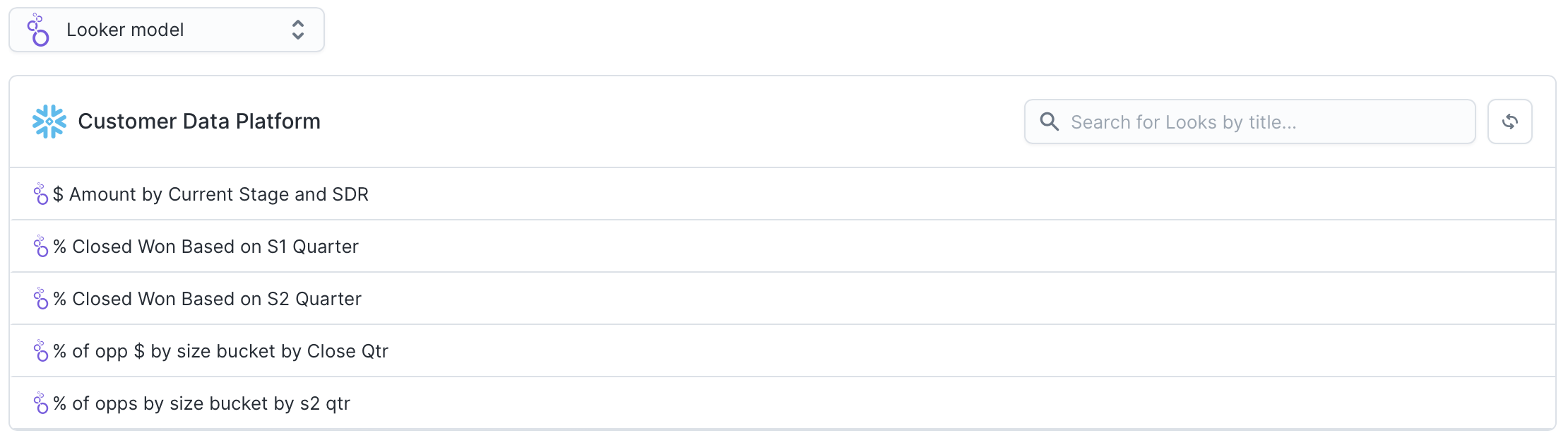
On the next screen, you can select which Look you want to base your model on.
Tips and troubleshooting
If you encounter any error messages during Look-based model setup, confirm the following about your credentials:
Permissions
You must be a Looker admin to retrieve your Looker connection URL. Check Looker's documentation on roles, permissions, and access for more information.
Looker URL
Check you're using the correct URL by consulting Looker's API connection troubleshooting guide.
Common error: 404 Looker is unavailable
When the Looker extension can’t reach your Looker instance (or the API credentials are invalid/expired), Looker may return an HTML 404 page instead of a JSON API error. In Hightouch this can appear as:
Look not found. Has it been deployed to production?
Looker Not Found (404) Looker is unavailable.
If you typed in a URL, double-check the spelling.
This may also be due to a temporary condition such as an outage, scheduled maintenance or upgrade.
If you see this for all Looker-based models:
- Check the Looker API 4 client ID/secret in Extensions → Looker (rotate if expired).
- Confirm the Looker URL is correct.
- Verify your Looker instance is reachable and not under maintenance.