Record matching tells Hightouch how to find the destination record that corresponds to each row in your model. You configure it whenever a sync needs to identify an existing record or person in your destination, not only create new ones.
| Audience | Data teams configuring a sync |
| Prerequisites | A model with a column of unique values, and a connected destination. |
When you configure record matching
Record matching applies whenever a sync needs to identify an existing record or person in your destination. That includes update, upsert, and archive modes, modes that add or update people in a list, segment, or audience, and event or action syncs that attach data to an existing person.
Object syncs that only create or replace records — insert and mirror modes — don't use record matching, because there's no existing record to find.
In the sync configuration, matching appears as a question rather than a section labeled "Record matching." The default reads How should rows in your data model and records in the destination be matched? Individual destinations reword this question, but the task is the same: pick one column from your model and one field in your destination. Hightouch matches a model row to a destination record when the two values are equal.

Columns, fields, and properties: Hightouch generally uses "column" for an attribute in your source or model. Destinations may call the same attribute a "field" or a "property."
Choose the destination field
Start with the destination field. Each destination supports only specific identifiers for matching, and Hightouch shows those supported fields in the dropdown.
For example, when you sync users to Braze, Hightouch shows the identifiers Braze supports for matching — here, Braze External ID, User Alias Object, and Email address. The available options depend on the destination and sync type.
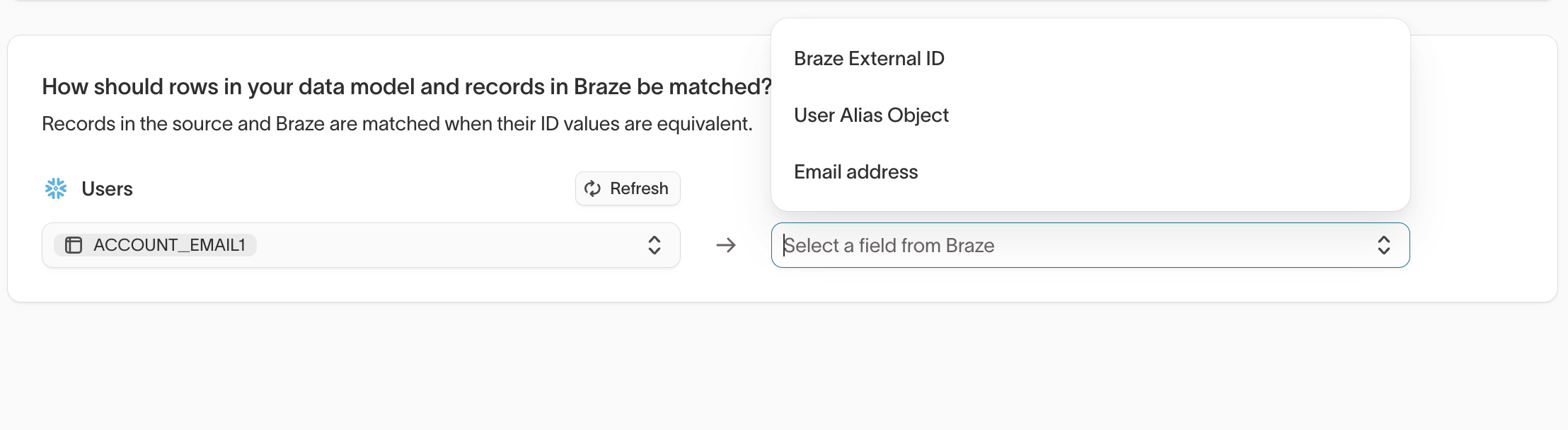
When a destination recommends a field, Hightouch appends (recommended) to its name. Salesforce, for example, marks its record ID and external ID fields as recommended because matching on them performs better.
Check the destination's documentation for the fields it supports and any destination-specific requirements.
Match on external IDs
Some destinations let you match on an external ID: a unique identifier created outside the destination and stored on the destination record. This lets the destination keep its own primary keys while still linking records to your data.
Requirements vary by destination. Salesforce, for example, requires the matching field to be configured with the External ID attribute, not just a field you treat as an identifier by convention. Check the destination's documentation before you configure the sync.
Choose the model column
The model column contains the value Hightouch matches against. Because that value identifies which record to update, choose a column with unique values.
This is often the same column you set as the model's primary key, since primary keys are already unique. You don't have to reuse the primary key, though — you can use another column as long as the destination supports it for matching and its values uniquely identify your model rows.
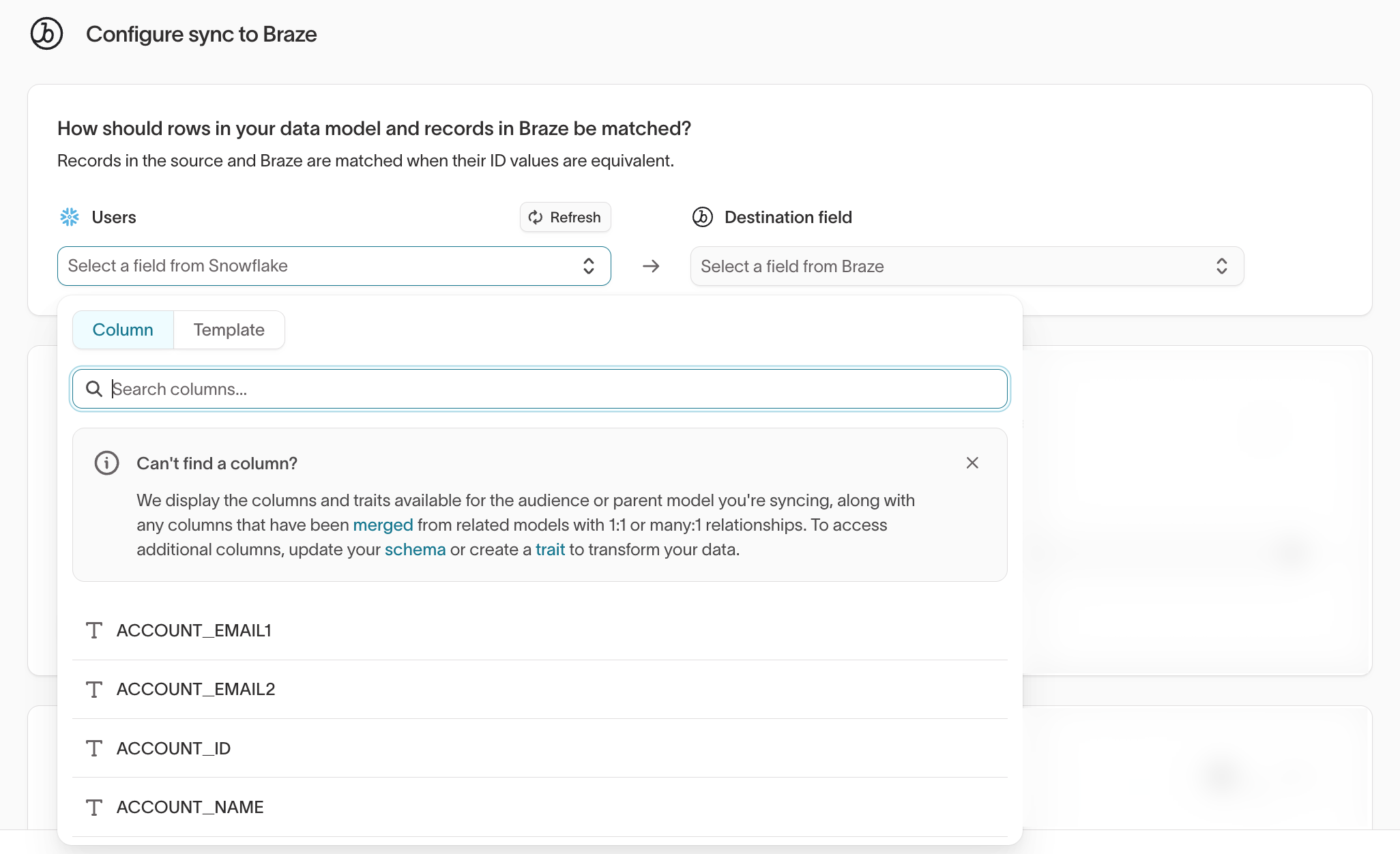
When more than one column could match, weigh two things:
- Whether the destination supports the field for matching.
- Whether the column's values are unique.
If a model has both email and user_id, and the destination supports either, use the identifier that is unique and stable.
The model column you match on should uniquely identify each row. Duplicate or empty matching values can cause ambiguous matches, rejected rows, duplicate records, or partial results, depending on the destination. Verify that the column is unique and non-null before you run the sync.
Provide additional identifiers
Record matching uses a single model column. To match on a combination of values, combine them into one column in your model, then match on that column.
Separately, some destinations accept additional identifiers alongside the matching column and use them for their own identity resolution. mParticle, for example, lets you supply more user or device identifiers after you choose the matching column. Check the destination's documentation for what it supports.
Verify record matching worked
Before you run the full sync, test one row to confirm it updates the record you expect:
- From the sync configuration page, click Test.
- Select a row whose destination record you can look up.
- Run the test.
- In the destination, confirm that Hightouch updated the record you expected.
A sync test can succeed at the request level even when matching is wrong, so check the destination itself. If the test creates a new record instead of updating the existing one, confirm that the model value matches the selected destination field and that the destination uses that field for matching.
Next steps
After you set matching, map the rest of your model columns to destination fields in field mapping.