| Audience | Data teams, platform admins |
| Prerequisites | The Configure Agents grant. |
Business context helps agents understand your business, apply your rules, and use your data correctly.
Overview
Agents can use your data to answer questions and complete tasks, but your data doesn't always explain how your business works. For example, an agent might not know which customers count as active, how you calculate revenue, or which rules to follow when creating a campaign.
Use Context Hub > Knowledge to give agents this information. Knowledge includes three types of context:
| Type | Use it to | Example |
|---|---|---|
| Files | Explain business rules, guidelines, and information agents need to complete tasks. | Which data to use when calculating revenue. |
| Skills | Give agents repeatable instructions for completing a task. | How to prepare a weekly performance report. |
| Definitions | Establish what a specific term or metric means. | What qualifies someone as an active customer. |
Agents can also create definitions based on assumptions they make during chats. You review and approve these definitions so agents use the same meaning in future conversations.
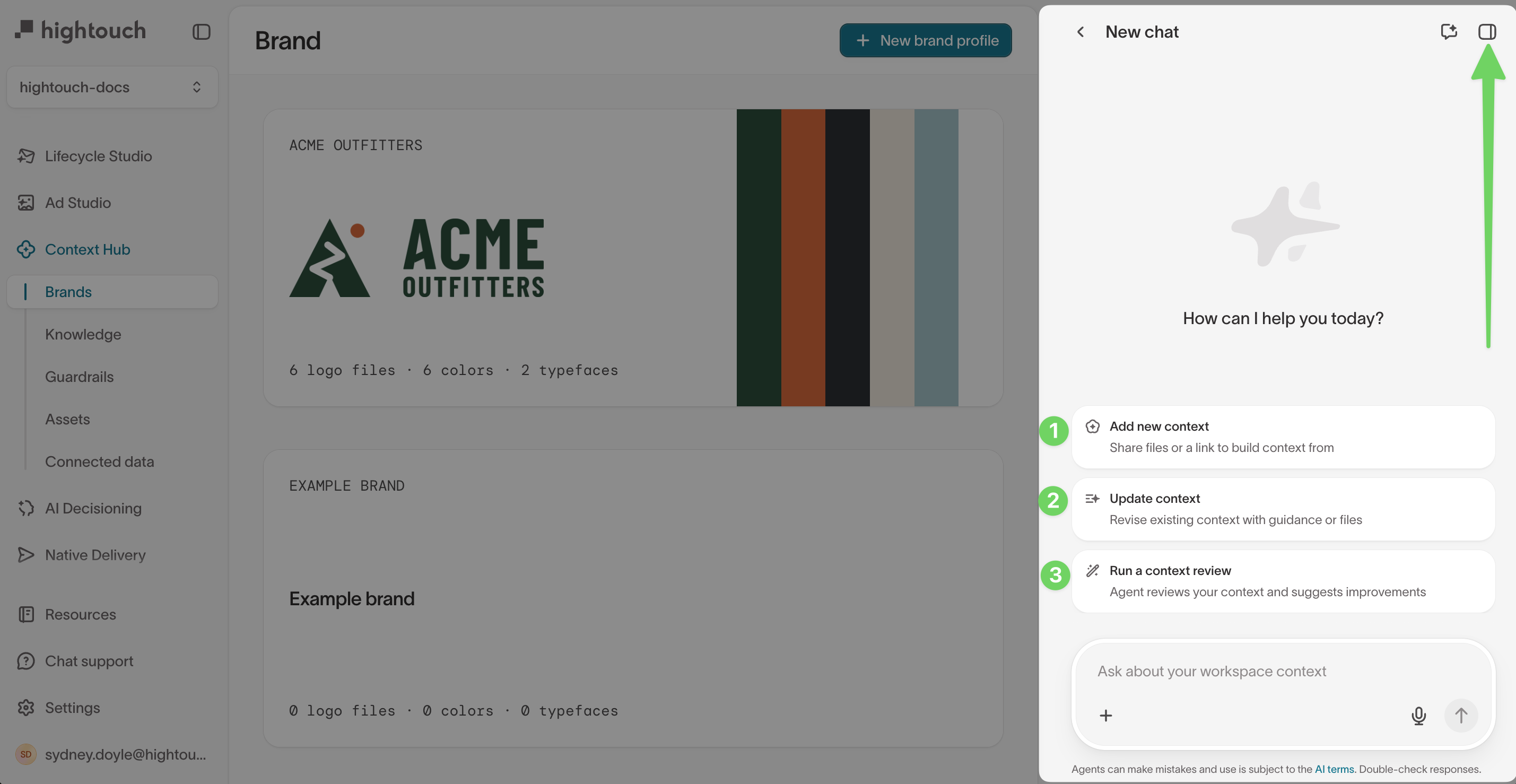
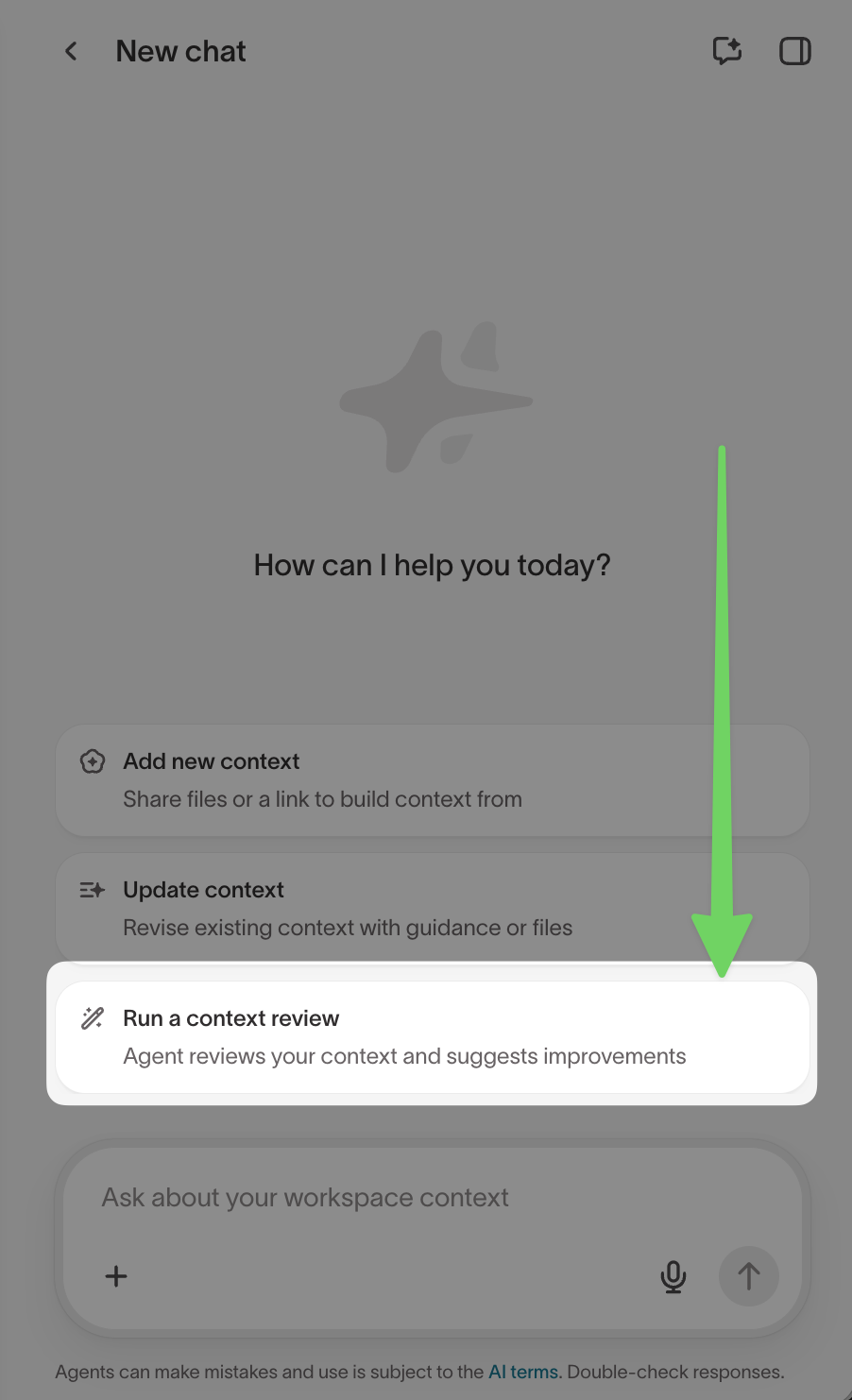
You can manage knowledge directly or with help from the Context Agent. Open the Context Agent chat panel and select Add new context, Update context, or Run a context review, or describe what you want to change. The Context Agent suggests changes for you to review and approve before they take effect.
Add business context
Create a file to give agents business knowledge that isn't already in your data or schema. For example, you might explain how your company calculates a metric, which records to exclude from reports, or which data source to use when two sources disagree.
Keep each file focused on one topic so agents read the instructions that apply to a task without loading unrelated information.
Create a file
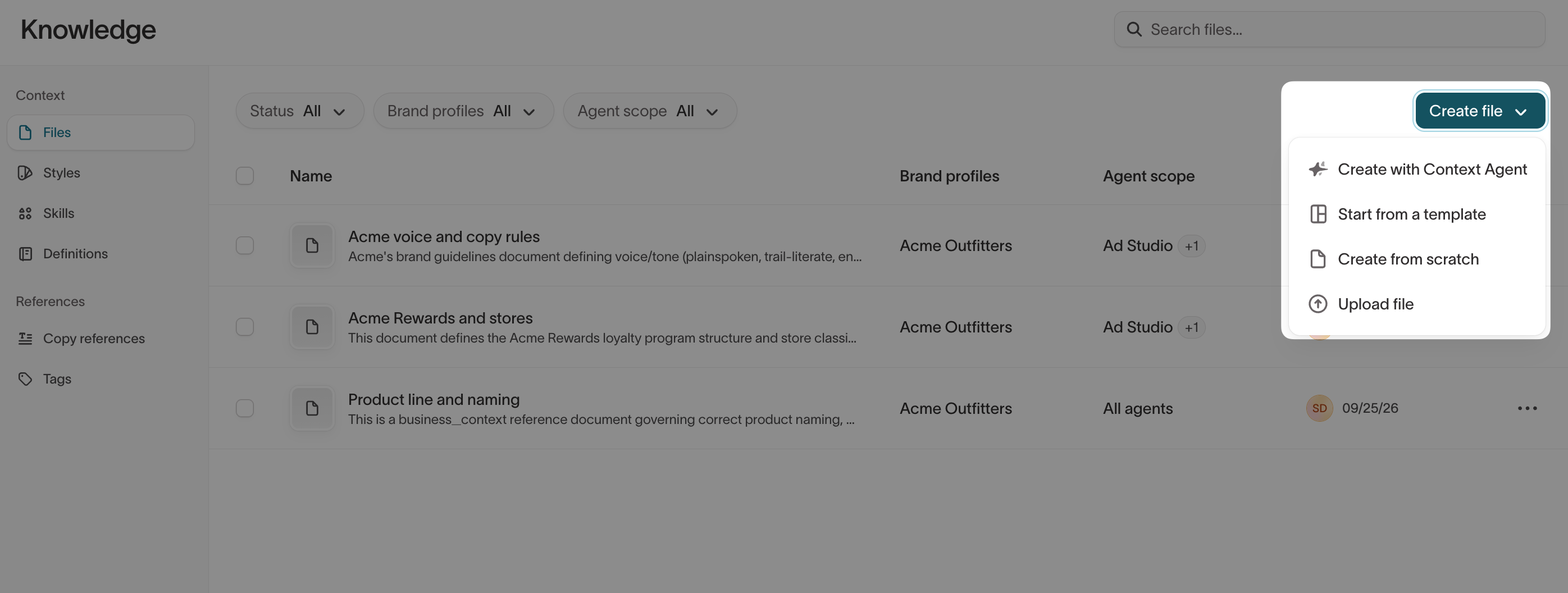
- Go to Context Hub > Knowledge > Files and select Create file.
- Choose how to create the file:
- Create with Context Agent — Describe what you need or provide an existing file. The agent drafts the content for you to review.
- Start from a template — Use a template for a common type of business context.
- Create from scratch — Write your own instructions.
- Upload file — Import an existing file up to 50 MB. Markdown files open as editable documents.
- Add or review the file's content. See Write clear instructions.
- Choose which agents and brands can use the file. See Choose where agents use context.
- Choose when agents read the file. See Control when agents read files.
- Turn on Published to make the file available to agents.
Start from a template
Templates give you a starting point for common types of business context. Choose the one that matches the information you want to share:
| Template | Use it for |
|---|---|
| Business context | What your company does, how it makes money, your products, and your marketing goals |
| Metric definitions & analysis guidelines | Your key terms, how metrics are computed, which records to exclude, and lifecycle or campaign context |
| Audience building guidelines | Who's eligible to message, required consent and exclusions, and reusable building blocks |
| Fiscal calendar & time | Your fiscal calendar, time zone, and how to read relative dates |
| Channels & attribution | Where agents read campaign and attribution data, such as your warehouse versus the ad platforms |
Write clear instructions
Write instructions agents can follow without making their own assumptions. When you explain how to calculate a metric, include which data to use, the calculation, any exclusions, and what to do when sources disagree. For example:
Use the marketing_conversions model for completed purchases.
Use the Meta connection for spend, impressions, and clicks.
Calculate ROAS as completed-purchase revenue divided by spend.
If the two sources disagree, show both values and explain
the difference.
Be specific about what agents should do. Instead of telling an agent to "use accurate revenue data," name the model and explain which records count.
Choose where agents use context
Each file, skill, and definition has settings that determine which agents and brands use it.
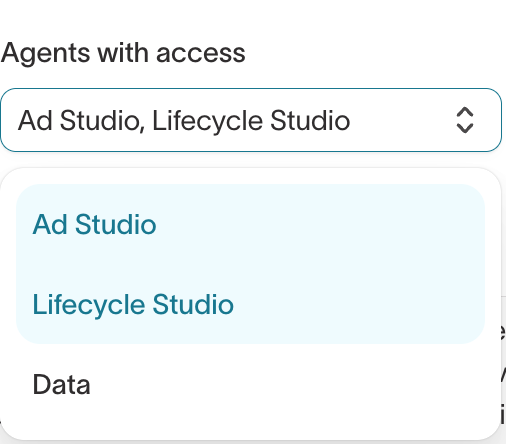
Under Agents with access, select the products whose agents should use the context. You can select more than one.
| Option | Agents that can use the context |
|---|---|
| All agents (default) | Every agent in your workspace |
| Ad Studio | Agents that generate ads |
| Lifecycle Studio | Agents that create emails and campaigns |
| Data | Agents that build reports |
For example, if a file contains email footer requirements, select Lifecycle Studio so agents in other products don't apply those rules. Chats in Agents can still use the context, even when you limit it to specific products.
Under Brand profiles, select the brands the context applies to. For example, if your brands have different tone-of-voice guidelines, assign each file to its brand. Leave the setting on all brand profiles for rules that apply across your company.
Control when agents read files
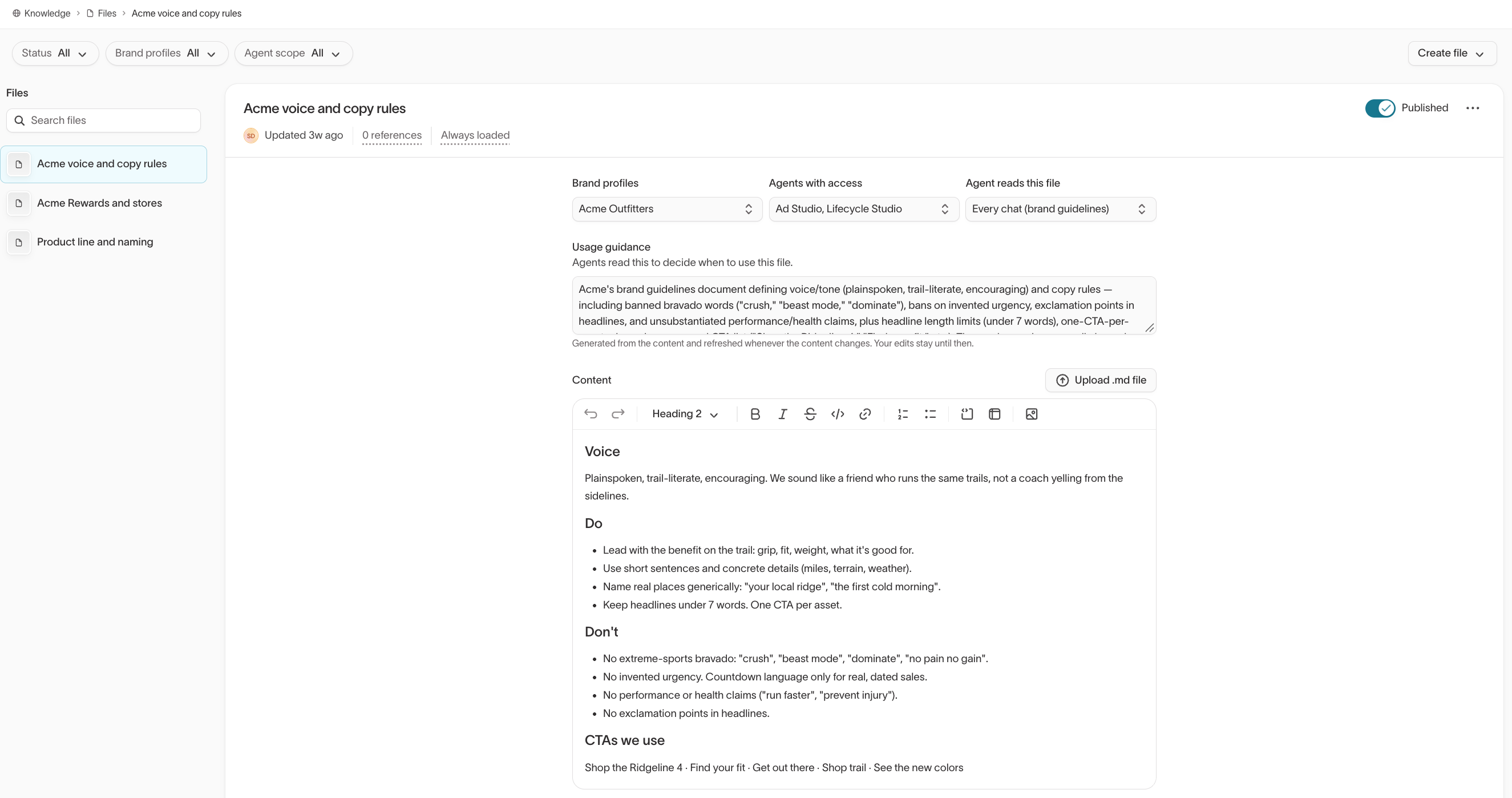
The Agent reads this file setting determines when an agent loads a file into a chat:
| Option | When to use it |
|---|---|
| When relevant | Most files. Agents read the file when it's relevant to the task. |
| Every chat (brand guidelines) | Short brand guidelines that should apply to every chat. |
| Every chat (business context) | Essential business information agents should always have. |
With When relevant selected, agents use the file's Usage guidance to decide when to read it. Hightouch generates this guidance from the file's content and updates it when the content changes.
Edit the guidance to make it more specific, such as "Use when calculating paid-media efficiency, including ROAS, cost per acquisition, and campaign spend." If an agent reads a file when it shouldn't, or doesn't read it when you expect, check the Usage guidance first.
Create a skill
Create a skill when you want agents to follow the same process each time they do a task, instead of explaining the steps in every chat. For example, you can create a skill that tells an agent how to:
- Prepare a weekly performance report.
- Photograph products in a consistent lifestyle setting.
- Review generated marketing copy before publishing.
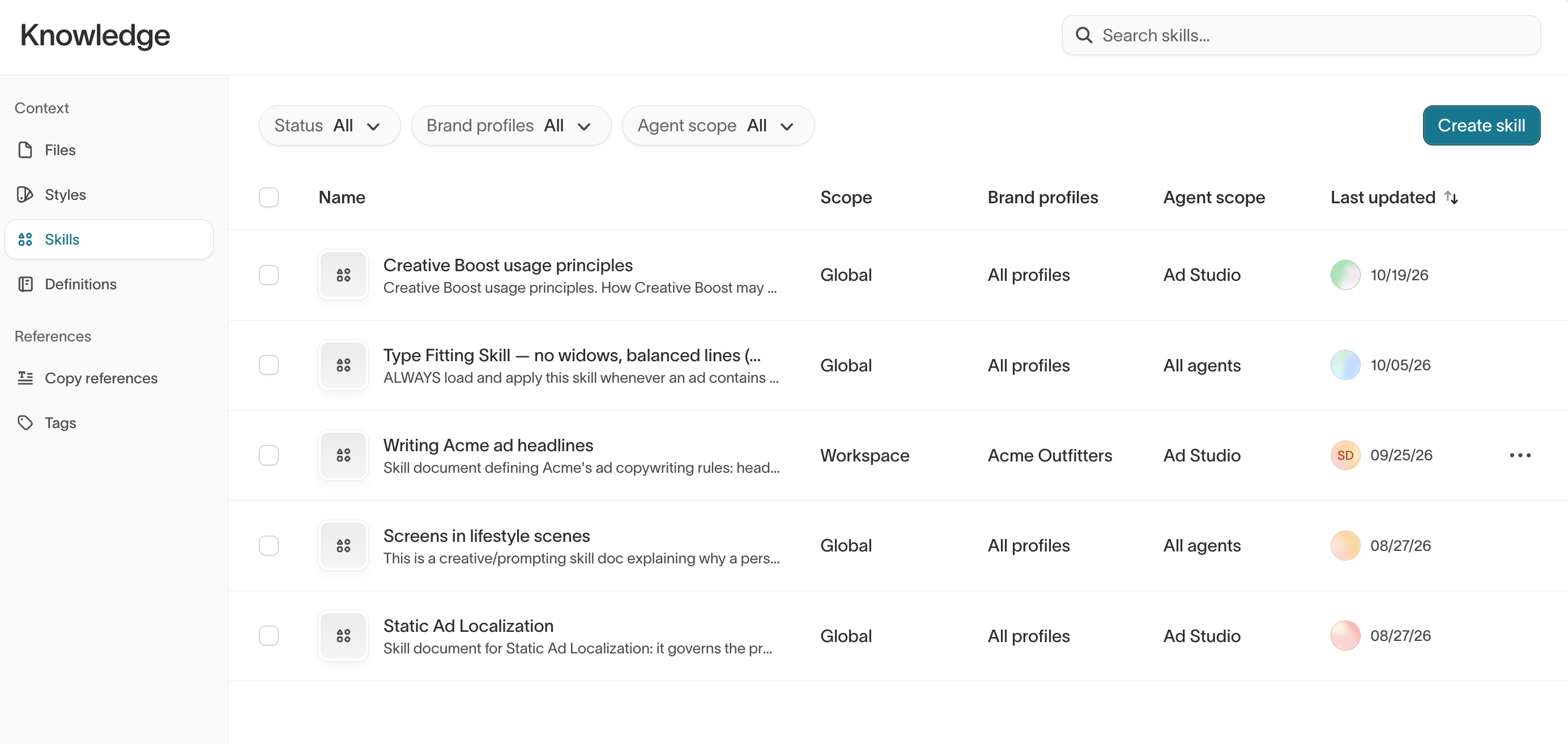
To create a skill:
- Go to Context Hub > Knowledge > Skills and select Create skill.
- Give the skill a name that describes the task.
- Under Content, write the instructions as you would explain them to a new teammate. You can also select Upload .md file to import existing instructions.
- Choose which agents and brands can use the skill. See Choose where agents use context.
- Turn on Published.
After you save the skill, Hightouch generates Usage guidance that agents use to decide when to apply it. Edit the guidance if agents don't use the skill when you expect.
Skills marked Managed by Hightouch are maintained by Hightouch. You can use them, but you can't edit them.
Review and approve definitions
Definitions were previously called memories.
Definitions help agents use business terms and metrics consistently. As agents work, they make assumptions about your data. For example, an agent might assume that an active customer is someone who purchased in the last 30 days, or that a particular table holds your revenue data. Hightouch saves these assumptions as definitions so you can review and correct them.
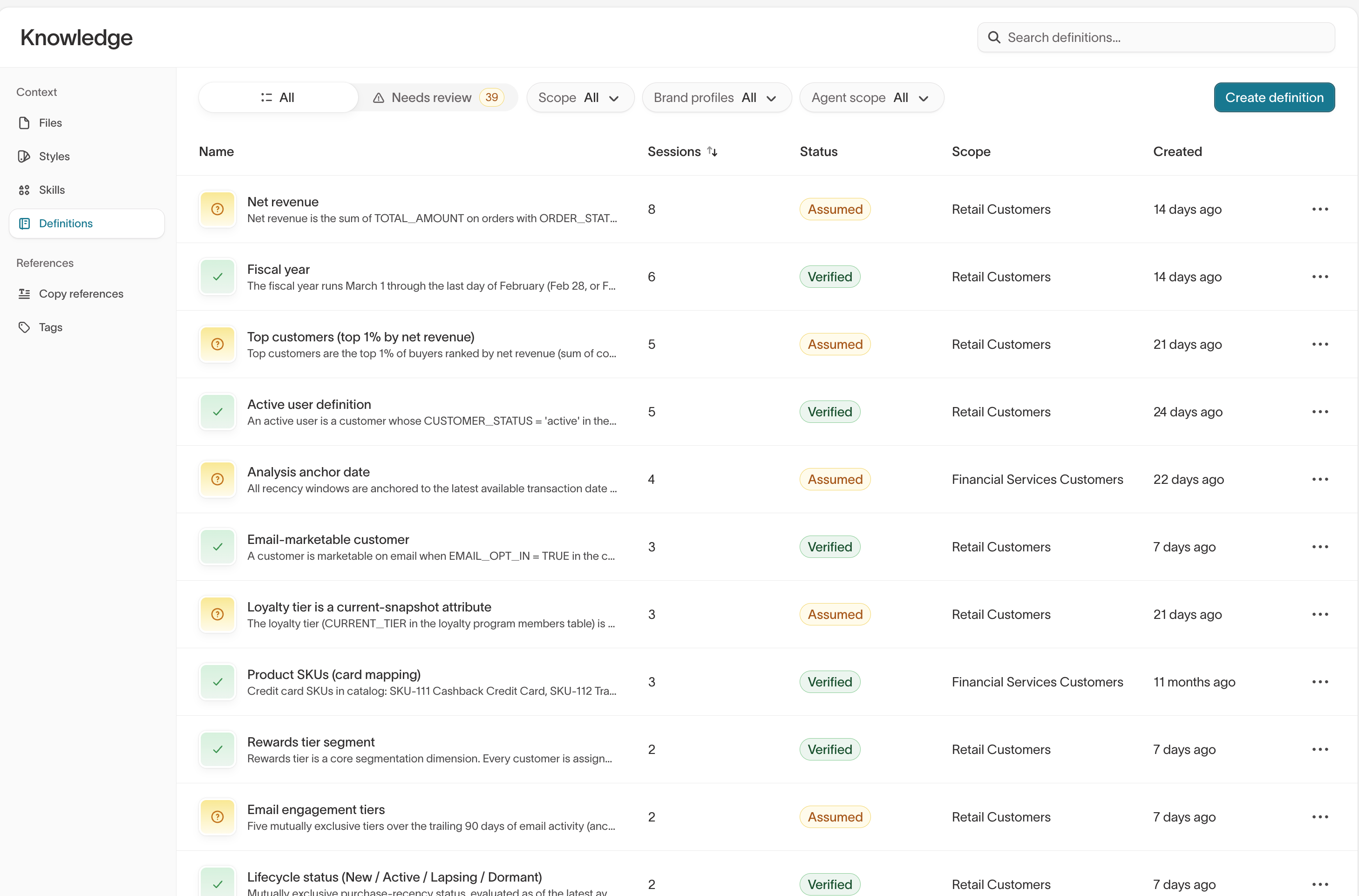
Each definition has a status that shows whether it's been approved:
- Assumed — An agent created the definition, and no one has approved it yet. Agents use it right away, but when your data contradicts it, they follow the data.
- Verified — You approved the definition. Agents use it as written and can't change it directly.
- Proposed update — An agent suggested a change to a Verified definition. Agents keep using the approved version until you apply the update.
Review agent assumptions
- Go to Context Hub > Knowledge > Definitions.
- Select Needs review to see assumptions agents have made and proposed updates to Verified definitions.
- Open an assumption and review its content. Edit it if anything needs correcting.
- If the assumption has multiple versions, select the correct one under versions to review.
- Select Approve, or Save & approve if you made changes. If you selected a version, the button identifies it, such as Approve version 2.
When an agent updates an assumption you haven't approved, Hightouch saves the changes as a new version of the same definition rather than creating a duplicate.
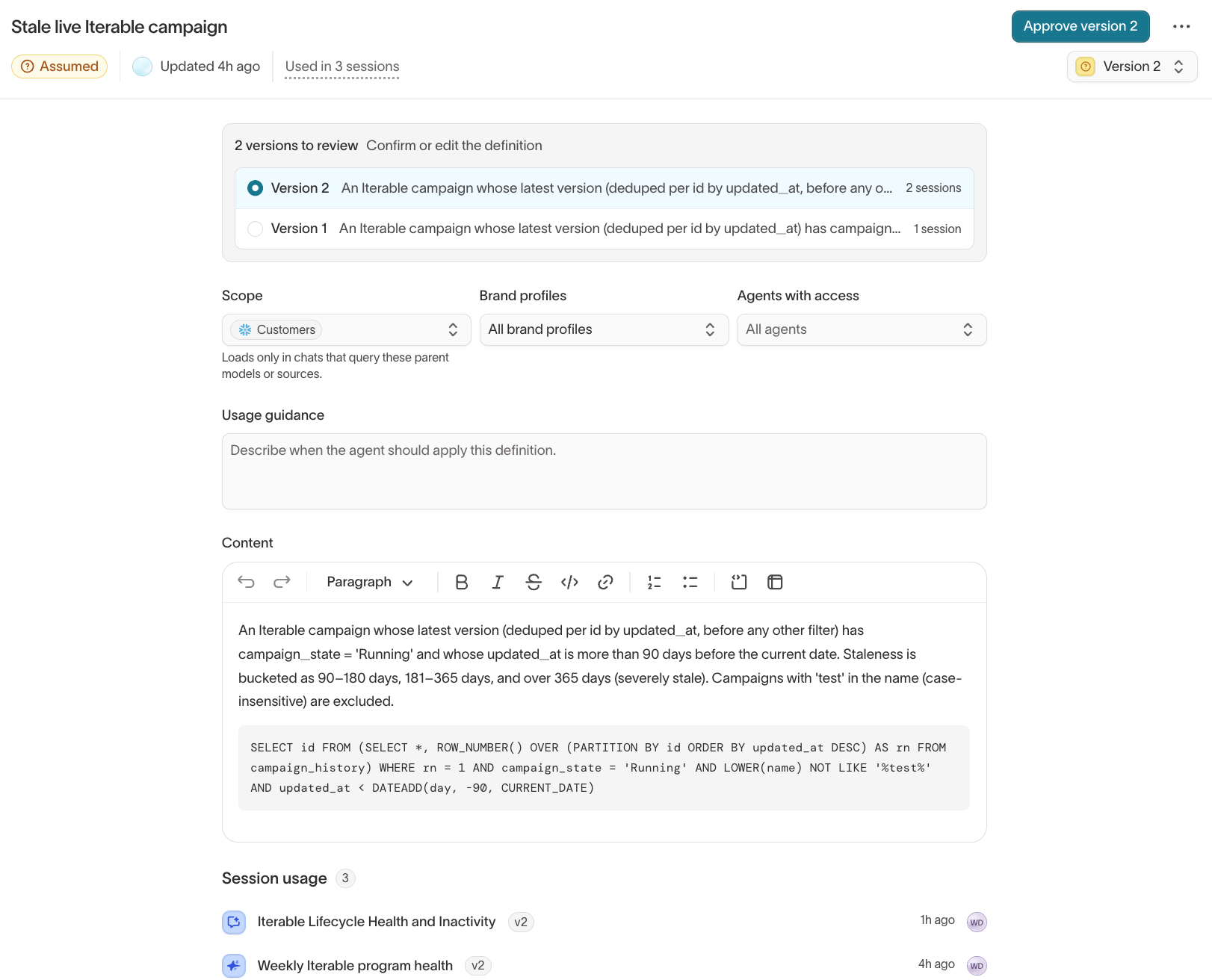
To reject an assumption, open its actions menu and delete the definition. Agents stop loading it.
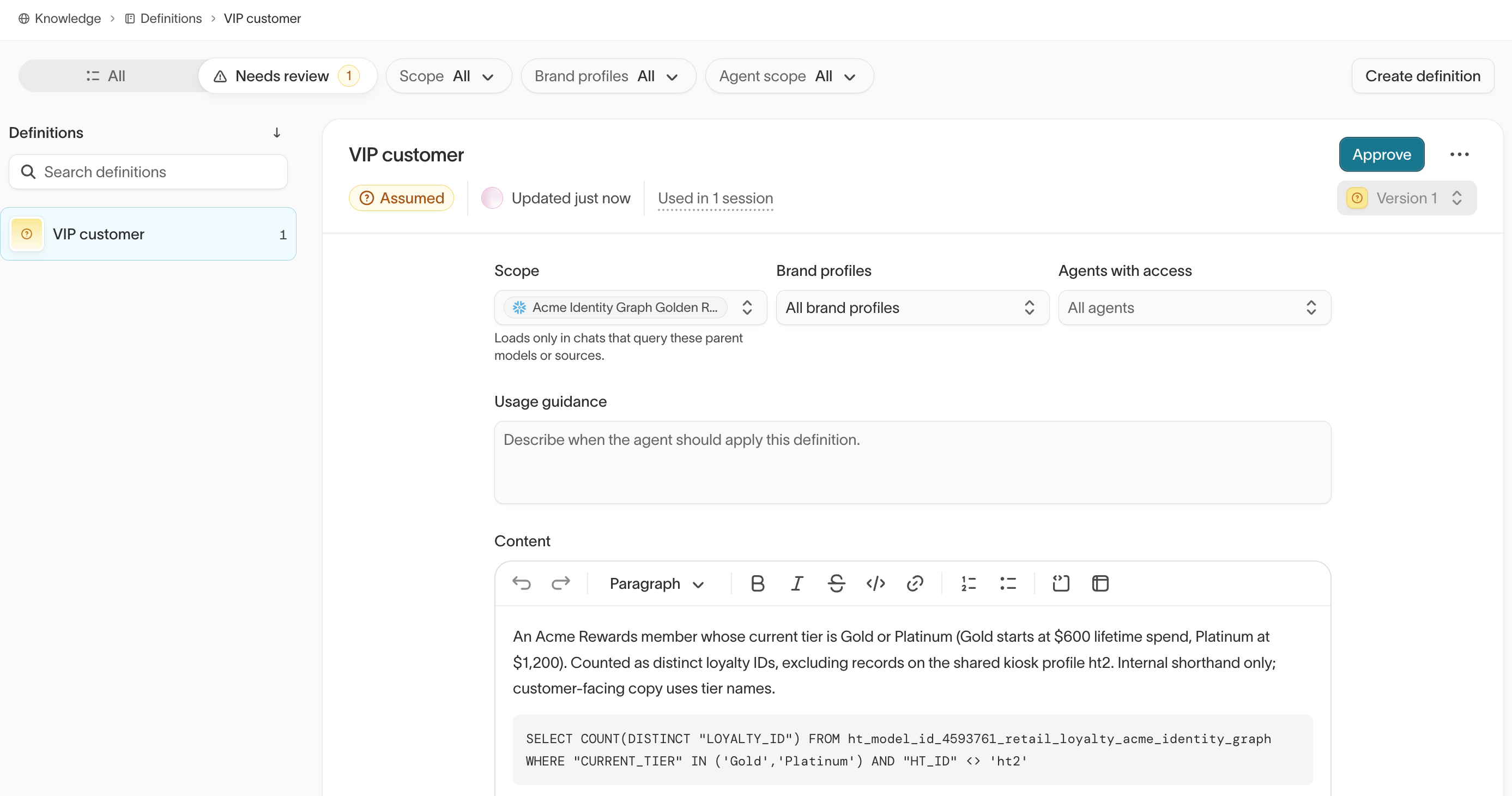
Review assumptions regularly. Agents use Assumed definitions before you approve them, so an incorrect assumption can affect later answers until you correct or delete it.
Review proposed updates
Agents can't change Verified definitions directly. Instead, they propose updates for you to review. When an agent proposes a change, the definition appears under Needs review with the status Proposed update. Agents keep using the approved definition until you apply a proposal.
To review an update:
- Go to Context Hub > Knowledge > Definitions and select Needs review.
- Open a definition with the status Proposed update.
- Under Proposed updates, select a proposal. Turn on Show changes to compare it with the current definition.
- Choose what to do:
- Apply the proposal — Select the apply button, such as Apply proposal 1, to replace the current definition. Applying one proposal discards any other proposals for that definition.
- Keep the current definition — Select Dismiss all and confirm to discard every proposed update.
Dismissing proposals can't be undone.
Add a definition
Create a definition yourself when you already know how your team defines a term, instead of waiting for an agent to assume it. For example, if your team counts an active customer as someone who purchased within the last 30 days, add that definition so agents use it.
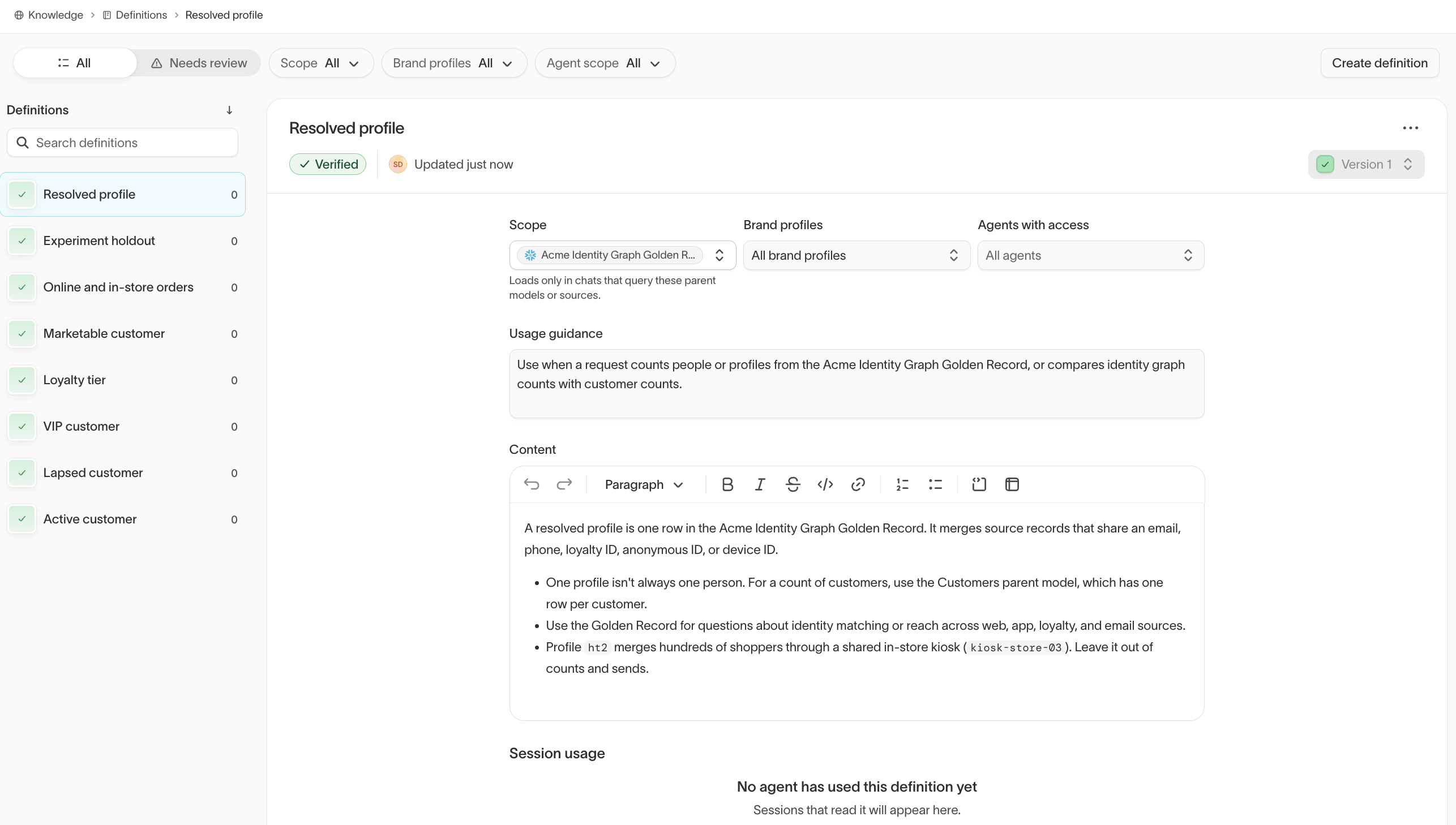
Go to Context Hub > Knowledge > Definitions and select Create definition. Definitions you create start as Verified, so agents use them without further approval.
Choose when a definition applies
Some terms mean different things depending on the data. For example, an active customer might mean a purchase in the last 30 days for one parent model, and a login in the last 7 days for another.
Use Scope to control when agents load a definition:
- Workspace — In every chat.
- Scoped to parent models or sources — Only in chats that query the parent models or sources you select.
You can also choose which agents and brands use the definition, and add Usage guidance that explains when it applies. See Choose where agents use context.
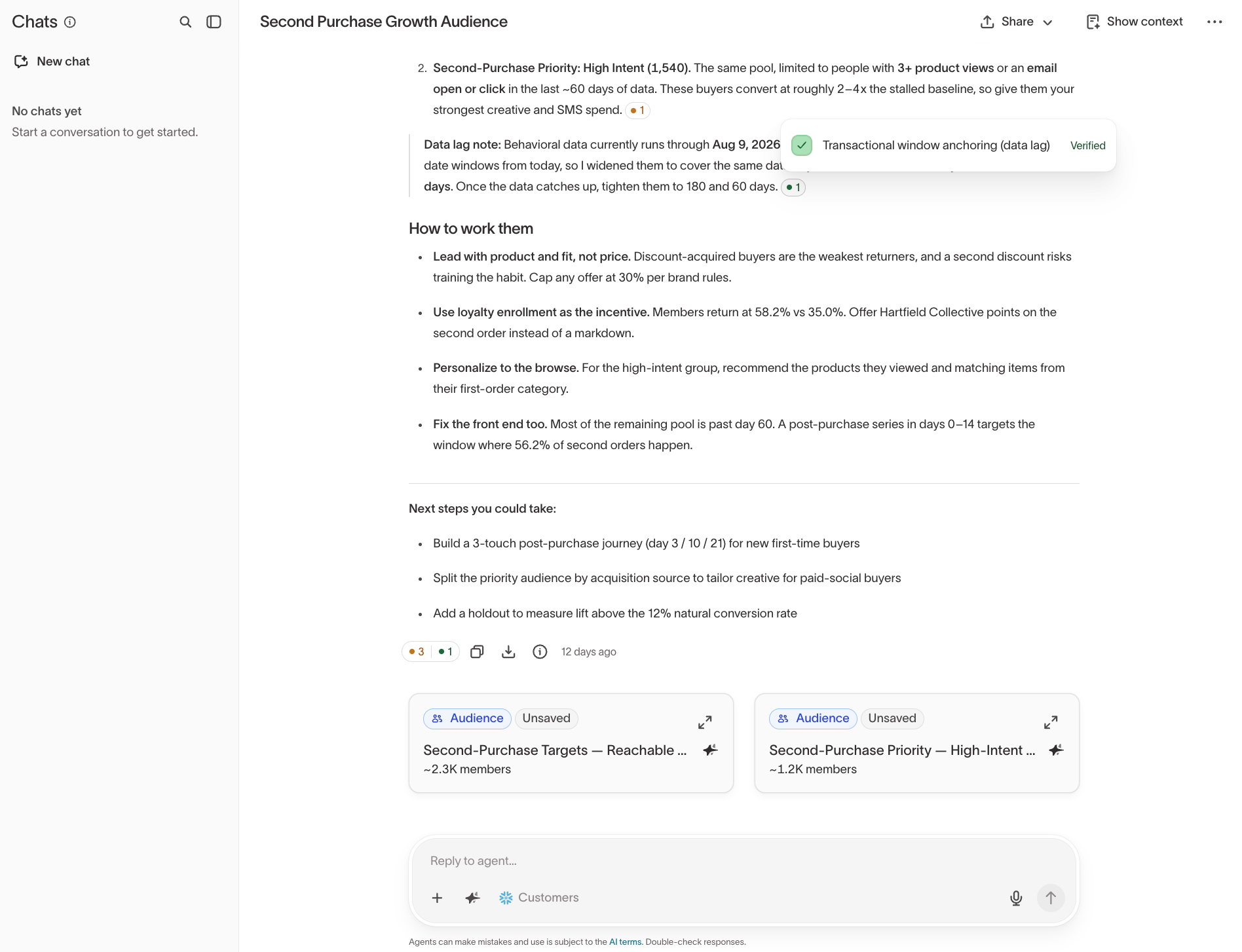
See which definitions an agent used
Check which definitions an agent used before you act on an answer. In an Agents chat, answers that used definitions show indicators that count them by status:
- Beside a paragraph or list item — The definitions used for that part of the answer.
- At the end of the answer — Every definition used in the answer.
Hover over an indicator to see the definitions, or select it to open them in the Session context panel.
To review every definition used in a chat:
- Select Show context in the chat header.
- In the Session context panel, find the definitions the agent used under Definitions. The panel also lists the data and files the agent used.
- Select a definition to read it.
- Select View in Context Hub to approve or edit it.
If a definition shows Updated since the agent used it, the agent used an earlier version when it answered.
Run a context review
As your business changes, the context you've given agents can go out of date or contradict itself. For example, you might change how you calculate revenue but leave the older calculation in another file, or two definitions might describe the same metric differently.
Run a context review to have the Context Agent check your files, definitions, styles, and brand profiles for outdated or conflicting information. When two sources disagree, it asks you which one is correct before it suggests a change. Run a review when you change your metrics, data models, attribution rules, or business processes.
- Open the Context Agent chat panel.
- Select Run a context review.
- Review the Suggested changes. Each suggestion is marked as new, an update, or a deletion.
- Select Review on a suggestion to see what it would change.
- Select Approve or Reject for each suggestion. To act on every suggestion at once, select Approve all or Reject all.
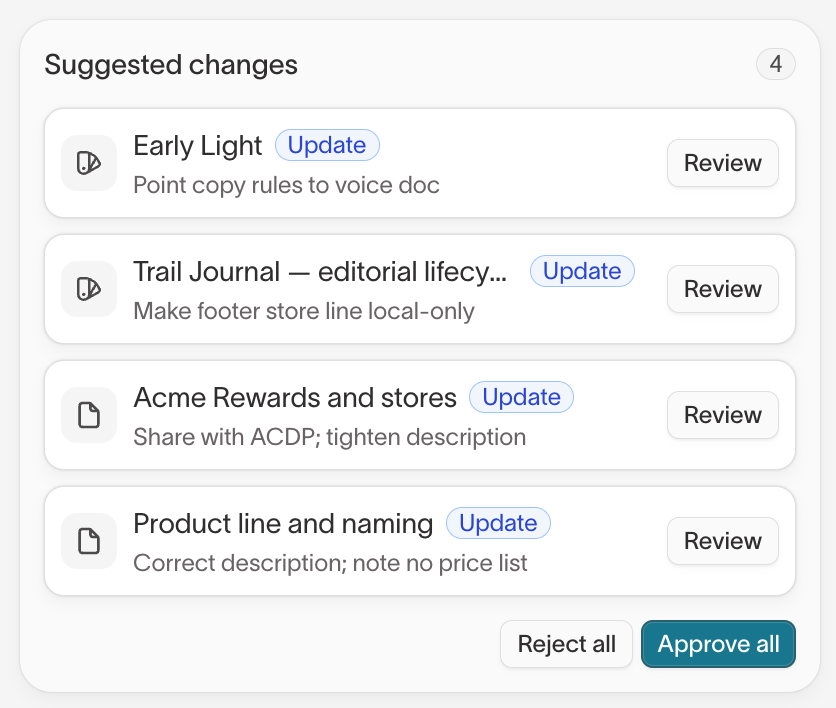
Changes take effect only after you approve them. You can keep chatting with the Context Agent to refine a suggestion before you approve it.
Next steps
- Sync external context to bring metric and dimension definitions from Snowflake or Databricks into Knowledge instead of writing them as files.
- Set guardrails to turn a review skill into an agent reviewer for ad creative.