| Audience | Data and platform teams who configure sampling; marketers who use sampled previews |
| Prerequisites |
|
Sampling speeds up audience and trait previews by materializing a small subset of your schema models into your warehouse. It changes previews only, not the full audience Hightouch evaluates when a sync or journey runs.
When to use sampling
You don't need sampling for every schema. Enable it when previewing audiences or traits against your full dataset is too slow, or uses more warehouse compute than you want during interactive building.
Sampling is worth turning on when:
- your parent or related models hold very large datasets
- marketers wait too long for audience or trait previews
- interactive previews consume significant warehouse compute
It gives marketers a faster way to explore audience logic before running it against the full dataset.
A sampled preview is an approximation. Use it to iterate on audience logic, not to read an exact final count.
How it works
Sampling creates smaller copies of your schema models as dedicated tables in your warehouse, then queries those when generating previews:
- A configurable percentage of rows is sampled from your parent model.
- For each sampled parent row, the corresponding rows in related and event models are also materialized.
- The sampled tables are stored in the Hightouch Planner schema of your warehouse.
- Sampling runs on a configurable schedule in the background.
Because each sampled child row ties back to a sampled parent row, previews for traits and audiences can still evaluate relationships while querying far less data.
Sampling requires write access to your warehouse and only works if the Lightning sync engine is enabled.
Supported warehouses
Sampling is supported on the following sources:
The sampled tables are materialized in the Hightouch Planner schema.
Set up sampling
Configure sampling from the parent model whose audiences and traits you want to preview.
- Open a parent model in your schema.
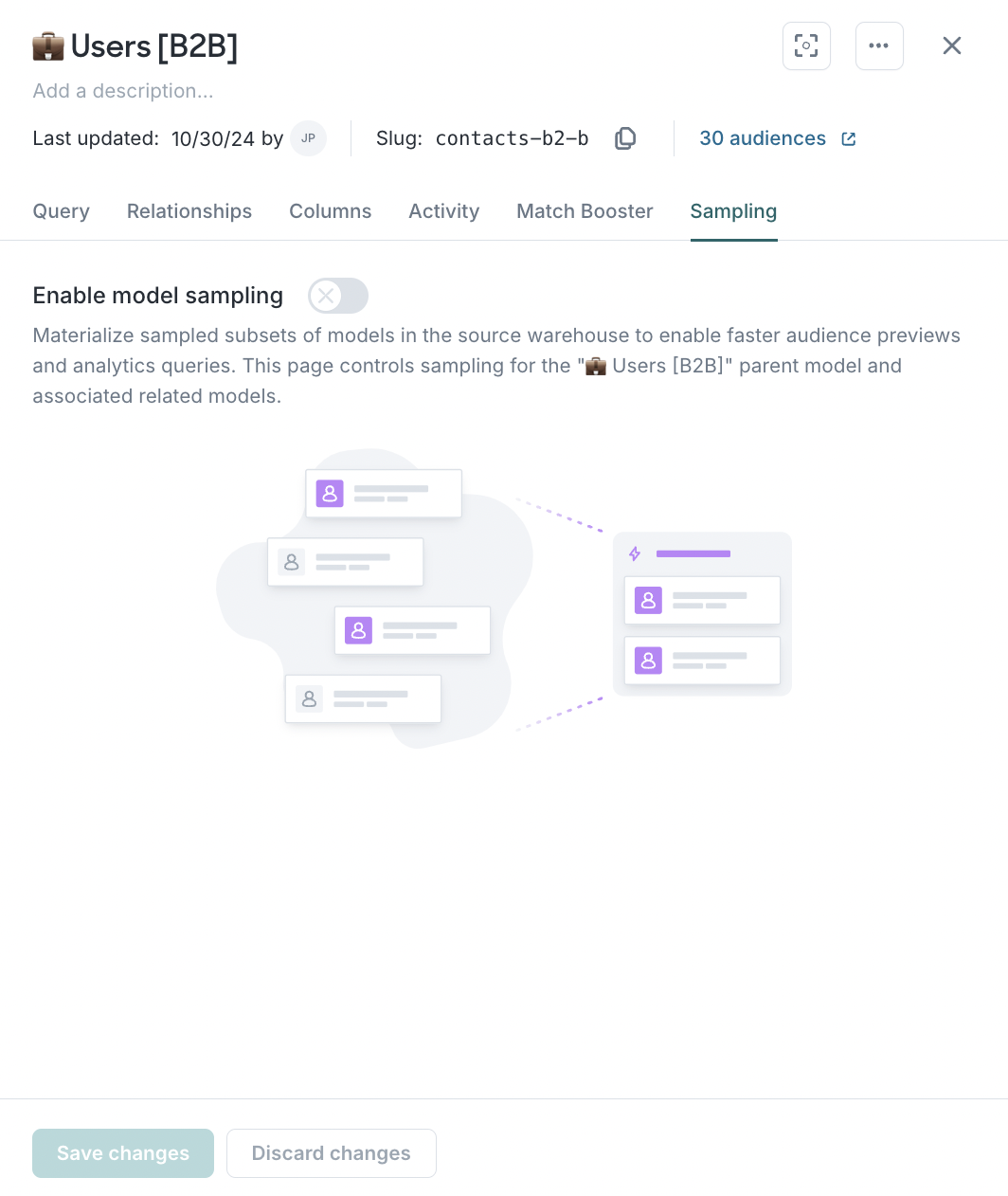
- Go to the Sampling tab.
- Toggle sampling on.
| Disabled | Enabled |
|---|---|
 | 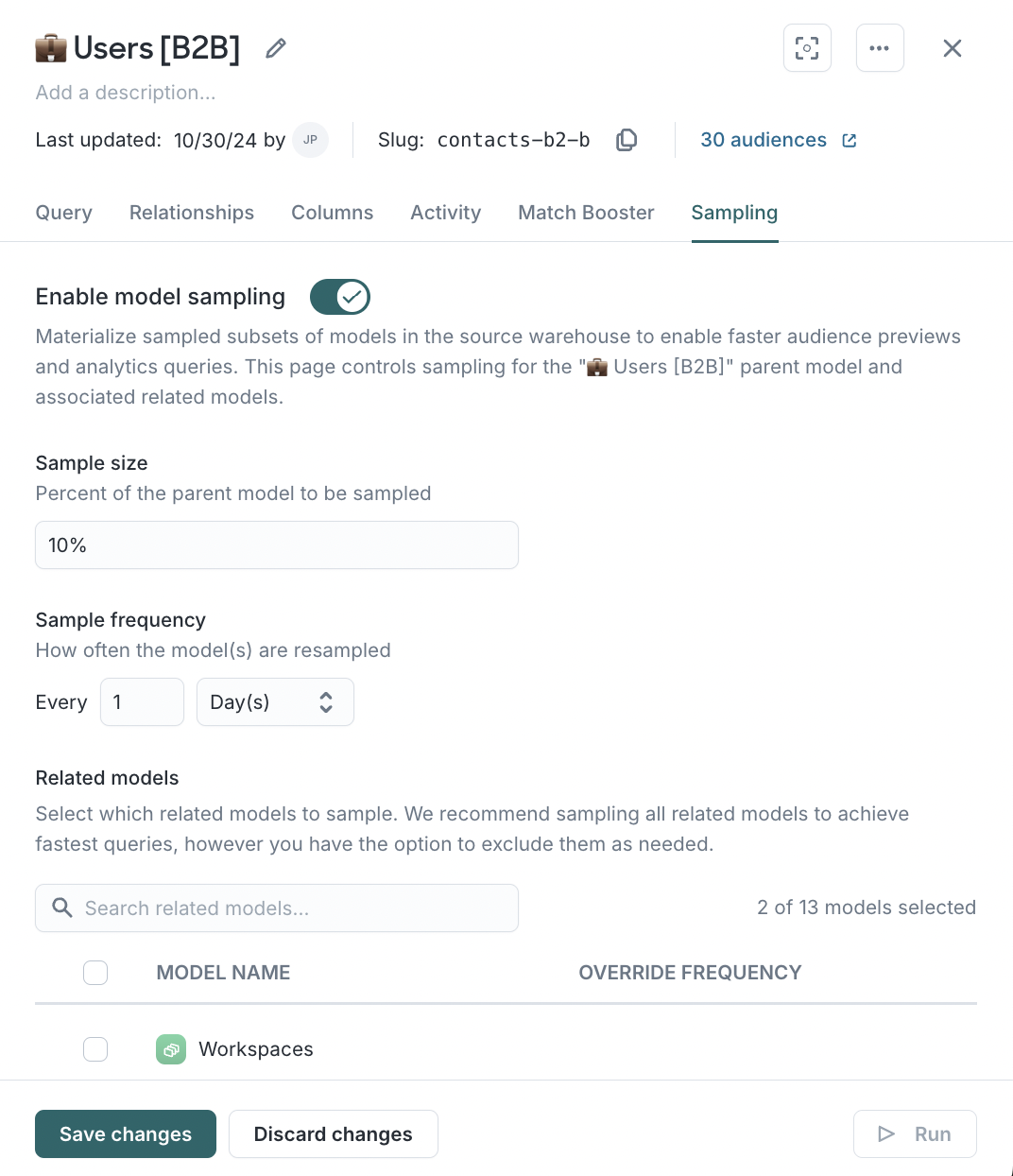 |
- Configure the settings, then select Save & run sampling:
- Sample size — The percentage of your parent model (and any related models) that gets sampled.
- Sample frequency — How often the models get resampled. This schedule also applies to related models unless you override it.
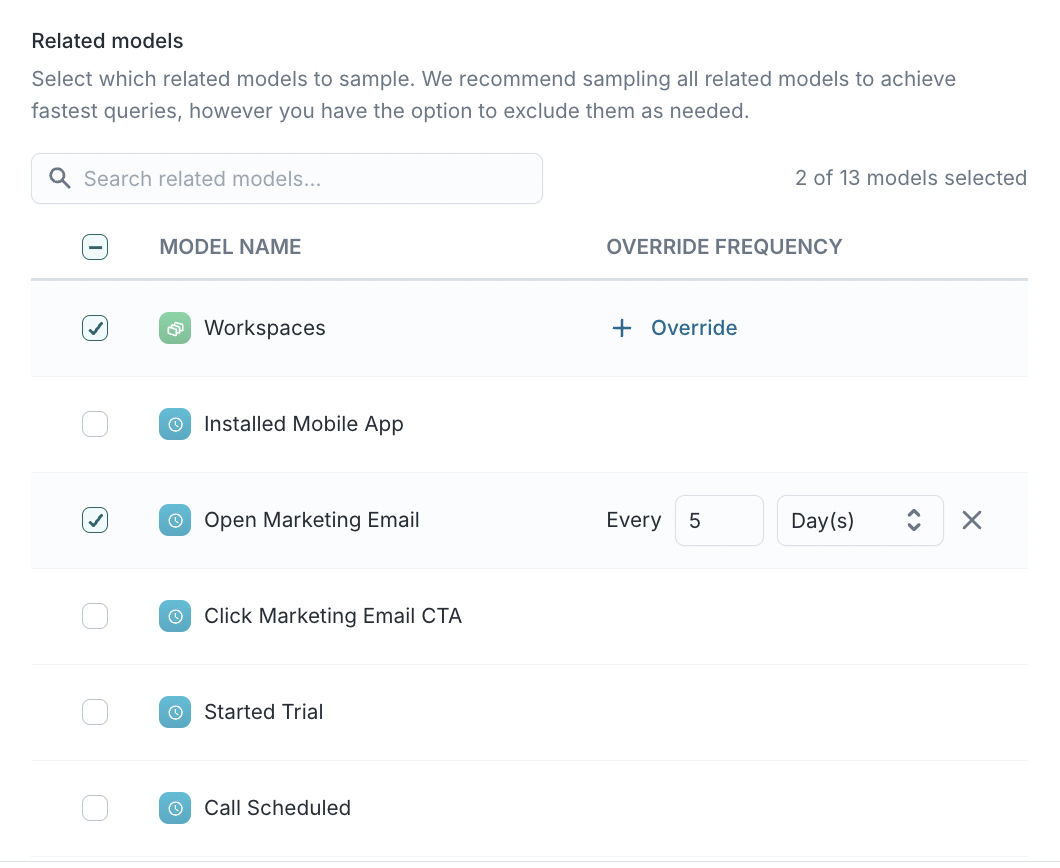
- Related models — Lists the related and event models. Select the checkbox next to each related model you want to sample.
By default, each related model inherits the parent model's sampling schedule. Override it only when a related model needs a different refresh frequency.
Check the latest sampling run
The Last run table shows the status of the most recent run for each sampled model. If a run failed, hover over the status to see the error message. A preview can't use sampled data until its sampling run has completed successfully.
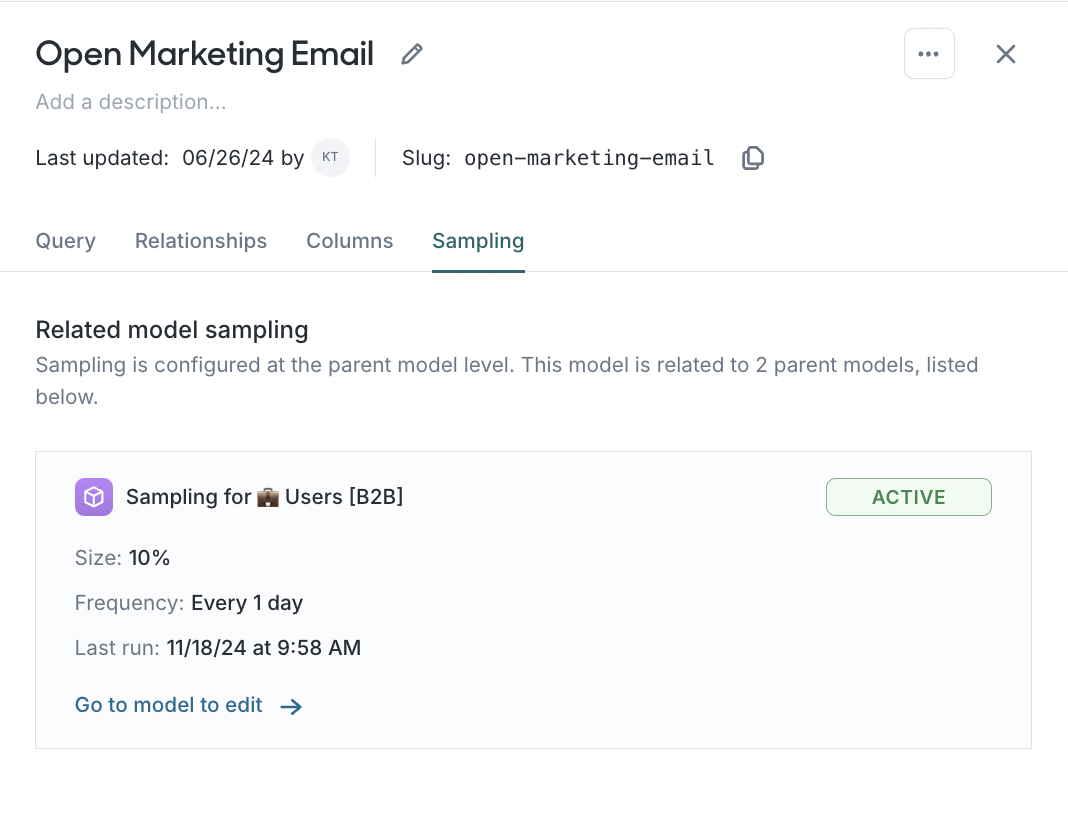
Check related model sampling
You configure related model sampling through the parent model, but you can confirm a related model is being sampled from its own Sampling tab:
Use sampled data in a preview
After sampling is enabled and at least one run has completed, a sampling toggle appears next to the preview button in the audience and trait builders. Turn it on when you want a faster, approximate preview.
Audience previews
With the toggle on, Customer Studio evaluates the audience against the sampled data and marks the result as an approximation.
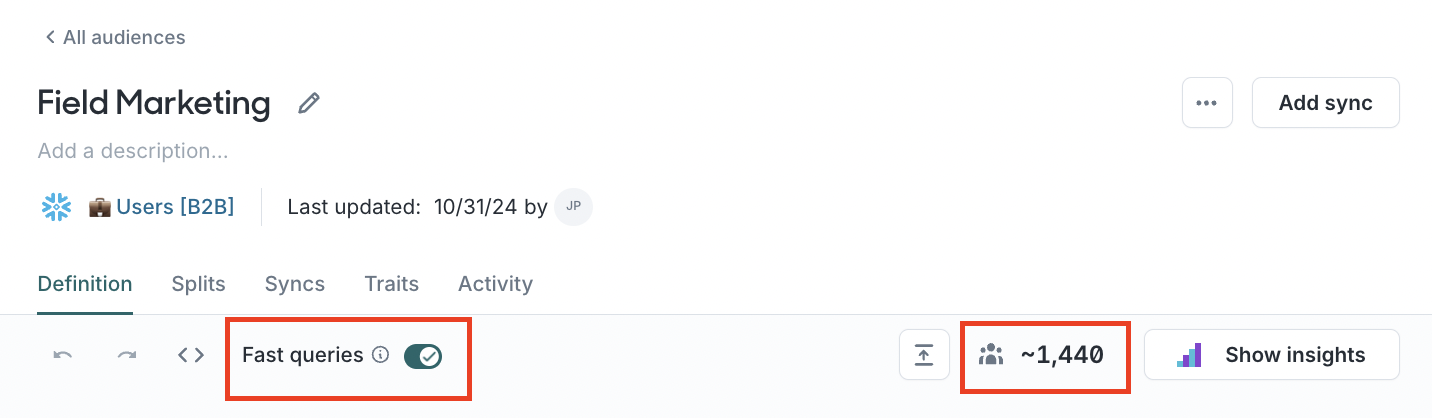
Use a sampled preview to check questions such as:
- Does the filter logic behave the way I expect?
- Am I using the right event, trait, or related model?
- Is the audience roughly the size I expected?
Before a decision that depends on an exact count, preview or run the audience against the full dataset.
Trait previews
Traits use the same sampling toggle, next to the trait preview button. Sampling is useful for testing a trait definition quickly before evaluating it across the full parent model.
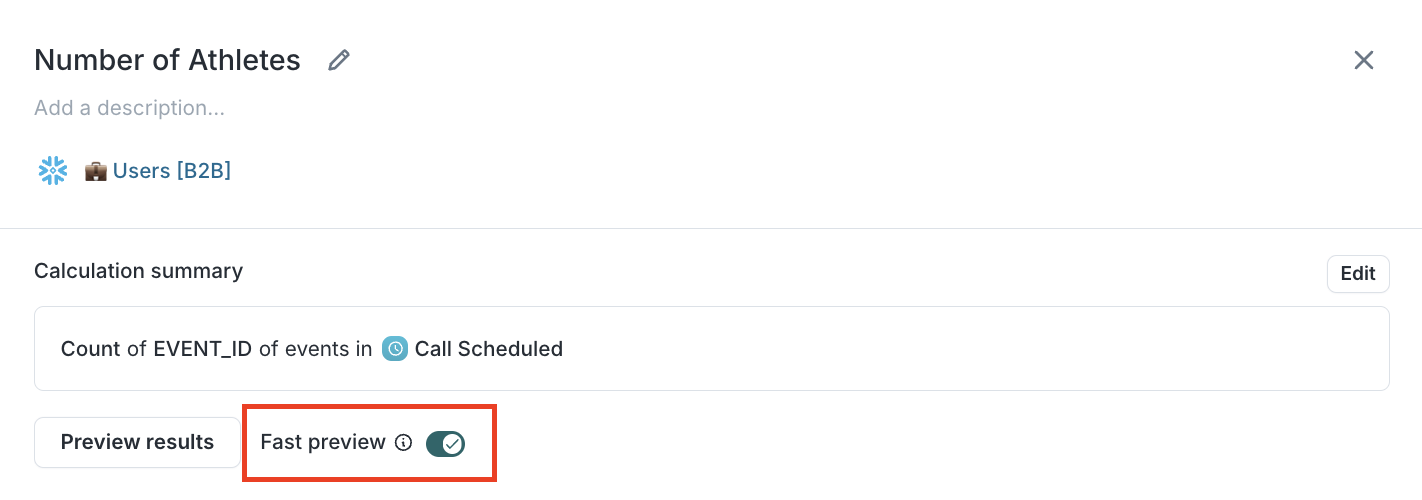
Sampling doesn't change your final audience
Sampling is a preview optimization. It doesn't limit an audience to the sampled rows. When Hightouch evaluates the audience for a sync or journey, it uses the full schema data, not the sample.
The distinction matters most for marketers: a sampled preview answers "does this logic look right?", not "what is the exact final count?" Confirm any count-dependent decision against the full dataset before you activate.
Next steps
- Define your schema to enable sampling from a model's Sampling tab.
- Build an audience to preview a segment against the sampled model.
- Lightning Sync Engine to review the prerequisite that powers sampling, snapshots, and journeys.