
Deliver better support by making user events and attributes available inside Zendesk
Zendesk is a customer service platform for managing support tickets and customer profiles. Hightouch syncs users, organizations, tickets, custom objects, and organization memberships from your warehouse to Zendesk, so agents work with customer data that's current and complete.
Supported syncing
| Sync Type | Description | Supported Sync Modes | API Reference |
|---|---|---|---|
| Users | Create and update end users and agents | Upsert, Update | Create or update many users → |
| Organizations | Create and update the organizations your users belong to | Upsert, Update | Create or update organizations → |
| Tickets | Create and update support tickets | Upsert, Update | Create and update many tickets → |
| Organization Memberships | Add users to organizations | Upsert | Create many memberships → |
| Custom objects | Create and update records of the custom objects defined in your account | Upsert, Update | Manage custom object records → |
| Legacy custom objects | Create and update records of legacy (Sunshine) custom objects | Upsert, Update | Manage legacy object records → |
For more information about sync modes, refer to the sync modes docs.
Connect to Zendesk
Connect with Sign in with Zendesk (OAuth, recommended) or a Zendesk API token.
Zendesk is retiring API token authentication: new API tokens can't be created after October 27, 2026, and all remaining tokens stop working on April 30, 2027. If your destination uses an API token, migrate to OAuth before then to keep your syncs running.
Sign in with Zendesk (recommended)
Select Sign in with Zendesk, enter your Zendesk subdomain—for example, mycompany if your Zendesk URL is mycompany.zendesk.com—and complete the sign-in. The account you sign in with must be a Zendesk admin, since the connection needs read and write access to the API.
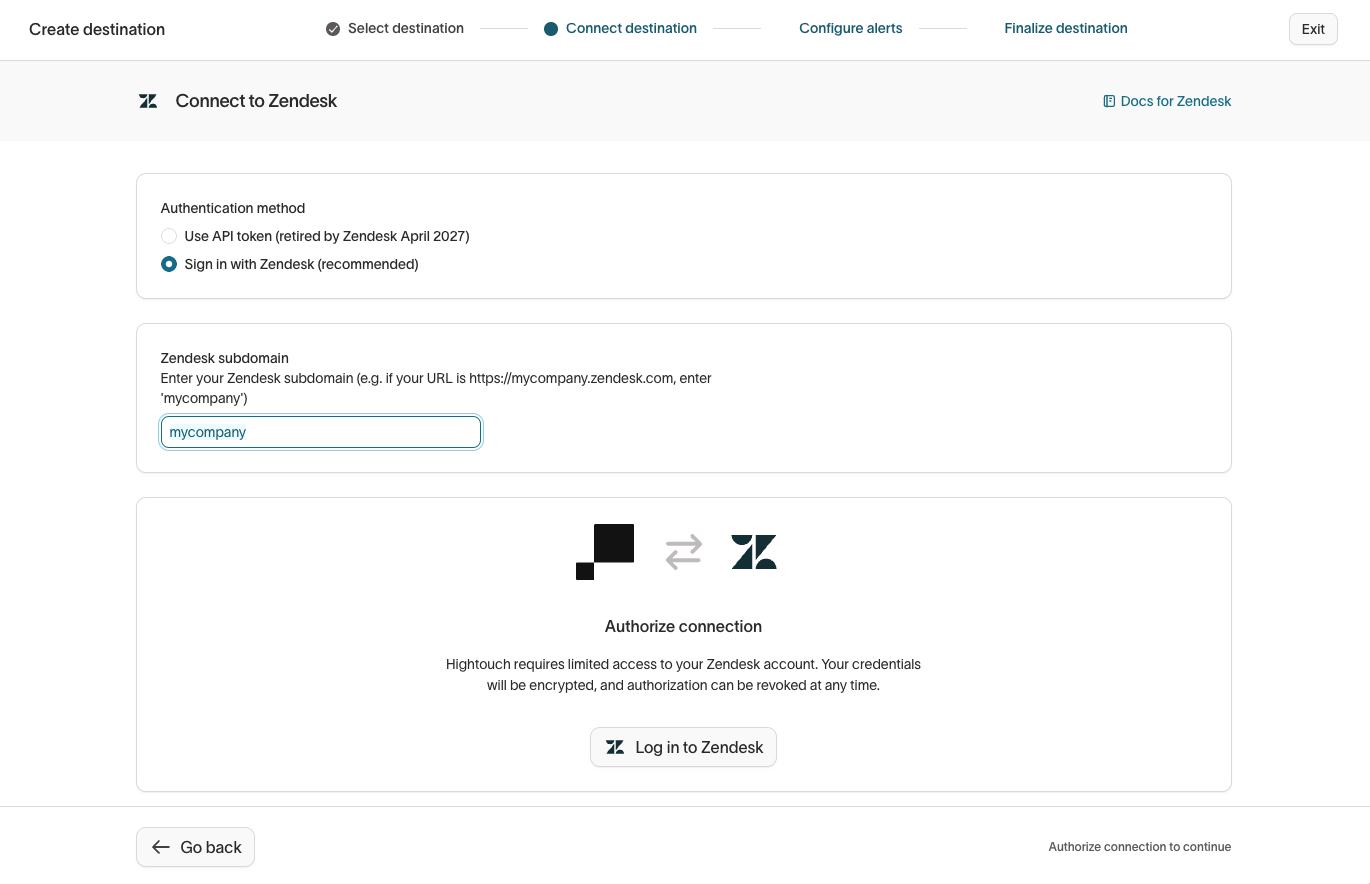
Zendesk issues Hightouch short-lived access tokens that refresh automatically. You don't need to rotate any credentials.
API token
Zendesk is retiring this method; use Sign in with Zendesk instead.
In Zendesk, go to Admin Center > Apps and integrations > Zendesk API and add a new API token for Hightouch. Make sure Token access is enabled.
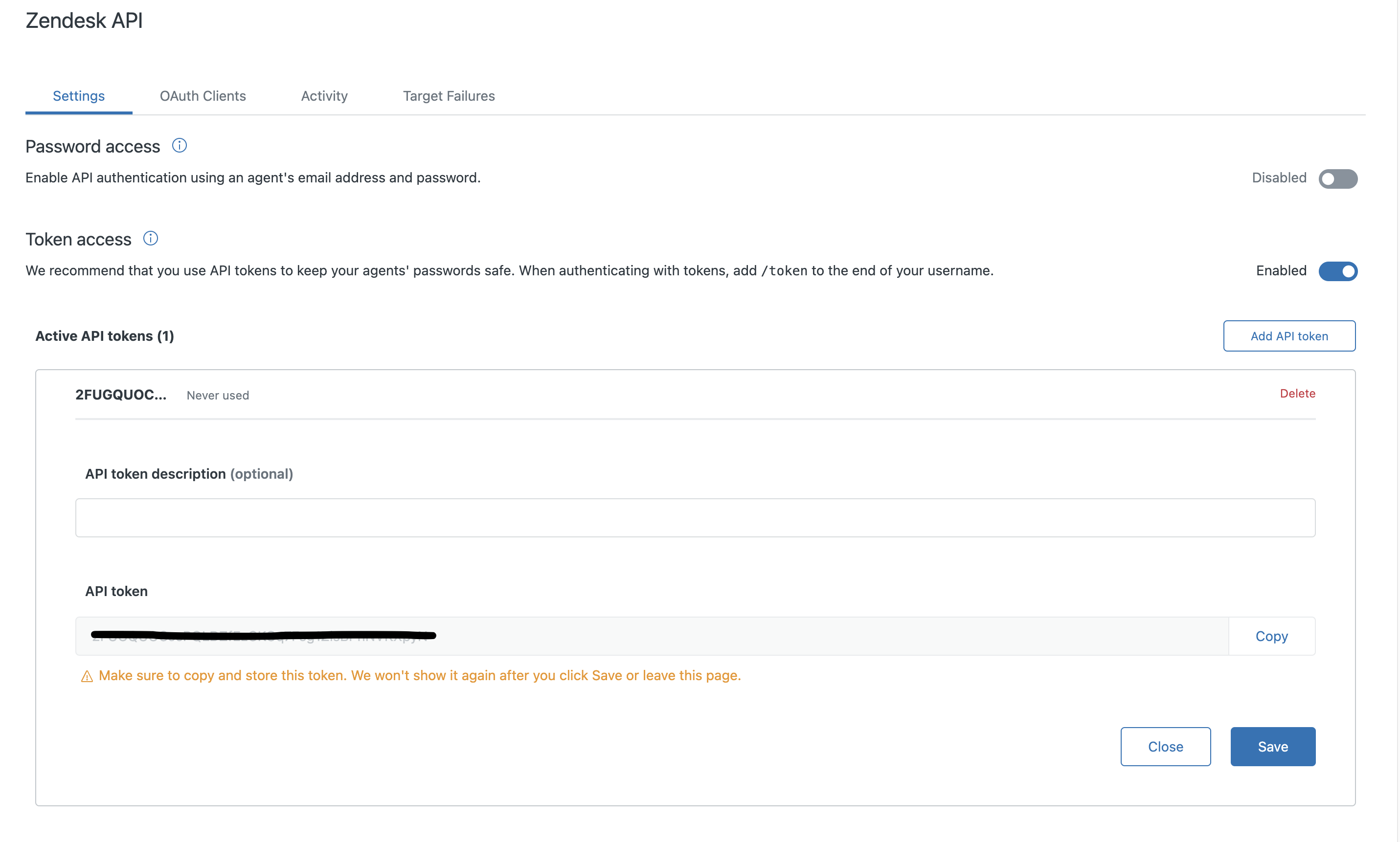
Copy the API token and fill in the fields in the Hightouch destination setup:
- API token: the token from Zendesk
- Email: the email you use to log in to Zendesk
- Support URL: the URL of your Zendesk support site, including
https://—for example,https://hightouch.zendesk.com
Migrate from API token to OAuth
Open the destination's Configuration tab in Hightouch, select Sign in with Zendesk, and complete the sign-in as a Zendesk admin. Your syncs and field mappings don't change.
Sync configuration
Users
Use Upsert when Hightouch should create missing users and update existing ones. Use Update when Hightouch should only modify users that already exist.
Zendesk may send a verification email when a sync creates a user, depending on your workspace settings. To suppress it, keep the default option that marks created users as verified; choose Use the Zendesk default behavior if you want Zendesk to decide whether to send verification emails.
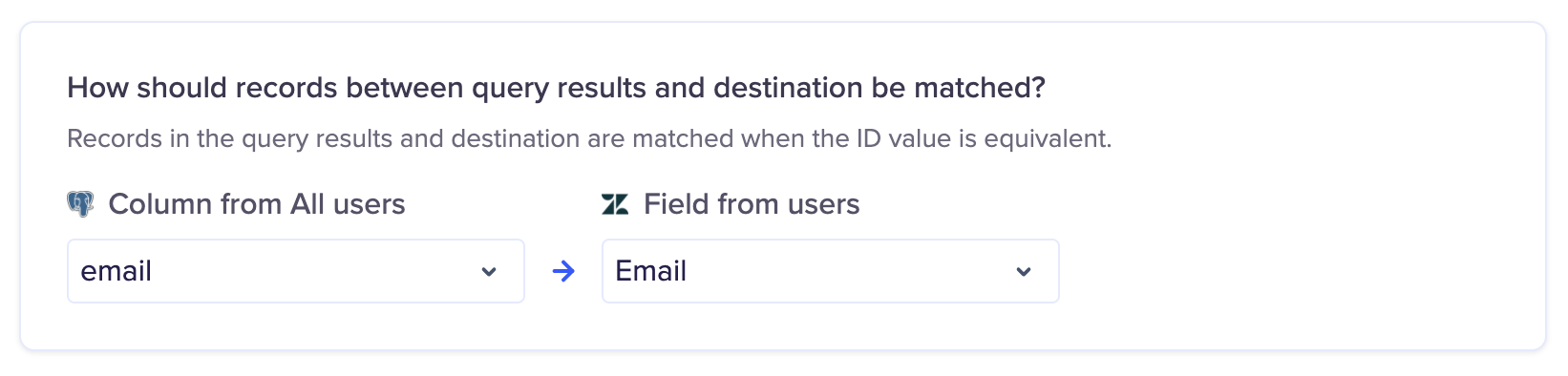
Record matching
Match rows from your model to Zendesk users on external ID, Zendesk ID, email, or a custom field.
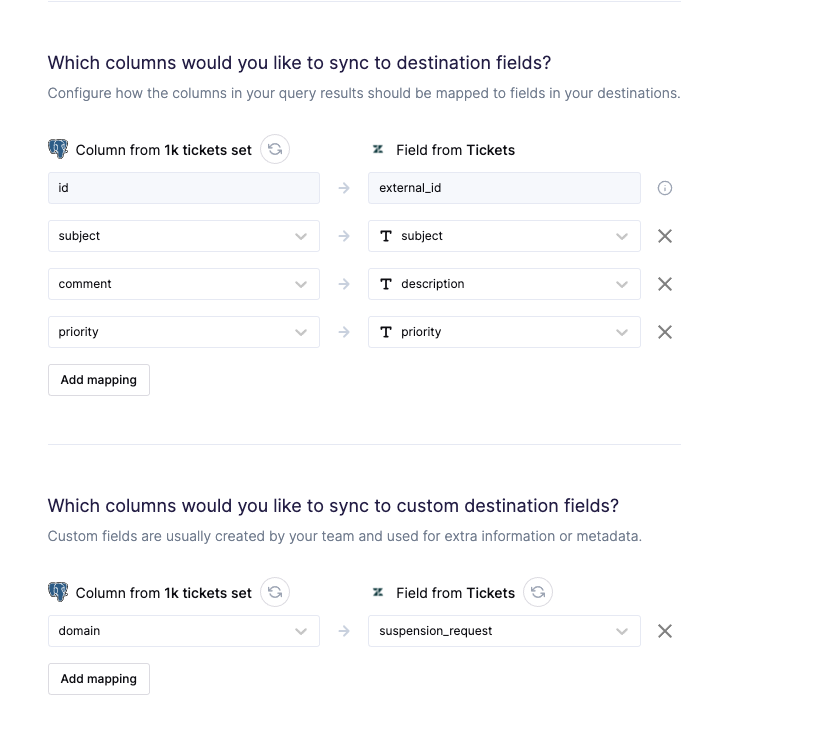
Field mappings
Map columns to Zendesk's default user fields or to custom fields. To add custom fields to users, refer to the Zendesk docs.
Organizations
Use Upsert to create and update organizations, or Update to only modify existing ones. Match on external ID, Zendesk ID, or a custom field, and map columns to default or custom organization fields.
Tickets
Use Upsert to create and update tickets, or Update to only modify existing ones. Match on external ID, Zendesk ID, or a custom field, and map columns to default or custom ticket fields.
Organization Memberships
Organization memberships add users to organizations, so records are matched by both the user_id and organization_id.
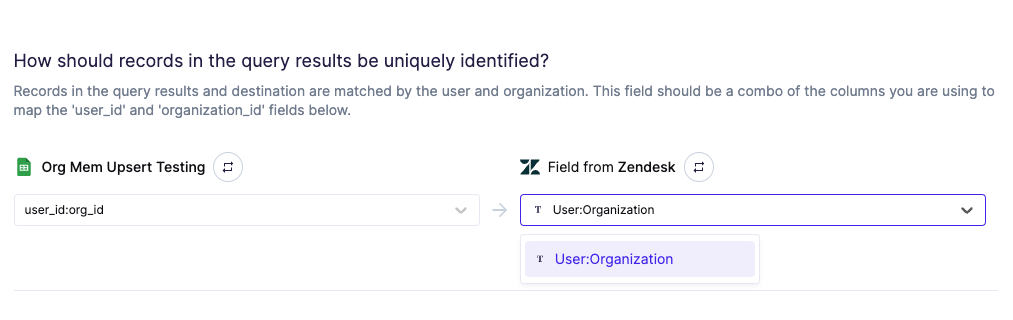
The matching field should combine the user and organization columns you use in the field mappings. For example, if you match users by email and organizations by external_id, this field should be user_email:org_externalId. Your model should look similar to this:

Don't edit the user or organization value of an existing membership row. To change a membership, remove the old row from your model and add a new one.
Custom objects
If your Zendesk account has custom objects, they appear in the object dropdown with the prefix (Custom).
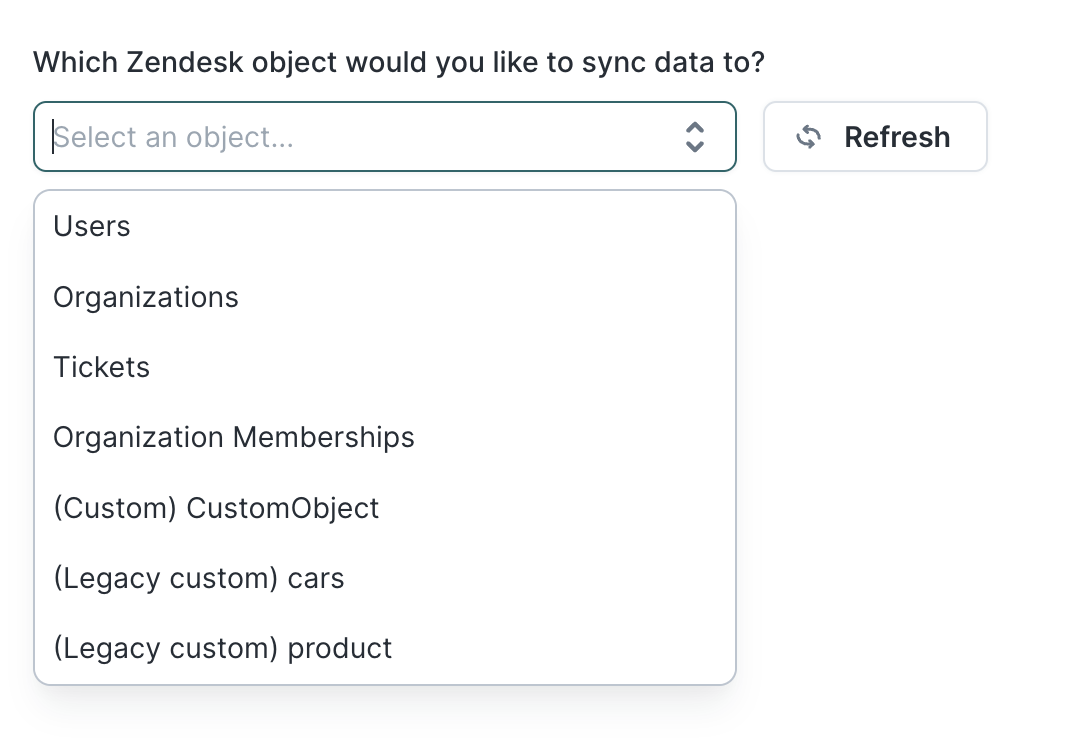
Map columns to any property in the object's schema.
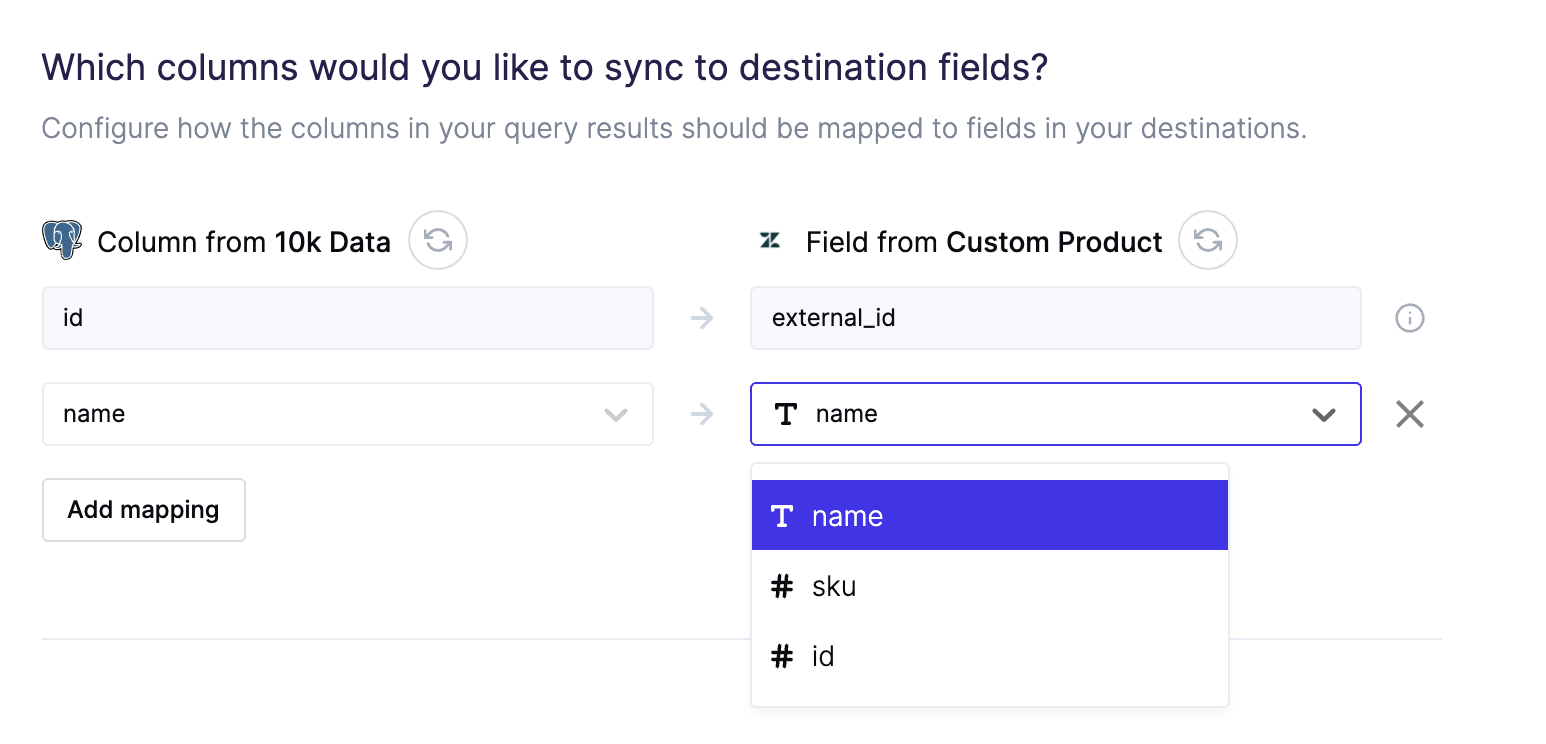
You can also create associations between existing object records using a predetermined relationship type; the associations appear in the field mappings. For more details, refer to the Zendesk docs.
Legacy custom objects
Legacy custom objects appear in the object dropdown with the prefix (Legacy custom). Zendesk is sunsetting legacy custom objects in favor of the current custom objects framework, so prefer custom objects for new syncs.
Configure delete behavior
In Upsert mode, you can delete the Zendesk record or clear its synced fields when a row leaves your model. In Update mode, clearing synced fields is the only delete option. Organization membership syncs can delete the membership.
Configure search batch size
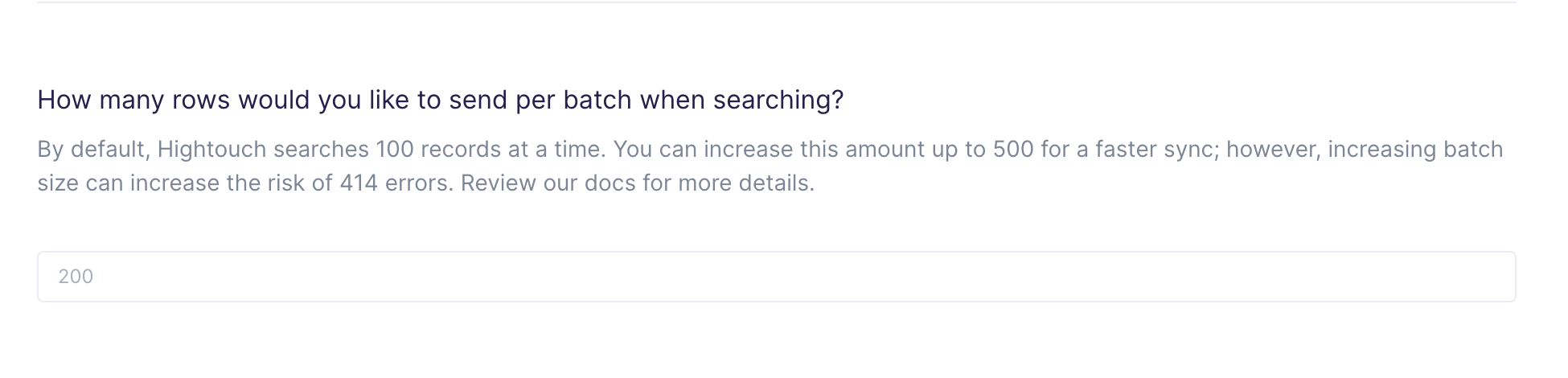
Zendesk's search API can return up to 1,000 results, but by default Hightouch searches for 100 records at a time. You can increase this up to 500 for a faster sync.
Larger batches increase the risk of a 414 - Long URI error. If you see these errors, lower the batch size.
Tips and troubleshooting
For Hightouch platform error codes related to Zendesk, see Error codes: other destinations.
Validate your setup
Synced users and organizations appear in Zendesk under Customers and Organizations in the agent workspace, and a user's organization memberships appear on their profile. Custom object records appear in Admin Center > Objects and rules > Custom objects.
Common errors
To date, our customers haven't experienced any errors while using this destination. If you run into any issues, please don't hesitate to . We're here to help.
Live debugger
Hightouch provides complete visibility into the API calls made during each of your sync runs. We recommend reading our article on debugging tips and tricks to learn more.
Sync alerts
Hightouch can alert you of sync issues via Slack, PagerDuty, SMS, or email. For details, please visit our article on alerting.