| Audience | Data teams, platform admins |
| Prerequisites | A connected data source such as Snowflake, BigQuery, or Databricks |
General models make warehouse data available to agents when that data doesn't belong in audience building or sync workflows. Use them for tables such as sales data, product catalogs, web analytics, or competitive datasets that agents need to answer questions.
Decide whether to use a general model
Agents can already query the parent, related, and event models in your Customer Studio schema. You only need a general model when an agent needs to query a warehouse table that isn't part of the Customer Studio schema and that marketers shouldn't use to build or sync audiences.
For example, suppose marketers build audiences of customers from a Users parent model. An agent answering questions about those customers can already use the user attributes, purchases, and events connected to that schema.
If the same agent also needs to answer:
- How did website traffic change after the campaign?
- Which products had the largest increase in sales?
- How do our results compare with an external benchmark?
you can expose the web analytics, sales, or benchmark tables that hold that data as general models. Agents can query those tables without them appearing as options in the audience builder.
| If the data should... | Use... |
|---|---|
| Represent the people, accounts, or other records marketers build audiences of | Parent model |
| Add records associated with an audience member, such as purchases or subscriptions | Related model |
Represent timestamped behavior, such as Product Viewed | Event model |
| Be available to agents but not used to build or sync audiences | General model |
Don't create a general model for a table that's already available through your Customer Studio schema. Agents can query existing parent, related, and event models.
How general models work
A general model makes a warehouse table queryable by agents. For each general model, you can configure:
- A name and description that explain what the data represents.
- Column visibility and privacy that set which columns agents can query or return.
- Permissions that restrict access by user or group.
You can also add several warehouse tables at once with bulk creation.
Unlike a parent model, a general model doesn't require a primary key, because Hightouch doesn't use it to represent individual audience members or sync records.
General models don't appear in the audience builder or as models you can configure for audience syncs.
Add general models
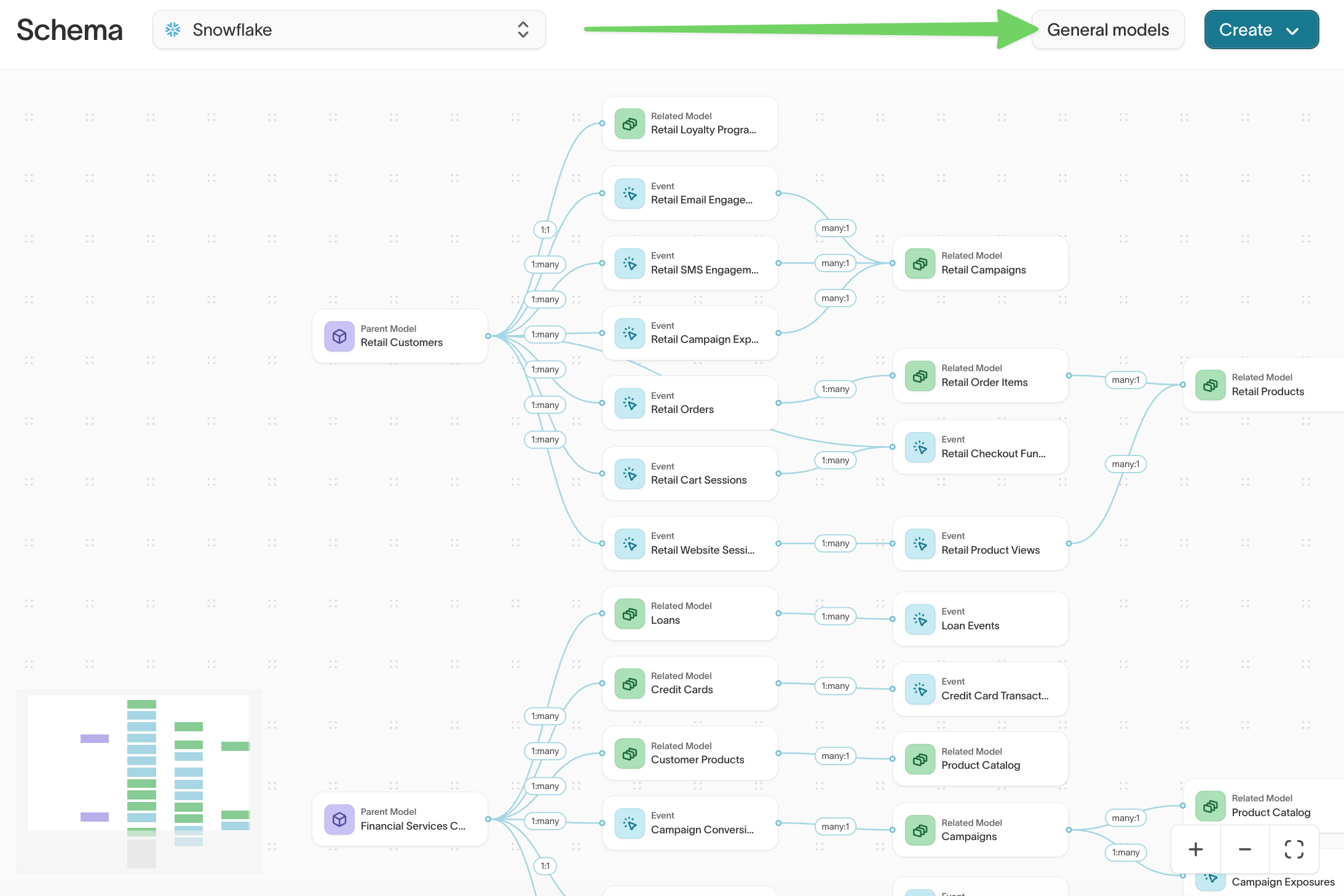
1. Open general models
Go to Customer Studio > Schema, then open General models.
2. Choose warehouse tables
Select Add general model. Browse or search your warehouse, then select one or more tables that agents should be able to query.
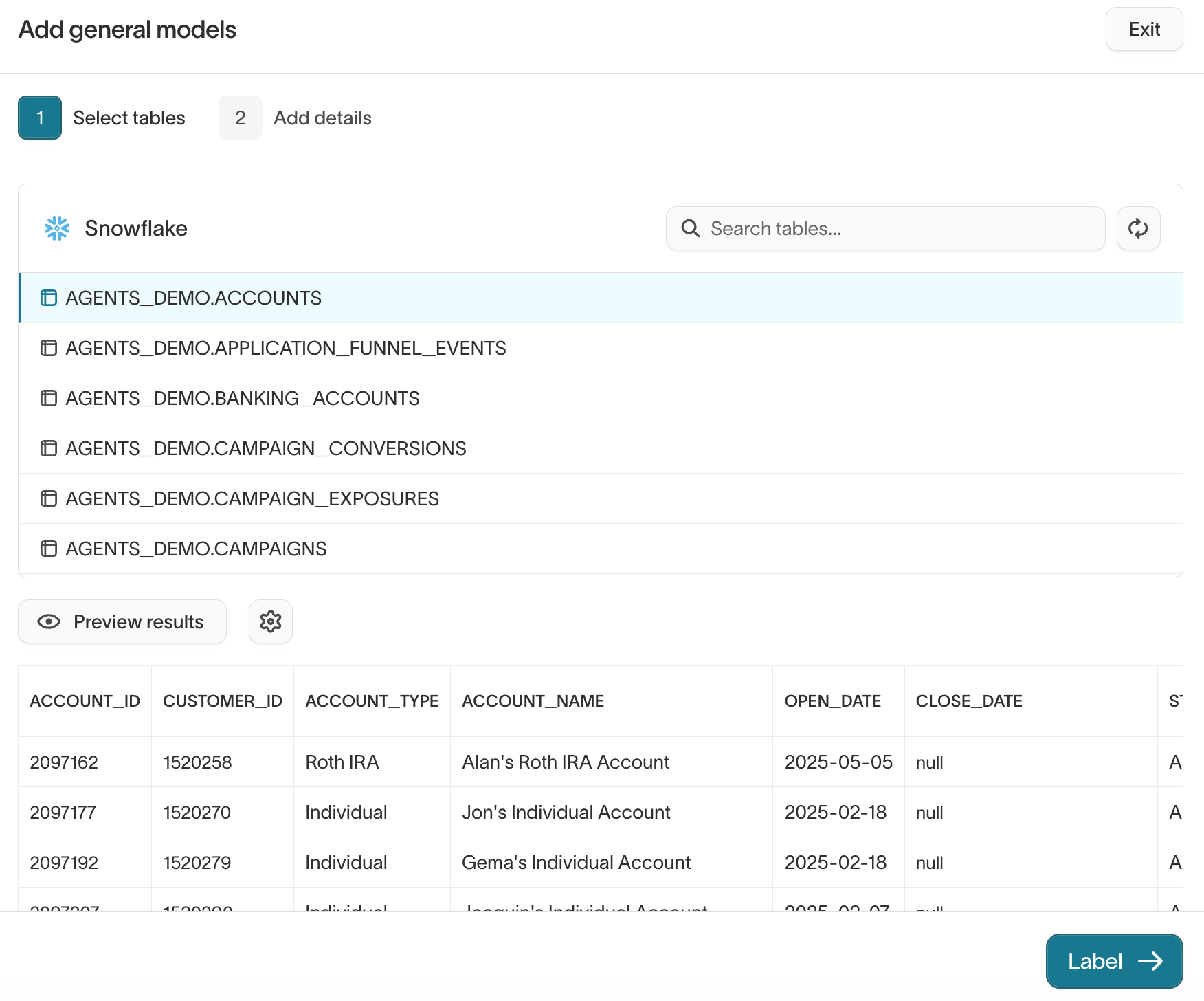
Only add tables that agents need to answer expected questions. You don't need to expose every table in your warehouse.
3. Name and describe each model
For each table, review its name and optionally add a description.
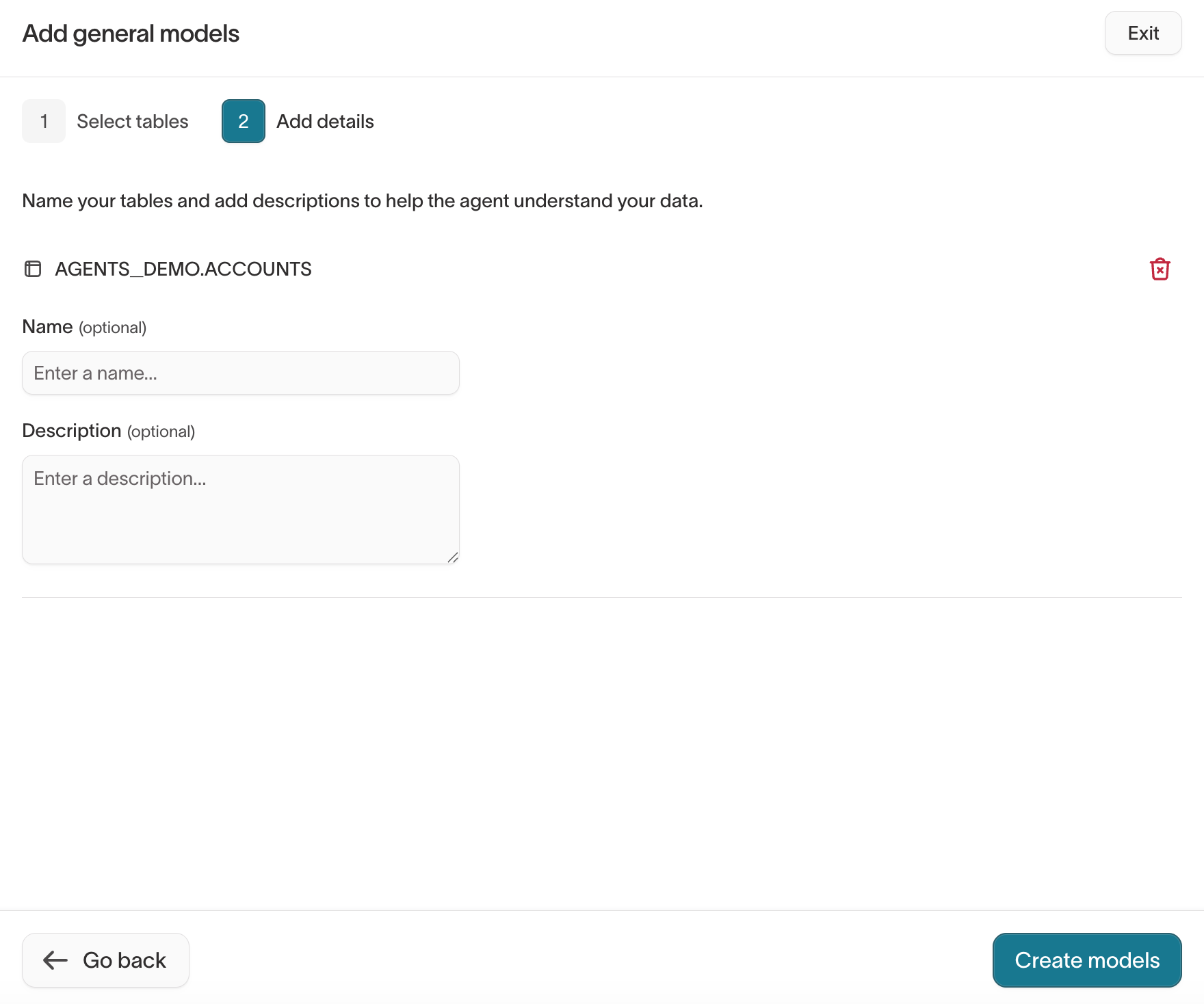
Describe the table in terms of what it contains and when an agent should use it. For example:
Daily website sessions and conversions by marketing channel. Use this model for questions about traffic, channel performance, and conversion trends.
This tells the agent what the table contains and when to use it. A warehouse name such as fct_web_daily doesn't.
Select Create models when you're finished.
4. Review the columns agents can query
After creating a model, select it from the General models list.
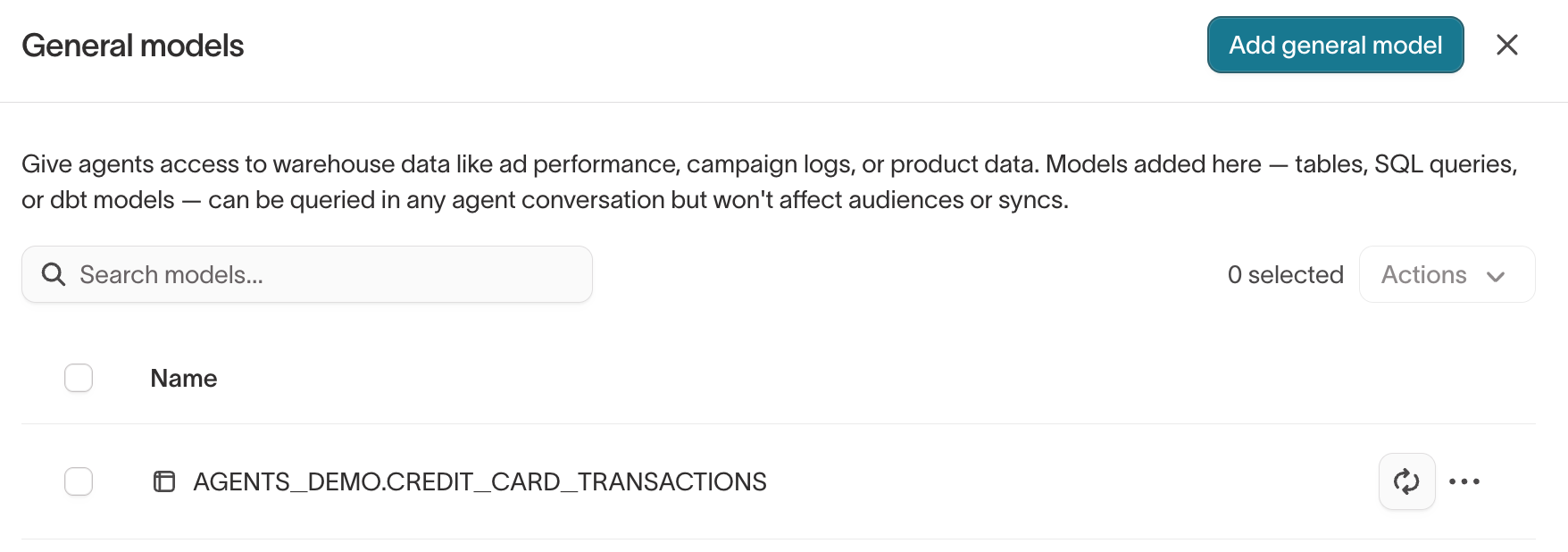
Review:
- Columns — choose which columns agents can query or return, and add descriptions where the meaning isn't obvious.
- Description — explain what the model represents and the kinds of questions it can help answer.
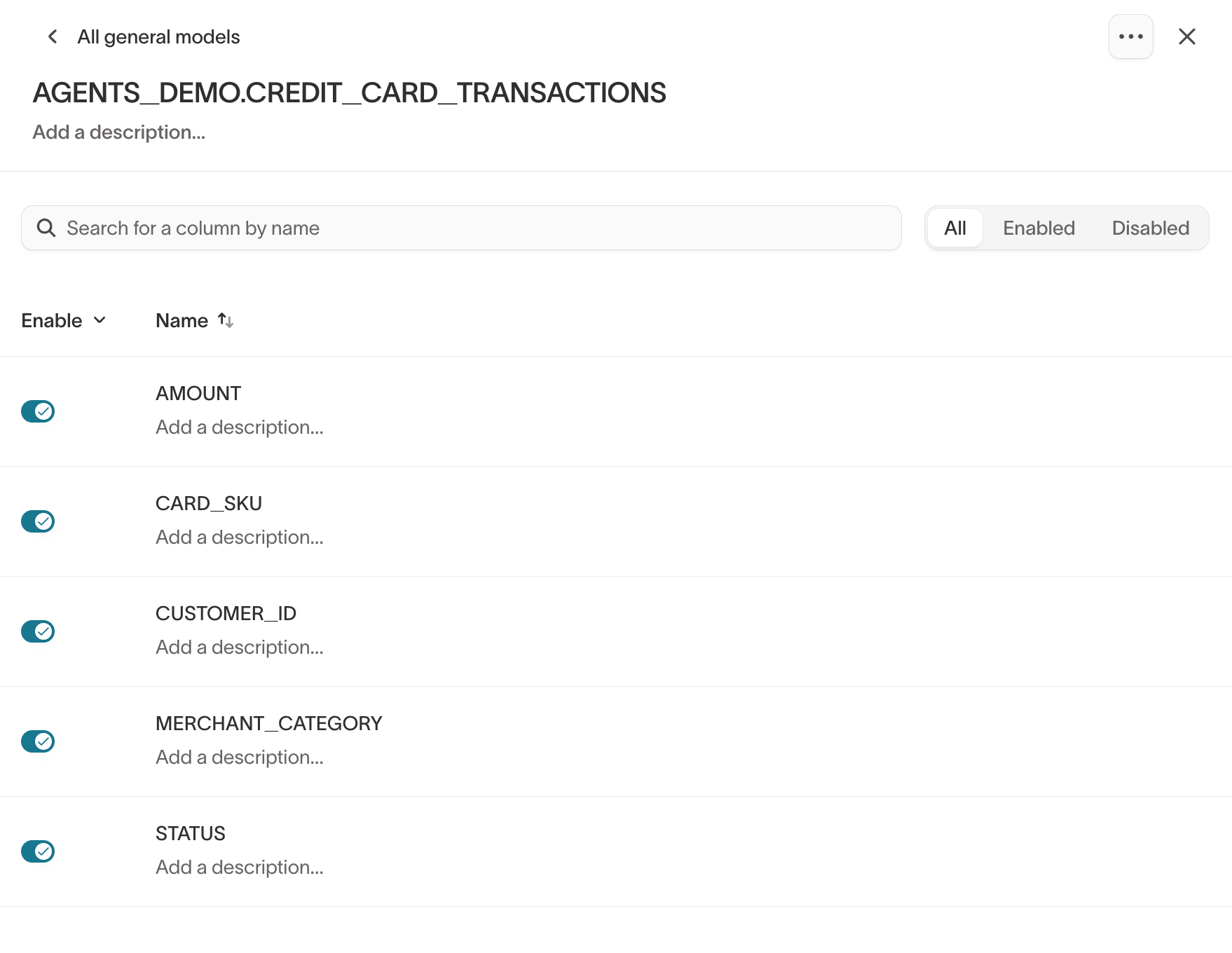
Use names and descriptions that match how your organization refers to the data, where warehouse terminology would be unclear. For example, describe net_rev_30d as "Net revenue generated in the last 30 days" if that's what the column represents.
Explain units, time windows, or important distinctions that an agent couldn't infer from the column name alone, rather than restating the name.
Control what agents can access
What an agent can access depends on who's asking. An agent can't use a model or column that the current user isn't allowed to access.
Model permissions
Adding, editing, or deleting general models requires the Configure schema grant on the source.
Use the View model data permission to control who can query each general model. General models appear in the Models tab when you configure user groups and roles.
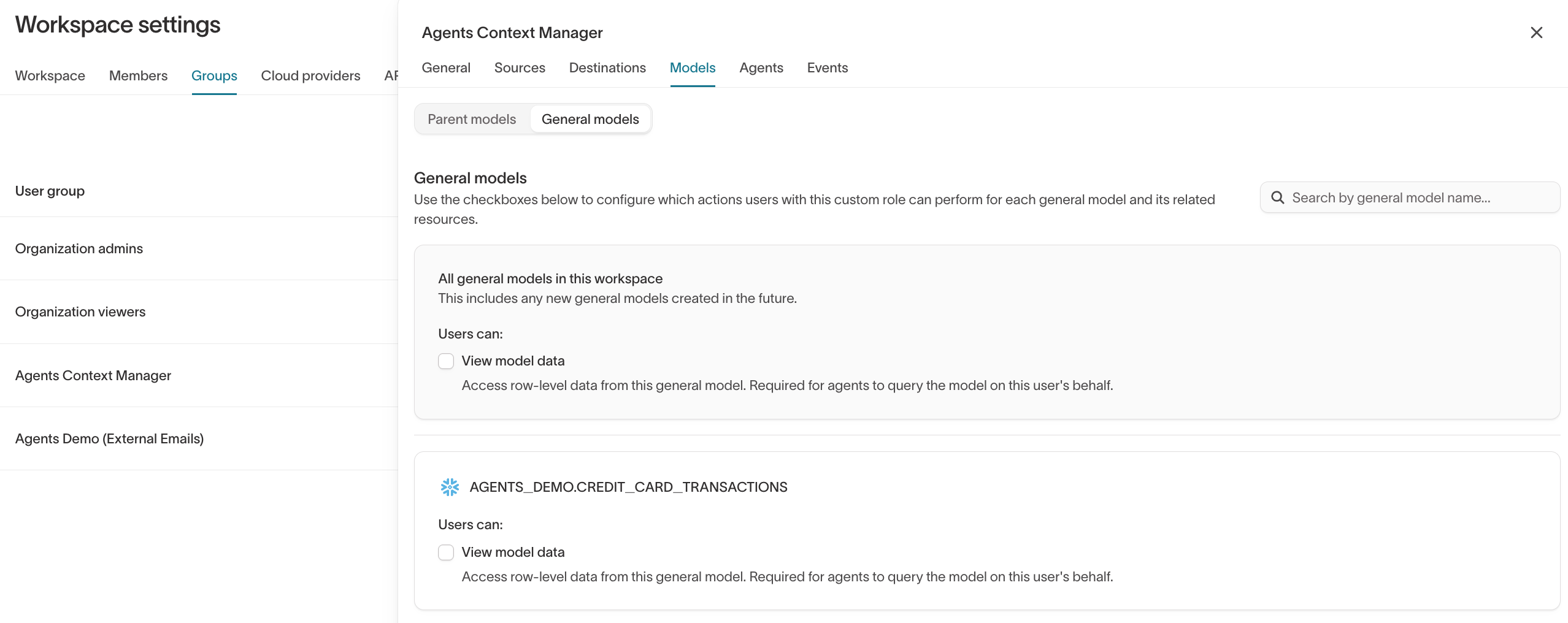
If a user doesn't have View model data access to a general model, the agent can't query that model for the user.
Column privacy
Column privacy controls whether agents can query or return individual column values. Depending on the column's privacy level, you can:
- prevent agents from using the column
- allow agents to filter on the column without seeing its raw values
- allow agents to use and return the column's values
Configure these settings from the column detail view.
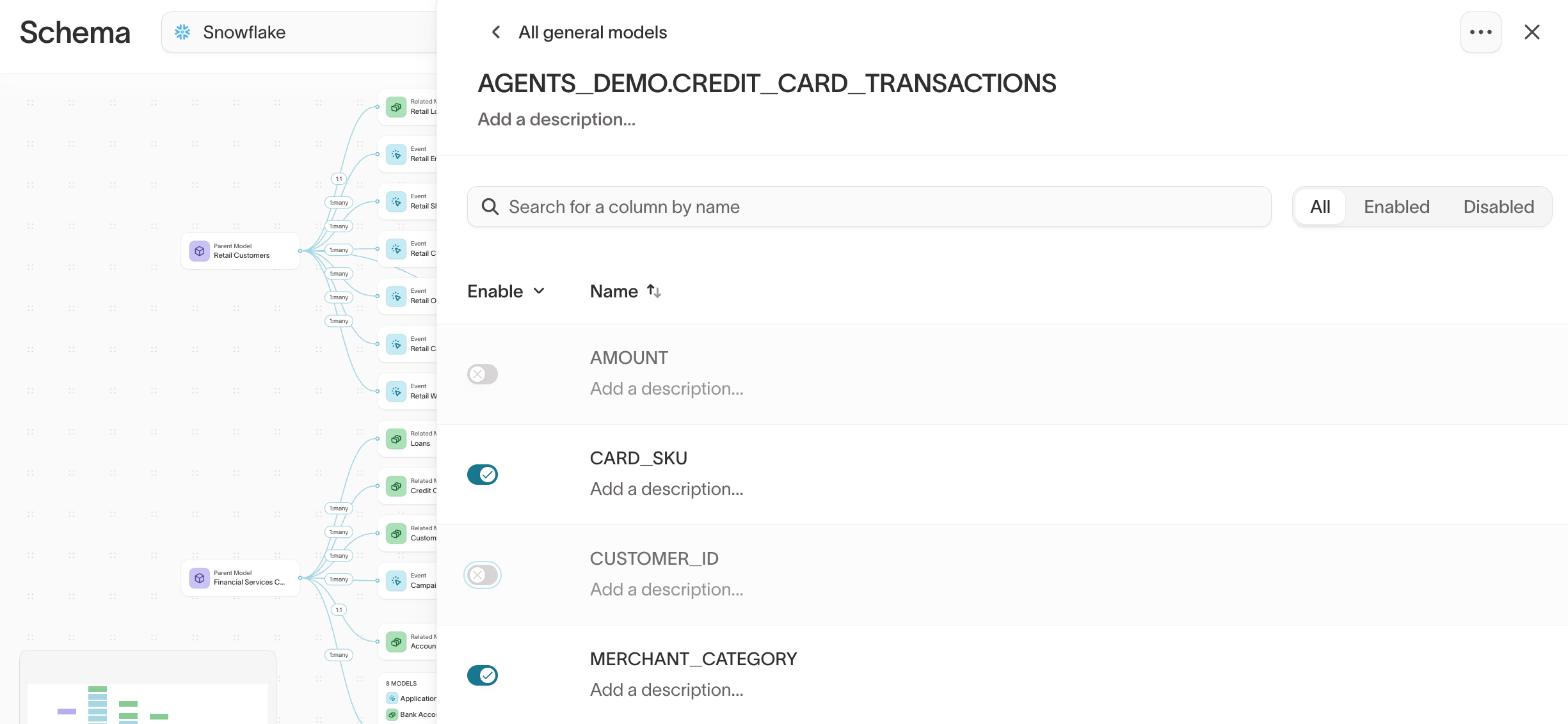
Use stricter access for sensitive fields that agents don't need to return directly. For example, an agent may need to filter records by a sensitive attribute without displaying that attribute's raw value.
Query general models with agents
You don't choose a general model before asking an agent a question. When you ask a question, agents can query the models you have permission to access and select the data relevant to the request.
For example, if you ask:
Which marketing channels drove the largest increase in website conversions last month?
the agent can query a general model containing channel-level web analytics if that model is available to you.
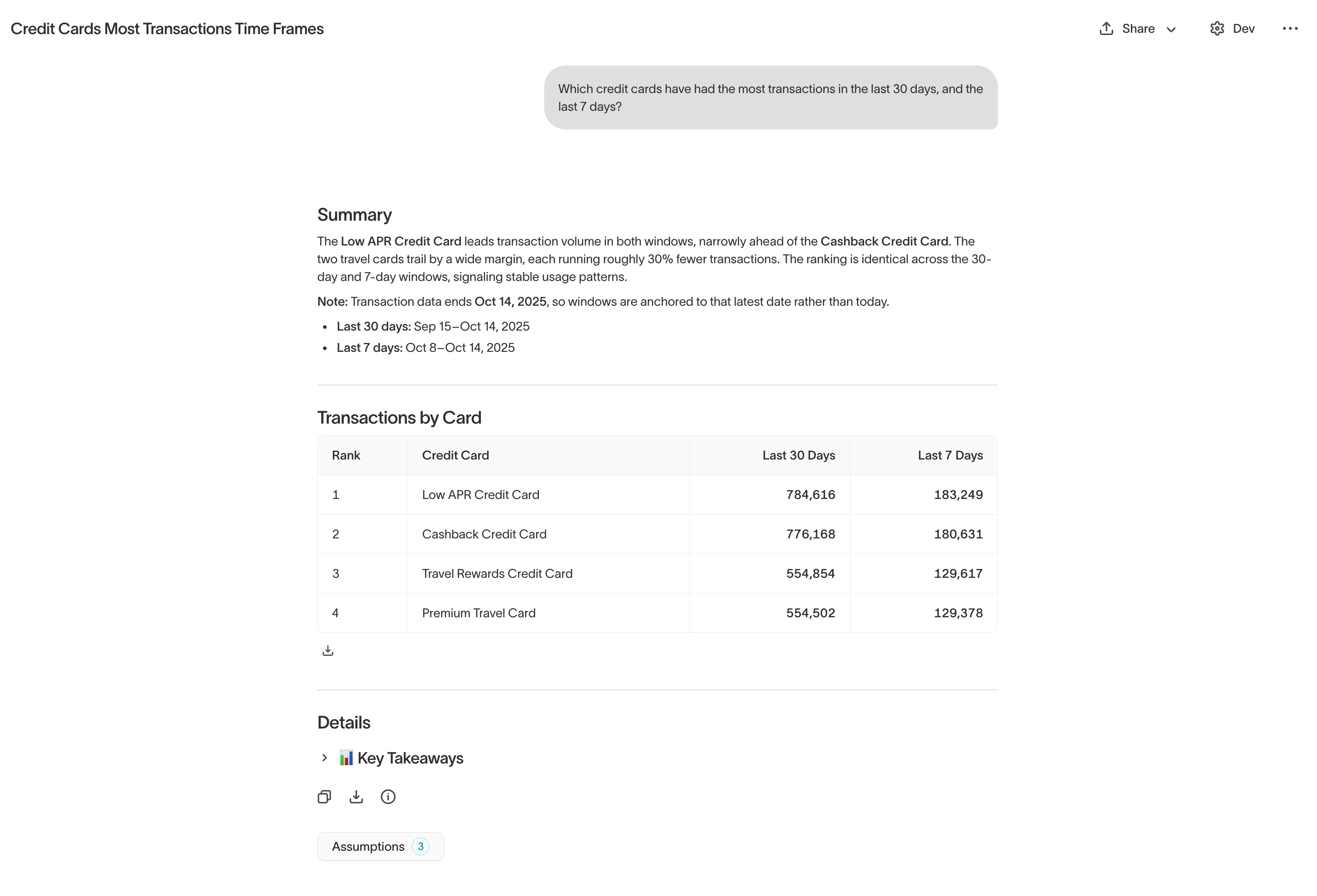
Open the response details to see which models and warehouse queries the agent used.
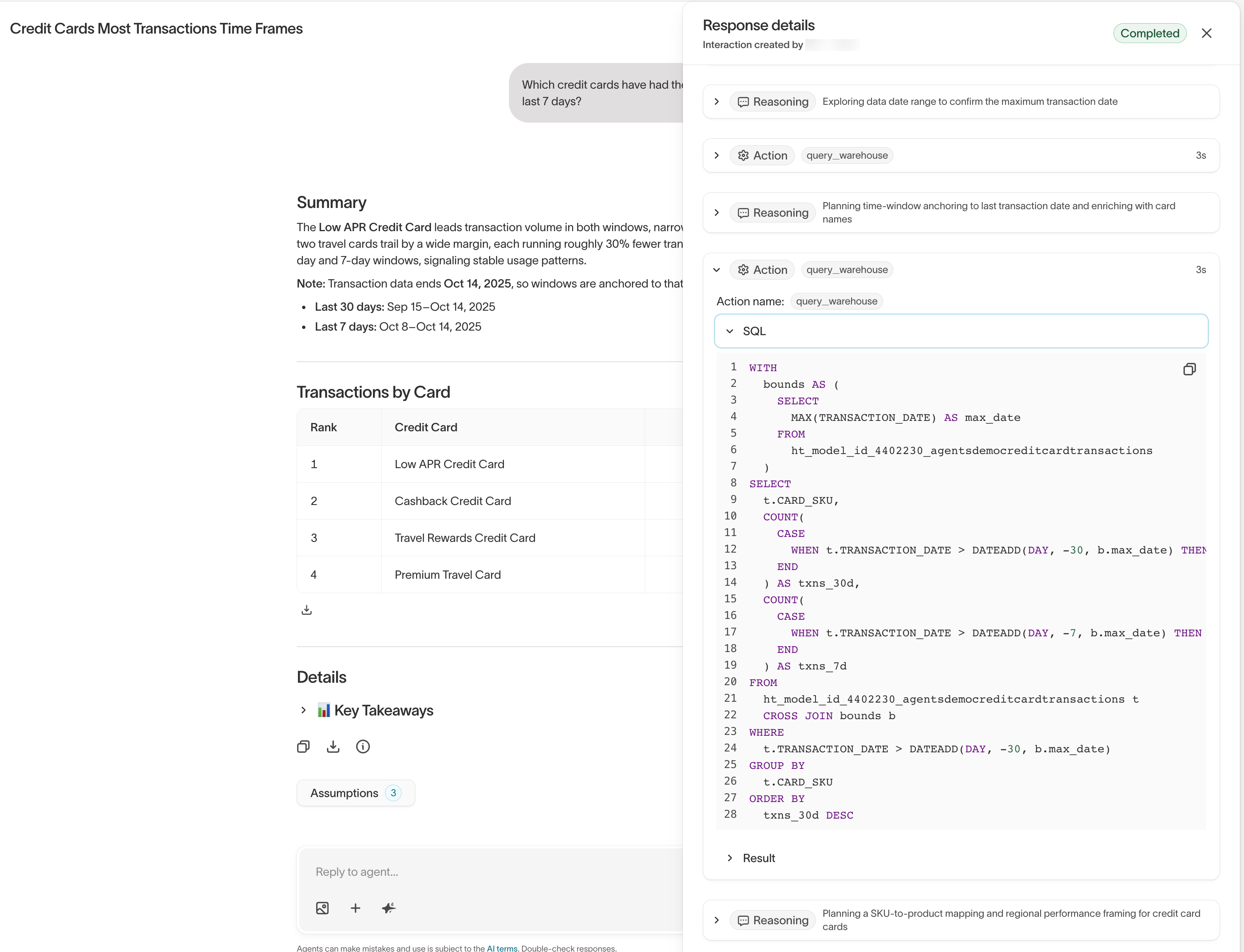
If an agent repeatedly selects the wrong model or maps a term to the wrong field, review the model and column names, descriptions, and available models. Overlapping or unclear descriptions can cause agents to select the wrong dataset.
Next steps
- Plan your data model to decide which warehouse data belongs in audience building.
- Define your schema to configure parent, related, and event models.
- Agents overview to learn how agents query the data available to them.
- Roles to control access to model data.