| Audience | Platform admins, data teams |
| Prerequisites |
|
Connect the advertising, lifecycle, and creative platforms your team uses, and configure the data agents use for campaign analysis, creative assets, and personalized messages.
Overview
Connected data gives agents access to information from the advertising, lifecycle, and creative platforms your team uses. Go to Context Hub > Connected data and use its two tabs:
| Tab | What you do there |
|---|---|
| Integrations | Connect advertising and lifecycle platforms, email service providers (ESPs), digital asset managers (DAMs), and workflow managers. Start syncing external context sources. |
| Personalization data | Choose a default email provider and manage the fields and content blocks Lifecycle Studio uses in personalized messages. |
Connecting a platform here is the first step for two other workflows, which are separate tasks:
- Connecting a DAM doesn't bring in assets by itself. After you connect it, create a synced collection in Assets to choose what to sync.
- Connecting an ESP doesn't set up personalization. Connecting imports templates. The Personalization data tab sets the default provider and the fields Lifecycle Studio can use.
Email service providers, workflow managers, and the Personalization data tab are available in workspaces with Lifecycle Studio.
Channels
Connect ad and lifecycle platforms on the Channels card of the Integrations tab.
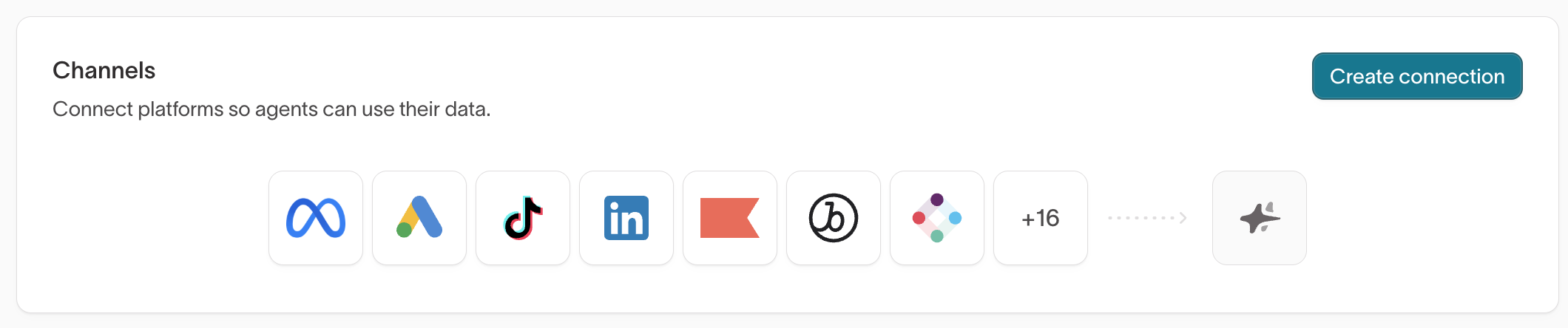
Connect advertising and lifecycle platforms
Connect a channel when you want agents to analyze the campaigns you run on an ad platform or send from a lifecycle platform. Hightouch copies the data from your account through Fivetran, a third-party service that syncs data from marketing platforms on a schedule. Some platforms send you to Fivetran during setup to sign in or confirm settings, and connection alerts and checks also come from Fivetran.
- Ad platforms sync campaign structure, creative, and performance data. Agents use it to analyze how your ads perform and which creative works.
- Lifecycle platforms sync metadata about your campaigns, flows, journeys, segments, and templates. Agents use it to analyze what you've sent and to report on it. Engagement events such as opens and clicks come from your warehouse, not from this connection.
For every platform, plan for the initial sync to take hours, and sometimes days. Large accounts and long history windows take longest. If Fivetran asks for a historical sync window, choose the shortest one that covers your use case.
Before you connect, check what your platform needs. The tables in Ad platforms and Lifecycle platforms list the requirements for each one.
- Create the destination first, if your platform needs one. Lifecycle platforms and some ad platforms reuse the credentials of an existing Hightouch destination, so create it before you connect.
- Check that a lifecycle destination has read access. A destination can sync data successfully without the read access a channel needs.
- Plan how many connections you need. Most ad platforms sync every selected ad account through one connection. TikTok Ads supports a separate connection for each TikTok Ads destination. Lifecycle platforms support a separate connection for each account, business unit, or workspace.
To connect a platform:
- Go to Context Hub > Connected data.
- On the Integrations tab, open the Channels card and select View connections, then select Create connection. If you have no connections yet, select Create connection on the card.
- Select a platform. Platforms are grouped under Ads and Lifecycle, and you can search by name.
- Keep the suggested Connection name or enter your own.
- If the platform needs one, select the matching destination.
- For Facebook Ads and Google Ads, select the ad accounts to sync in Enabled accounts.
- For Klaviyo, select a Conversion metric (recommended). Without one, flow reports don't sync.
- Select Create connection. Platforms that need you to sign in or confirm setup redirect you to Fivetran. When you finish there, you return to the connection's status page.
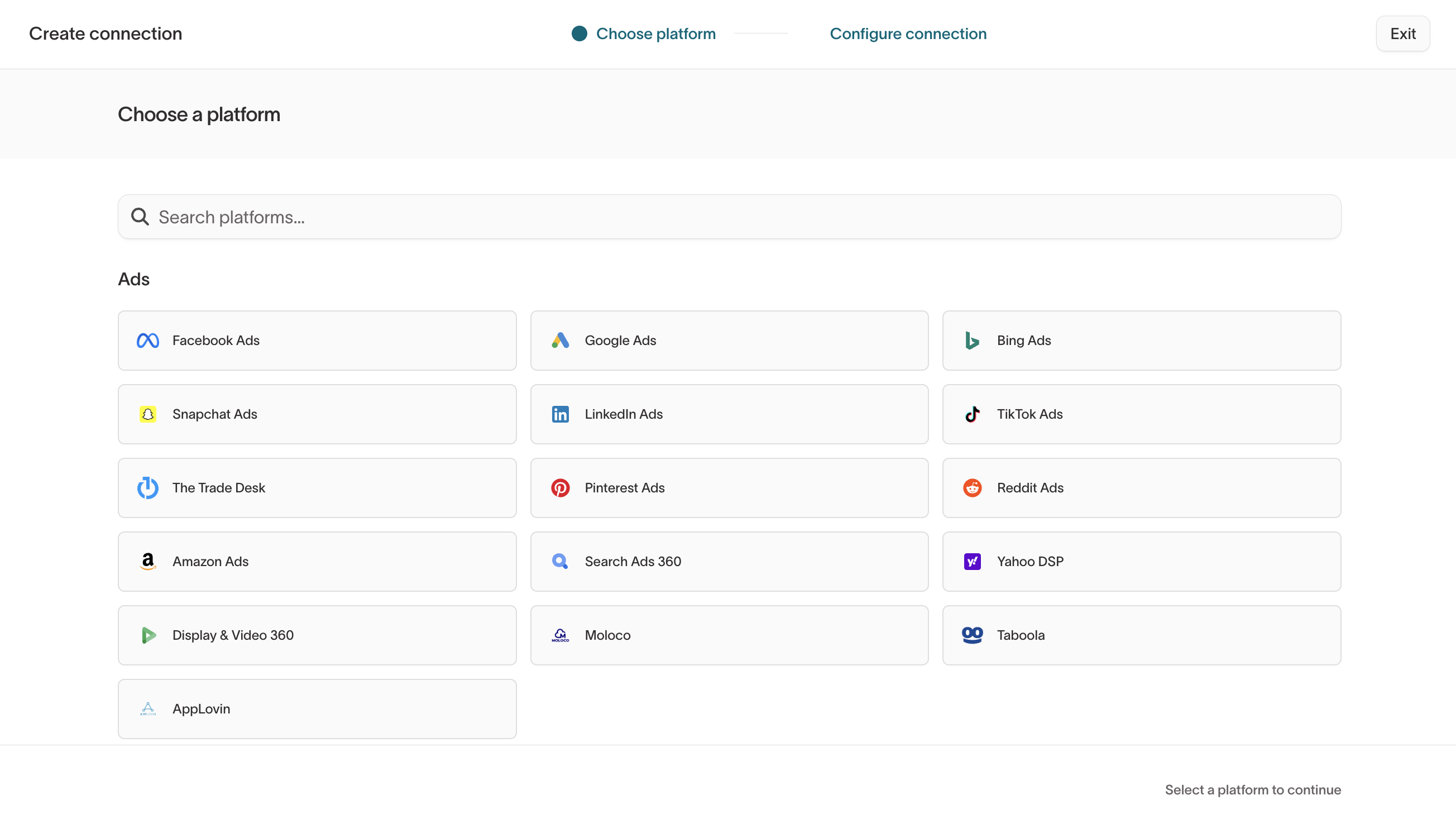
If a platform shows Already connected, selecting it opens that connection.
The connection is ready when its initial sync finishes and an agent can answer a question about a campaign you know.
Ad platforms
For platforms that need a destination, the destination fetches ad creative and the Fivetran connection syncs campaign and performance data. Hightouch doesn't pass the destination's credentials to Fivetran, so you authorize each one separately. Both must have access to every ad account you want to sync.
| Platform | Destination needed | Notes |
|---|---|---|
| Facebook Ads | Yes, to fetch ad creative | Authenticate the destination with a system user token set to never expire. In Fivetran, select Grant User Access, not a system user token, so Fivetran manages and refreshes its own credentials. Select ad accounts in Enabled accounts. |
| Google Ads | Yes, to fetch ad creative | Select ad accounts in Enabled accounts. |
| Microsoft Ads, Reddit Ads, TikTok Ads | Yes, to fetch ad creative | |
| Snapchat Ads, LinkedIn Ads, Pinterest Ads, Amazon Ads, The Trade Desk, Search Ads 360, Display & Video 360, Yahoo DSP, Moloco, Taboola, AppLovin | No | You grant access when you authorize in Fivetran. |
Lifecycle platforms
Every lifecycle platform uses a destination's credentials. When you connect, Hightouch checks that those credentials have the access Fivetran needs and tells you what's missing. If the destination's key lacks any of this access, update the key or create a new one.
| Platform | Additional access the connection needs | Setup in the platform |
|---|---|---|
| Braze | campaigns, canvas, and segments permissions, each with .list, .details, and .data_series | Braze keys can't be edited, so if the destination's key lacks these, create a new key with its existing permissions plus these, update the destination to use it, then reconnect any existing connection. |
| Salesforce Marketing Cloud | On the installed package Hightouch uses (Setup > Apps > Installed Packages): Read on Campaign, Documents and Images, Email, Journeys, List and Subscribers, Push, and Saved Content. Read and Write on Data Extensions. Read, Write, and Execute on Automations. | If the destination uses an SFTP username and password, Hightouch passes them to Fivetran, and that user needs folder permissions. In Setup > Data Management > FTP Accounts, open the user's menu and select Manage Permissions. Grant the user Full permissions. Fivetran also needs a folder named exactly Export directly in the user's home folder. |
| Klaviyo | A Full Access private key, or campaigns:read, flows:read, forms:read, lists:read, segments:read, metrics:read, templates:read, tags:read, catalogs:read, and events:read. For OAuth, the authorizing user must be an Owner, Admin, or Manager. | Pick a Conversion metric (recommended) when you connect, or flow reports won't sync. Confirm setup in Fivetran after you select Create connection. If the destination uses OAuth, you sign in to Klaviyo in Fivetran, and that's where you reauthorize. |
| Iterable | A server-side API key. Read-only, mobile, web, and JavaScript keys don't work. | In Fivetran, set Webhook Authentication to No Auth and copy the webhook URL it shows. In Iterable, go to Integrations > System Webhooks and create a webhook. Enter the Fivetran webhook URL as the Endpoint URL and set authentication to None. Save the webhook, then edit it to turn it on and, under Email, select at least Blast send and Triggered send. Then finish setup in Fivetran. |
| Marketo | Read-Only Assets and Read-Only Campaign on the API user's role | |
| Attentive | product_catalogs:write | In your Attentive app settings, set Event Webhook Status to on and select the subscription webhook. |
| Sailthru | No additional access needed | If your account restricts API access by IP, allow Fivetran's IP addresses. |
Manage channel connections
To see which connections need attention, go to Context Hub > Connected data and select View connections on the Channels card. Each connection shows its status and last run, and connections that need attention are listed first.
Select a connection to open its status page, which shows its schedule and when it last succeeded or failed. Alerts lists open issues from Fivetran and any setup checks that failed, with what to fix. Runs lists each sync run, its retries, and the rows it synced per table.
From the status page you can:
- Change the connection's settings — Select Edit to change the name, destination, enabled accounts, or Klaviyo conversion metric. Changing the destination or conversion metric reauthorizes the connection. To reauthorize without other changes, select Reconnect.
- Check the setup — Select Test connection to run Fivetran's setup checks and see each result. It's unavailable while a sync is running.
- Sync right away — Select Sync now to start a sync. It's unavailable while a sync is running or the connection is paused.
- Stop syncing for a while — Select Pause, and select Resume when you're ready to sync again.
- Remove the connection — Select Delete from the actions menu. Deleting removes the connection and all of its synced data, and it can't be undone.
If a connection breaks
Open it from View connections and check Alerts. To rerun Fivetran's checks with the credentials Fivetran already has, select Test connection. To send the destination's current credentials to Fivetran, select Reconnect under Edit. For platforms you sign in to through Fivetran, Reconnect also redirects you to sign in again.
Email service providers
Connect an email service provider (ESP) to import your existing email templates into Hightouch for use in Lifecycle Studio. You need an ESP destination for the provider before you can import from it.
An ESP connection only imports email templates. To let agents analyze the campaigns you send from the same tool, connect it as a channel too. Braze, Klaviyo, Iterable, Salesforce Marketing Cloud, and Sailthru can appear in both places.
To import templates:
- Go to Context Hub > Connected data > Integrations.
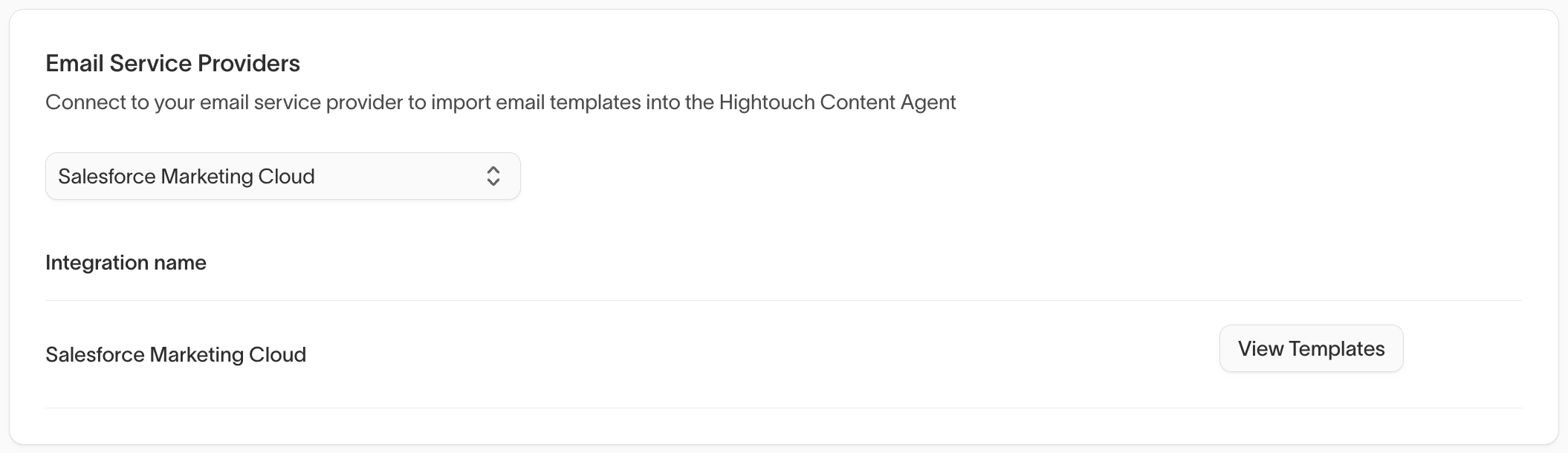
- In Email Service Providers, select your provider from the dropdown.
- If no destination exists for that provider, select Connect your ESP to create one.
- After a destination exists, it appears by its Integration name. Select View Templates for that destination.
- Search for templates by name. For Iterable, you can also filter by template type.
- Select the templates to import, optionally assign them to one or more Brand profiles, and select Import.
The preview shows each template's name, subject line, preheader, tags, and HTML.
Xtremepush also appears in the provider list. Lifecycle Studio uses an Xtremepush destination to export generated emails to your Xtremepush account rather than to import templates.
Digital asset managers
Connect a digital asset manager (DAM), the tool where your team stores brand assets, so agents can use your images and creative files. Connecting a DAM authorizes Hightouch to read from it. You choose which assets to bring in when you add a synced collection in Context Hub > Assets.
The Digital Asset Managers card lists the providers available in your workspace, including Orange Logic, Canto, Adobe Experience Manager Assets, Aprimo, Bynder, Shade, Frontify, and Iconik. Each provider card shows Not configured until you connect it, then Connected.
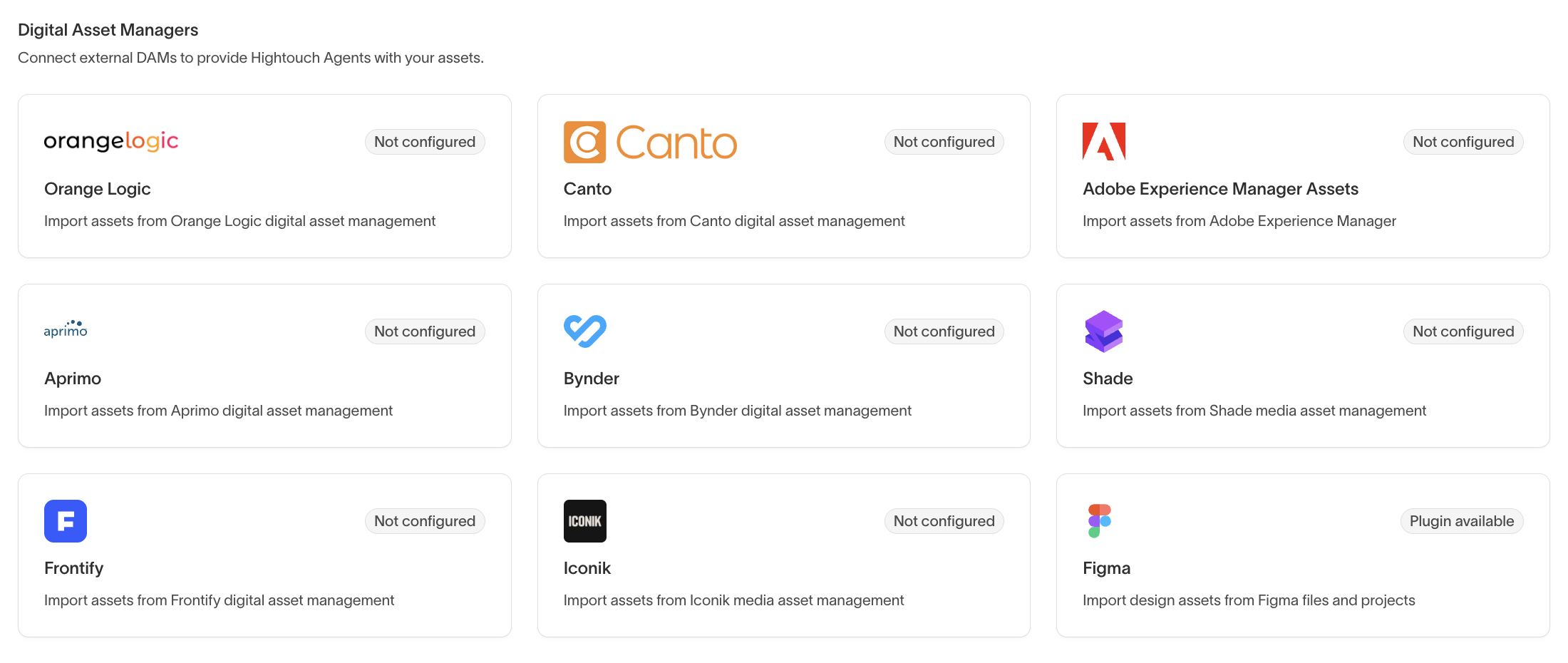
To connect a DAM:
- Go to Context Hub > Connected data > Integrations.
- In Digital Asset Managers, select the provider's card.
- On the Configuration tab, enter a Name and the credentials the provider asks for.
- Select Test connection to confirm Hightouch can reach your DAM, then select Save changes.
- Go to Context Hub > Assets and add a synced collection to choose which assets to bring in.
Two Figma cards appear in this section, and they do different jobs:
- Figma Designs — A connection that lets Hightouch read your Figma files, so you can import frames as templates. Set it up with a personal access token, as described in Connect Figma Designs.
- Figma — Shows Plugin available and opens the Hightouch plugin in the Figma Community. The plugin runs inside Figma and lets designers bring Hightouch ads into Figma. It isn't a connection in Hightouch. See Hand off to Figma.
Neither card supports synced collections.
Connect Figma Designs
Connect Figma Designs so you can import Figma frames as templates. In Lifecycle Studio, an imported frame becomes an editable email draft. In Ad Studio, it becomes an ad template.
The connection uses a Figma personal access token, so Hightouch can open the same files as the Figma user who created it. Use a token from someone who can open every file your team imports from.
Hightouch only reads from Figma. It never edits your files or comments on them.
Create a token in Figma
-
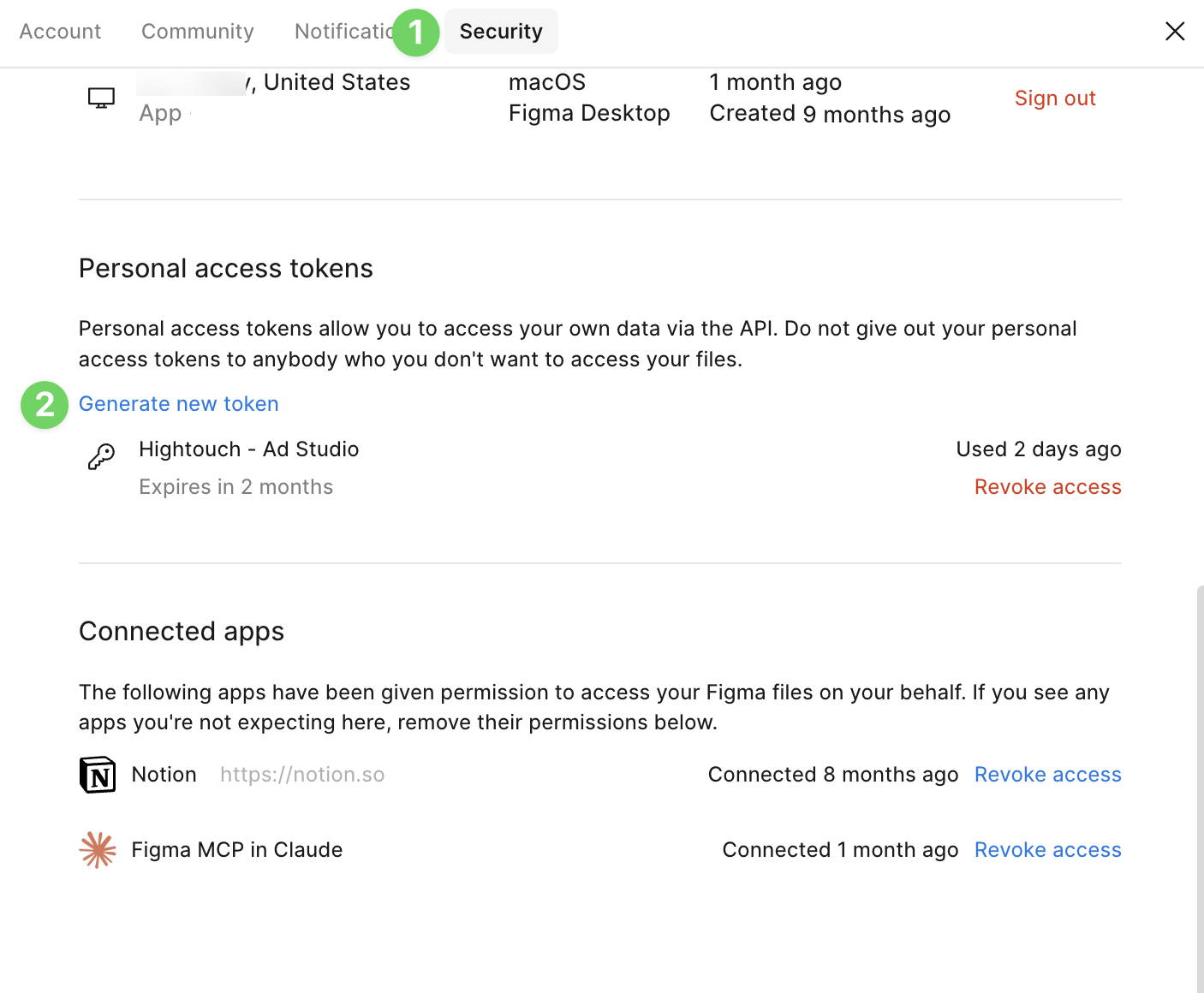
In Figma, open your account menu and select Settings.
-
Select the Security tab. Under Personal access tokens, select Generate new token.
-
Enter a Token name that tells you where it's used, such as
Hightouch, and choose an Expiration. -
Under Scopes, select these two scopes and leave every other scope unselected:
current_user:read— Lets Test connection confirm which Figma account the token belongs to.file_content:read— Lets Hightouch read the frames you import and render their images.
-
Select Generate token and copy the token. Figma shows it only once.
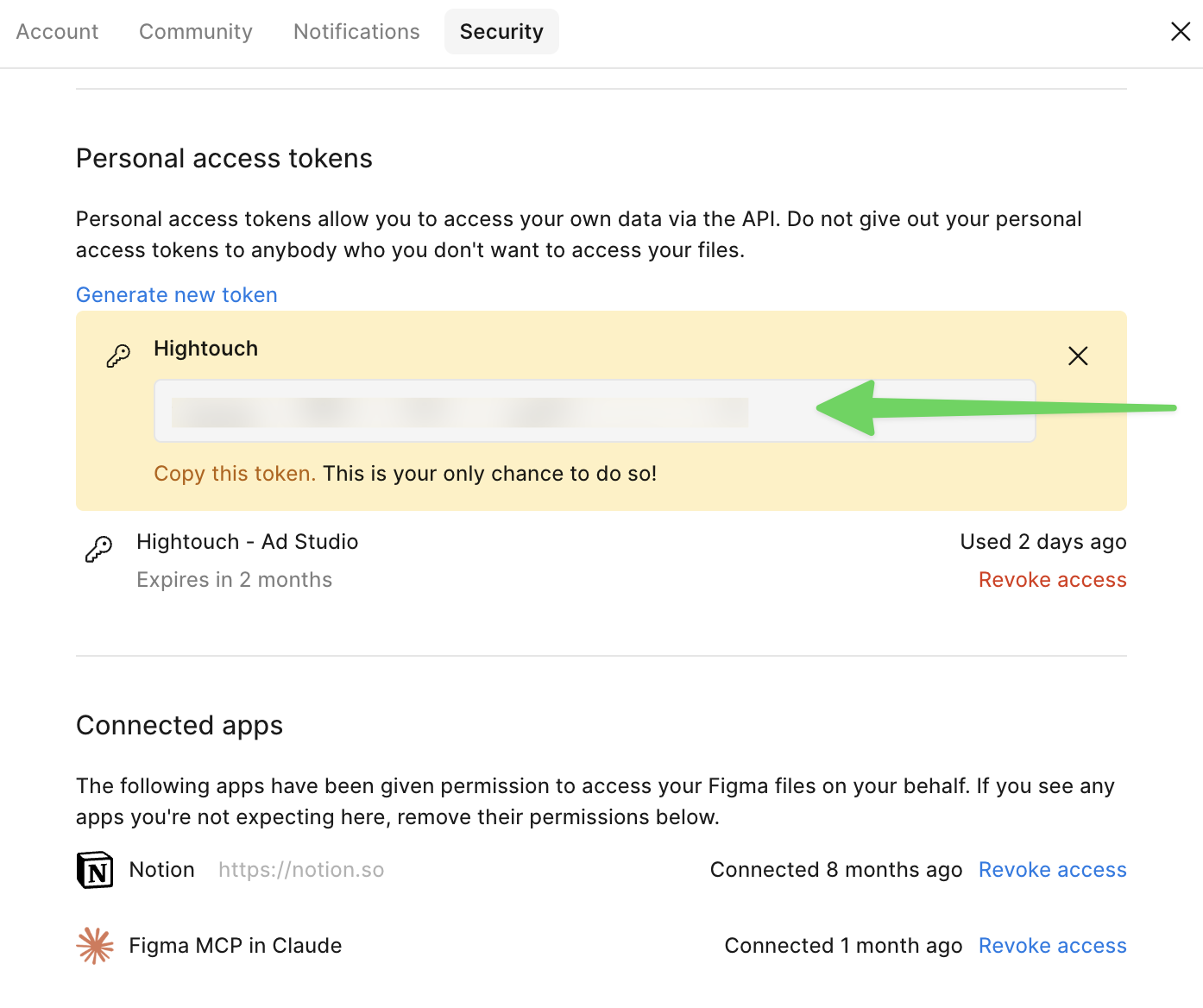
Hightouch never writes to Figma, so it doesn't need any write scope. It doesn't read comments, so it doesn't need file_comments:read either. A token with extra scopes still works, but it gives anyone holding it more access than Hightouch uses.
Add the token in Hightouch
-
Go to Context Hub > Connected data > Integrations.
-
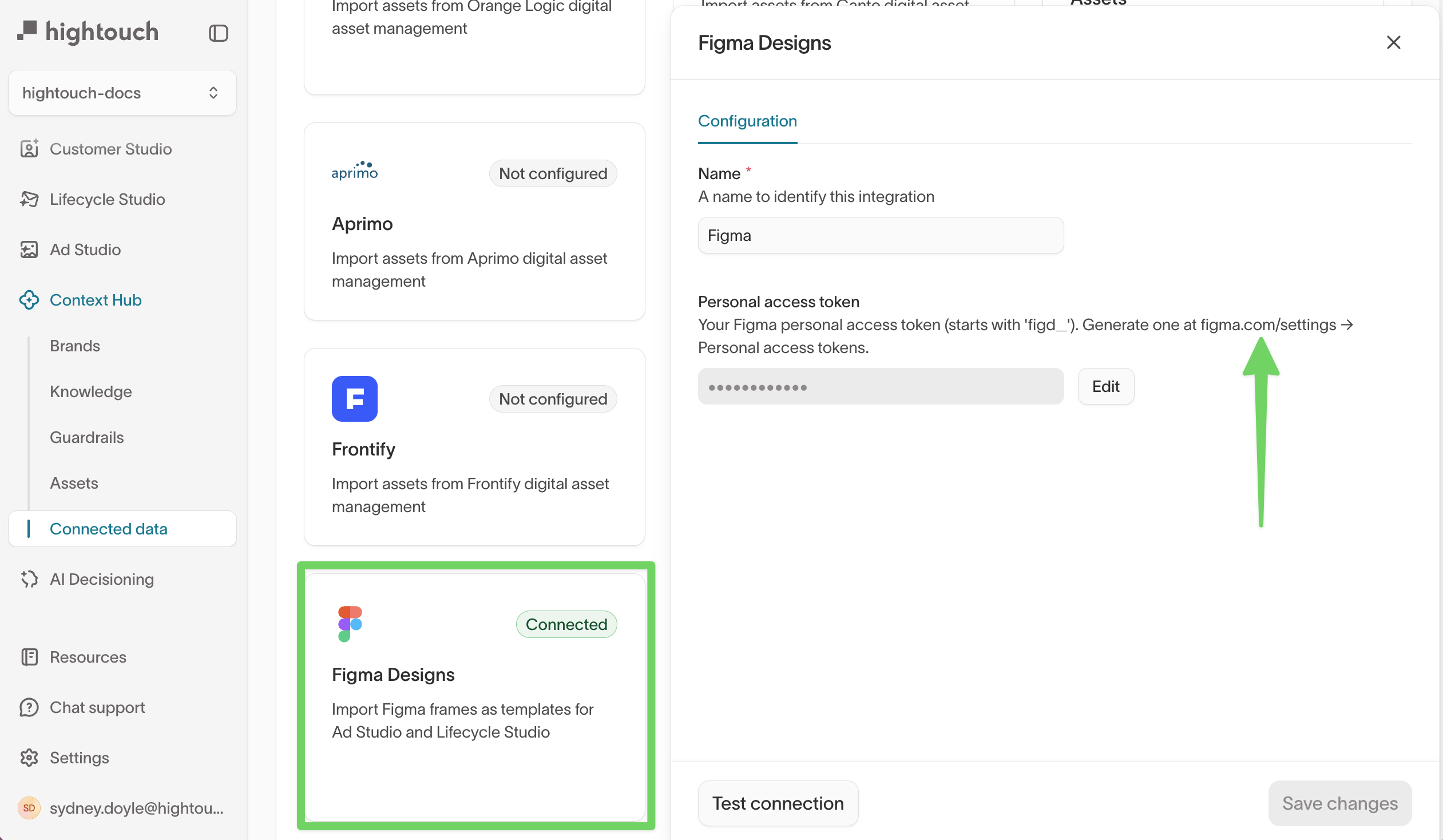
In Digital Asset Managers, select Figma Designs.
-
Paste the token in Personal access token and select Save token. Tokens start with
figd_.After you save, the Figma Designs card shows Connected.
-
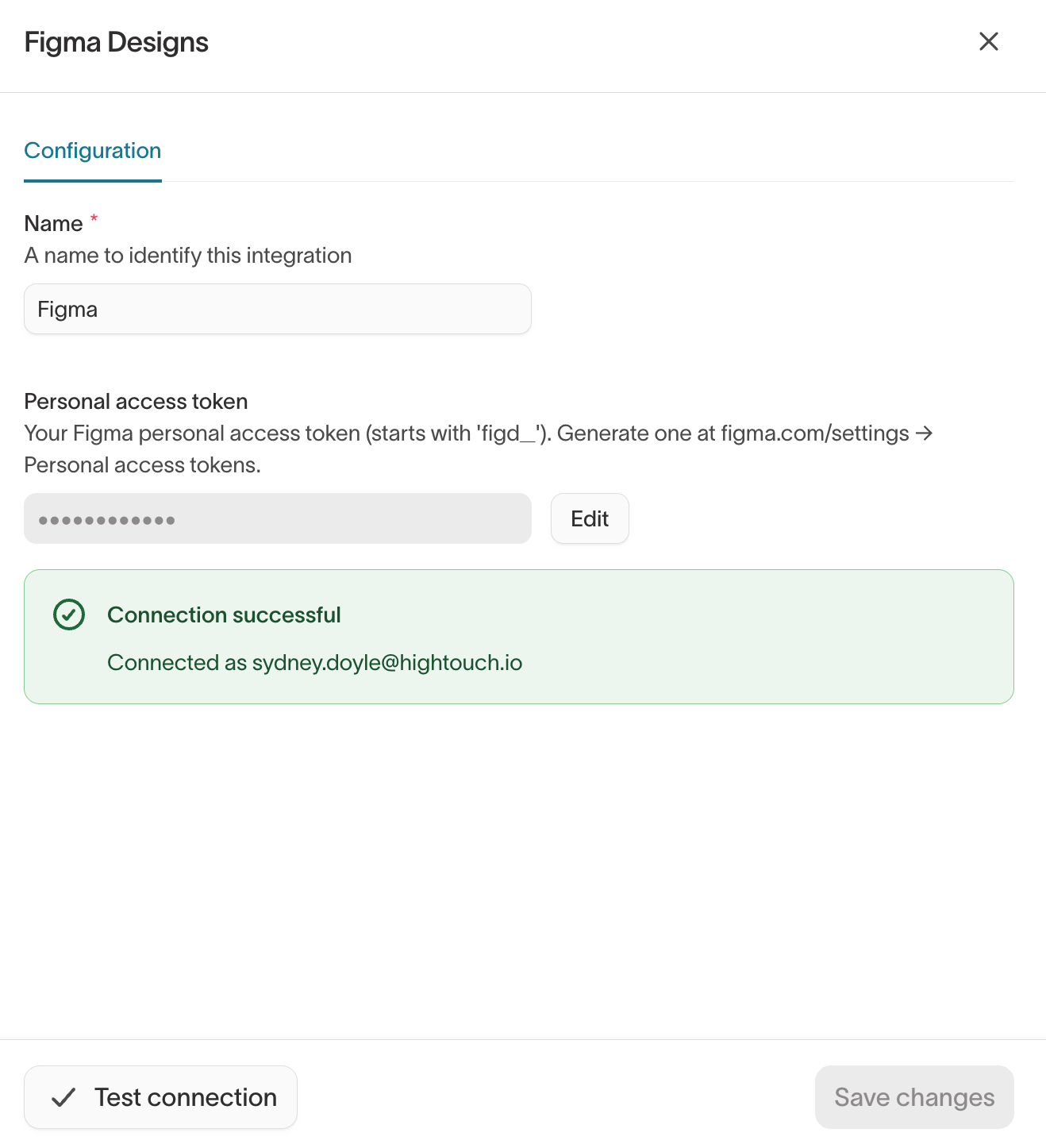
To confirm the token works, open Figma Designs again and select Test connection. A successful test shows the Figma account the token belongs to.
To import a frame, go to Import from Figma in Lifecycle Studio.
Replace an expired token
Figma tokens stop working on the expiration date you chose. Imports also fail if someone revokes the token in Figma. Before the token expires, create a new one and swap it in:
- Create a new token in Figma with the same two scopes.
- Open Figma Designs and select Edit next to Personal access token.
- Paste the new token, select Test connection, and then select Save changes.
Troubleshoot Figma Designs
Figma access token is invalid or revoked
Test connection shows this message when Figma rejects the token:
Figma access token is invalid or revoked. Reconnect to continue.
The token has expired, was revoked, or was pasted incompletely. Replace the token.
Figma rejected the access token
An import fails with a message that starts with Figma rejected the access token and ends with Reconnect Figma to continue.
Check these in order:
- The token expired or was revoked. Replace the token.
- The token is missing a scope. Create a token with
current_user:readandfile_content:read. - The token's owner can't open the file. Share the file with that Figma user, or use a token from someone who already has access.
Export generated ads to your DAM
Export ads you create in Ad Studio to your DAM so they sit next to the rest of your brand assets. Bynder, Aprimo, and Frontify connections support export. Each ad uploads as a PNG file.
Set up export once per connection:
- Go to Context Hub > Connected data > Integrations and select your connected DAM.
- On the Export tab, enter where exported files go. Bynder asks for a Bynder brand ID, and Frontify asks for a Frontify library ID and an optional Folder ID. Aprimo needs only metadata.
- Optionally, add metadata. Static metadata fields apply the same value to every exported file. Dynamic metadata fields fill a DAM field from the ad, such as its project name or a link back to the ad in Hightouch, or ask the person exporting to choose a value.
- Select Save export settings.
After you save export settings, Export to DAM appears on ads in Ad Studio, for a single ad or a selection of ads. In the Export to DAM dialog, choose any Additional sizes to include, fill in any values your export settings ask for, and start the export. Each ad's original size is always exported, and one export can include up to 100 files.
To check on an export, open the connection's Export history tab. It shows each export's status, the files that exported or failed, and links to the exported files in your DAM. Select Retry to rerun the files that failed or didn't finish.
Workflow managers
Connect a workflow manager so your team can manage Lifecycle Studio campaigns from where they plan the work, and update tasks there from Hightouch. Hightouch supports Asana.
The Asana card shows where setup stands:
- Not connected — Asana isn't connected to Hightouch yet.
- App not added — Hightouch is connected, but the Hightouch app isn't added in Asana yet.
- Connected — Asana is connected and the app is added.
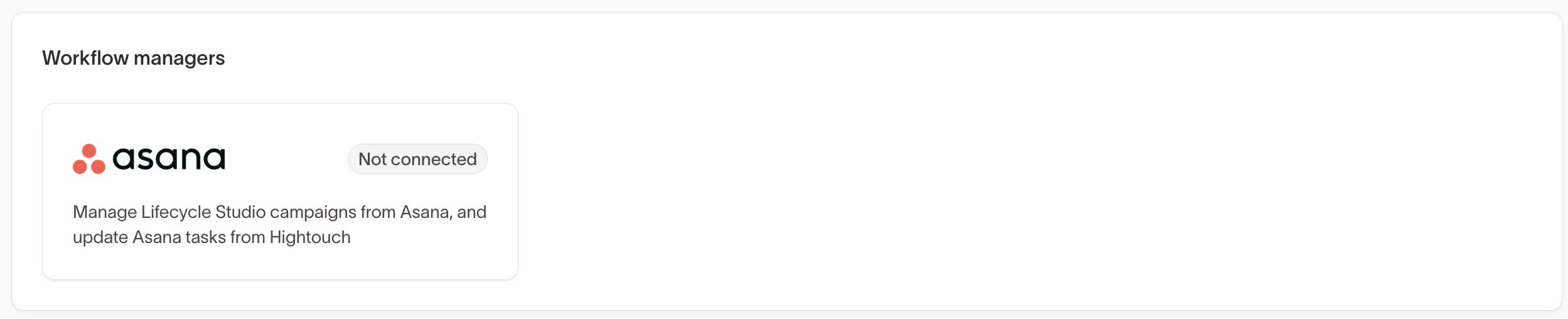
Select the Asana card and follow the setup steps. For authentication options, installing the app, and what you can do from each side, see the Asana integration.
To ask about other tools, .
External context sources
Sync governed definitions from your warehouse, such as Snowflake semantic views or Databricks metric views, so agents use the metric definitions your data team maintains. Synced files appear in Context Hub > Knowledge > Files with a Synced badge, and they refresh on a schedule.
Add a source from the External context sources card on the Integrations tab by selecting Add external context. For warehouse requirements and setup steps, see Sync external context.
Personalization data
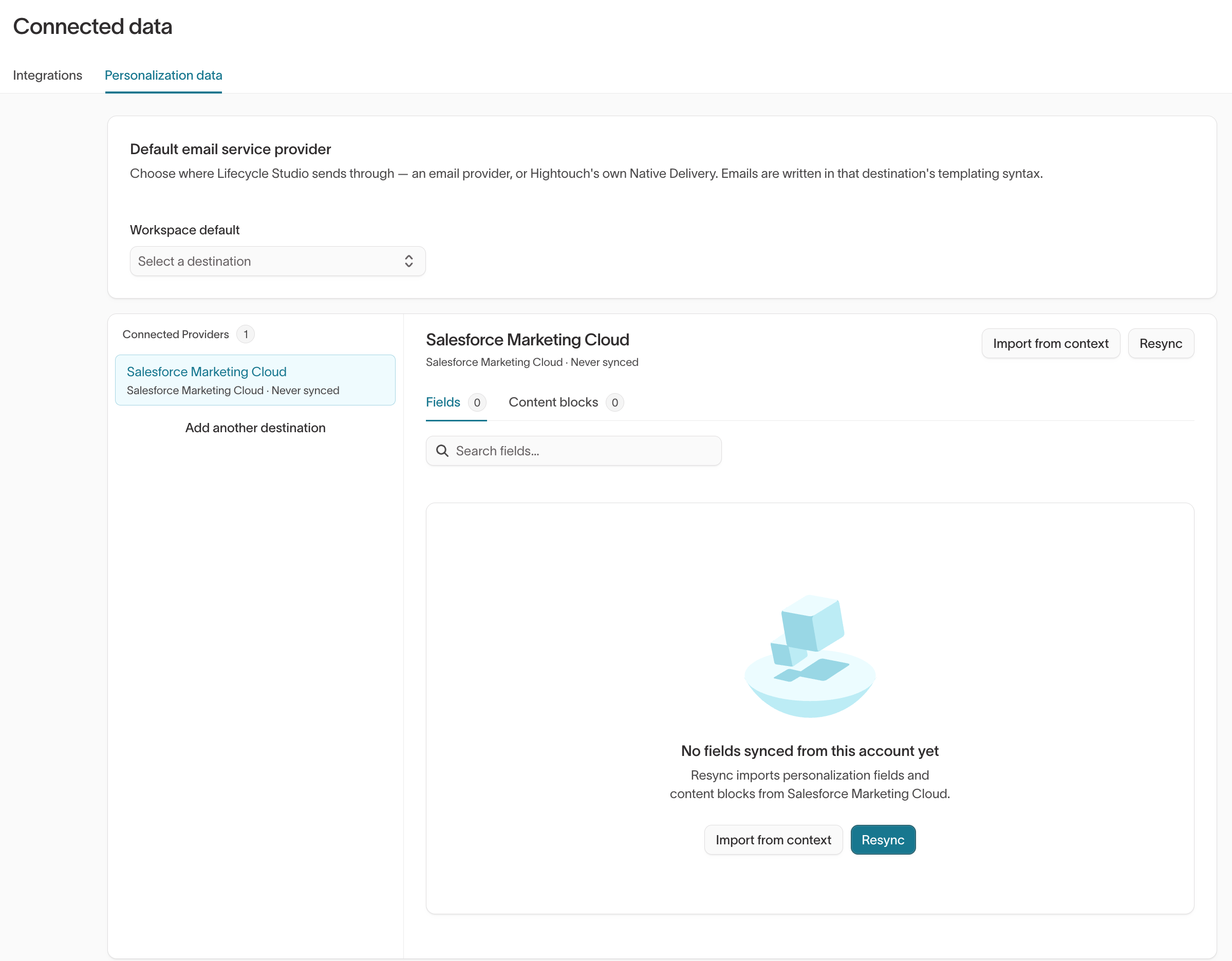
Use the Personalization data tab to control how Lifecycle Studio writes emails for your email service provider: which provider it writes for by default, and which personalization fields and content blocks it can use there.
Set a default email provider
Lifecycle Studio sends email through either an ESP destination or Native Delivery, Hightouch's own sending service. It writes each email in that destination's templating syntax, so set Workspace default under Default email service provider to the destination most of your email goes through.
A brand can override the workspace default with its own Email provider setting on its brand profile, and a campaign can override both. Lifecycle Studio uses the campaign's setting first, then the brand's, then the workspace default.
When the workspace default is an ESP, Conditional type sets how Lifecycle Studio writes new dynamic-content conditions. Keep ESP, the default, to base conditions on the provider's own profile rules. Select Hightouch to base them on your warehouse audience definitions. To build dynamic content, see Dynamic content.
Sync personalization fields and content blocks
Hightouch reads the personalization fields and content blocks saved in your ESP, so generated emails reference attributes that exist in your provider. Connected Providers lists each ESP destination whose catalog Hightouch can read: Braze, Iterable, Klaviyo, Salesforce Marketing Cloud, and Xtremepush. Each account shows when it last synced, any brands that send through it, and a Default badge if it's the workspace default. Select Add another destination to connect another ESP.
Select an account to see its catalog:
- Fields — Personalization fields and the merge tag for each.
- Content blocks — Reusable blocks saved in your provider, with the reference tag for each. Xtremepush syncs fields only.
When the fields or content blocks in your provider change, select Resync to read them again and replace what Hightouch has cached. Large accounts can take a few minutes, and the resync counts against your provider's API rate limit.
You can delete a field or content block from the Hightouch catalog without changing your provider. If it still exists in your provider, the next resync brings it back.
Import personalization fields from a context file
If your provider's catalog is missing profile attributes you personalize with, list them in a Markdown context file in Context Hub > Knowledge > Files, then import them:
- On the Fields tab, select Import from context.
- Select the Context file that lists the attributes, and select Extract fields.
- Review the extracted fields under Review profile fields. Hightouch builds each merge tag for your provider from the field name.
- Clear any fields you don't want, then import the rest.
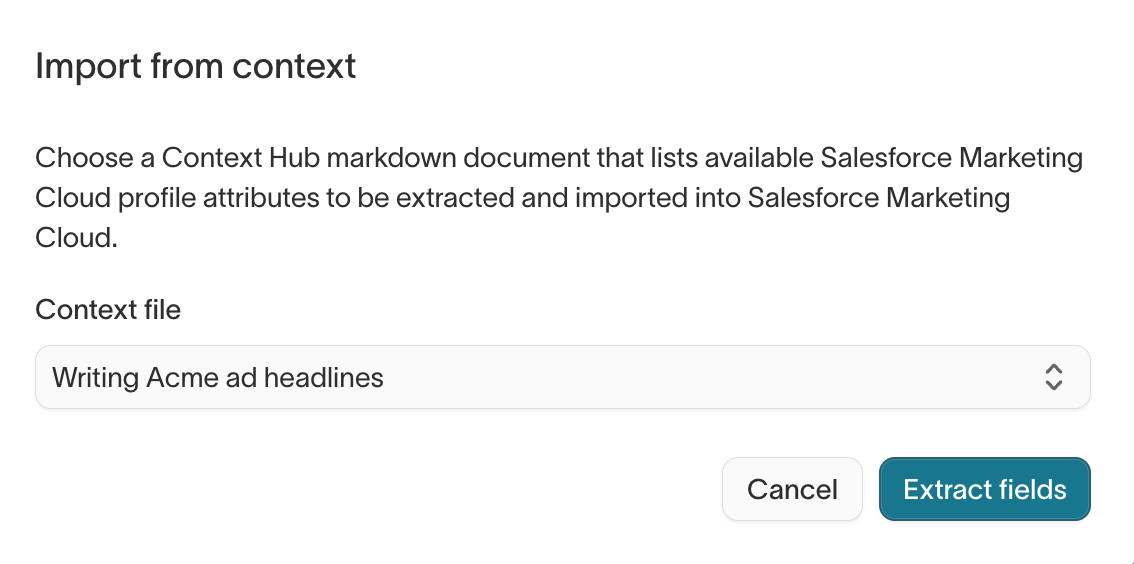
New fields are added to the catalog, and fields with existing names are left unchanged. A later resync from your provider can still replace the full set.
Next steps
- Create a synced asset collection to choose which files from your connected DAM agents can use.
- Sync external context to grant warehouse access and select the Snowflake or Databricks views to sync.
- Define your brand profiles to set a different email provider for a brand that doesn't use the workspace default.