
Push enriched data from your warehouse into Salesforce CRM for your teams to act upon it
Overview
Salesforce is a CRM platform. Use Hightouch to sync records to standard and custom Salesforce objects, sync custom picklist metadata, and publish platform events so Salesforce can trigger automation from warehouse data.
The destination supports:
- Sales Cloud
- Service Cloud
- Financial Services Cloud
- Health Cloud
Supported syncing
| Sync Type | Description | Supported Sync Modes | API Reference |
|---|---|---|---|
| Standard and custom objects | Sync records to Salesforce objects such as accounts, contacts or custom objects | Insert, Update, Upsert, Archive | Manage object records ↗ |
| Metadata for picklist fields | Sync metadata to your Salesforce Picklist fields. | All | Update metadata field types ↗ |
| Platform events | Publish event messages that can be received by Salesforce flows, processes, Apex triggers, and more. | Insert | Publish platform events ↗ |
- Insert: Insert mode pushes new objects or events to Salesforce and doesn't update them as they change in your data source. Insert is the only available mode for platform events.
- Update: Update mode updates fields on existing objects in Salesforce.
- Upsert: Upsert mode pushes new objects to Salesforce and updates fields that change in your data source.
- Archive: Archive mode deletes all records that appear in your model's query results.
- All: All mode is the only available mode for metadata for picklists. Each time you sync metadata values for a particular picklist, it overwrites all existing values.
For more information about sync modes, refer to the sync modes docs.
Understand your Salesforce setup
Before you configure syncs, confirm your Salesforce setup supports your plan. Whether the matching field is an external ID and unique, whether target fields are editable (not formula or read-only), and whether the authenticating user has edit access all determine whether a sync works. For the planning steps common to every destination (what to sync, which fields, which mode, and how often), see Plan your sync. If you prefer, you can download this resource as a PDF to share with your team.
To learn what objects and fields you are using in your Salesforce instance, you can inspect your Object Manager.
Required data specifications
Once you've confirmed the objects and fields you want to sync, you need to check that they have the correct data types and that you have permission to edit them. You can find the answers to these questions by using the Object Manager in Salesforce.
Consideration | Effect on sync configuration |
|---|---|
| Is the field that you would like to use for record matching an external ID and unique? | The response affects your record matching; only fields that meet this criteria appear in the dropdown for record matching. |
| What are the expected data types of the fields you want to sync to? | The response affects your field mapping; if the expected type is different than your model column type, you need to type cast your data in your model configuration. |
| Are the fields you want to sync to editable? | Hightouch only displays editable fields during field mapping. |
| Does the user you are authenticating to Hightouch have edit access? | The sync will error if the user doesn't have the correct permissions. |
| Are any of the data fields lookup fields to another Salesforce object | You can set up Lookup fields while field mapping. |
| Are any of the data fields formula fields? | Formula fields are non-editable and read-only, so the sync will throw an error; change the field type if you want to sync data to it. |
Other considerations
These last considerations examine the wider context of your Salesforce instance to ensure that your sync won't conflict with other Salesforce automations or overuse your API call quota.
You can inspect an objects' triggers and flows using the Object Manager. You can inspect your API usage and quota by going to Setup → Environments → System Overview, or by checking Salesforce's quick reference.
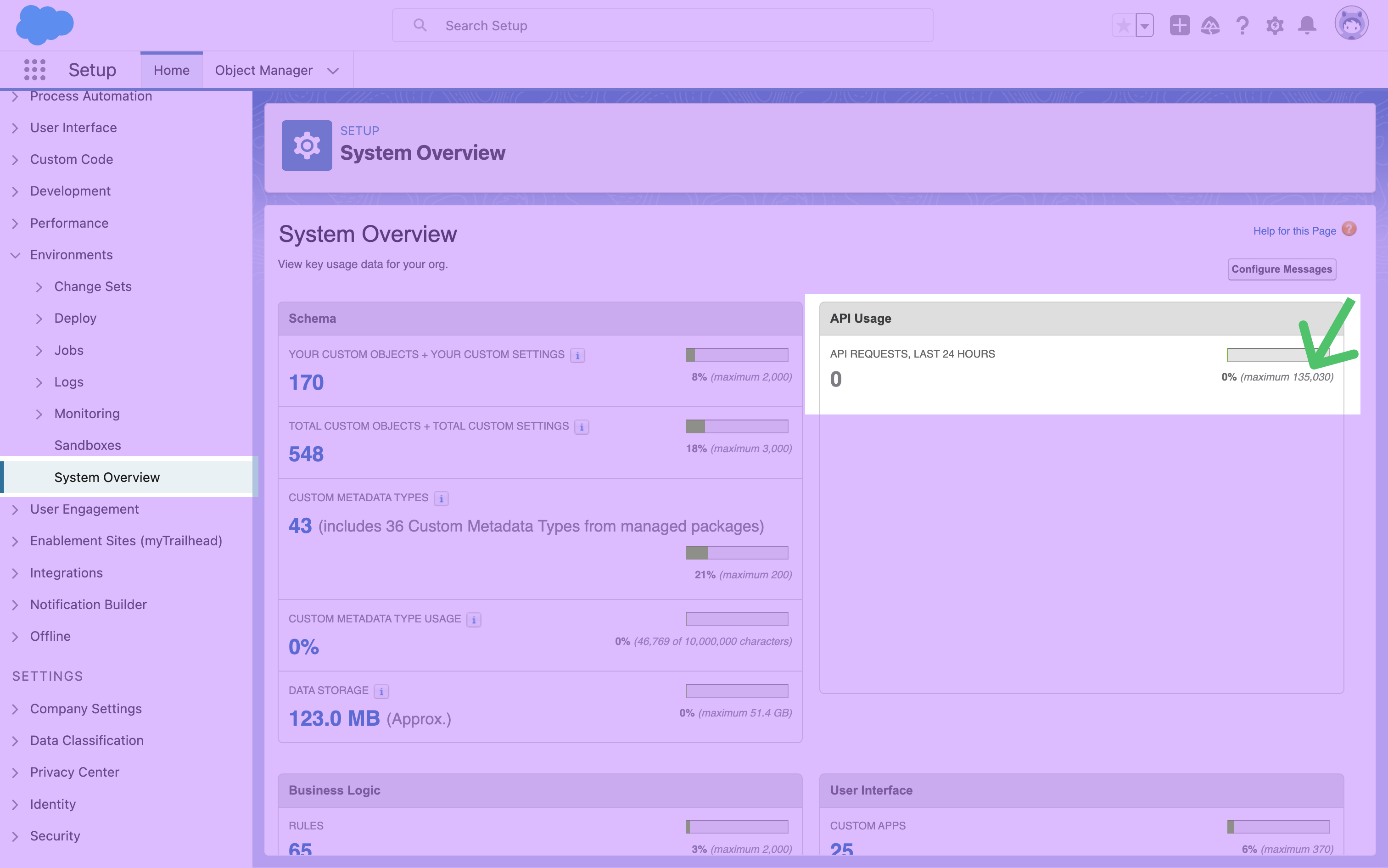
Refer to your Salesforce contract in case of any custom limits.
Consideration | Effect on sync configuration |
|---|---|
| What Salesforce workflows or APEX triggers are you running? What objects do they touch, when do they run? | The response affects your sync schedule; syncs will error if there are conflicting processes. |
| What Salesforce plan do you have and what are your API limits? | The response affects your sync schedule; syncs will error if you use up your API call quota. |
Inspect objects, relationships, and fields
-
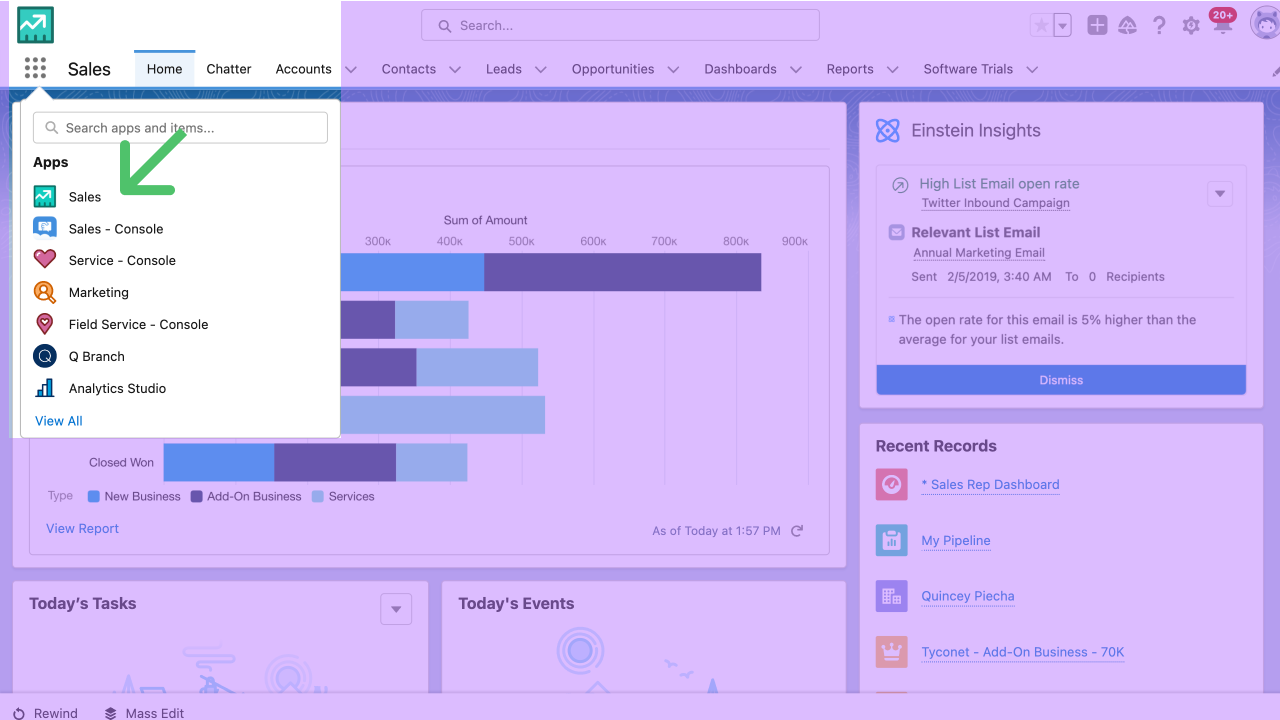
Login to your Salesforce instance and make sure you are in the Sales module.
-
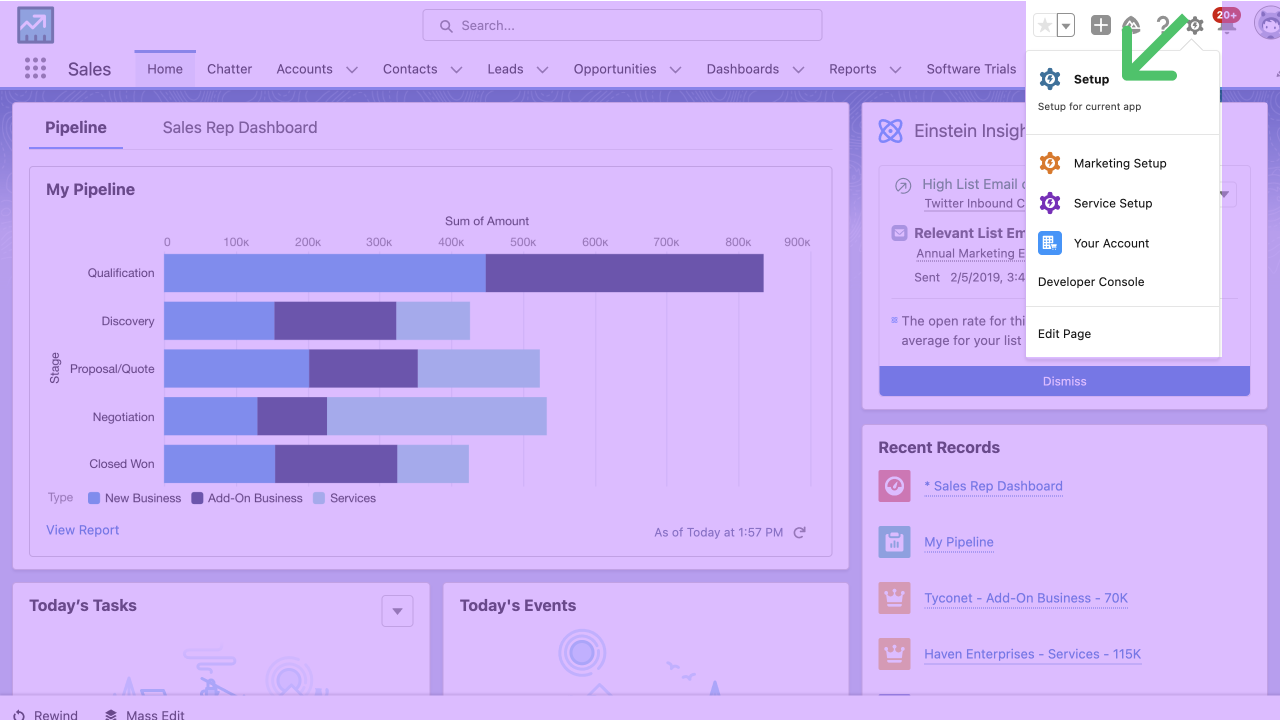
Click the gear icon in the top right and open the Setup page.
-
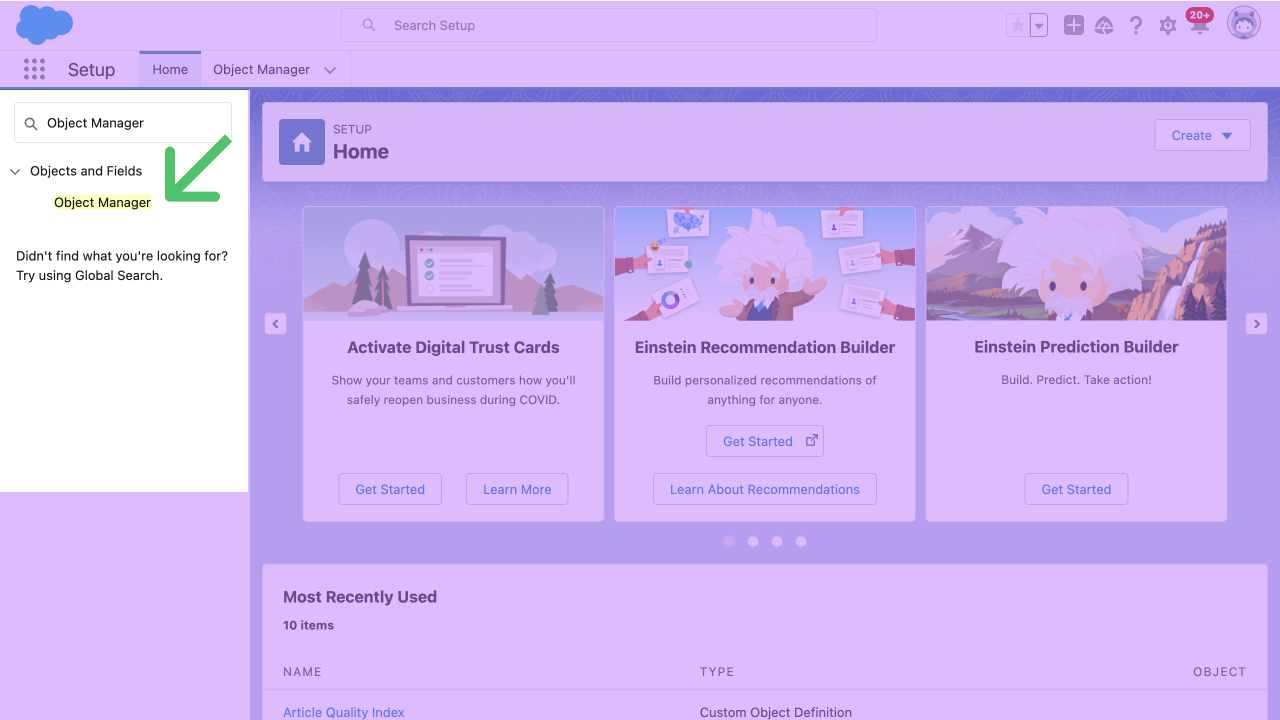
Search for Object Manager in the left search input and open it.
-
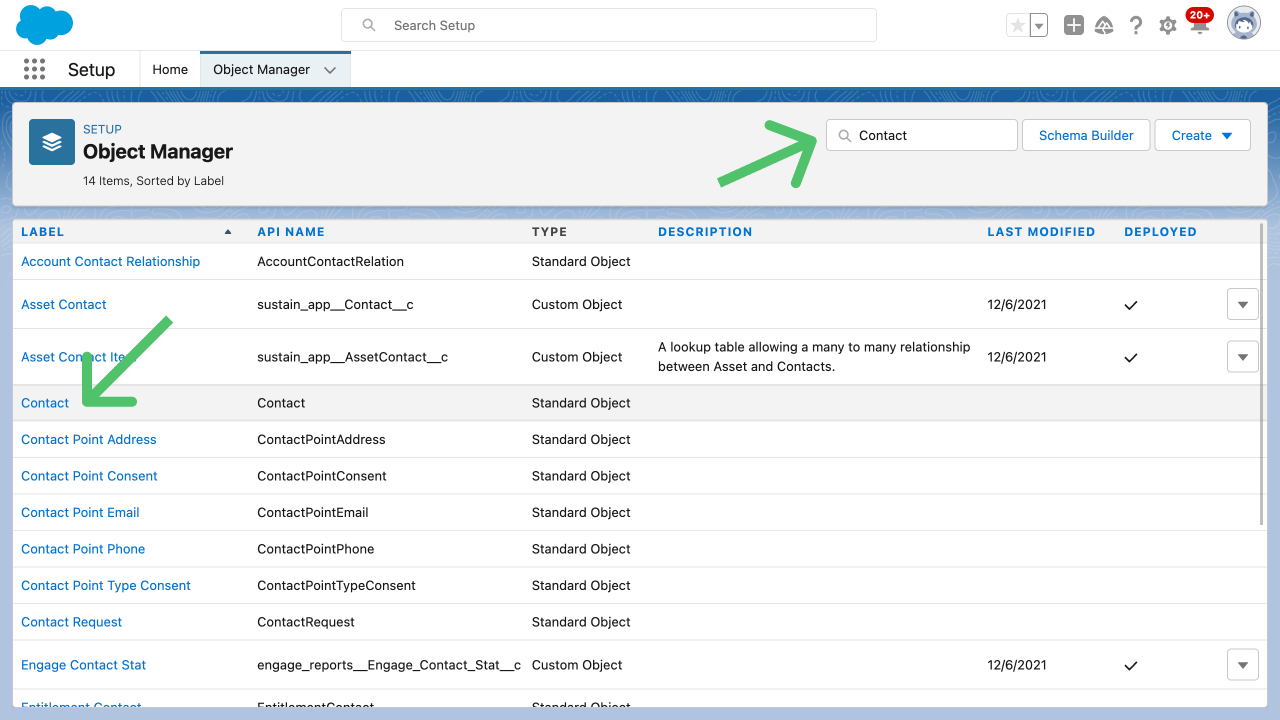
Search for the object you are interested in syncing to the Quick find input, for example Contact. Click the label name to inspect the object.
-
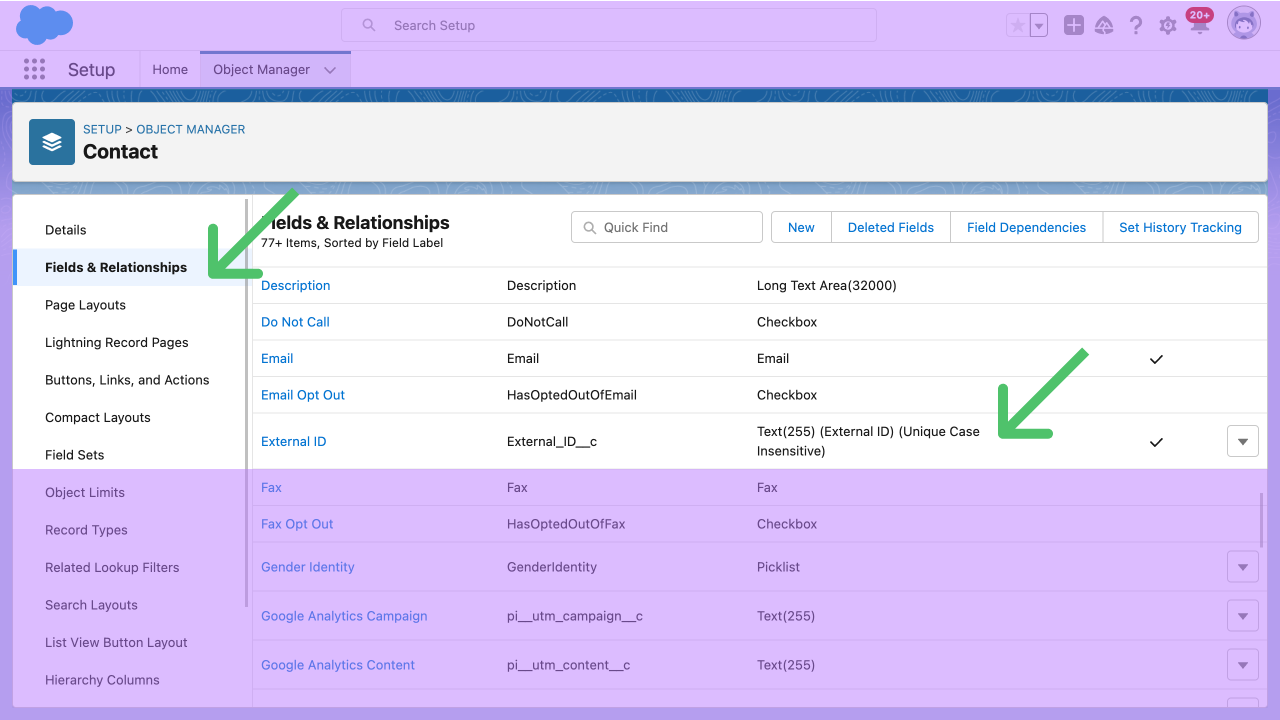
From the left sidebar, click Fields & Relationships. Inspect the field names and data types to confirm which you plan to sync via Hightouch. Any fields you want to use for record matching must have the External ID and Unique types.
-
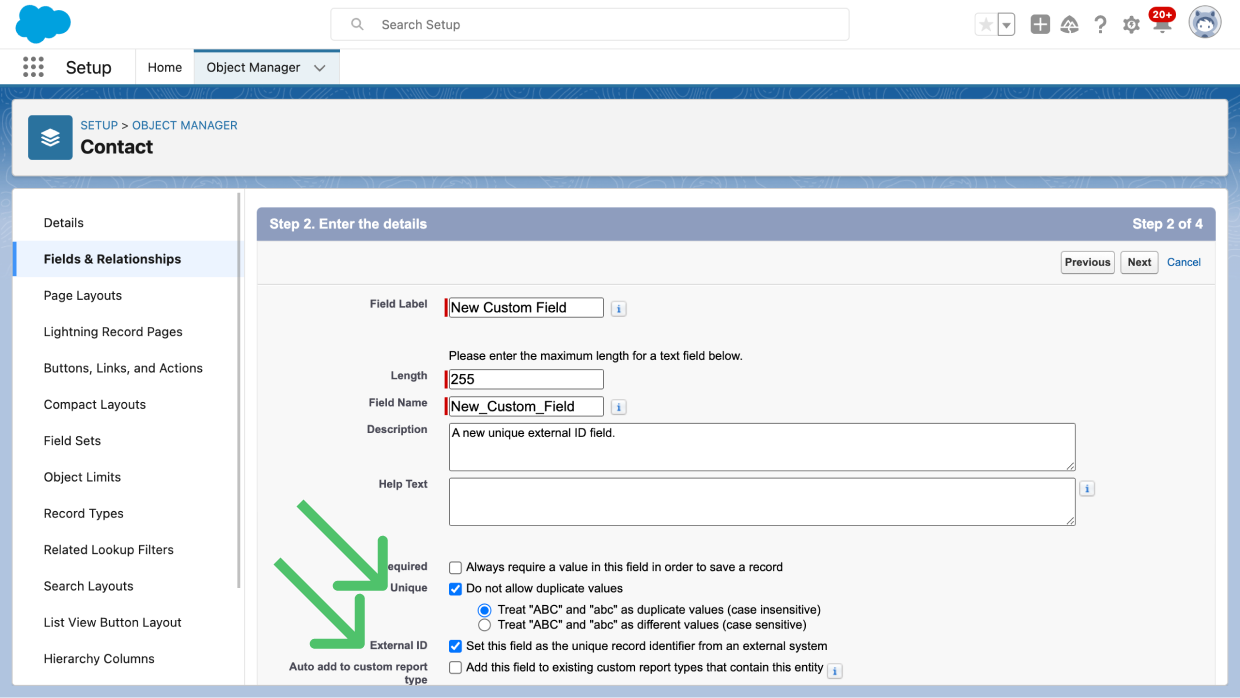
If necessary, create a new custom field and set it's type to Unique and an External ID.
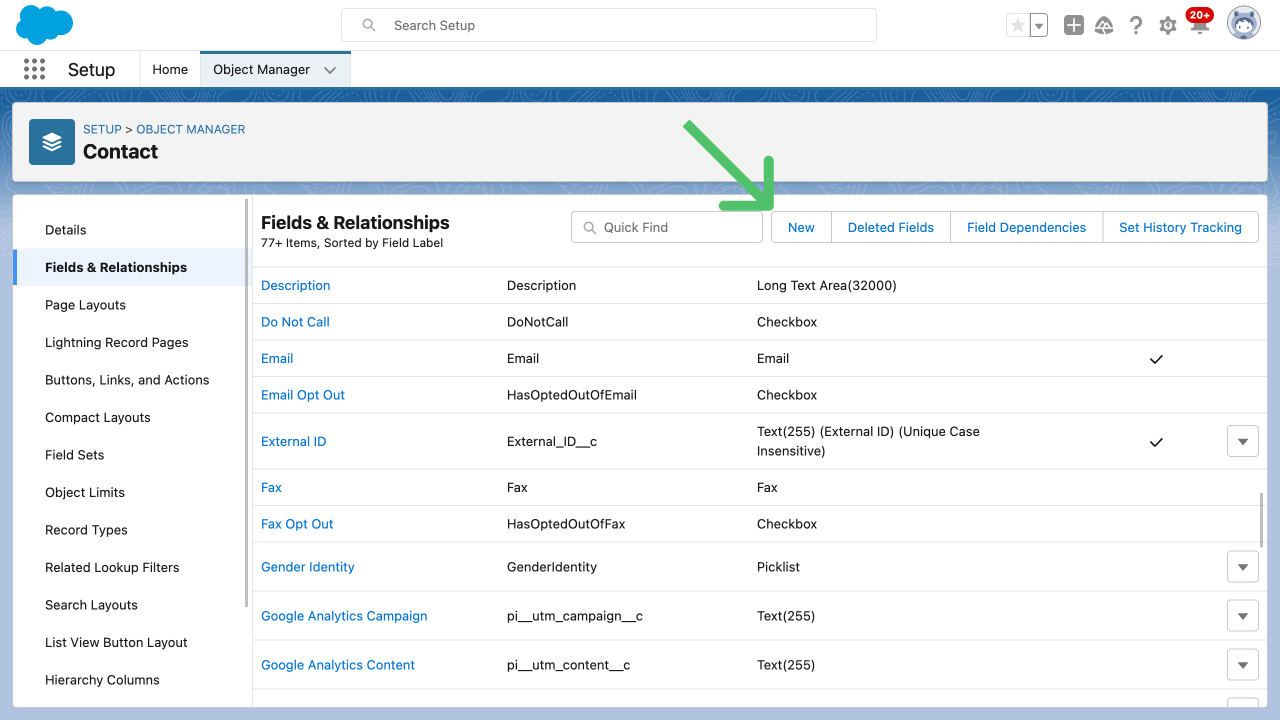
- Click New in your chosen object's Fields & Relationships.
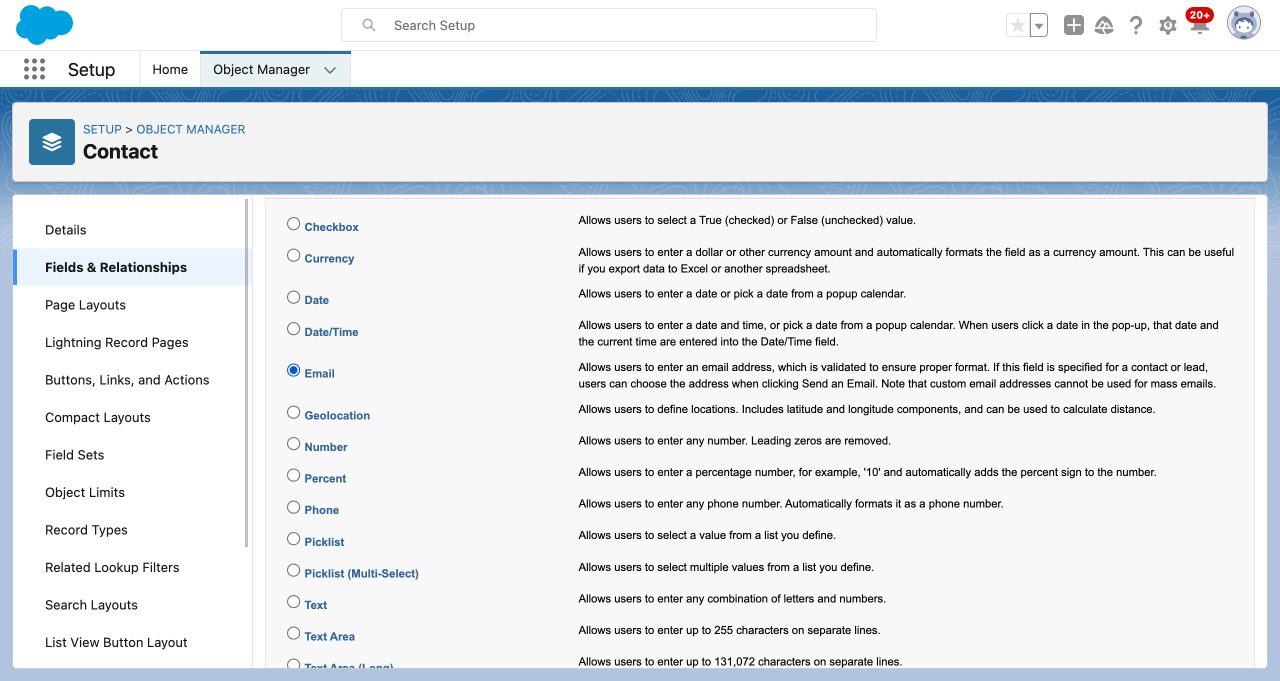
- Choose the field type, for example Email or Text, then click Next. (You'll set the Unique and an External ID types in the next step.)
- Give your new field a Field Label and description. Enable the Unique and External ID checkboxes. Click Next.
-
Select the profiles to which you want to grant edit access to this field via field-level security. The field will be hidden from all profiles if you don't add it to field-level security. Click Next.
-
Add the field to the page layouts you like and click Save.
Inspect APEX triggers and flows
-
Login to your Salesforce instance and make sure you are in the Sales module.
-
Click the gear icon in the top right and open the Setup page.
-
Search for Object Manager in the left search input and open it.
-
Select the object you want to inspect the APEX triggers and workflows for, for example Contact. Click the object to open its detail page.
-
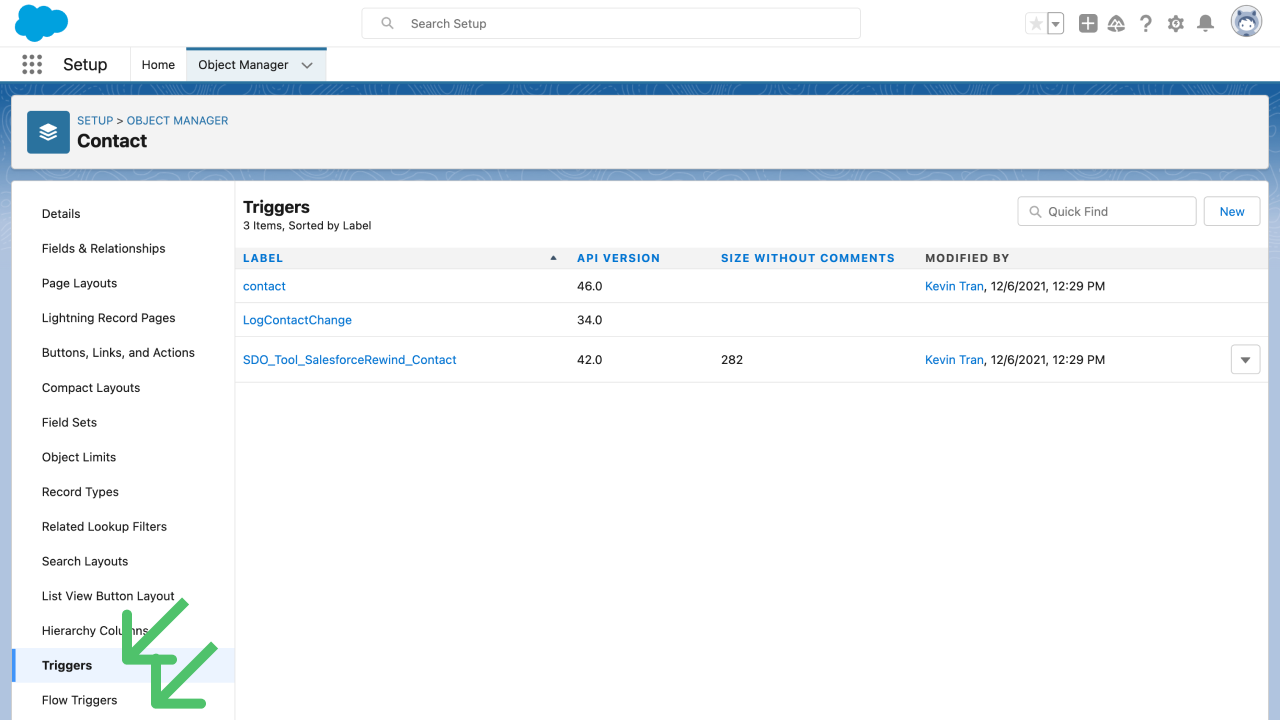
From the left sidebar, click Triggers or Flow Triggers, depending on which one you want to inspect first.
-
The Triggers page displays a list of all the APEX triggers that are associated with the object. To inspect a specific trigger, click its name.
-
The Flow Triggers page displays list of all the workflows that are associated with the object. To inspect a specific flow, click its name.
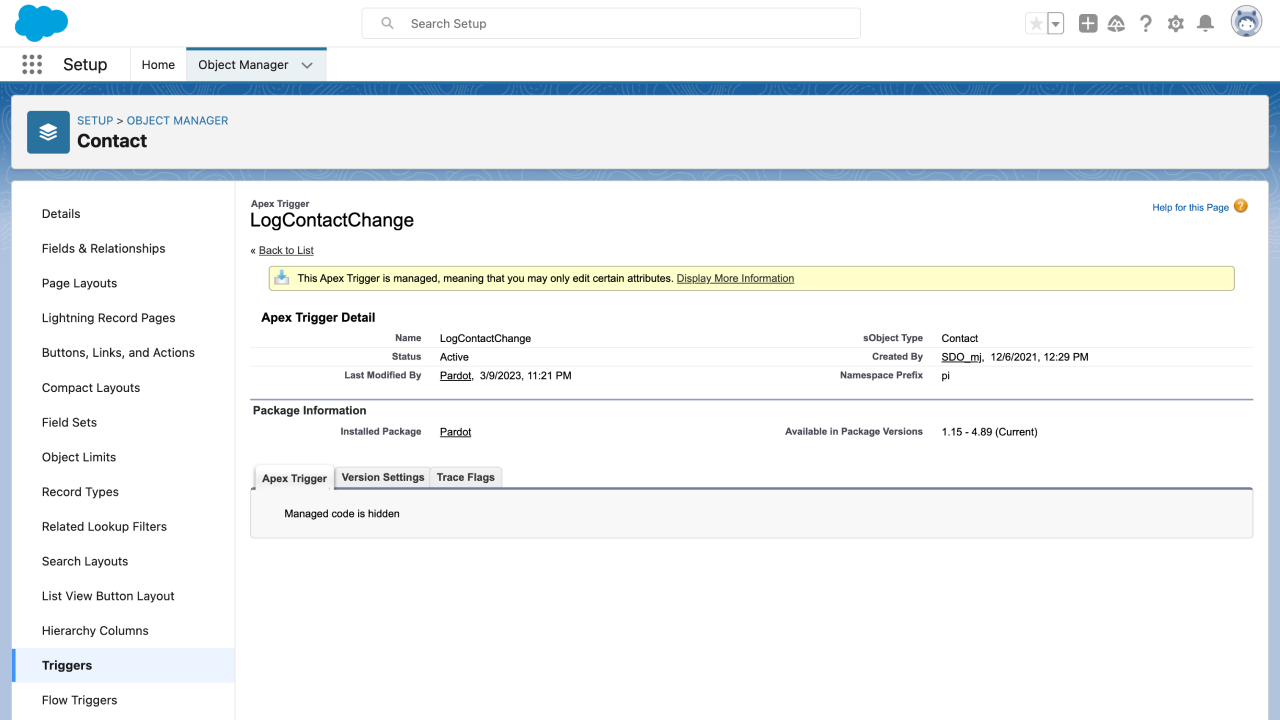
- Once you've opened a specific workflow or trigger, you can inspect its properties, such as its name, status, and other details. You can also edit or delete the workflow or trigger from this page, as well as view the history of changes made to it, if you have the correct permissions.
If you have any triggers or flows on objects you plan on syncing to, make sure to schedule your Hightouch syncs so as to not conflict with them.
Connect to Salesforce
Authenticate the Salesforce destination via OAuth.
Use a Salesforce user with access to every object and field you plan to sync — the simplest option is a system administrator or a dedicated integration user. That user's profile must have:
- Read and write access to every object and field you intend to sync.
- The View Setup and Configuration permission, under Administrative Permissions.
- Delete permission on any object you archive or delete records from (required for Archive mode and the Delete record delete behavior).
Select Log in to Salesforce, sign in with that user, and select Allow.
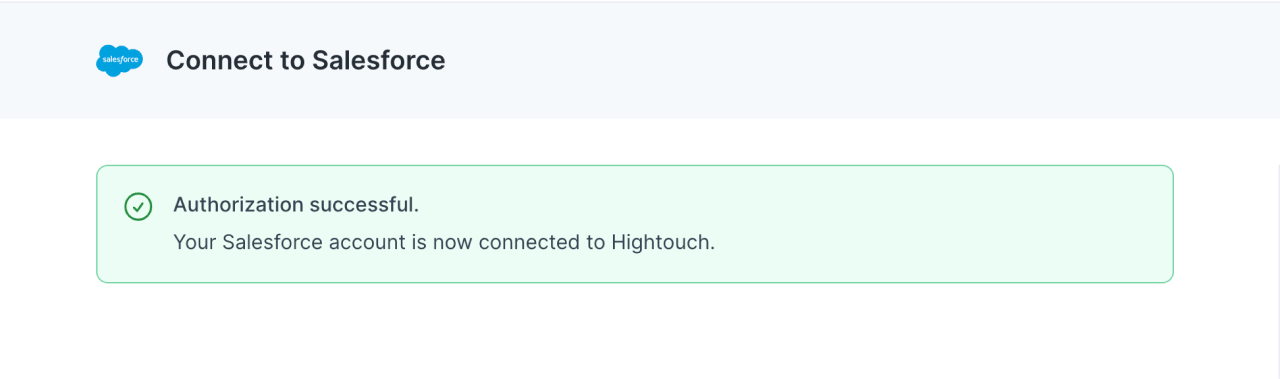
If you have Salesforce Authenticator setup as your 2FA, you may have to accept the request from your device.
Sync configuration
The configuration options below vary by sync type.
Objects
When syncing objects, you can choose to insert, update, upsert, or delete (archive) them. Consult the following table to understand which is best for your use case.
| Sync mode | Use case |
|---|---|
| Insert | You want to push objects into Salesforce, but don't care if the data within each object remains up to date. |
| Update | You have objects in Salesforce that you want to add information to, but you don't want to create any new objects. |
| Upsert | You want to push objects into Salesforce and want to keep the data up-to-date. |
| Archive | You have objects in Salesforce you would like to delete and your model contains those records and only those records. |
Archive mode deletes every Salesforce record returned by your model's query results. It's a destructive delete, not a recoverable archive — use it only when your model is scoped to exactly the records you intend to delete.
Record matching
Because inserts are non-idempotent when using Salesforce ID as an identifier, Hightouch doesn't support matching on Salesforce ID when upserting. If you'd like to sync records based on Salesforce ID, use update mode.
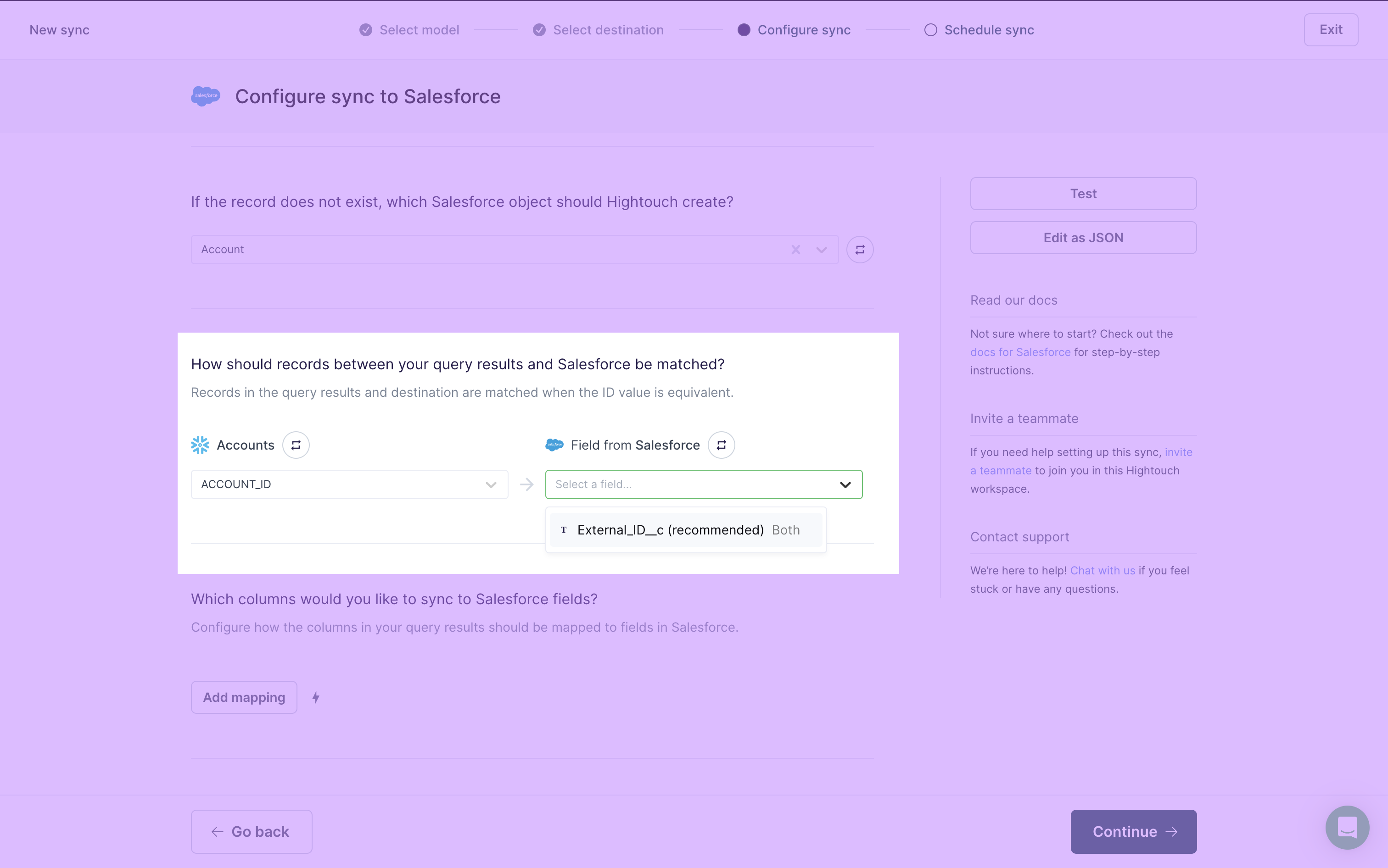
To match rows from your model to record in Salesforce, you need to select the model column and corresponding Salesforce field. Hightouch requires you use an external ID type field as the field to match on. It should be an explicit external ID type in Salesforce, not just an external ID field by practice.
Using an external ID field for matching lets Hightouch use Salesforce's native upsert API, meaning Hightouch doesn't need to perform a search to determine if a record should be updated or inserted. As a result, sync performance improves and avoids inadvertent duplicates.
You can create a custom field and set it to the external ID type by following the steps outlined above. To learn more, check out the Salesforce article on externalID field creation. The information regarding audit fields in the Salesforce article doesn't apply.
Once you've created the custom field, select Refresh next to the destination field dropdown to access the newly created field. An explicit external ID field will have (recommended) written next to its name.

Field mapping
You can map data from any of your model columns to native and custom fields in your Salesforce objects. Ensure the data type of your model column matches the data type of the field you want to sync to in Salesforce. For example, a string-type Salesforce field like FirstName expects a string-type model column.
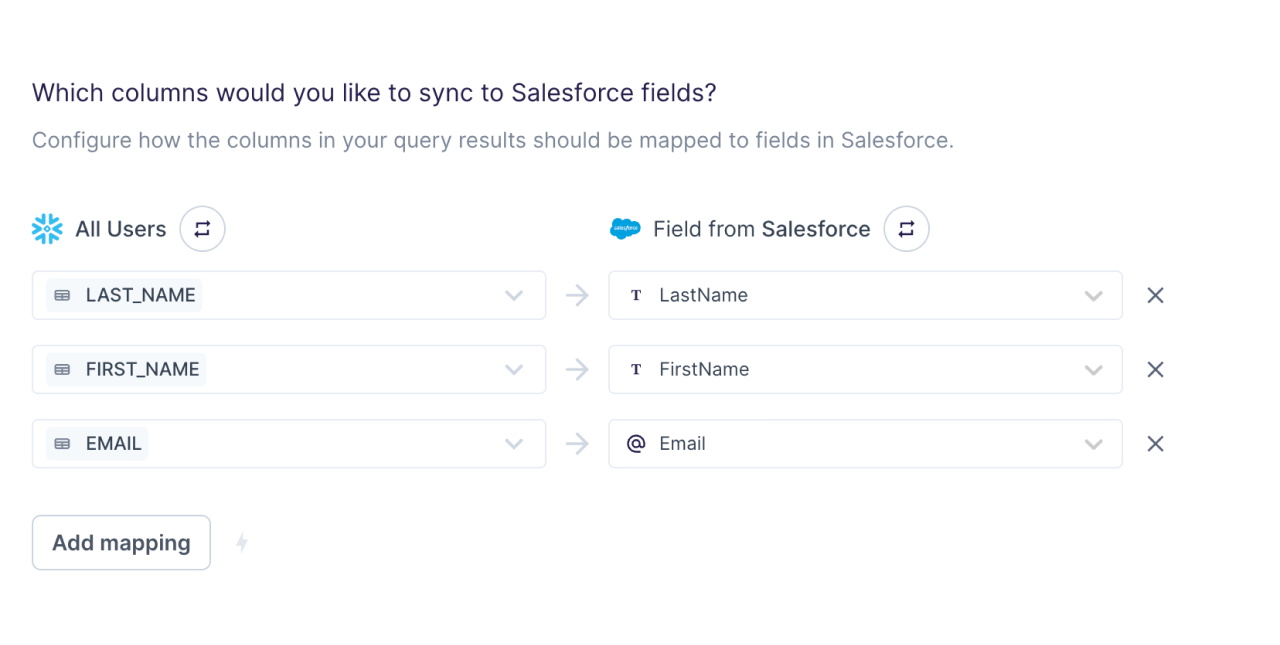
Certain Salesforce fields can be set upon record creation but can't be edited on existing records. Since Salesforce rejects updates to fields that can't be edited:
- in Update mode, the field mapping section only lists editable Salesforce fields;
- in Upsert mode, you can also map to non-editable Salesforce fields, but Hightouch omits those mappings when updating existing records, to make sure that your sync is successful.
To see if a field is editable, check its updateable field property via the Salesforce API. You can check this property by generating an initial access token and calling the sObject Describe API endpoint. The updateable value is included in Salesforce's API response, as shown in this example.
When syncing to a multi-select
picklist
type field, make sure to sync string-type values containing
semicolon-delimited lists, as explained in Salesforce's
documentation.
Relationships (object ID lookup)
In Salesforce, you can set up different types of relationships to associate records on a main object with records on a linked object. Using Hightouch, you can relate your Salesforce data through lookup relationships, which associate records by using a foreign key. This relationship type requires you to copy the Salesforce ID of the associated record (on the linked object) and insert it in a specific reference field in the record you're syncing (on the main object).
This reference field needs to be an associated field data type, which corresponds to Salesforce's lookup type. You can confirm the field is a lookup data type in Salesforce by using the Object Manager.
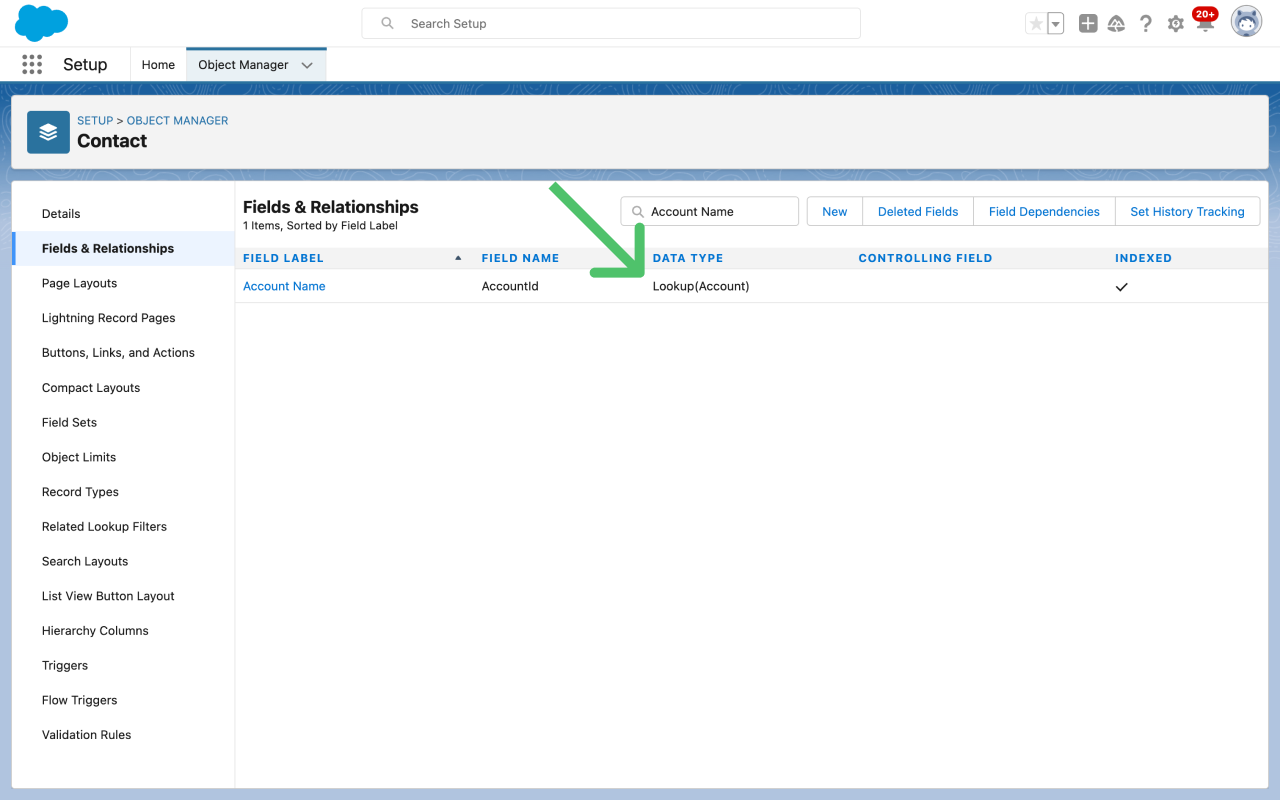
For example, you may want to associate contacts you're updating with their respective Salesforce accounts. In this case, the Contact object is the main object and the Account object is the linked object.
Records on the Contact object have an AccountId field which expects the Salesforce ID of the related records on the Account object.
However, your data model might not contain the required Salesforce ID values.
As a workaround, perform an Object ID lookup by:
- looking up the Account object based on another unique Salesforce field,
- retrieving the Salesforce ID of the associated record on the Account object,
- syncing that value to the
AccountIdfield on the Contact object.
Make sure to use a unique Salesforce field for the lookup. If you already created a separate sync to the linked object, you can select the Salesforce field used for record matching in that sync.
If your source data already contains the required Salesforce ID values, you can skip the lookup by selecting the Salesforce ID field in the relationship mapping. This will also increase your sync performance.
Make sure that the sync to the linked object always runs before the one to the main object. After creating your syncs, you can set up a sequence to schedule them in the correct order.
In your sync configuration, start by selecting the Salesforce reference field you want to sync to. The left side of the mapper displays the text and inputs:
- find [linked object]
- where [Salesforce field to use for lookup]
- equals [model column to match on]
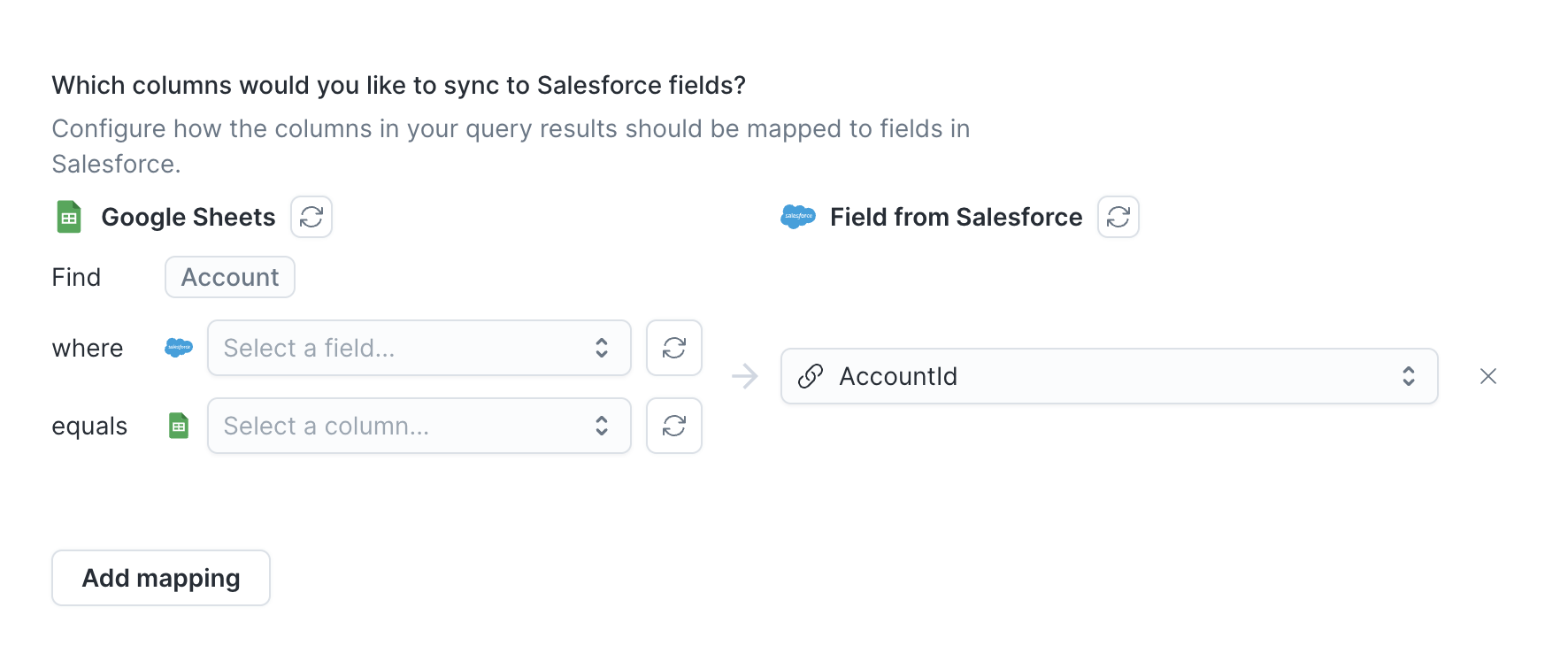
You then need to select the Salesforce field and model column to match on.
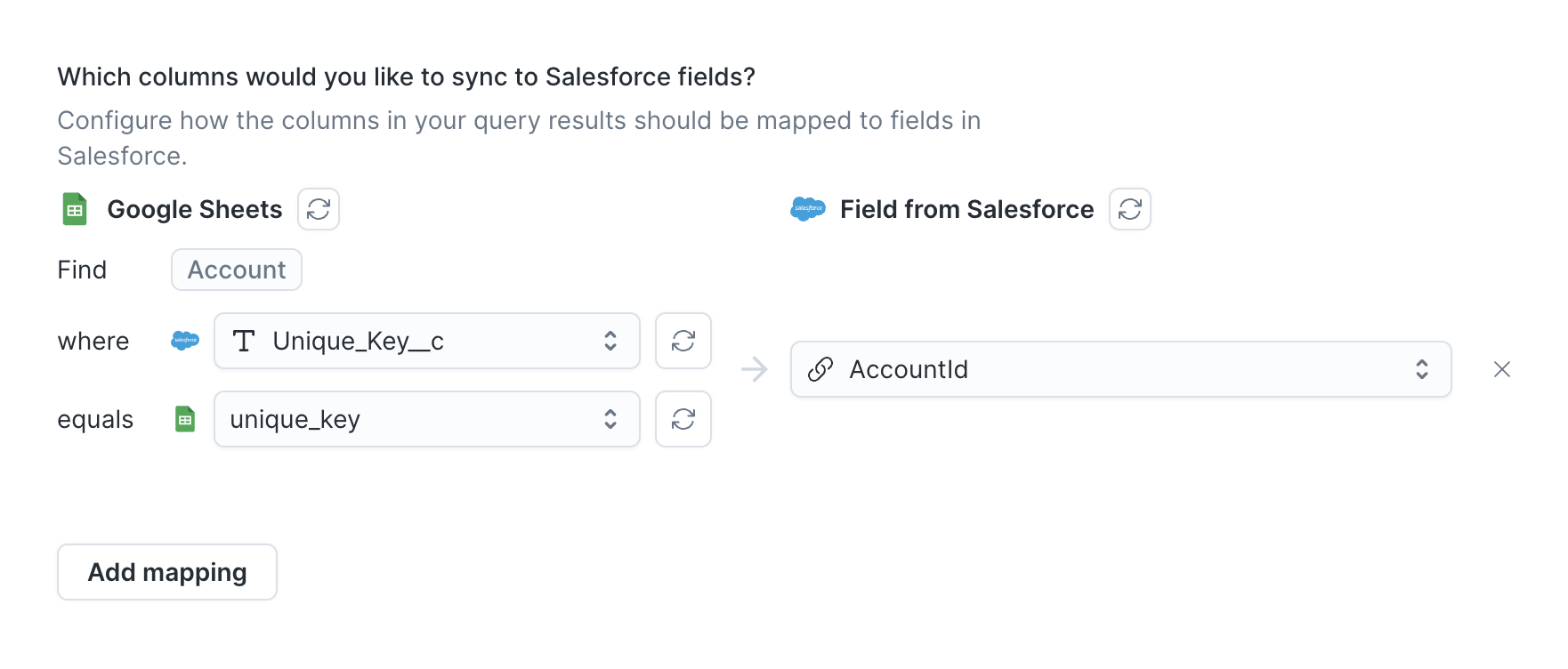
In this example, Hightouch looks up the corresponding record on the Account object by matching the value in the unique_key model column to the values in the Unique_Key__c Salesforce field.
The lookup returns the associated Salesforce ID, which Hightouch syncs to the AccountId field on the Contact object.
You can set up a lookup relationship between records on the same object, such
as relating two records on the Account object by mapping the ParentId
lookup
field.
You can narrow a lookup by adding conditions that the matched record must also satisfy.
For example, when syncing to the OwnerId field by looking up the User object, you can add the condition IsActive equals True so that Hightouch only matches active users.
To add a condition, click Add condition below the lookup mapping, then select a Salesforce field and enter the value it must equal. You can add multiple conditions; Hightouch requires matched records to satisfy all of them.
Unlike the lookup's match value, condition values are fixed values rather than model columns: Hightouch applies the same conditions to every row in the sync.
Enter dates in ISO 8601 format, for example, 2026-01-01 for date fields or 2026-01-01T00:00:00Z for datetime fields.
If a record matches the lookup field but doesn't satisfy every condition, Hightouch treats the lookup as not found and rejects the row, unless you've configured the lookup to sync a null value instead.
Delete behavior
The delete behavior you select dictates what to do when a row no longer appears in your model's query results. Depending on the sync mode you're using, you can select from some or all of these options:
| Behavior | Description |
|---|---|
| Do nothing | Keep the record in Salesforce |
| Clear fields | Keep the record, but clear the mapped fields |
| Delete record | Delete the record in Salesforce |
In Upsert mode, you can select from all three. In Update mode, you can only select between Do nothing and Clear fields. Insert mode doesn't support delete behavior.
Delete record permanently deletes the Salesforce record when it leaves your model's query results, and it can't be recovered through Hightouch. Choose Clear fields instead if you only need to blank the mapped values.
Batching and parallelization
By default, Hightouch sends batches of 1,000 records to Salesforce and sends ten batches in parallel.
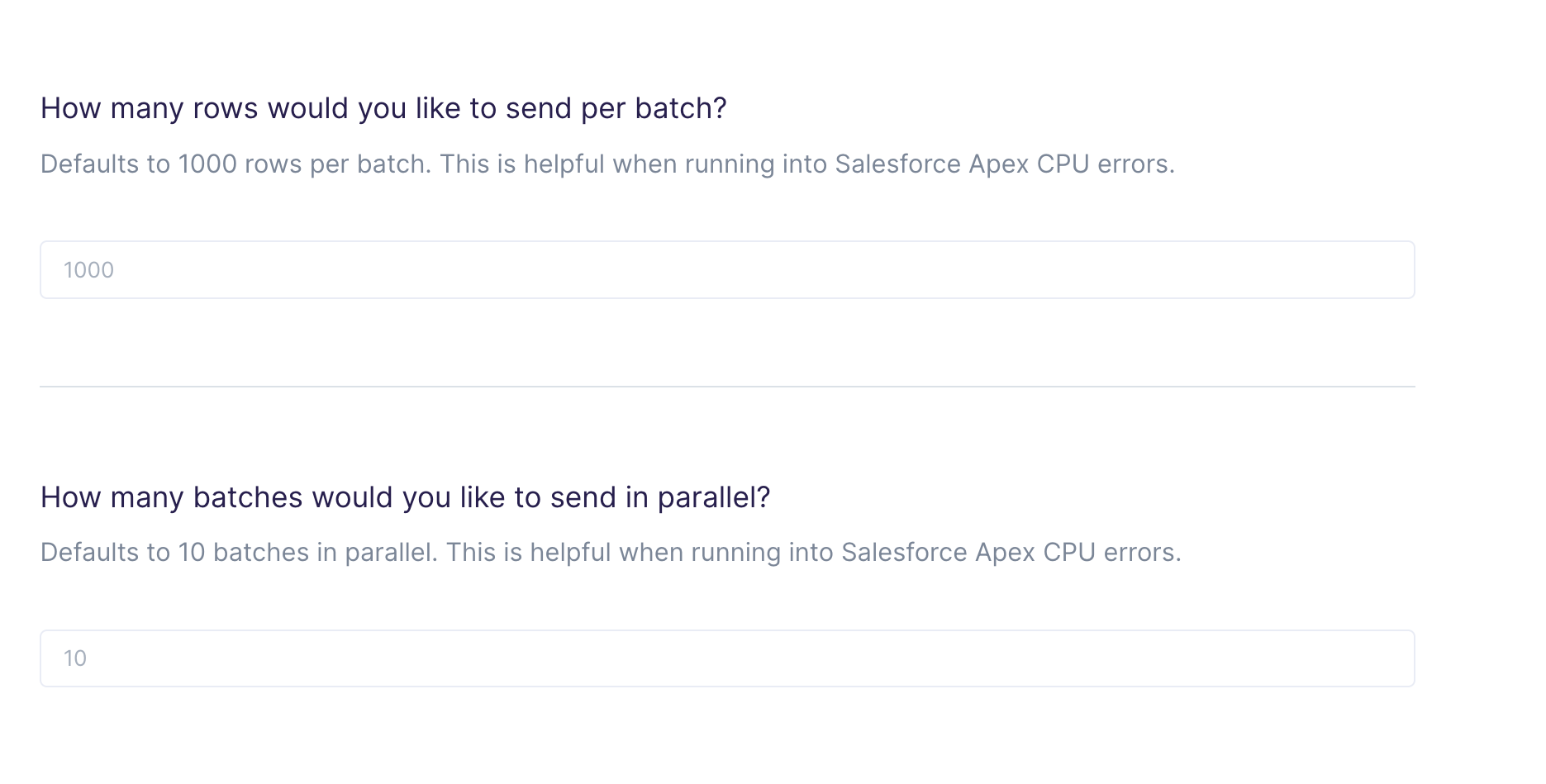
You can increase the batch size up to 10,000 records per batch and parallelization up to 50 batches. Higher batch sizes and batch parallelization can increase the speed of your sync, but may eventually cause errors due to the amount of processing power they require from Salesforce.
If you run into APEX errors such as TOO_MANY_APEX_REQUESTS it can be helpful to lower and tune these numbers. For example, you can decrease your batch size by half and if you no longer encounter errors, you can raise the batch size limit slowly.
Bulk API version
Two Bulk API versions are available: the legacy Bulk API (used by default) and Bulk API 2.0. Opt in to Bulk API 2.0 in the sync configuration.
The API versions have different batch and parallelization limits. Specifically, the original Bulk API counts the number of calls and Bulk API 2.0 counts the number of records. You can learn more about different limits and allocations between the two versions in Salesforce's docs. You should select the version that best suits your Salesforce agreement.
REST API support
Hightouch provides the option to use Salesforce's REST API instead of the Bulk API. This can be useful if your account runs into usage limits with the Bulk API and has a higher usage limit for the REST API. You can enable the REST API in the Advanced section in your sync configuration.
Hightouch currently uses v58.0 for the REST API.
The REST API uses a default batch size of 200 records per request. If you have automations that require specific batch sizes, you can adjust this in the Advanced settings configuration as well.
Split retries
Salesforce return a 200 successful response even when part of a batch of updates failed.
In some cases, you may want to retry the failed records, like for the UNABLE_TO_LOCK_ROW error.
You can enable split retries to filter out the records
that received the relevant errors and retry them again.
Merging objects
You can only merge Account, Contact, Individual, and Lead objects. Only upsert and insert modes support merging, and you must set parallelization to 1.
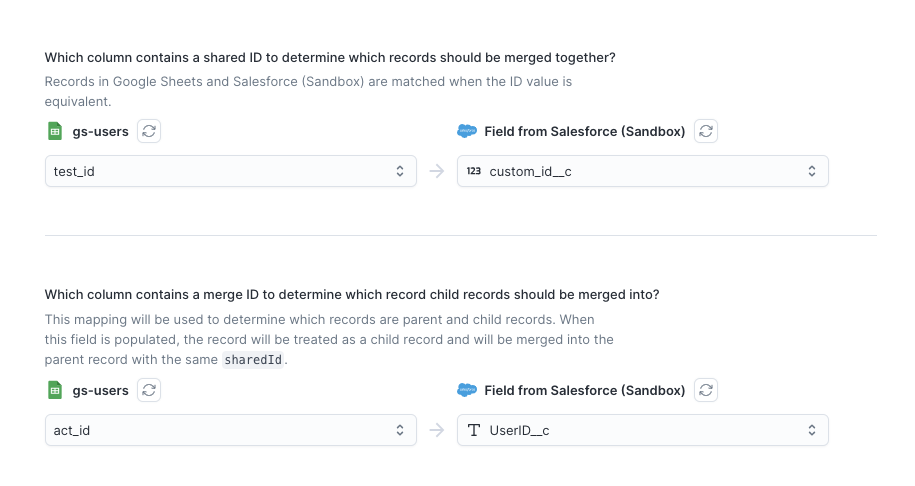
If your model contains child records that should be merged into a parent record, Hightouch handles merging the records into their respective parents based on two fields:
shared_idmerge_idoris_child
Hightouch treats records with the same shared_id as the same record and merges them together.
All child records in a group with the same shared_id must have a merge_id or is_child field populated.
For example, suppose you have the following records in your model's query result:
| Account | Shared ID | Is child |
|---|---|---|
| Account A | 1 | true |
| Account B | 1 | true |
| Account C | 1 | false |
| Account D | 2 | false |
| Account E | 3 | false |
| Account F | 3 | true |
Hightouch would merge Account A, Account B, and Account C together with Account C as the parent. Accounts E and F will be merged together with Account E as the parent.
Select the appropriate model columns and corresponding Salesforce fields for this logic.
Multi-object syncs
Sync to multiple objects, such as Contact or Lead and Account or Lead. Hightouch checks whether your external ID mapping matches either object and updates the one it finds.
To use multi-object syncs, make sure that your Lead's external ID field is mapped to the matching field on your Contact or Account. You can check by following these steps.
-
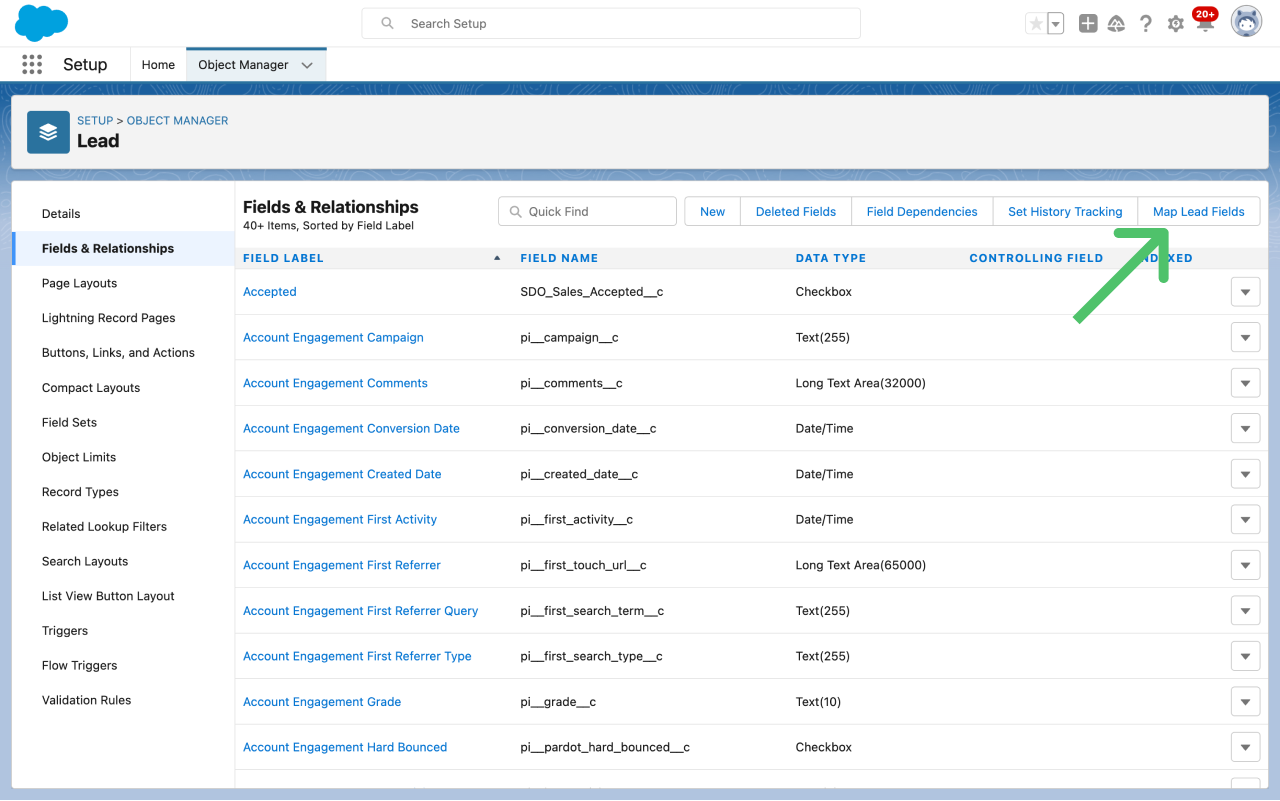
Find the Lead in the Salesforce Object Manager. Refer to the above documentation for information on how to use and access the Object Manager.
-
Go to Fields & Relationships.
-
Click Map Lead Field.
-
Map your Lead's external ID to the matching field on the Contact or Account.
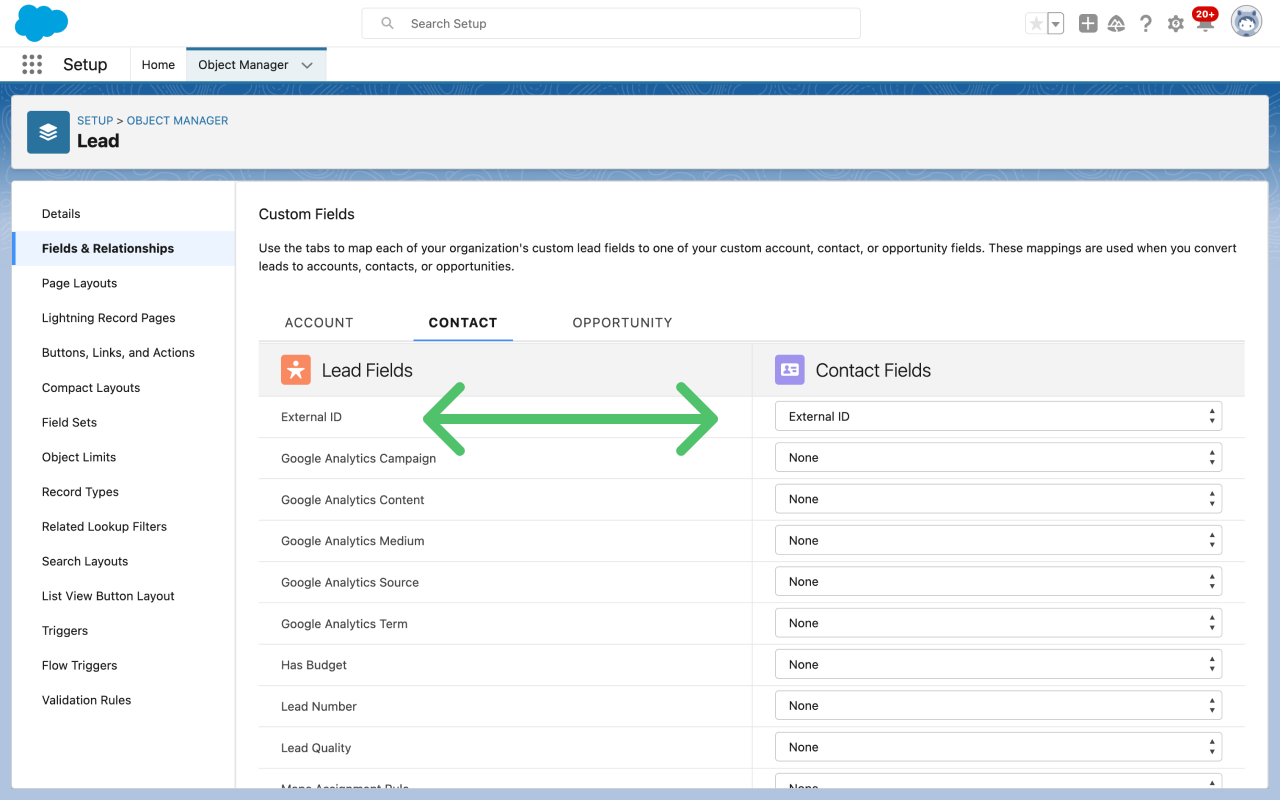
You may also map other fields that you want to carry over from Leads when they're converted.
Salesforce person accounts syncs
If you need to send data to a Salesforce person account, follow these steps:
- Contact Salesforce to enable person accounts if they aren't already.
- In your Hightouch sync configuration, select Account as the object to sync data to. A person account is a copy of the account object.
- Select your desired sync mode.
- Ensure you map at least a LastName field instead of FullName. Without this level of specificity, the sync fails.
- Complete your configuration as usual.
Custom picklist values
Update the values of a custom picklist field on any object. Create a separate sync configuration for each picklist, even when the picklists are on the same object.
When syncing custom picklist values, all active picklist values are replaced with each sync. For example, if your model returns four records, all four records become values for your picklist. Hightouch doesn't check which values are already there or append the new values. Each sync completes overwrites existing picklist values.
First, select the object whose picklist you want to update, then specify the picklist whose values you wish to update:
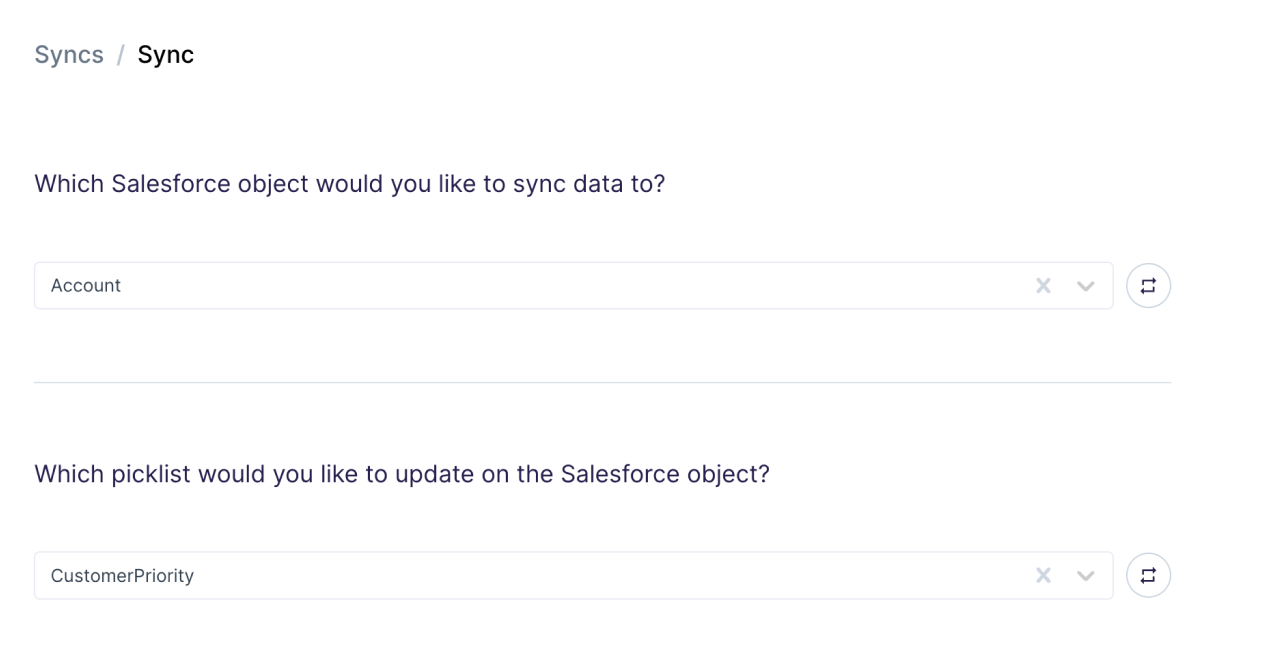
Record matching
Hightouch matches rows from your model to picklist values on the values' API name, also referred to as valueName. Select the model column that includes the appropriate API names for matching. API names must be unique across both inactive and active values within a picklist.
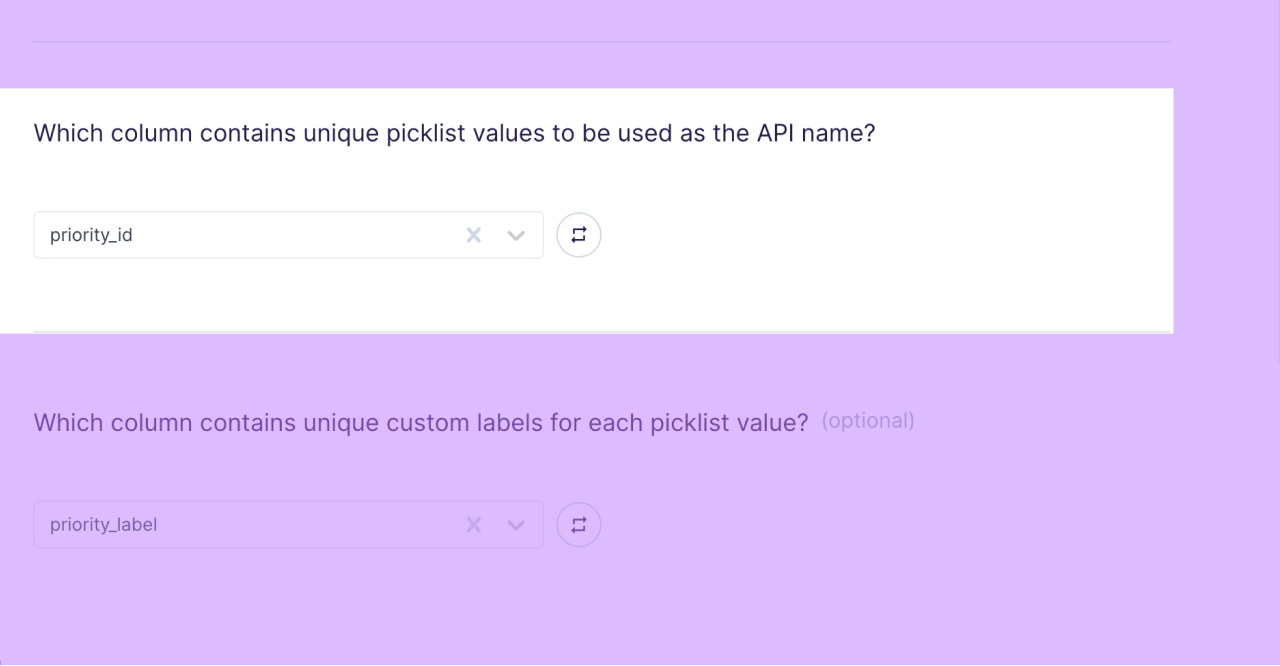
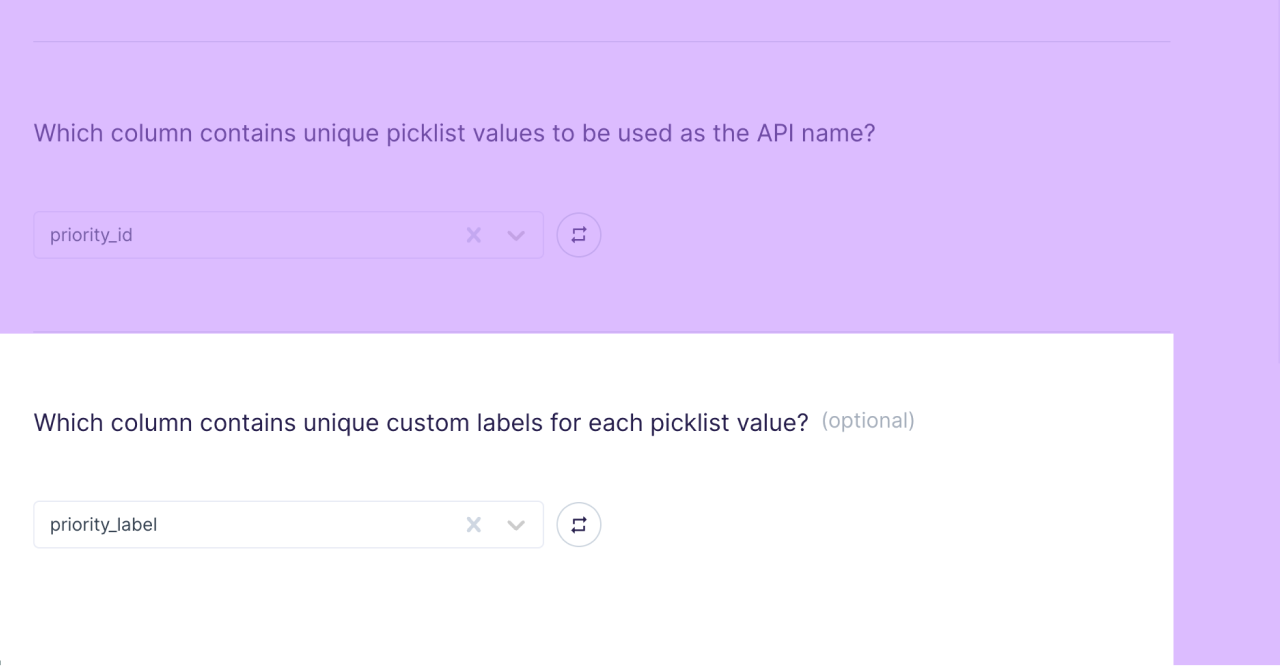
Field mapping
You can optionally select a model column that custom labels. Label values must be unique amongst active values in a picklist.
Limitations
Custom picklists may only contain a total of 1000 values (active and inactive) per picklist.
Platform events
Salesforce platform events are immutable, which means that you cannot update or delete them after they have been published. As a result, platform event syncs always use insert mode. This means that Hightouch ignores row changes and removals in your model's query results, and publishes a new platform event whenever a new row appears in your model results.
Before events appear in your Hightouch sync configuration, you first need to create platform events in your Salesforce instance. Hightouch then surfaces them within the sync configuration in a dropdown.
Record matching
Since platform events are Insert only, you don't need to match them to existing records.
Field mapping
Hightouch doesn't create platform event fields — create every field you need on the event in Salesforce first, then map your source columns to them.
Tips and troubleshooting
For Hightouch platform error codes related to Salesforce, see Error codes: Salesforce.
Behavior and limitations
Sandbox versions
Older Salesforce sandbox versions can cause processing delays or errors. If you sync to a sandbox and hit these, check its version and upgrade if needed. See Salesforce Sandbox Licenses and Storage Limits by Type.
Enhanced domains require reauthorization
Enabling enhanced domains changes your Salesforce instance URL, so you must reauthorize the destination or syncs break. Go to your Salesforce destination configuration and select Log in to Salesforce under Reauthorize connection.
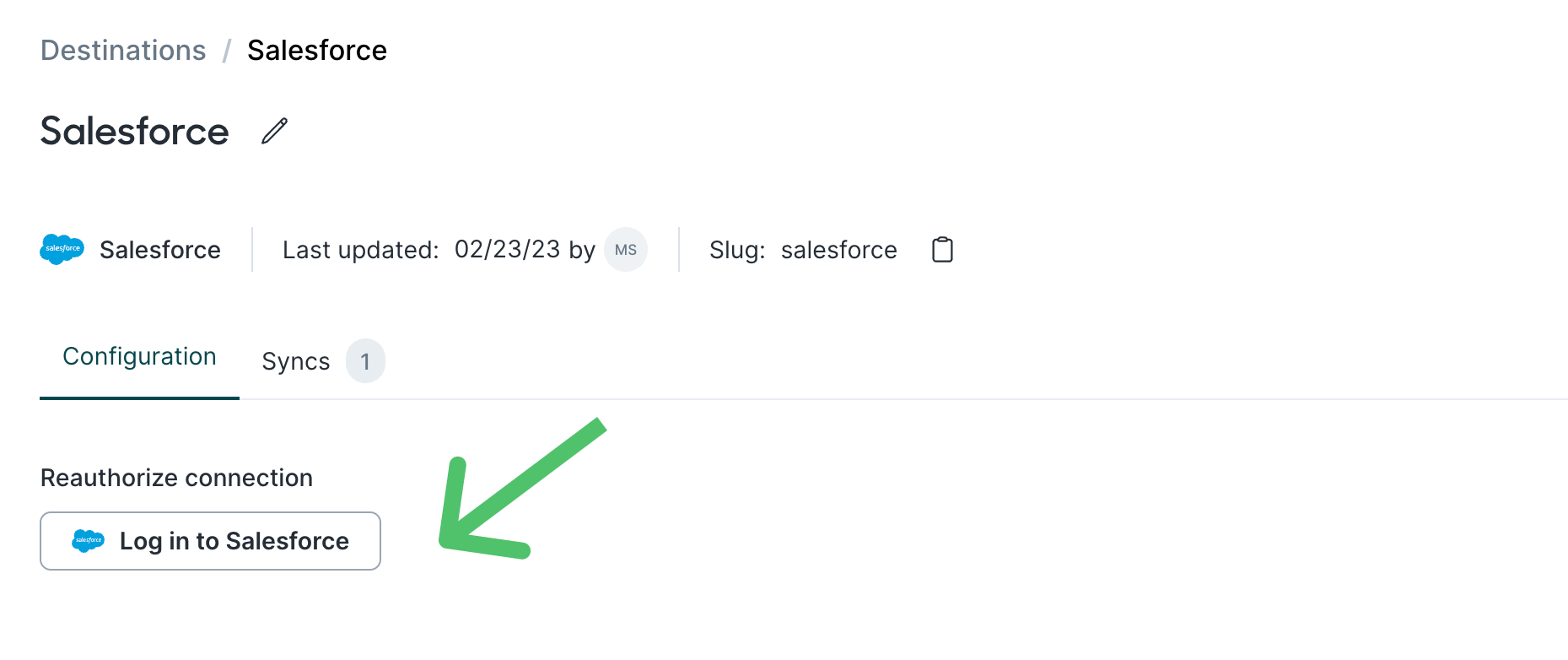
To learn more, see Salesforce's enhanced domain FAQ.
Sync volume and performance
Hightouch can process millions of rows to Salesforce in a single sync, given you have the available Salesforce API calls. In other words, sync volume limitations are a factor of your Salesforce API request limits and allocations, rather than Hightouch. If you're syncing large volumes of data, you may want to finetune your batching and parallelization configuration for optimal performance.
Upsert mode calls Salesforce's upsert endpoint, which can improve sync performance and lower API datapoint consumption since it only requires one single API request per batch of rows. However, there are still some additional API calls for rejected row retries and miscellaneous data that needs to be sent to Salesforce. This efficient Upsert mode only works when the Salesforce field used for record matching is an explicit external ID field.
Validate your setup
After your first sync completes, confirm the data landed in Salesforce:
- Objects: open the target object in Object Manager or a list view, find a synced record, and check that the mapped fields hold the expected values.
- Custom picklist values: open the picklist field's definition and confirm the active values match your model.
- Platform events: confirm a subscribed flow, process, or Apex trigger fired, or find the event in Salesforce's debug logs.
If a sync errors, open the sync run log for the exact Salesforce API message and match it against Common errors.
Common errors
If you encounter an error or question not listed below and need assistance, don't hesitate to . We're here to help.
| Error message | Description |
|---|---|
ApiBatchItems Limit exceeded. | Daily Bulk API limit exceeded. More detail. |
CANNOT_UPDATE_CONVERTED_LEAD | Attempting to update a converted lead. More detail. |
DUPLICATE_EXTERNAL_ID | Duplicate IDs in external data. More detail. |
DUPLICATES_DETECTED | Duplicate records in a sync batch. More detail. |
INSUFFICIENT_ACCESS_ON_CROSS_REFERENCE_ENTITY | Missing access to a cross-referenced object. More detail. |
INSUFFICIENT_ACCESS_OR_READONLY | Missing object or field permissions. More detail. |
INVALID_CROSS_REFERENCE_KEY | Referenced record ID doesn't exist or is inaccessible. More detail. |
INVALID_FIELD_FOR_INSERT_UPDATE | Writing to a non-editable field. More detail. |
INVALID_OR_NULL_FOR_RESTRICTED_PICKLIST | Invalid value for a restricted picklist. More detail. |
INVALID_TYPE_ON_FIELD_IN_RECORD | Type mismatch on a field value. More detail. |
OAUTH_APP_BLOCKED | Hightouch OAuth app blocked in Salesforce. More detail. |
UNABLE_TO_LOCK_ROW | Concurrent processes locking the same record. More detail. |
ValidationError: Reference not found | Lookup mapping references a nonexistent value. More detail. |
See Salesforce's comprehensive list of error messages and error codes for more.
ApiBatchItems Limit exceeded
ApiBatchItems Limit exceeded.
Cause: Your Salesforce org has used up its daily ApiBatchItems Bulk API limit.
Solution: Check your Salesforce Bulk API limits, review any other high-volume jobs running against the org, and retry the sync after the limit resets.
CANNOT_UPDATE_CONVERTED_LEAD
CANNOT_UPDATE_CONVERTED_LEAD
Cause: The sync is attempting to update a lead that has been converted into a contact, account, or opportunity. Once converted, the lead record becomes read-only in Salesforce — it still exists in the Leads object but can no longer be updated.
Solution:
- Filter converted leads out of your model's query results. In Salesforce, the
IsConvertedfield on the Lead object indicates whether a lead has been converted. - If you need to update the resulting records, sync to the Contact, Account, or Opportunity object instead.
DUPLICATE_EXTERNAL_ID
DUPLICATE_EXTERNAL_ID
Cause: Records with the same IDs are coming from an external system. This can happen when a lead or contact was imported with the wrong External CRM ID, when you have null values in your primary key, or when the Salesforce field used for record matching contains duplicates.
Solution: Deduplicate your model's query results and ensure the field used for record matching contains unique, non-null values. In Salesforce, verify the external ID field doesn't already contain duplicate values.
DUPLICATES_DETECTED
DUPLICATES_DETECTED
Cause: The sync batch contains duplicate records. This can happen when you have null values in your primary key or when the Salesforce field used for record matching contains duplicates.
Solution: Ensure your model doesn't return duplicated rows. Check that the field used for record matching contains unique, non-null values.
INSUFFICIENT_ACCESS_ON_CROSS_REFERENCE_ENTITY
INSUFFICIENT_ACCESS_ON_CROSS_REFERENCE_ENTITY
Cause: The connected Salesforce user doesn't have sufficient access to a related record referenced in a lookup or relationship field.
Solution: Check that the connected Salesforce user has access to the object being cross-referenced in your sync. Review field-level security, sharing rules, and record ownership for the referenced records.
INSUFFICIENT_ACCESS_OR_READONLY
INSUFFICIENT_ACCESS_OR_READONLY
Cause: The Salesforce user connected to Hightouch lacks the required object-level or field-level permissions for the records being synced. This error can appear intermittently when some records in a batch require access that the user doesn't have.
Solution:
- Verify that the connected Salesforce user's profile has read and write access to the object being synced. Go to Setup → Profiles or Setup → Permission Sets in Salesforce and check the object permissions.
- Check field-level security for the specific fields in your sync mapping. The connected user must have write access to every mapped field, not just the object.
- If the error appears only for specific records, look for record-level sharing rules, ownership restrictions, or org-wide defaults that may limit access to those records.
INVALID_CROSS_REFERENCE_KEY
INVALID_CROSS_REFERENCE_KEY
Cause: The sync is attempting to create or update a record that references a nonexistent or inaccessible record ID in a lookup or relationship field. Common causes include syncing IDs from a different Salesforce object, a different org (production vs. sandbox), or referencing records that have been deleted.
Solution:
- Verify that the referenced record IDs in your model exist in the target Salesforce org. IDs don't carry over between sandbox and production environments.
- Check that the connected Salesforce user has access to the referenced records. Record-level sharing rules or org-wide defaults can restrict visibility.
- Ensure lookup fields reference the correct object type — for example, an Account ID in a field that expects a Contact ID triggers this error.
INVALID_FIELD_FOR_INSERT_UPDATE
INVALID_FIELD_FOR_INSERT_UPDATE
Cause: The sync is attempting to write to a field that Salesforce doesn't allow to be inserted or updated. Salesforce has several non-editable field types that reject writes regardless of user permissions: formula fields, roll-up summary fields, auto-number fields, and system-managed fields like Created By, Created Date, Last Modified By, and Last Modified Date.
Solution:
- Open the Object Manager in Salesforce and verify that each mapped field is editable — not a formula, auto-number, roll-up summary, or system-managed field.
- Check field-level security for the connected user's profile to confirm write access on every mapped field.
- If you're using record types, ensure a default record type is assigned to the connected user's profile. A missing default record type can trigger this error on insert operations.
- If you need the data in a non-editable field, create a custom editable field on the same object and sync to that instead. You can then use Salesforce automation (flows or Apex triggers) to copy the value where needed.
INVALID_OR_NULL_FOR_RESTRICTED_PICKLIST
INVALID_OR_NULL_FOR_RESTRICTED_PICKLIST
Cause: The sync is attempting to write an invalid value into a restricted picklist field — for example, a value that isn't in the picklist's allowed values, a value that exceeds the field's length limit, or a data type mismatch.
Solution: Review the picklist field's settings in Salesforce (Setup → Object Manager → [Object] → Fields & Relationships → [Field]) and ensure the values in your model match the allowed picklist values exactly, including casing.
INVALID_TYPE_ON_FIELD_IN_RECORD
INVALID_TYPE_ON_FIELD_IN_RECORD
Cause: The sync is sending a value with an incompatible type — most commonly a null value to a Boolean field. This error can also occur when a before-save update flow sets a value that conflicts with the value sent from Hightouch.
Solution: Ensure your model doesn't send null to Boolean fields in Salesforce. If a before-save flow is conflicting, disable or modify the flow.
OAUTH_APP_BLOCKED
OAUTH_APP_BLOCKED
Cause: The Hightouch connected app is blocked in Salesforce.
Solution:
- Go to Setup → Connected Apps OAuth Usage in Salesforce and ensure Hightouch is unblocked. The user verifying OAuth permissions must be a Salesforce admin.
- Grant Hightouch read and write access to all the objects and fields you intend to sync.
- Ensure the connected user's profile has the View Setup and Configuration permission enabled under Administrative Permissions.
UNABLE_TO_LOCK_ROW
UNABLE_TO_LOCK_ROW
Cause: Multiple processes — including Hightouch syncs — are trying to modify the same record at the same time. Salesforce can't work on a row while another process is touching it.
Solution:
- If there is an Apex trigger or workflow that conflicts with your sync, pause the process or rerun the sync after the process finishes. This error is often temporary and resolves on retry.
- Lower your parallelization to five or less to minimize the chances of two requests modifying the same record simultaneously.
- Identify long-running processes in your Salesforce environment that could be holding locks. Optimize them or break them into smaller batches.
- Ensure your model doesn't return duplicated rows — duplicates can also trigger this error.
See Salesforce's Help Center for more information.
ValidationError: Reference not found
ValidationError: Reference not found
Cause: A relationship lookup mapping in the sync configuration can't find the referenced value in Salesforce. The error message contains the Salesforce field name used for the lookup and the value that failed.
Solution: Ensure the model column used for the lookup mapping only contains values that already exist in Salesforce. Check for typos, deleted records, or ID mismatches.
Missing or non-updating fields in sync configuration
If fields are missing from the sync configuration dropdown, or mapped fields aren't updating in Salesforce, check the following:
- Field-level security (FLS): Go to Setup → Object Manager → [Object] → Fields & Relationships in Salesforce and verify that the connected user's profile has read and write access to each field. FLS restrictions can silently prevent fields from appearing in Hightouch or prevent updates from landing.
- Refresh fields: If you recently added or changed fields in Salesforce, go to your sync configuration in Hightouch and select Refresh next to the destination field dropdown to pull the latest schema.
- Ensure fields you want to match against are set as external identifiers.
- If you authenticated with your personal user ID, make sure you have permission to view and update the fields you want.
- If you're missing the Salesforce ID field for matching on, make sure you're in the correct sync mode. Matching on Salesforce ID isn't supported for upserting—use update mode instead.
- If you set your sync to Update mode, the field mapping section only lists
updateableSalesforce fields. - Verify that field names in your model still match Salesforce. If a field was renamed or deleted in Salesforce, the mapping breaks silently.
When syncing to multi-objects, for example, Contact or Lead or Account or Lead, ensure both object types include a shared unique field marked as a Unique ID or a unique external ID. Without meeting this requirement, you won't see any fields populate for record matching.
Duplicate records in Salesforce
Make sure that the Salesforce field used for record matching is an explicit external ID field. You can learn more about this in the record matching section.
Live debugger
Hightouch provides complete visibility into the API calls made during each of your sync runs. We recommend reading our article on debugging tips and tricks to learn more.
Sync alerts
Hightouch can alert you of sync issues via Slack, PagerDuty, SMS, or email. For details, please visit our article on alerting.