| Audience | Marketers, creative teams |
| Prerequisites |
|
Messages are individual lifecycle emails you create in Lifecycle Studio. Start from a template, refine the email with the agent chat or visual editor, review and approve it, then export the finished email.
Overview
You can create a message two ways: directly in Messages for a quick single email, or as a candidate inside a campaign. Messages you create directly are listed here, so you can manage and review them in one place.
However you start, the path is the same: generate a draft, refine it, review and approve it, then export it.
Create a message
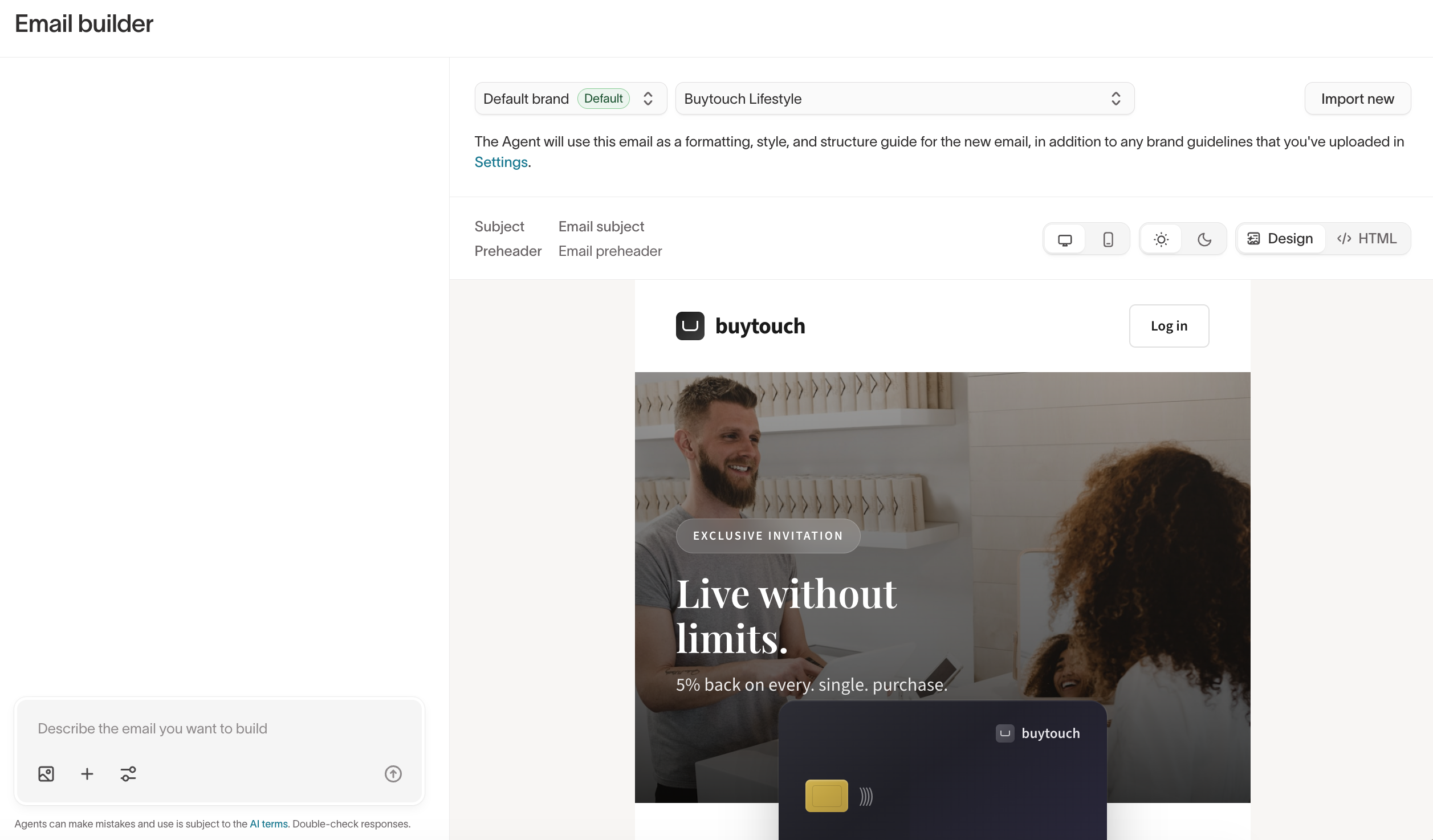
To create a new message:
- Go to Lifecycle Studio → Messages and select New message.
- Select a reference email for the agent to follow as a structure and style guide. Choose one of your templates, or select Import new to paste raw HTML. A reference email is required.
- Describe what you want. The agent generates the email from your description, the reference email, and your workspace context.
- Review the generated message and iterate.
Include your target audience, key message, and desired tone in the description. Specific inputs produce more relevant content on the first pass.
Refine the message
The agent's first draft is a starting point. Refine it until it's ready: chat with the agent, edit the email directly, or move between the two. Edits in one are reflected in the other.
Iterate with the agent chat
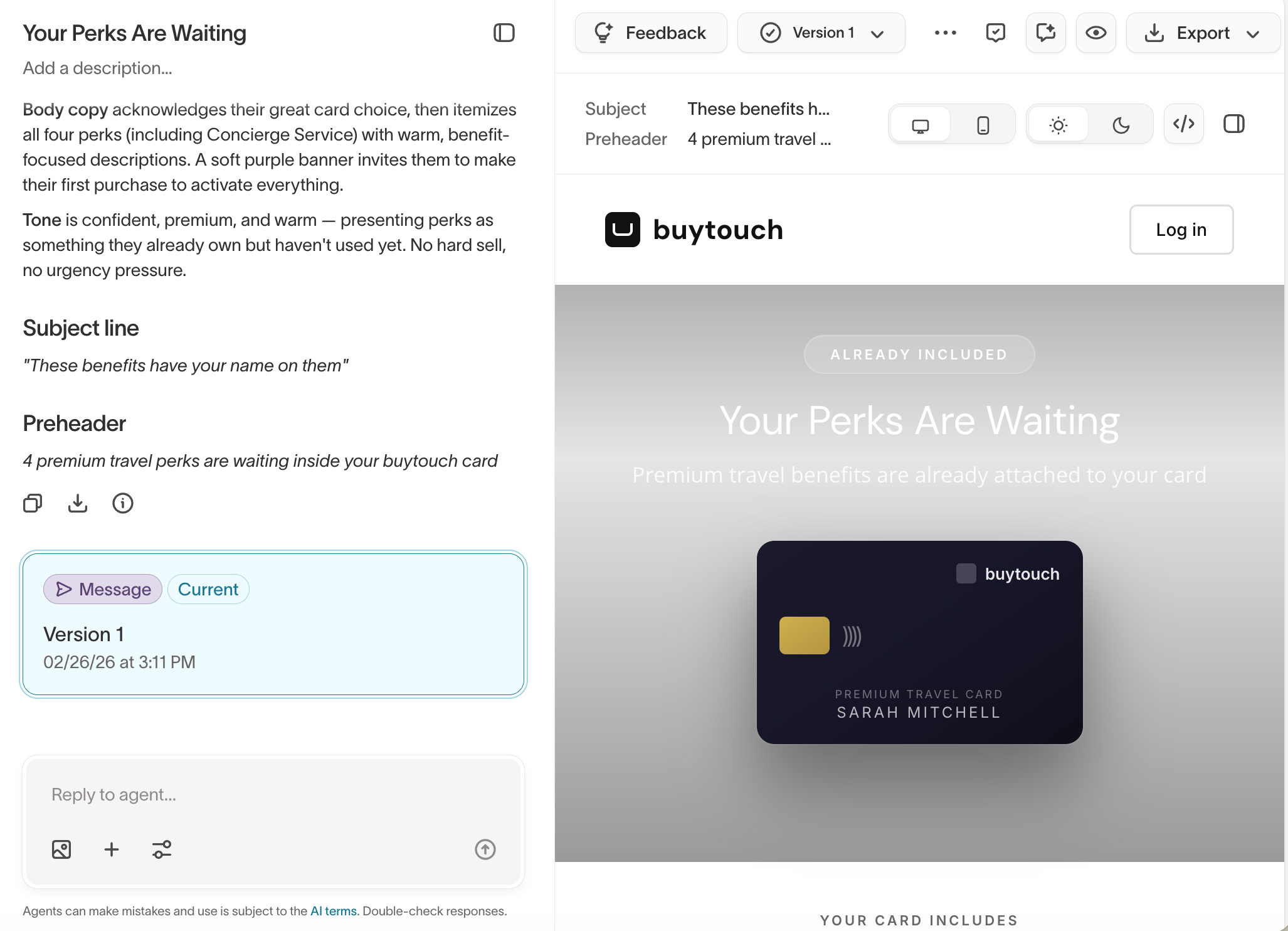
Once the agent generates a message, you land in the email editor, with the agent chat and a live preview side by side. Refine the message by chatting with the agent in natural language. Ask for changes to copy, imagery, layout, tone, subject line, and preheader.
Example prompts:
- "Make the CTA more urgent."
- "Swap the hero image for a lifestyle shot."
- "Shorten the body copy."
- "Try a more conversational tone in the intro paragraph."
The agent explains what it changed and why, so you can evaluate each iteration in context.
Edit visually
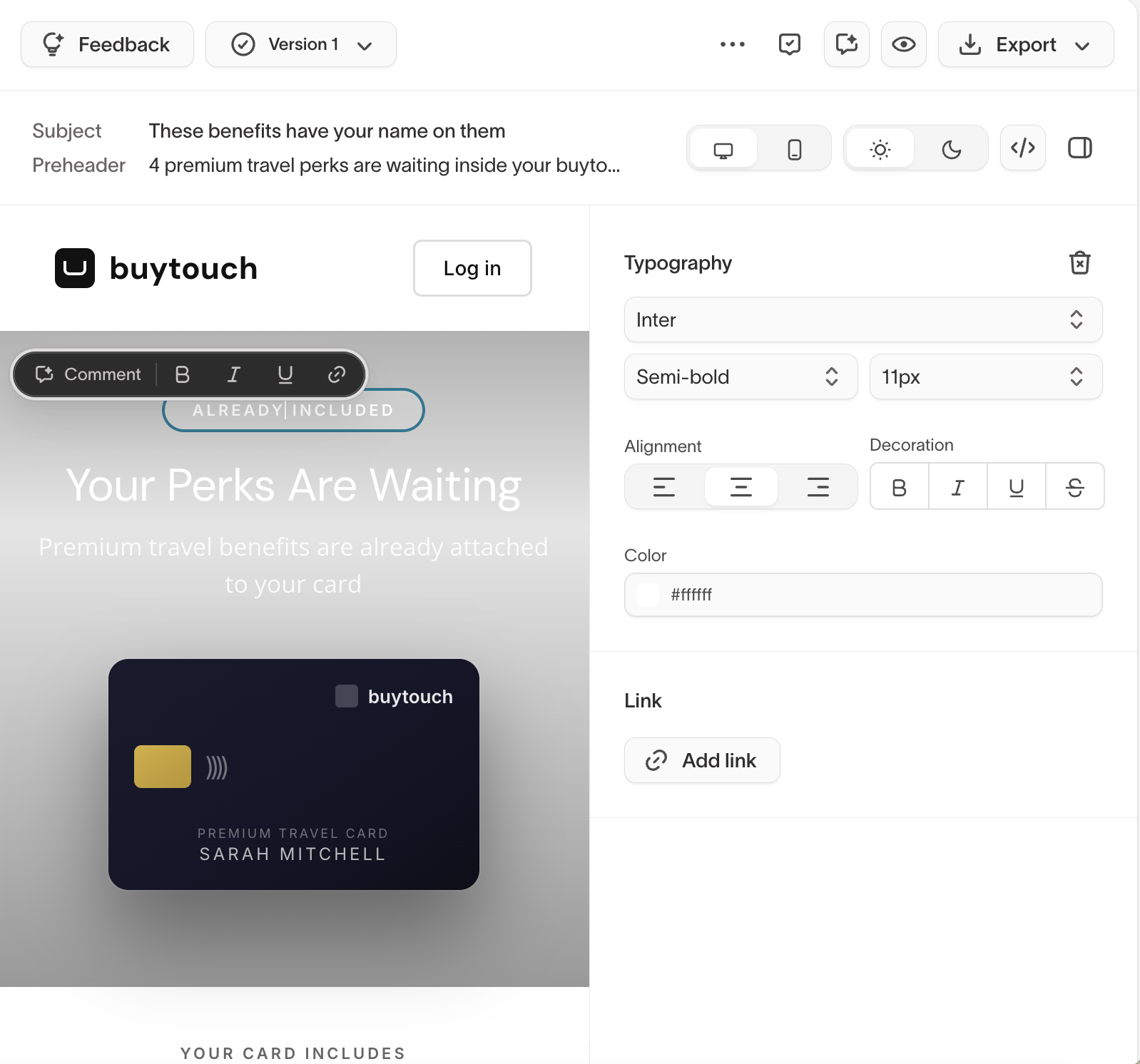
You can also make changes by hand:
- Direct editing — Select any element in the preview to change its text, typography, color, and links.
- HTML editing — Switch to the code view to edit the underlying HTML.
- Preview modes — Preview the email in web, mobile, light, and dark modes to check how it renders across contexts.
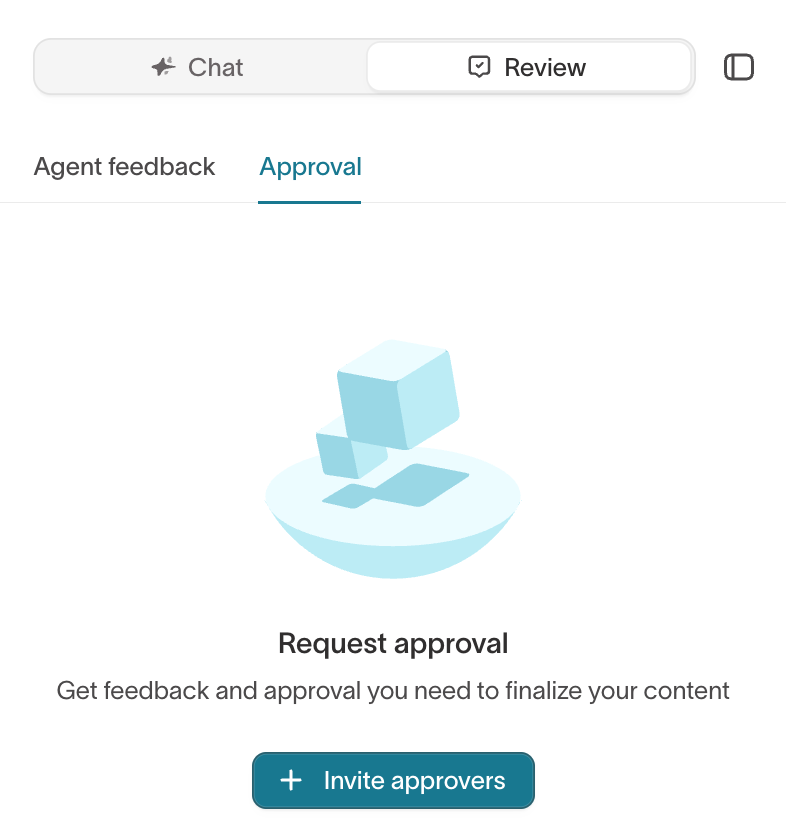
Review and approve
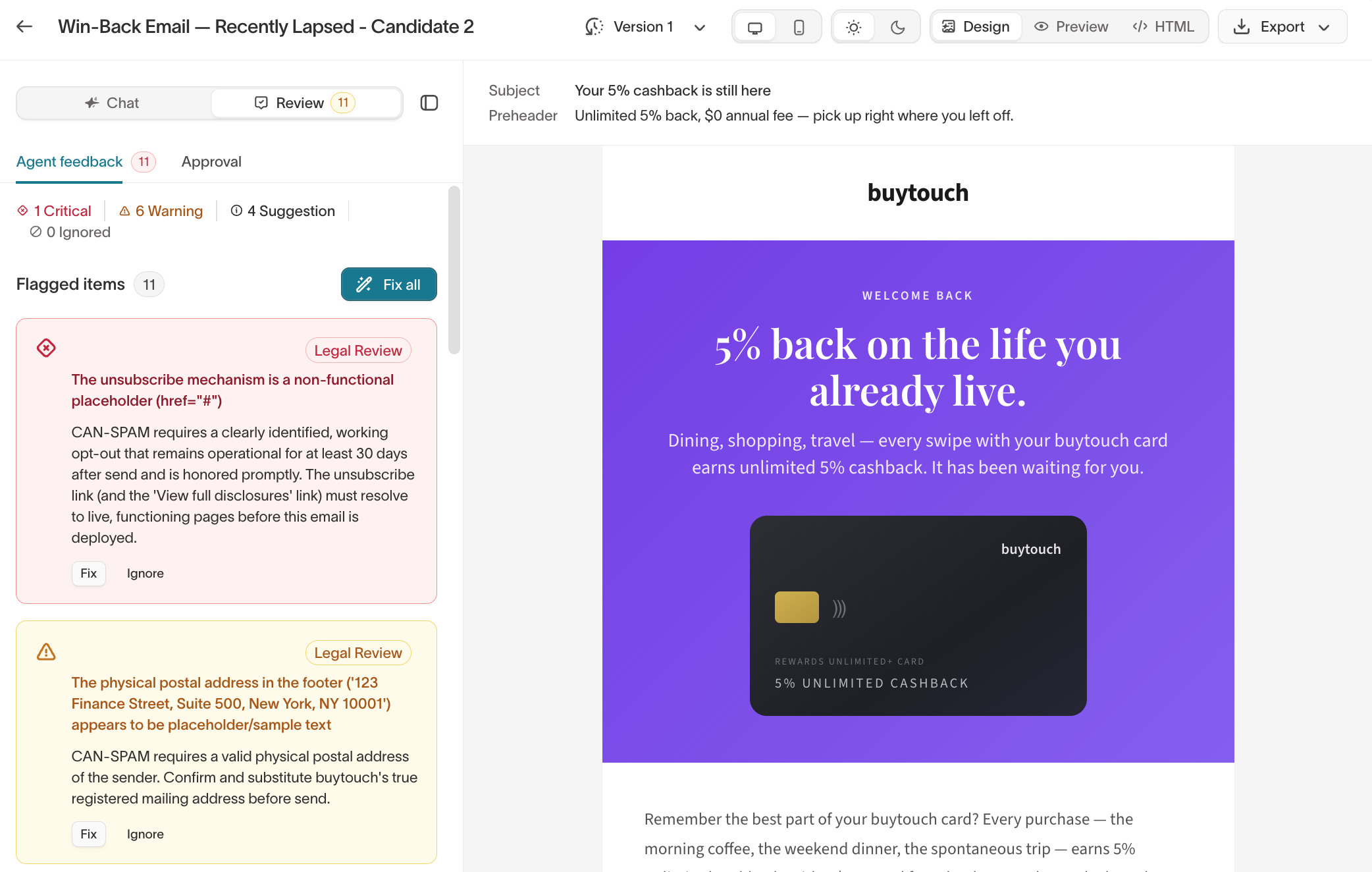
Before you export, you can run two kinds of review.
Agent feedback — Have your agent reviewers check the message before you involve teammates. Each reviewer checks it against its instructions and reference files, such as legal guidelines, brand guidelines, or email QA checklists, and flags issues as suggestions, warnings, or critical. Agent reviewers are assigned in Agents settings and configured by creating custom agents. If you don't have any reviewers assigned, you can still use Approval for human sign-off.
Approval — When you're ready for human sign-off, invite teammates as approvers and track their approval status before you export.
Export a message
When a message is ready, export it with the Export dropdown:
| Action | Description |
|---|---|
| Export to email provider | Create a new HTML template in your connected ESP, or update an existing one. |
| Save to template | Save the message back to the template library for future reuse. |
| Download HTML | Download the raw HTML file. |
| Download PDF | Download a PDF rendering of the message. |
| Download PNG | Download the message as a PNG image. |
The Export menu also includes image-specific options under Images: Download the images used in the message, Save to library, or Export images to provider.
Exporting to your ESP creates or updates a template there. The actual send happens in your ESP, where you manage timing, frequency capping, and delivery rules.
Manage versions
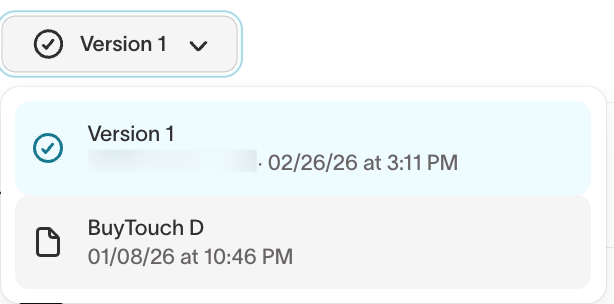
Each message keeps a version history as you work. Open Version history to browse saved versions with their author and timestamp, then select any previous version to view or restore it.
Versions are created when the agent generates new content or when you save changes. This lets you compare iterations and roll back if a previous version was stronger.