Overview
When you connect Hightouch to your warehouse as a source, Hightouch runs directly in that warehouse. When you build audiences, run syncs, calculate traits, or execute journeys in Hightouch, your warehouse runs SQL queries to power those actions.
Because of this, Hightouch contributes to your warehouse compute usage.
Many customers find that Hightouch accounts for less than 1% of their annual warehouse compute costs. This guide explains how to plan for, monitor, and optimize that usage intentionally.
You'll learn:
- What typically increases warehouse cost
- How your data structure affects performance
- What you can change in your warehouse
- What you can change in Hightouch
How warehouse billing works
Most warehouses charge separately for:
- Compute – the processing power used to run queries
- Storage – how much data is stored
- Platform services – management and metadata features
Hightouch primarily affects compute.
Each time your warehouse evaluates an audience, calculates a trait, runs a sync, or processes a journey step, compute is consumed.
What usually increases warehouse compute
Warehouse cost typically goes up for one of five reasons:
- Queries run more often
- Queries do more work
- More queries run at the same time
- The warehouse is not the right size for the workload
- The warehouse stays on longer than necessary
1. Queries run more often
More frequent queries increase total compute usage. Common drivers include:
- Syncs scheduled more frequently
- Triggered journeys running continuously
- Audiences recalculating often
If a use case doesn’t require real-time updates, consider lowering the schedule. Many background jobs work just as well daily or weekly.
2. Queries do more work
Queries that perform large joins, heavy aggregations, or full-table scans consume more compute.
Queries become more expensive when they:
- Join large tables repeatedly
- Scan long time ranges of event data
- Perform heavy calculations each time they run
To reduce compute, move complex joins or calculations earlier in your data pipeline (for example, in dbt) and have Hightouch read from a simpler, materialized table. This avoids repeating the same heavy work every time a sync, audience, or trait runs.
3. More queries run at the same time
Concurrency (sometimes called parallelization) refers to how many queries run at the same time.
When many syncs, journeys, or recalculations start at once, your warehouse must process them simultaneously.
Higher concurrency can:
- Increase short-term cost spikes
- Slow down interactive work
Adjust concurrency based on what your warehouse can handle and how quickly jobs need to finish. If jobs are not time-sensitive, spreading them out can reduce peak usage.
4. The warehouse is not the right size for the workload
Warehouse size (sometimes called a compute engine) determines how much compute is available at once.
- Larger warehouses process more data per unit time but cost more while running.
- Smaller warehouses cost less while running but may introduce wait times during spikes.
Start with a modest warehouse size and scale up only if jobs regularly take too long. Many customers begin with a Medium warehouse.
Some warehouses can automatically add capacity during busy periods (for example, multi-cluster or serverless) and scale down when demand drops.
5. The warehouse stays on while idle
Warehouses that remain running when no queries are executing still incur compute cost.
Idle behavior depends on:
- Auto-suspend (how quickly the warehouse turns off when it’s idle)
- How jobs are scheduled throughout the day
- Whether background jobs run continuously or in batches
Many environments default to ~10 minutes of inactivity. Lowering auto-suspend to around 1 minute—while keeping auto-resume enabled—is often one of the simplest ways to reduce unnecessary compute usage.
How Hightouch uses your warehouse
Understanding how Hightouch workloads behave helps explain why certain cost drivers appear in practice.
Hightouch workloads fall into a few broad categories. Understanding them helps you decide what needs to be fast and what can run in the background.
Interactive workloads
Interactive workloads are user-driven and show up directly in the platform UI:
- Audience previews in Audiences
- Trait previews in Traits
- Insights and dashboards in Intelligence
- Identity Resolution jobs
- Some AI-assisted workflows
These workloads prioritize quick load times because users expect fast responses.
Batch workloads
Batch workloads run on a schedule or in the background:
- Sync runs to downstream tools
- Large trait recalculations
- Audience snapshots and backfills
These workloads prioritize processing large volumes of data reliably and can often run on a smaller or lower-priority warehouse.
Background jobs
Some jobs run periodically but are not time-sensitive:
- Match Booster enrichment refreshes
- Cached column suggestion refreshes
- Non-urgent audience updates
Because these jobs tolerate delay, they are good candidates for:
- Lower-frequency schedules
- Smaller, dedicated warehouses
- Running during off-peak windows
Strategies to reduce warehouse compute
There are three main levers that affect how much compute Hightouch consumes:
Optimizing across all three provides predictable performance and cost control.
1. Warehouse configuration
Use a dedicated warehouse and user for Hightouch
Create:
-
A dedicated warehouse for Hightouch
- Allows you to clearly see what Hightouch costs and prevents it from competing with other workloads.
-
A dedicated user (or service account) and role with access only to the data Hightouch needs
- Makes it easier to control access and audit the queries Hightouch runs.
Starting here provides the clearest cost visibility and strongest governance controls.
Choose the right warehouse size
Start with a modest size (often Medium) and scale based on runtime and queueing patterns.
Increase size if jobs regularly exceed acceptable runtimes.
Decrease size if the warehouse is mostly idle.
Use serverless or multi-cluster options when appropriate
If your warehouse supports dynamic scaling (for example, serverless or multi-cluster configurations), consider enabling it.
These options:
- Add capacity automatically during busy periods
- Scale down when demand drops
- Prevent you from permanently running a larger warehouse
This is especially helpful if you have steady daily usage with occasional spikes.
Reduce idle time
Lower auto-suspend (around 1 minute is common) and keep auto-resume enabled to prevent idle compute waste.
Control how many queries run at once
Adjust how many queries your warehouse can run at the same time.
- Increasing concurrency allows more work to finish sooner but may increase peak usage.
- Decreasing concurrency smooths load but can extend total runtimes.
Adjust this setting based on whether cost spikes or missed deadlines are the bigger concern.
For data teams
Review warehouse query history for:
- Time spent queued before execution
- Peak credit usage during sync windows
- Missed downstream deadlines
Compare before and after making concurrency adjustments.
Set query time limits
Configure maximum query runtimes to prevent a single query from running indefinitely.
- Set reasonable time limits to guard against runaway compute usage.
- If queries frequently hit the limit, optimize the underlying model before increasing the threshold.
Use budgets and resource monitors
Most warehouses provide built-in tools to:
- Track credit usage
- Set spending thresholds
- Alert on anomalies
Using these with a dedicated Hightouch warehouse makes unusual usage easier to detect and investigate.
Route different workloads to different warehouses
If your warehouse supports multiple compute engines, route:
- Interactive workloads (e.g., audience previews, dashboards, IDR, AI-powered workflows) to a warehouse tuned for low-latency (fast UI queries)
- Batch workloads (e.g., syncs, heavy traits) to a warehouse tuned for throughput (large scheduled jobs)
This keeps the UI responsive during heavy batch windows and separates cost management by workload type.
2. Data modeling and table design
These strategies reduce how much work your warehouse performs each time Hightouch runs a query.
Turn complex queries into tables
If a model performs heavy joins or aggregations every time it runs, your warehouse must repeat that work for every sync, audience, or trait.
This can quietly increase compute usage over time.
To reduce repeated work:
- Run those joins and calculations earlier in your data pipeline (for example, in dbt) and have Hightouch read from a simpler, materialized table or view that serves as a presentation layer.
- Simplify the model Hightouch reads from.
If a simple SELECT * FROM your_model LIMIT 1 query runs slowly, the model is likely doing too much work at read time and should be refactored.
For data teams
Check warehouse query history for:
- Repeated large joins across the same tables
- High bytes scanned for simple filters
- Long runtimes even when limiting rows
If the same heavy logic appears across many Hightouch queries, it likely belongs upstream rather than inside the model Hightouch reads.
Structure your tables intentionally
Hightouch frequently runs queries that filter, join, and aggregate data to compute audiences, traits, and journey steps. Efficient table structure reduces repeated work and lowers compute usage.
A practical default is:
- Keep core warehouse layers normalized by default (separate entities into separate tables and follow good modeling practices).
- Expose a flattened, presentation-layer table or view for Hightouch when it clearly removes slow, repeated joins for the way you actually query the data (especially for Customer Studio parent models).
- Avoid denormalizing very large fact tables unnecessarily, as this can increase how much data the warehouse must read; instead, denormalize surgically where it meaningfully reduces query cost for common patterns.
For time-series and large tables, consider adding clustering keys (how your warehouse organizes data to make common filters faster) once you understand real query patterns.
3. Hightouch configuration
These strategies involve controls inside Hightouch that affect how often and how intensively queries run.
Simplify the models that power your Customer Studio schema
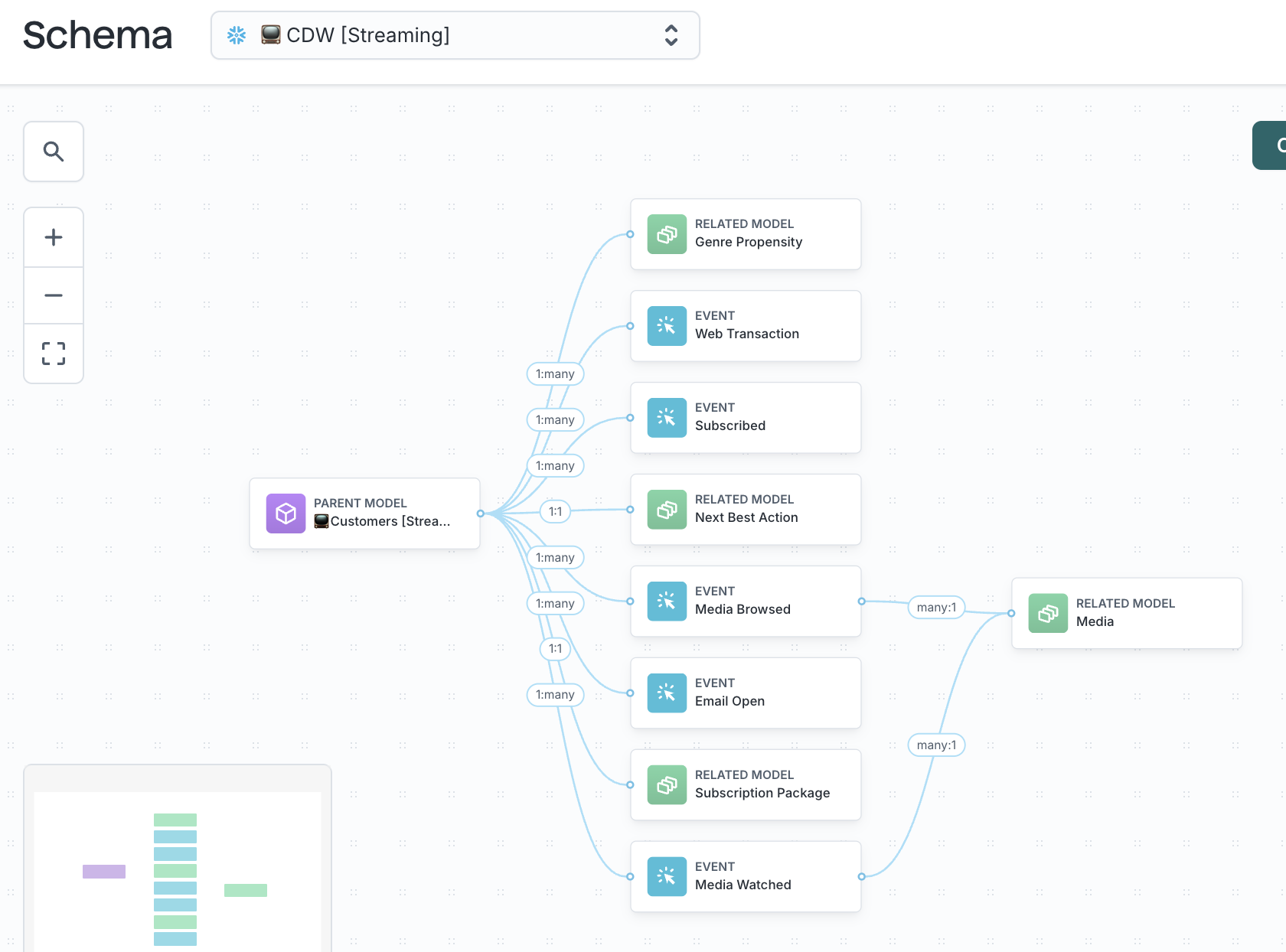
Customer Studio uses parent, related, and event models to evaluate audiences and traits. Your schema design directly affects how much work your warehouse must perform each time a query runs.
If these models contain complex logic, repeated joins, or large amounts of unnecessary data, every audience preview, sync, and journey step becomes more expensive.
As a general rule, use:
- Parent models for users or accounts
- Related models for supporting records (like orders or subscriptions)
- Event models for behavioral activity
Keeping these entities separate by default makes queries more predictable and reduces repeated work.
For data teams
Review models that power Customer Studio and look for:
- Long chains of joins inside a single model
- Heavy aggregations calculated at read time
- Queries that remain slow even when limiting rows
If a model is doing significant transformation work each time it’s queried, consider moving that logic earlier in your data pipeline so Hightouch reads from a simpler structure.
Limit large event tables to what activation requires
Event tables can grow quickly. To keep them efficient:
- Limit time windows to what activation actually requires
- Use pre-aggregated tables for common metrics when helpful
- Organize tables based on the columns most often used in filters (for example, date or tenant)
For large event models, partition event tables by a timestamp column and always include a partition-aligned time filter in audiences and traits to avoid full-table scans.
Traits can perform aggregations directly for lighter or audience-specific metrics. For heavy or widely reused metrics, pre-aggregated tables or materialized views are usually more efficient than re-aggregating on every trait or audience run.
For data teams
Review whether:
- Audiences scan long historical windows
- Event volume has increased significantly
- Date filters still result in large scans
If so, narrow time windows or reorganize the table to better support common filters.
Schedule background jobs at the lowest effective frequency
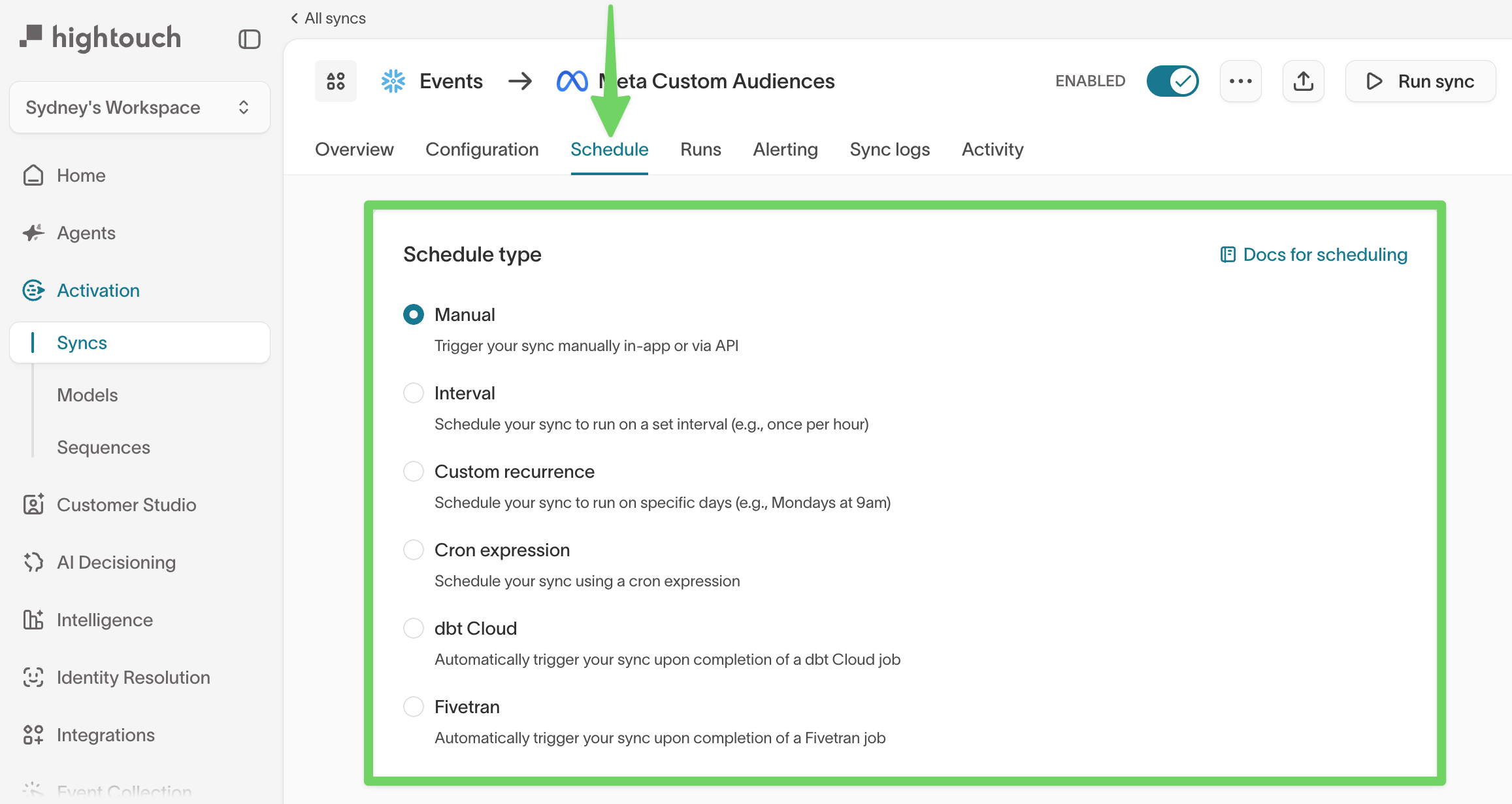
Many workloads do not require high-frequency updates.
- Reduce sync frequencies for enrichment updates, cached column suggestions (often daily or weekly is sufficient), and non-time-sensitive audiences
- Choose schedules that match when stakeholders actually use the data
See Schedule syncs in the UI to learn how to set up sync schedules.
Use sampling and fast queries for exploration
Audience and trait exploration does not always require exact counts.
- Sampling maintains a smaller, regularly refreshed copy of your parent model.
- Fast queries instruct Hightouch to use that sample for previews instead of scanning the full dataset.
This significantly reduces the amount of data scanned during exploration and provides much faster previews in exchange for approximate (rather than exact) counts.
Fast queries and sampling affect previews only. They do not change final audience membership or sync volume.
Enable fast queries in audiences
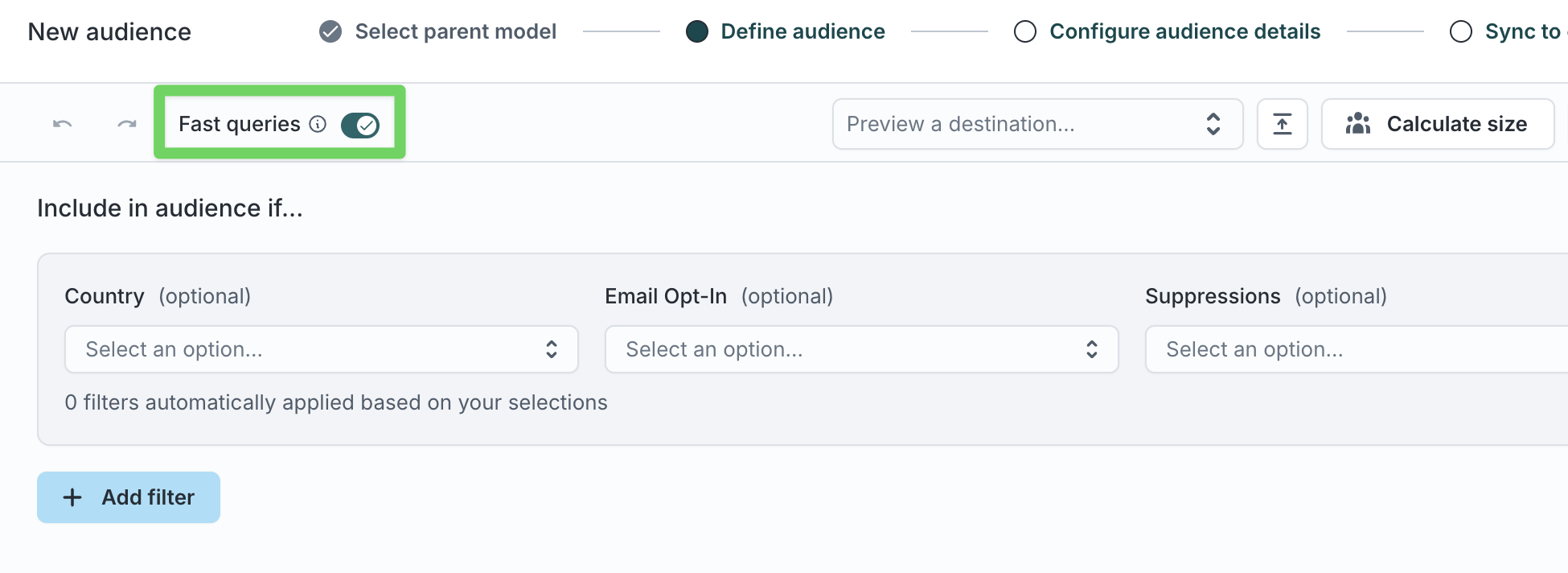
Use fast queries when:
- Brainstorming logic
- Validating filters
- Comparing audience shape
When you need exact numbers (for example, right before go-live, for small or highly targeted audiences, or for compliance and reporting) turn fast queries off to run against the full dataset.
To enable fast queries:
- Go to Customer Studio → Audiences.
- Open an audience.
- Enable the Fast queries toggle in the audience header, if available.
Enable sampling in models
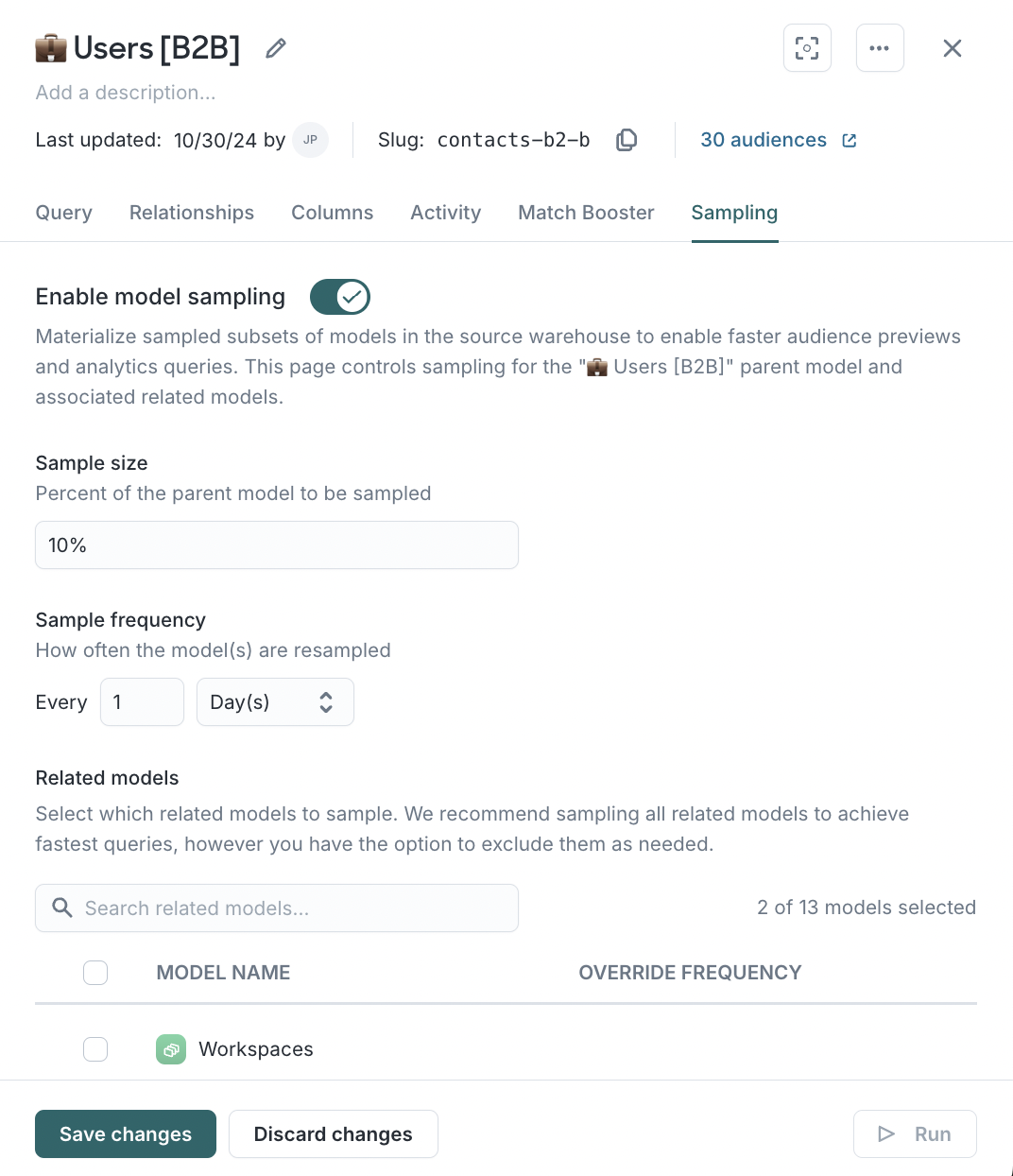
Sampling is especially helpful when:
- Your parent model contains millions or billions of rows
- Audience previews feel slow during filter changes
- Data teams want to reduce compute usage from iterative exploration
See Sampling for detailed setup instructions and configuration guidance.
Control how many jobs Hightouch runs at once
Work with your Hightouch team to modify the number of concurrent workers that are available when triggering syncs within your Hightouch workspace.
Hightouch can run many jobs at the same time. This setting controls how many Hightouch syncs and background jobs are initiated in parallel. It is separate from warehouse-level concurrency.
- Higher concurrency reduces how long jobs take overall but increases short-term compute usage.
- Lower concurrency spreads work out over time and reduces peak load.
In general, keep Hightouch workspace concurrency at or below your warehouse’s effective concurrency limits (and any queue timeouts) so sync queries aren’t killed while waiting for a warehouse slot.
Match this setting to your warehouse limits and job timing requirements.
If warehouse costs increase unexpectedly
Start with these checks:
- Did sync or journey frequency change?
- Did event volume grow?
- Did new audiences or traits launch?
- Did concurrency settings change?
- Did auto-suspend settings change?
- Did a data model change introduce heavier joins or scans?
Most cost increases can be traced to one of these changes.