This page covers core concepts. For prescriptive guidance on when to use each control and how to structure your organization, see Governance best practices.
Hightouch is built around a set of core concepts: organizations, workspaces, user groups, roles, environments, and Spaces. Understanding how they relate to each other is the foundation for configuring your workspace correctly.
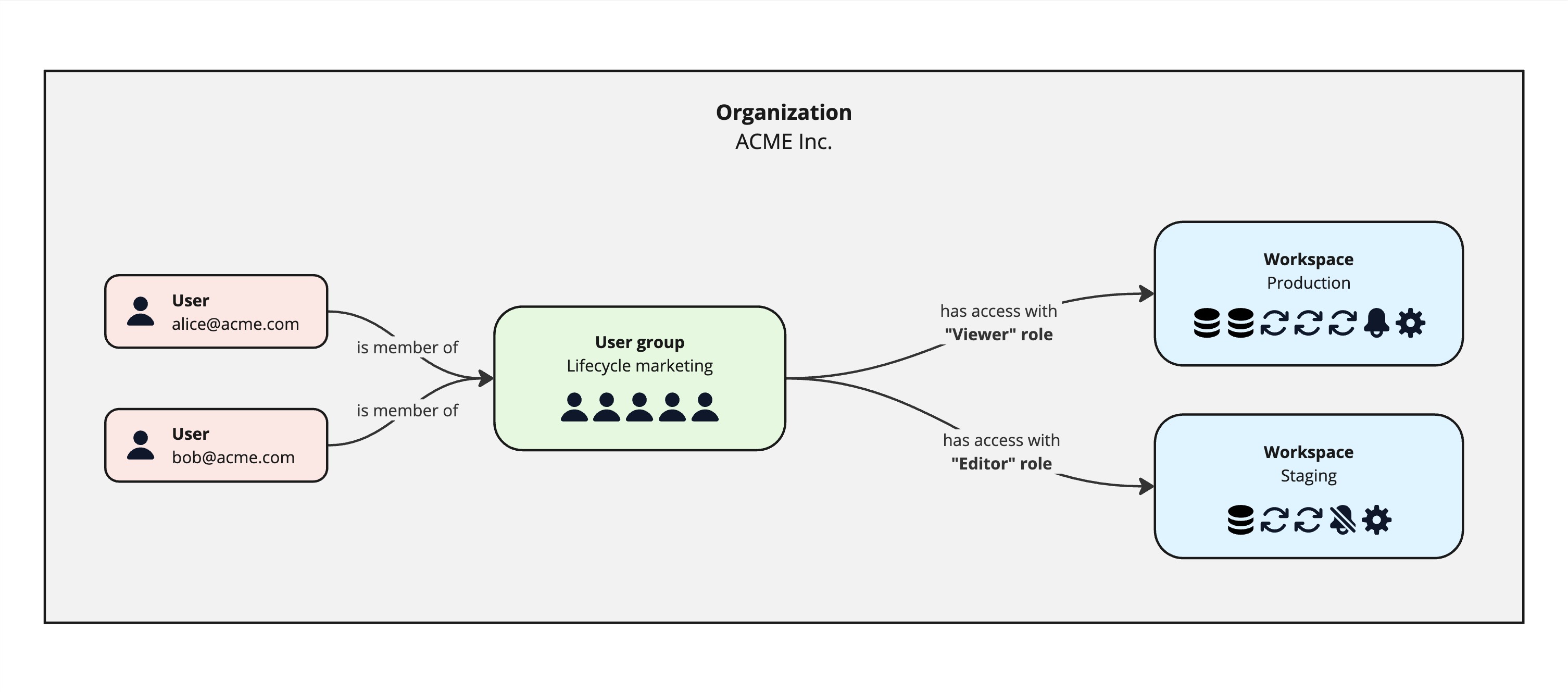
Organizations
An organization is the top-level entity in Hightouch. It represents your entire company and is the container for billing, SSO configuration, and user management. All workspaces belong to a single organization.
Most companies should have exactly one organization. An organization is created automatically when the first person at your company signs up — that person becomes the first organization admin. From there, organization admins can manage billing, configure SSO and SCIM, invite users, and transfer admin access as team members change.
See: Set up an organization and workspace
Workspaces
A workspace is a fully isolated partition within an organization. Each workspace has its own sources, destinations, models, syncs, audiences, and user roster. By design, nothing is shared across workspace boundaries — not even the connection to your data source.
Workspaces are commonly used to:
- Separate staging and production environments
- Isolate business units or regions that must not share resources or configuration
For most enterprise customers, a single production workspace is sufficient. Hightouch's internal governance controls — including user groups, roles, subsets, and Spaces — allow different teams, regions, or brands to operate within a shared workspace without interfering with each other.
To learn how to set up a new workspace, see Workspaces. For guidance on when to create additional workspaces versus using Environments, see Do you need another workspace?
Environments
An environment is a linked copy of a workspace used for change management — typically dev, staging, and production. Environments let you test changes to models and syncs before deploying them to production, without needing a completely separate workspace.
Environments share the same organization, user roster, and governance controls as the parent workspace. Use them when you need a safe promotion path but don't need hard data isolation.
See: Environments | Workspaces vs environments
Spaces
A Space is a visibility boundary within a single workspace. Spaces let you scope which resources (syncs, models, audiences) a team can see without creating a separate workspace. They're useful when multiple teams share a workspace but shouldn't be distracted by each other's work.
Spaces control visibility, not permissions — roles and user groups still govern what actions a user can take.
See: Spaces
User groups
A user group is a collection of users who share the same permissions. Access control in Hightouch is managed at the group level, not for individual users. This makes it easier to keep permissions consistent and to update access as team structures change.
User groups are created within an organization and can be granted access to one or more workspaces. Users can belong to multiple groups and inherit the combined permissions from all of their assigned groups.
In most cases, user-to-group mappings are managed through your identity provider via SSO and SCIM. If SSO is not configured, user groups and memberships can be managed manually in the Hightouch app.
See: User groups
Roles
A role defines what actions a user group can perform within a workspace. User groups aggregate users; roles define the scope of what those users can do.
Hightouch offers two types of roles:
-
Pre-built roles — apply broadly to all resources in a workspace. These are the right starting point for most teams.
- Admin — full grants across the workspace, typically assigned to data or IT teams
- Editor — can create and configure resources, but cannot delete or update existing source and destination configurations
- Viewer — read-only access across the workspace
- Draft Contributor — can create and propose changes, but cannot publish; all changes require approval before going live
-
Custom roles — provide granular, per-resource control. Custom roles let you define specific permissions for individual sources, destinations, and Customer Studio parent models. Useful when pre-built roles are not flexible enough for a large or complex workspace.
See: Roles
Next steps
- Workspaces — create, manage, and delete workspaces
- Set up user groups and members
- Configure roles
- Set up SSO and SCIM
- Governance best practices — when to use workspaces, subsets, Spaces, destination rules, approval flows, and more