| Field | Content |
|---|---|
| Audience | Organization admins |
| Prerequisites | Organization admin permissions. Workspace admins can change the role of groups that already have access to their workspace; see Change a group's role from workspace settings. |
Overview
Roles control what a group can access and do within a workspace. Hightouch uses role-based access control (RBAC) and assigns roles to groups rather than individual users.
The access model works like this:
- Users belong to one or more groups.
- Groups receive access to individual workspaces.
- Each group is assigned a role for each workspace it can access.
- The role determines what members of that group can access and do in the workspace.
A role can be pre-built or custom:
- Pre-built roles provide a standard set of permissions across a workspace.
- Custom roles let you configure permissions for specific resources and products.
New groups don't have access to any workspaces by default. A user who doesn't belong to a group with workspace access can sign in to Hightouch but can't access that workspace.
How roles work
Hightouch's permissions are built around data flow: who can access data and where they can send it. Permissions for sources and destinations determine what users can do with the models and syncs that depend on them.
For example, a sync from BigQuery to Salesforce involves:
- The source (BigQuery)
- A model built from that source
- The destination (Salesforce)
- The sync connecting the model to the destination
Models inherit access from their source, and sync permissions depend on both the source and destination. This lets you control where users can access data and where they can send it without configuring permissions for every model or sync individually.
To create or run a sync, users need the required permissions for both the source and destination.
Choose a role type
Every group needs a role before it can access a workspace. Hightouch provides two types of roles:
| Role type | Use when |
|---|---|
| Pre-built | A group can use a standard workspace-wide access level: Workspace admin, editor, draft editor, or viewer. Pre-built roles are the fastest way to onboard a team. |
| Custom | A group needs access to specific sources, destinations, models, products, or other resources, or different teams sharing a workspace need distinct permissions. |
Start with a pre-built role when it provides the access your group needs. Create a custom role when you need more specific controls, such as:
- Restricting a team to specific sources or destinations
- Giving marketers access to Customer Studio parent models without source-level permissions
- Controlling access to subsets
- Separating draft and approval permissions
- Aligning roles with destination rules
- Giving an Events team access to event resources without full editor permissions
- Giving a team access to specific products or resources
Pre-built roles
Pre-built roles apply a standard set of permissions across all sources, destinations, models, parent models, Agents, and Events resources in a workspace.
Hightouch provides four pre-built roles:
- Workspace admin — Full access to workspace resources and settings. Can manage credentials, approve changes, and configure the workspace. Organization admins automatically receive this role.
- Workspace editor — Can create and edit most resources, create sources and destinations, and trigger syncs. Can't manage credentials or configure the Customer Studio schema.
- Workspace draft editor — Can create and edit drafts where supported, view data, and trigger published syncs. Can't approve changes or create sources or destinations.
- Workspace viewer — Read-only access. Can't view row-level data or make changes.
Pre-built role permissions
The following tables show the grants included with each pre-built role. Workspace viewer has no grants and isn't shown.
General
| Permission | Admin | Editor | Draft editor |
|---|---|---|---|
| Create new sources | ✅ | ✅ | ❌ |
| Create new destinations | ✅ | ✅ | ❌ |
Sources
| Permission | Admin | Editor | Draft editor |
|---|---|---|---|
| View row-level data | ✅ | ✅ | ✅ |
| Draft models & syncs | ✅ | ✅ | ✅ |
| Approve models & syncs | ✅ | ✅ | ❌ |
| Configure schema | ✅ | ❌ | ❌ |
| Manage source | ✅ | ❌ | ❌ |
Configure schema controls access to Customer Studio schema configuration, including destination rules and row-level access. It also includes permission to manage traits and trait templates.
To let users manage traits without configuring the schema, create a custom role with the Manage traits grant.
Workspaces migrated from Hightouch's earlier permissions model may have a legacy "Workspace Editor" custom role that includes Configure schema. The current pre-built Workspace editor role doesn't.
Destinations
| Permission | Admin | Editor | Draft editor |
|---|---|---|---|
| Trigger syncs | ✅ | ✅ | ✅ |
| Draft models & syncs | ✅ | ✅ | ✅ |
| Approve models & syncs | ✅ | ✅ | ❌ |
| Manage destination | ✅ | ❌ | ❌ |
Models — Parent models
Customer Studio doesn't use drafts for audiences. Approval flows don't apply when creating or editing audiences, but may apply to audience syncs.
| Permission | Admin | Editor | Draft editor |
|---|---|---|---|
| View parent model data | ✅ | ✅ | ✅ |
| Create and edit audiences | ✅ | ✅ | ✅ |
| Manage traits | ✅ | ❌ | ❌ |
| Trigger audience syncs | ✅ | ✅ | ✅ |
| Approve audience syncs | ✅ | ✅ | ❌ |
| Configure journeys | ✅ | ✅ | ❌ |
| Publish journeys | ✅ | ✅ | ❌ |
Only workspace admins automatically receive access to subsets. Editors and draft editors can't create, approve, or sync audiences that use subsets until you grant their group access to those subsets, either in a custom role or from the subset's Grant access to user groups setting in Customer Studio > Governance.
Models — General models
| Permission | Admin | Editor | Draft editor |
|---|---|---|---|
| View model data | ✅ | ✅ | ✅ |
Agents
| Permission | Admin | Editor | Draft editor |
|---|---|---|---|
| Access Agents | ✅ | ✅ | ✅ |
| Configure Agents | ✅ | ✅ | ❌ |
AI Decisioning, Consent API, and Native Delivery
Only workspace admins receive AI Decisioning, Consent API, and Native Delivery permissions by default. Use a custom role to give other groups access.
Events
| Permission | Admin | Editor | Draft editor |
|---|---|---|---|
| Create new event sources | ✅ | ✅ | ❌ |
| Create new event warehouse destinations | ✅ | ✅ | ❌ |
| Create new event streaming destinations | ✅ | ✅ | ❌ |
| Create new event contracts | ✅ | ✅ | ❌ |
| Create new event functions | ✅ | ✅ | ❌ |
Assign a pre-built role
Roles are assigned to groups rather than individual users.
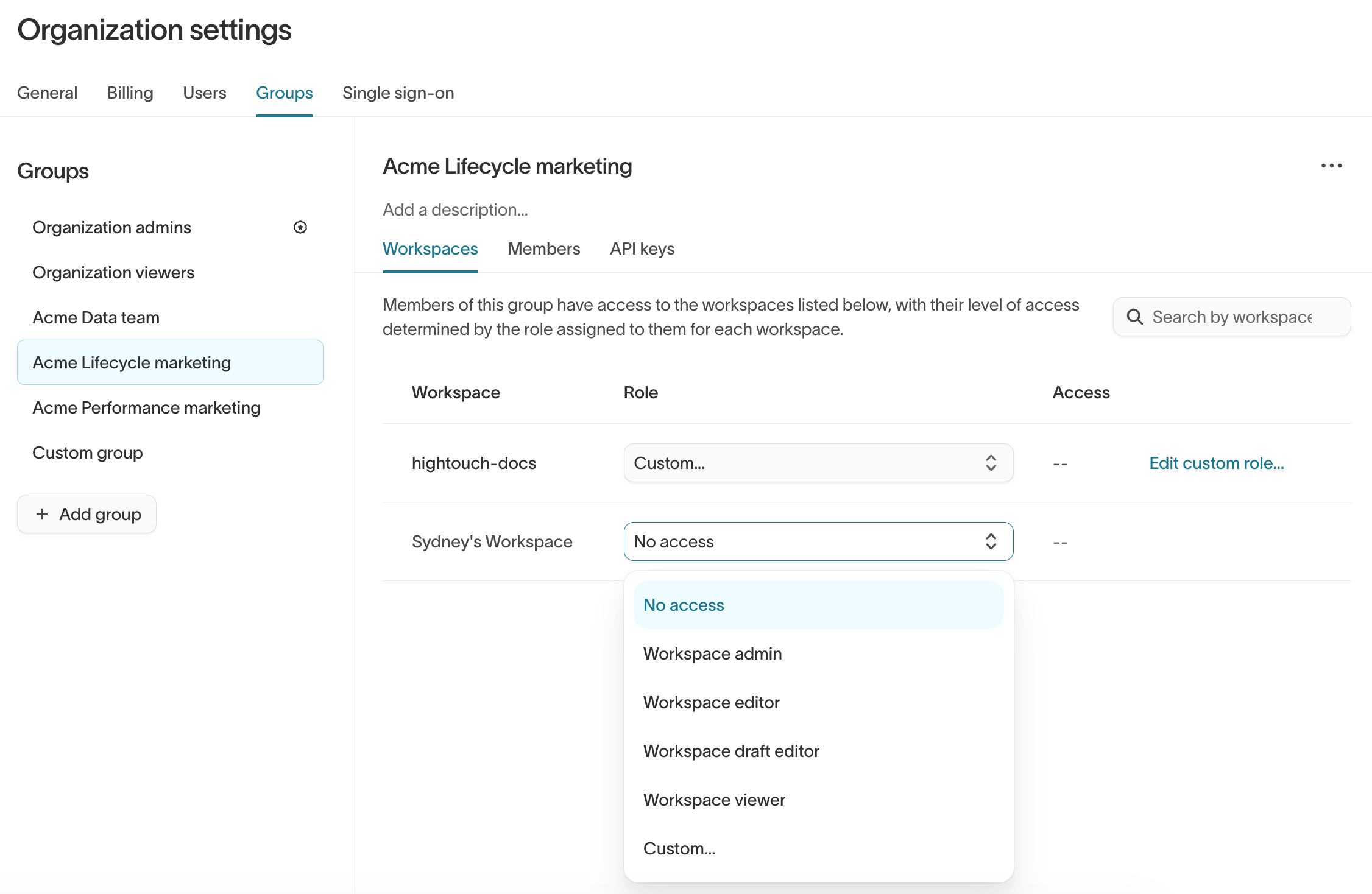
- Go to Organization settings > Groups.
- Select or create a group.
- Open the Workspaces tab.
- Select a pre-built role from the Role dropdown.
- Click Save changes.
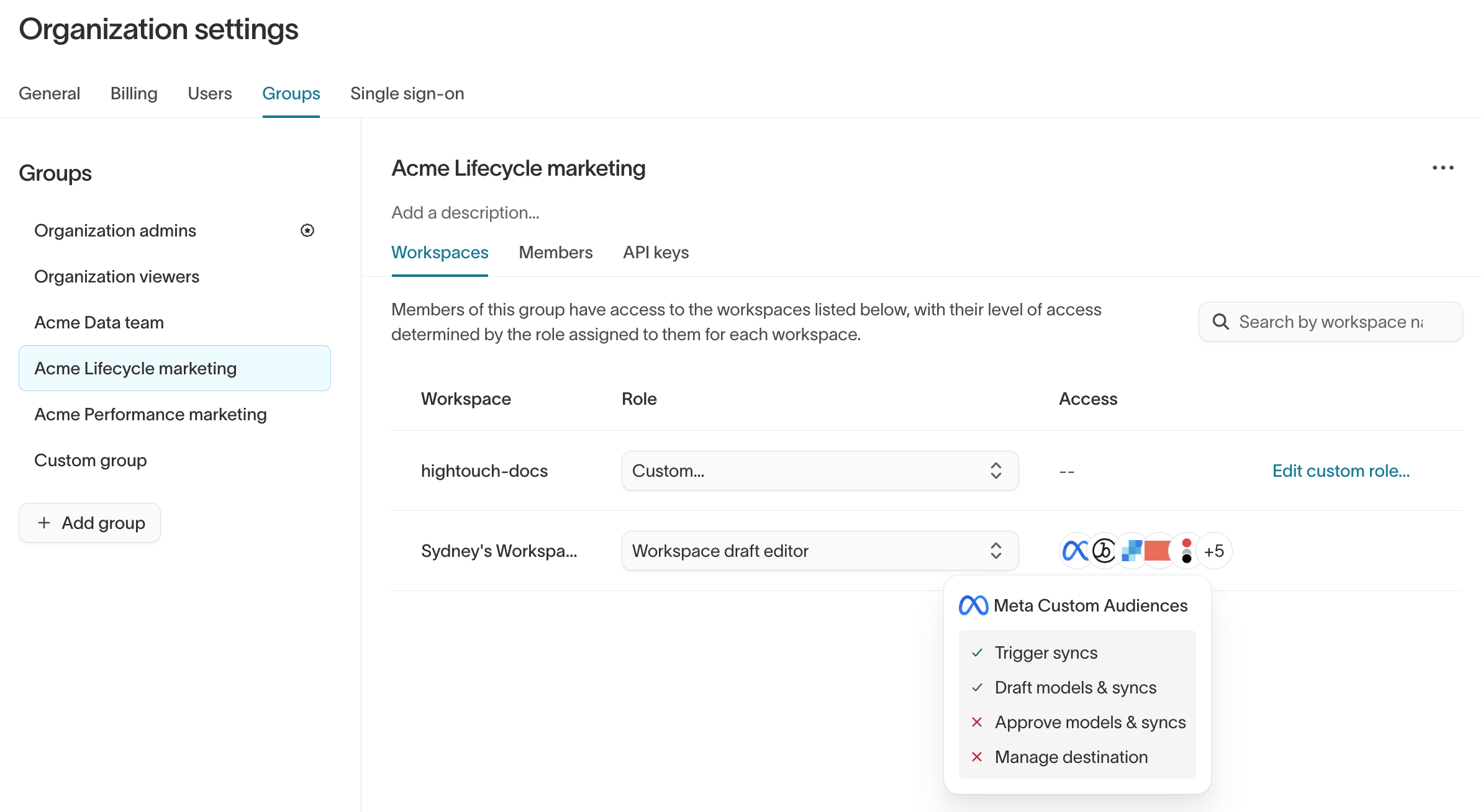
The Access column shows the destinations the group has permissions for in each workspace. Hover over a destination to see the group's grants for it. The column doesn't show every grant or resource type.
Custom roles
Custom roles let you configure permissions for specific resources and products instead of applying the same access level across the workspace.
The custom role builder organizes grants into these tabs:
| Tab | What it controls |
|---|---|
| General | Whether users can create sources or destinations in the workspace. |
| Sources | How users interact with connected data sources, including viewing row-level data, managing credentials, and creating models. |
| Destinations | What users can do with destinations, including creating syncs, triggering sync runs, and managing credentials. |
| Models | Access to parent and general models. Parent model grants control audiences, traits and trait templates, journeys, and AI Decisioning access. General model grants control row-level data access, including for Agents. |
| Agents | Access to Agents, Ad Studio, and Lifecycle Studio, and whether users can modify Agents settings. |
| AI Decisioning | What users can do in AI Decisioning agents and which parent models those agents can target. Appears only in workspaces with AI Decisioning. |
| Consent API | Whether API keys owned by users in the group can read or update subscription and channel consent. Appears only in workspaces with Native Delivery. |
| Native Delivery | Access to Native Delivery campaigns, messages, assets, channels, and settings. Appears only in workspaces with Native Delivery. |
| Spaces | Whether the group is restricted to specific spaces and which spaces it can access. Appears only in workspaces with spaces enabled. |
| Events | Who can create and manage Event resources, including sources, destinations, contracts, and functions. |
Create or edit a custom role
- Go to Organization settings > Groups.
- Select or create a group.
- Open the Workspaces tab.
- Select Custom… from the Role dropdown.
- Click Save changes.
- Click Edit custom role….
- Configure the grants for the role. See the custom role grant reference for what each grant allows.
- Click Save changes.
Custom role grant reference
Use the following sections to understand each grant available in the custom role builder.
Jump to: General · Sources · Destinations · Models · Agents · AI Decisioning · Consent API · Native Delivery · Spaces · Events · Subsets · Approval flows
General
| Grant | What it allows |
|---|---|
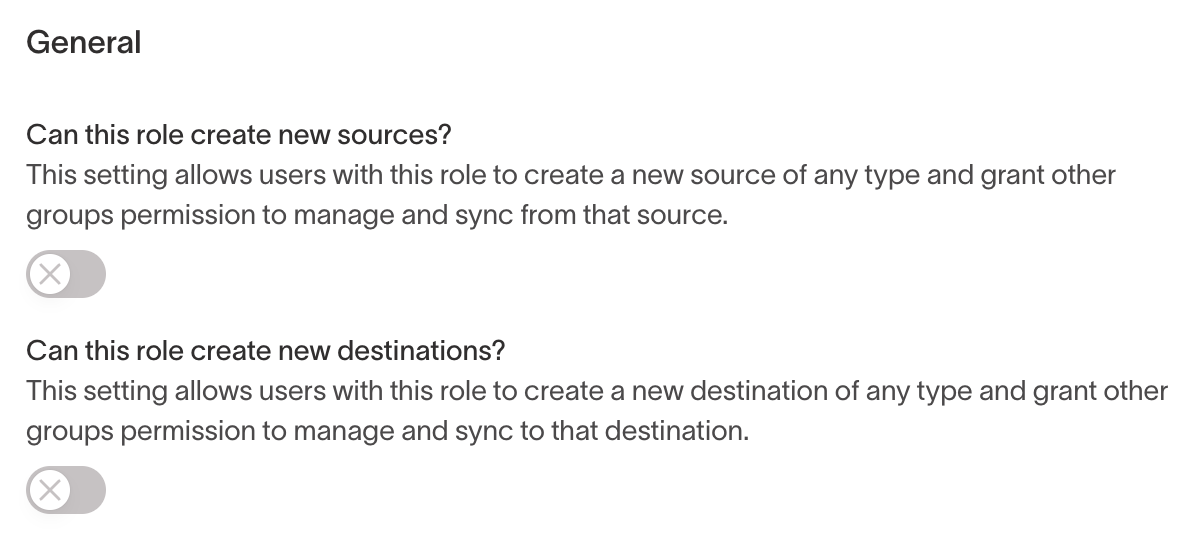
| Create new sources | Create data sources in the workspace and assign access permissions for other groups. |
| Create new destinations | Create destinations in the workspace and assign access permissions for other groups. |
| Grant support access | Grant Hightouch support access to the workspace. Appears only when your organization's support access settings require explicit approval. Workspace admins have this grant by default. |
In the role builder, these appear as the Can this role create new sources?, Can this role create new destinations?, and Can this role grant support access to Hightouch? toggles.
Only workspace admins can configure workspace-level resources such as folders, extensions, custom storage, and API keys.
Sources
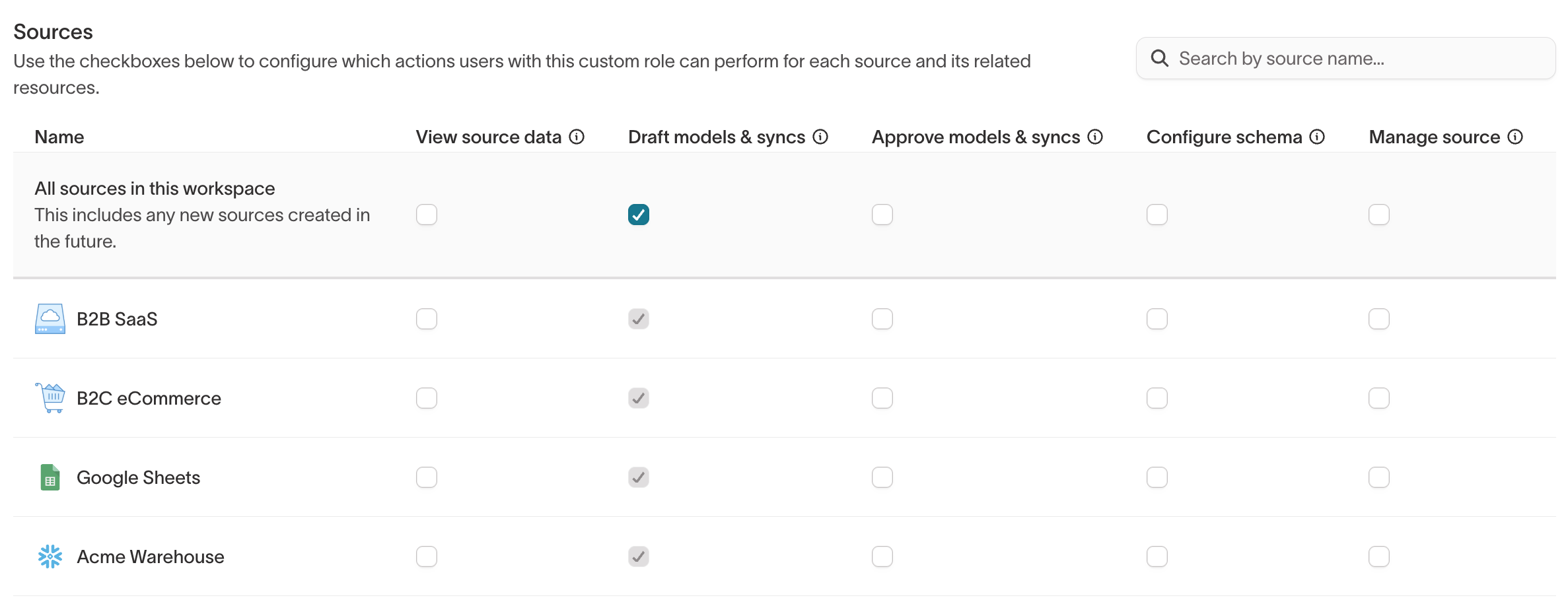
Source grants are primarily intended for Reverse ETL use cases where users need to work directly with data from a source, including running custom SQL.
For marketers working in Customer Studio, avoid enabling source grants. Use parent model grants instead, which limit access to specific parent models and subsets so marketers work within your pre-approved Customer Studio schema.
View source data
Lets users view row-level data from the source across Hightouch, including:
- Previewing models
- Viewing row-level data when testing rows during sync creation
- Accessing row-level data in the debugger for historical sync runs
Without View source data, users can still see each sync run's status and run-level errors, but not the row-level Successful and Rejected tabs in the run details, which show each row's primary key and error.
Configure models & syncs
Lets users:
- Create, edit, or delete models that use the source
- Use those models in syncs when they also have the required destination permissions
Users can edit an existing model only if they can also edit all syncs that depend on it.
When approval flows are enabled, this grant splits into Draft models & syncs and Approve models & syncs.
Configure schema
Available only in workspaces with Customer Studio. Lets users configure schema resources, including parent models, traits, sync templates, destination rules, and row-level access.
This grant also lets users manage traits and trait templates. To let users manage traits without configuring the schema, use Manage traits.
Manage source
Lets users manage the source's configuration, credentials, and permissions, including:
- Connection details and credentials
- Sync engine
- Source-level Warehouse Sync Logs defaults
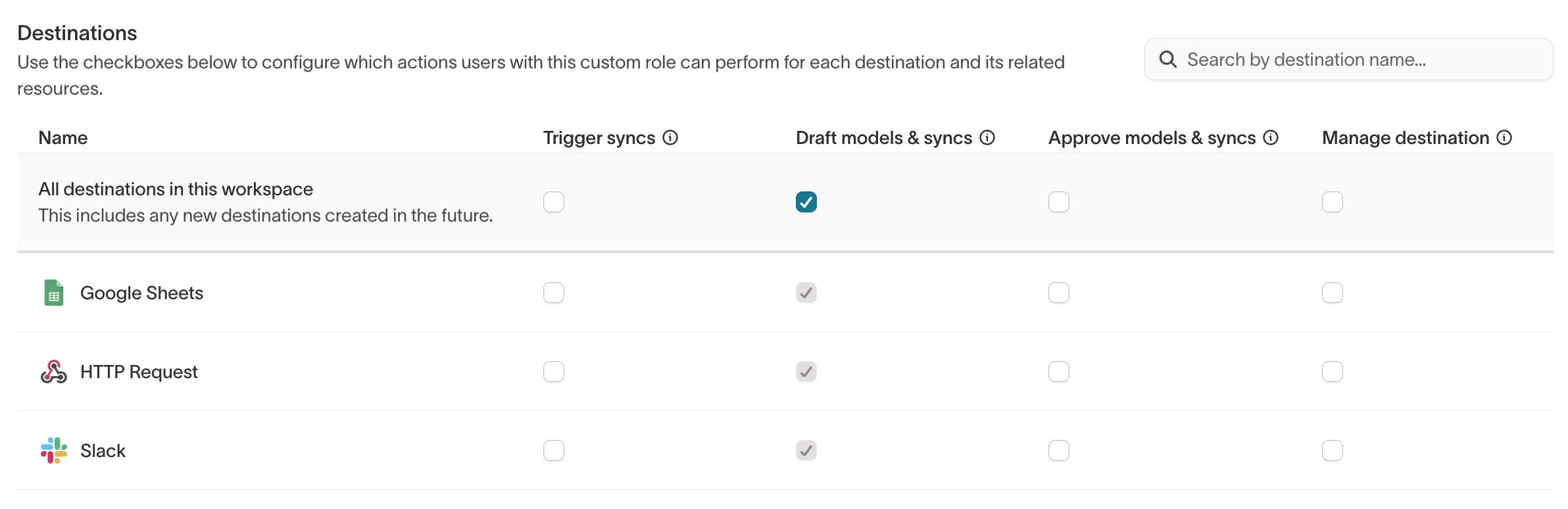
Destinations
| Grant | What it allows |
|---|---|
| Trigger syncs | Manually trigger or cancel sync runs, and turn syncs on or off. Doesn't allow users to edit schedules. |
| Configure models & syncs | Create, edit, or delete syncs to the destination and configure schedules. Doesn't allow users to manually trigger runs. |
| Manage destination | Manage the destination's configuration, connection details, credentials, and permissions. |
When approval flows are enabled, Configure models & syncs splits into Draft models & syncs and Approve models & syncs.
Models
The Models tab controls permissions for parent models and general models.
Parent models
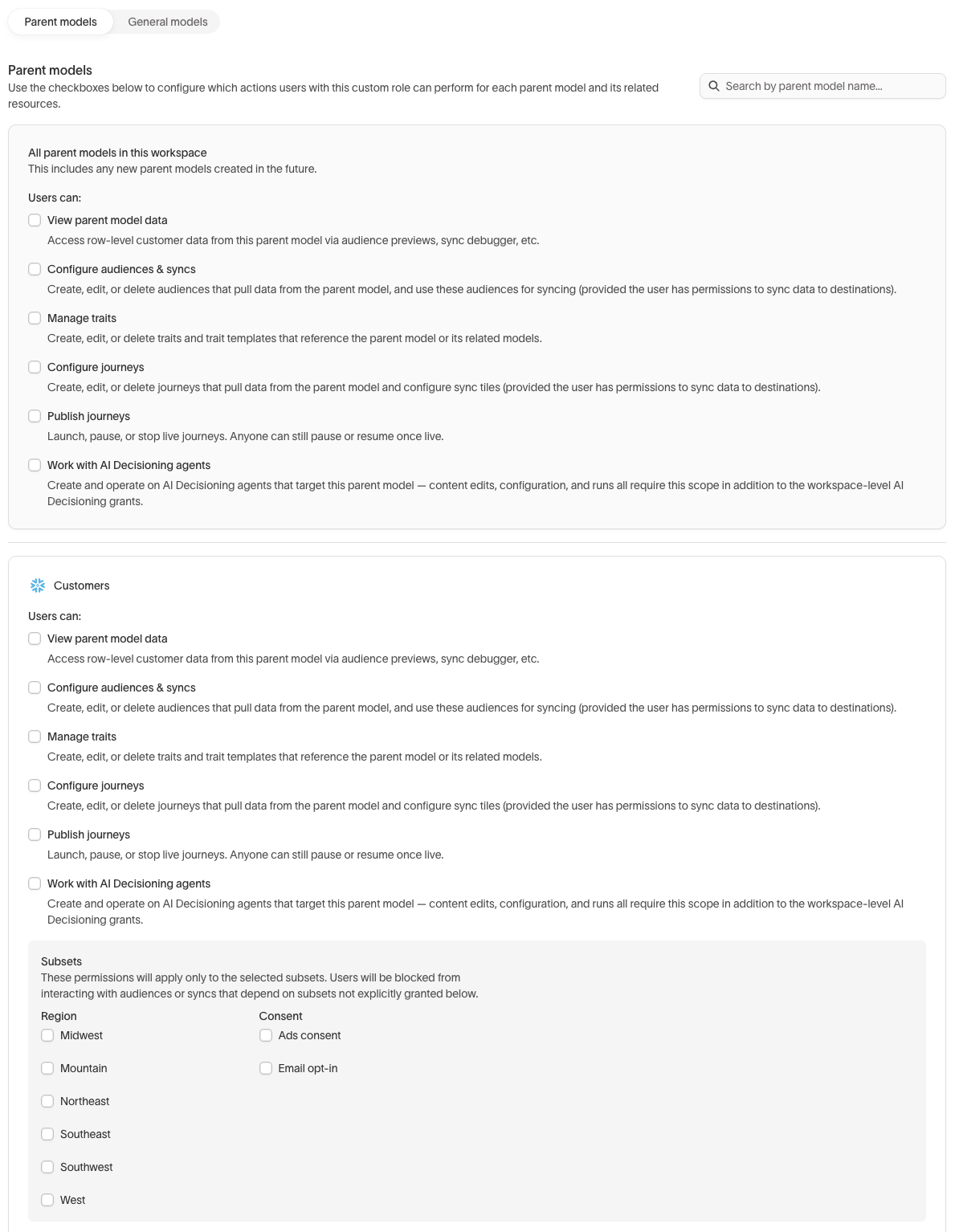
Parent model grants work like source grants, but are scoped to specific parent models in the Customer Studio schema.
View parent model data
Lets users view row-level data from the parent model across Hightouch, including:
- Previewing individual audience members
- Viewing row-level data when testing rows during sync creation
- Accessing row-level data in the debugger for historical sync runs
Users with Configure audiences & syncs but without View parent model data can still see audience size counts, but not audience insights or row-level data for individual members.
Configure audiences & syncs
Lets users:
- Create, edit, or delete audiences that use the parent model
- Use those audiences in syncs when they also have the required destination permissions
Users can edit an existing audience only if they can also edit all syncs that depend on it.
Manage traits
Lets users create, edit, and delete traits and trait templates associated with the selected parent model, including traits on its related and event models.
You can grant this permission across all parent models in the workspace or for individual parent models.
Users with Configure schema on the underlying source can manage traits and trait templates regardless of the Manage traits setting.
If a related or event model is connected to multiple parent models, a user only needs Manage traits for one of those parent models. See Who can manage traits on a related or event model?.
Configure journeys
Lets users create, edit, or delete journeys and journey templates that use the parent model, and configure sync tiles when they also have the required destination permissions. Journey templates that aren't tied to a parent model require a workspace admin.
Publish journeys
Lets users launch, pause, or stop live journeys.
Once a journey is live, users with either Configure journeys or Publish journeys can pause or resume it. Pausing or resuming a journey that sends Native Delivery messages also requires Manage messages on the Native Delivery tab.
Configure journeys and Publish journeys appear only in workspaces with journeys enabled.
Work with AI Decisioning agents
Available only in workspaces with AI Decisioning. Lets users create and operate AI Decisioning agents that target the parent model.
This is the same setting as Agent access by parent model on the AI Decisioning tab, so changing it in one place changes it in the other. Users also need the workspace-level grants on that tab.
General models
The General models sub-tab appears only in workspaces with Agents.
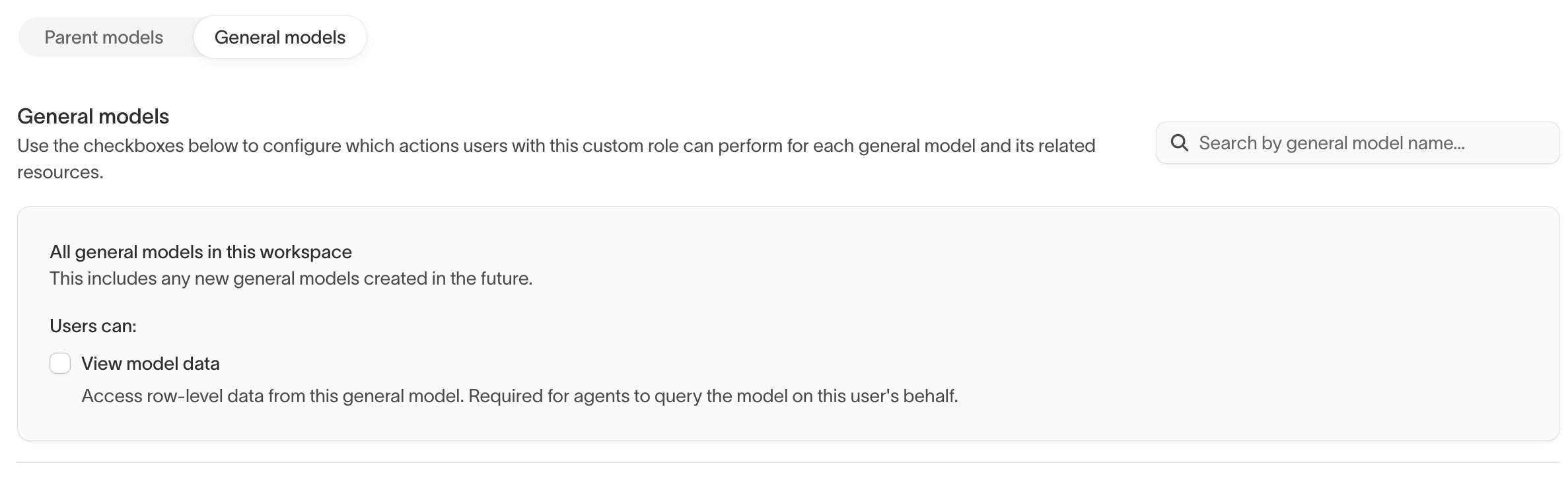
General model grants apply per model, similar to source grants. You can configure grants for all general models in the workspace, including models created later, or for individual models.
| Grant | What it allows |
|---|---|
| View model data | Access row-level data from the general model. Required for Agents to query the model on the user's behalf. |
Creating and managing general models requires Configure schema on the underlying source.
Agents
| Grant | What it allows |
|---|---|
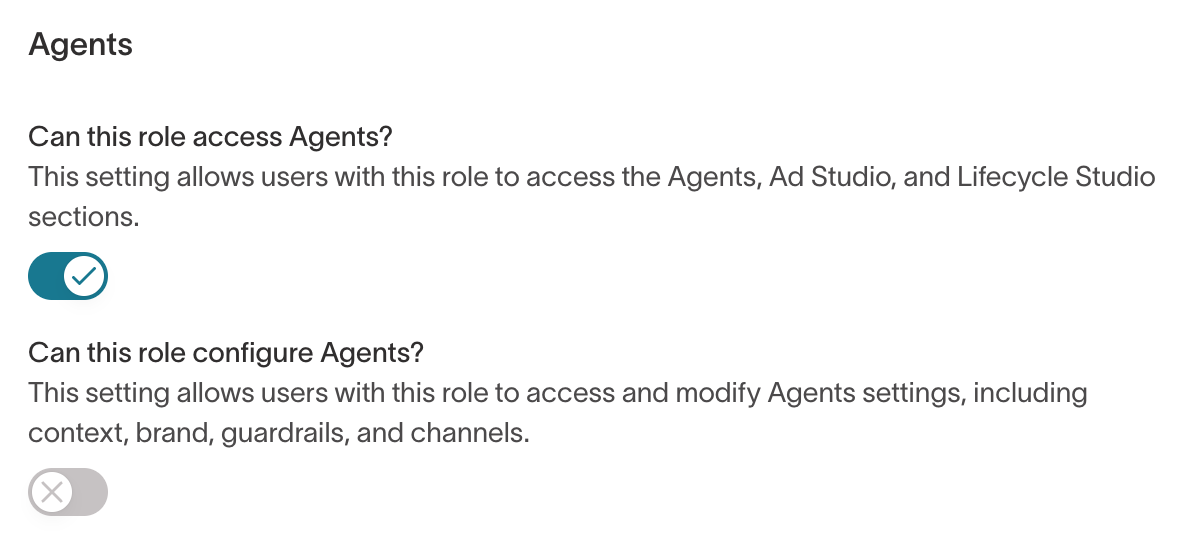
| Access Agents | Access Agents, Ad Studio, and Lifecycle Studio. Without this grant, these sections are hidden. |
| Configure Agents | Modify Agents settings, including context, brand, guardrails, and channels. Without this grant, Context Hub is hidden. |
In the role builder, these appear as the Can this role access Agents? and Can this role configure Agents? toggles.
Agents also respects model-level and row-level data controls. Which tables an agent can query depends on the user's permissions for parent models and general models.
For row-level and column-level access controls, see Agents data governance.
AI Decisioning
The AI Decisioning tab appears only in workspaces with AI Decisioning.
| Grant | What it allows |
|---|---|
| Edit content | Edit message content, variables and variants, tags, collections, and content suggestions, and send preview messages. |
| Manage agents | Everything included in Edit content, plus agent configuration, channels, outcomes, scheduling, offers, and agent lifecycle. |
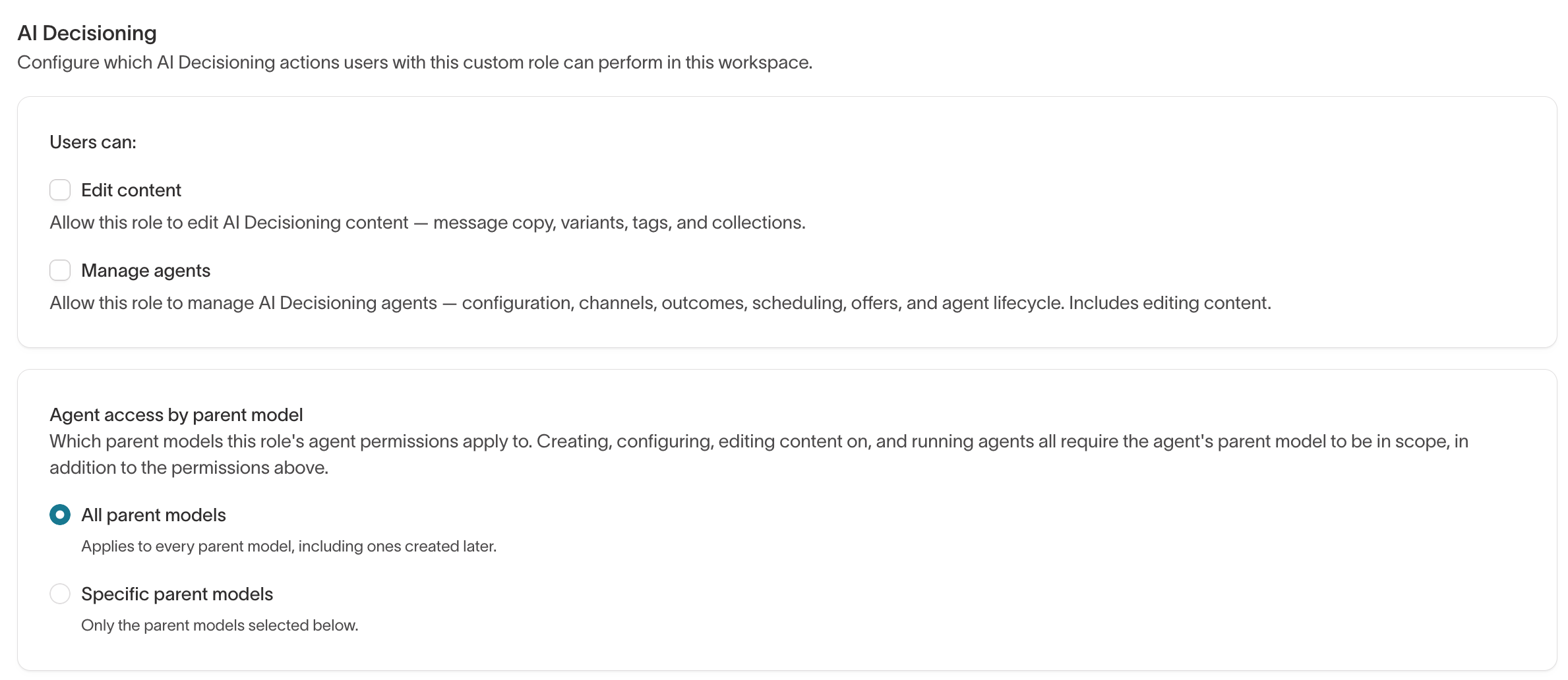
Under Agent access by parent model, choose whether these grants apply to All parent models, including parent models created later, or Specific parent models. This setting is the same as the Work with AI Decisioning agents grant on the Parent models sub-tab.
Agents that target other parent models remain visible but read-only.
Consent API
The Consent API tab appears only in workspaces with Native Delivery. These grants apply to API keys owned by users in the group, not to actions users take in the Hightouch app.
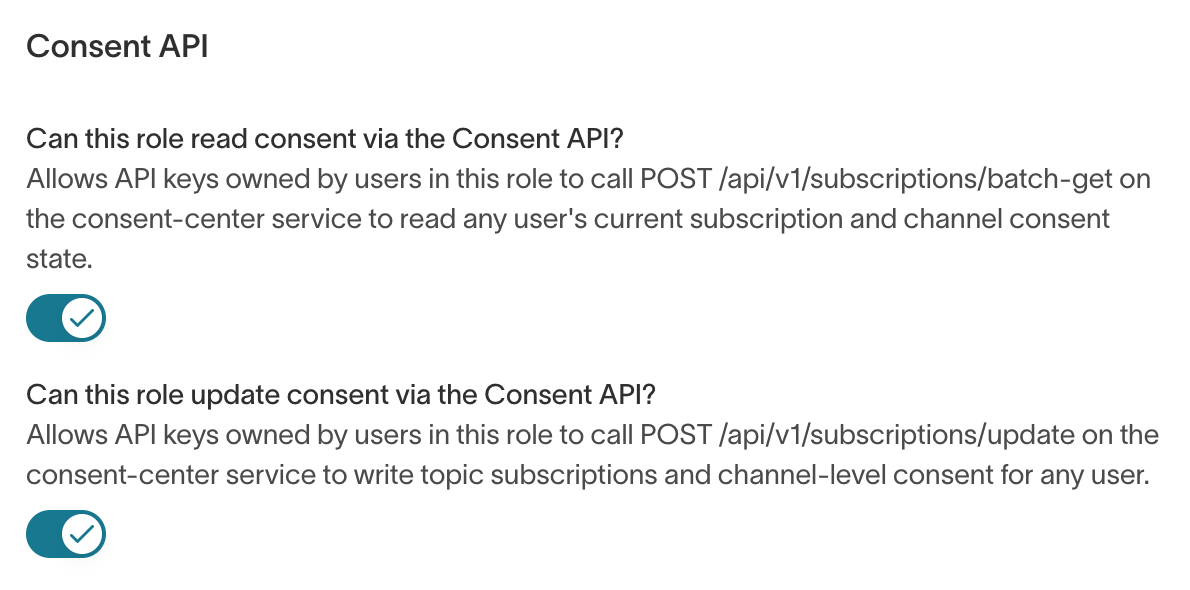
| Grant | What it allows |
|---|---|
| Can this role read consent via the Consent API? | Read any user's current topic subscriptions and channel consent state. |
| Can this role update consent via the Consent API? | Write topic subscriptions and channel-level consent for any user. |
Native Delivery
The Native Delivery tab appears only in workspaces with Native Delivery. Without View Native Delivery, the Native Delivery section doesn't appear in the sidebar.
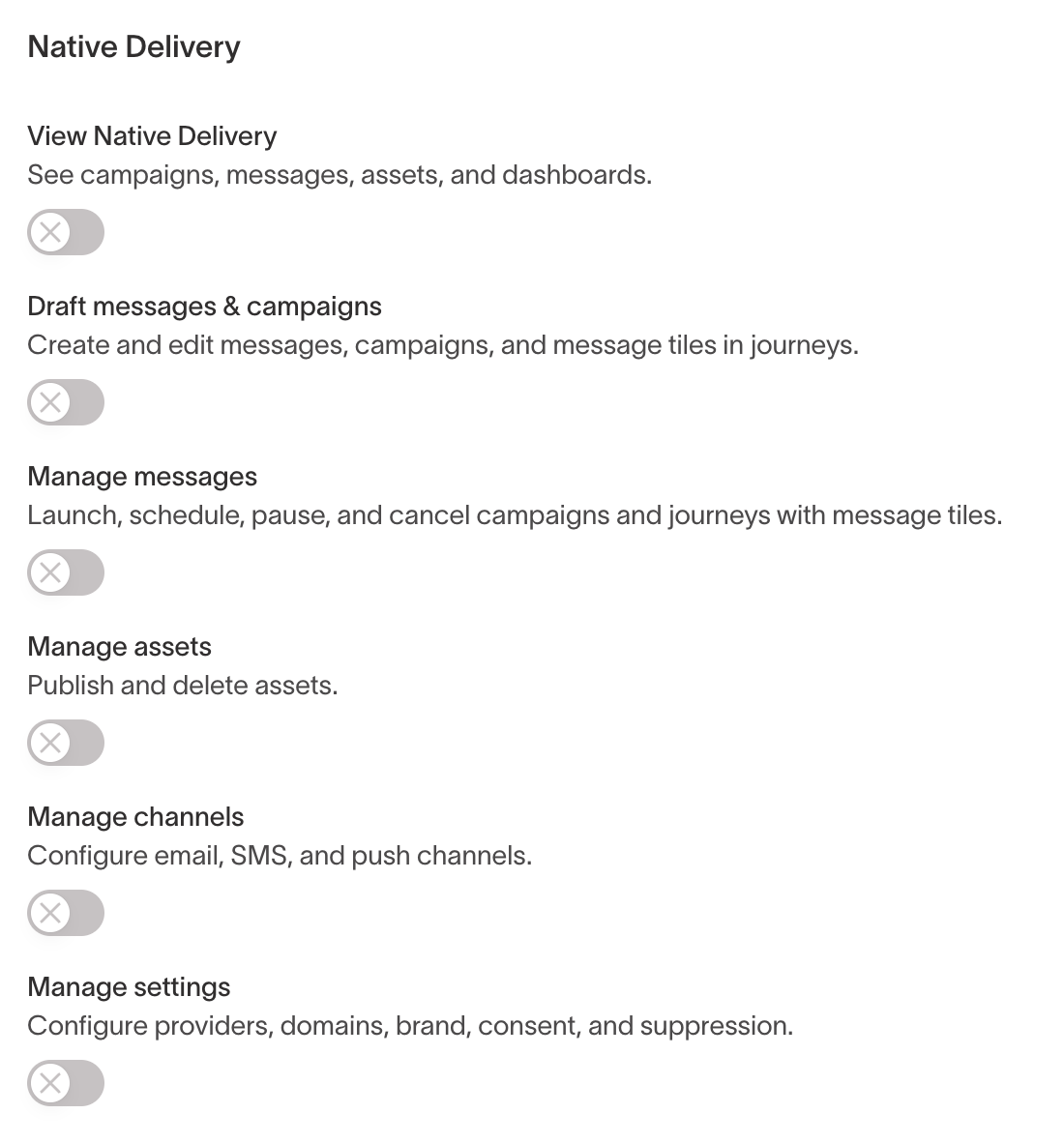
| Grant | What it allows |
|---|---|
| View Native Delivery | See campaigns, messages, assets, and dashboards. |
| Draft messages & campaigns | Create and edit messages, campaigns, and message tiles in journeys. |
| Manage messages | Launch, schedule, pause, and cancel campaigns and journeys with message tiles. |
| Manage assets | Publish and delete assets. |
| Manage channels | Configure email, SMS, and push channels. |
| Manage settings | Configure providers, domains, brand, consent, and suppression. |
Spaces
The Spaces tab appears only in workspaces with spaces enabled, and only workspace admins can see it.
- Does this role only have space access? — When enabled, users with this role can only access the spaces they're assigned to, and can't see resources outside those spaces.
- Space access — Lists the spaces assigned to the role.
Events
Events permissions have two levels:
- Creation grants are workspace-level and control who can create new Event resources.
- Per-resource grants control what users can do with specific Event resources.
The Events tab appears only in workspaces with Events or real-time audiences, and only workspace admins can see it.
Creation grants
The General sub-tab under Events controls which Event resources users can create. Each grant also lets the creator assign access permissions for that resource to other groups.
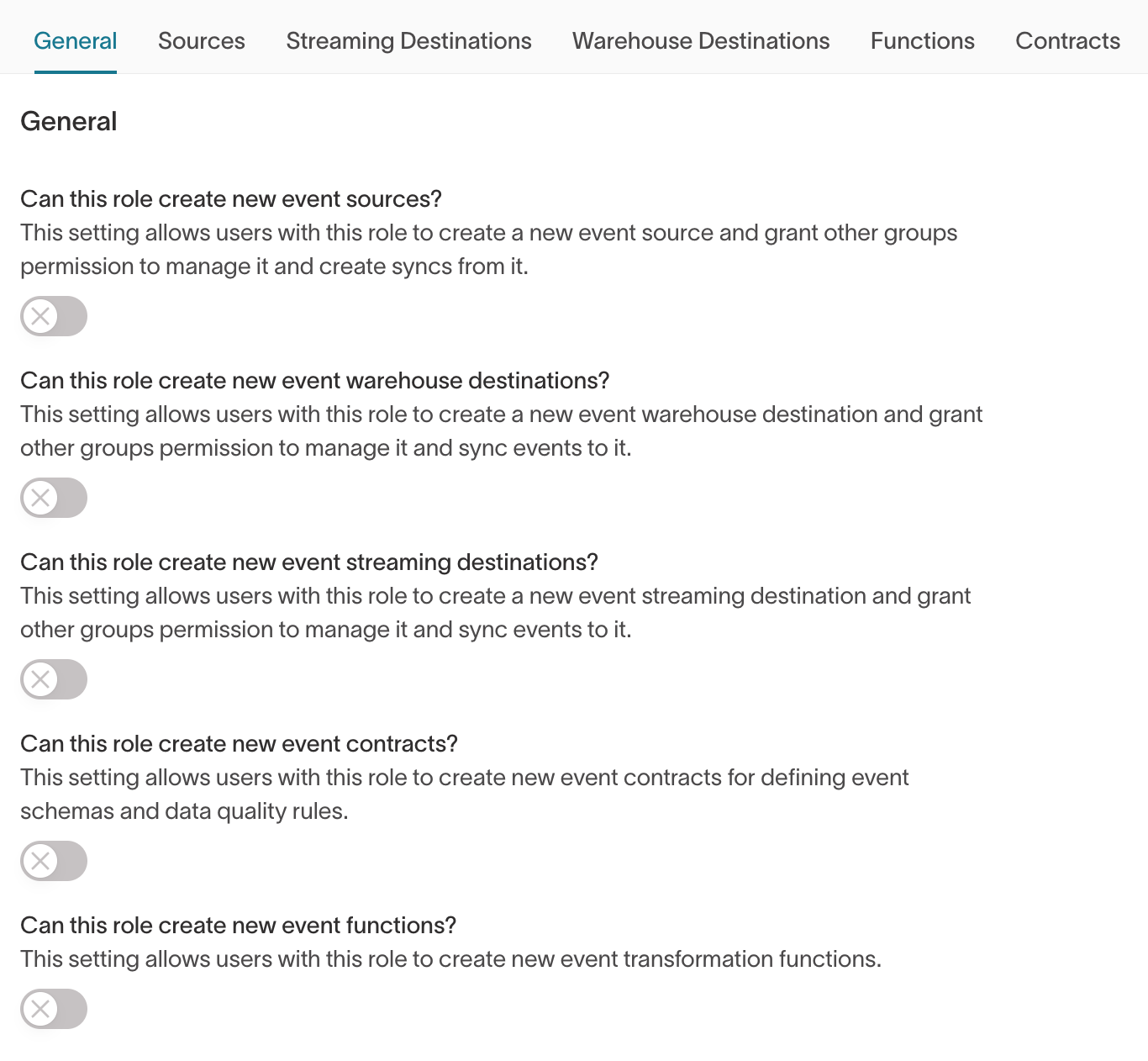
| Grant | What it allows |
|---|---|
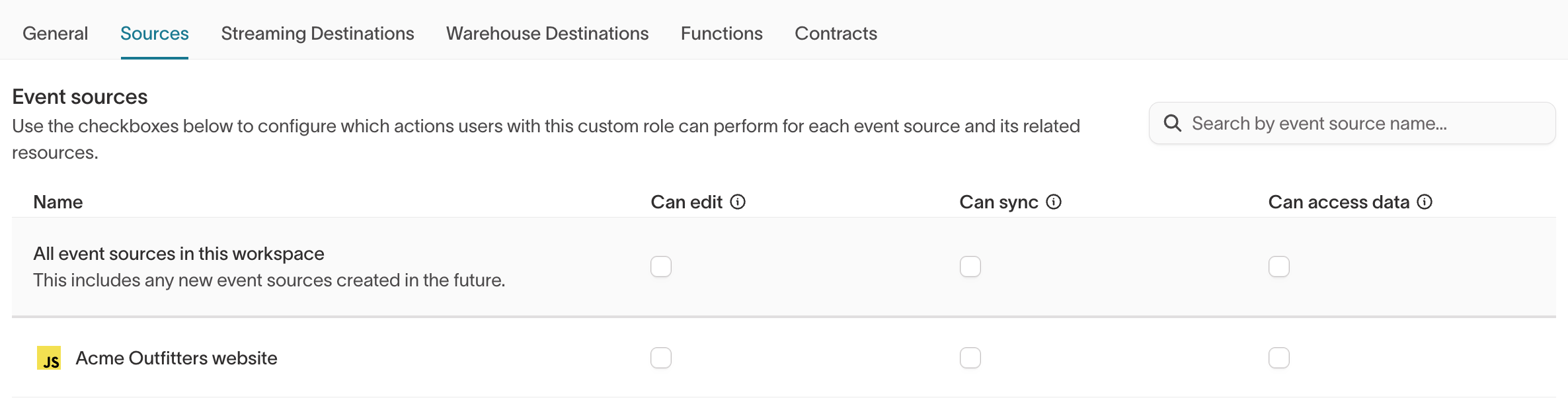
| Create new event sources | Create event sources and grant other groups permission to manage them. |
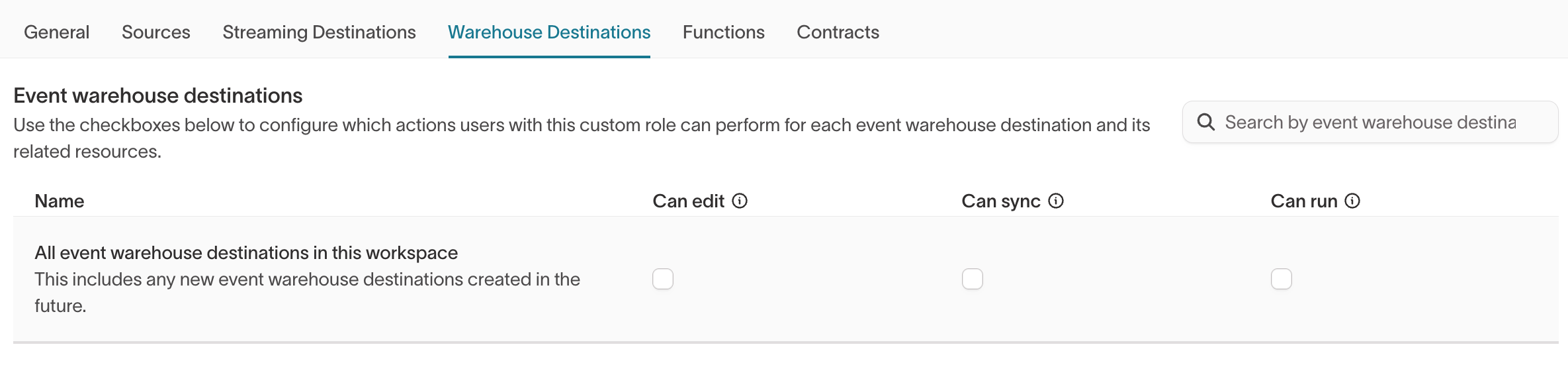
| Create new event warehouse destinations | Create event warehouse destinations and grant other groups permission to manage them. |
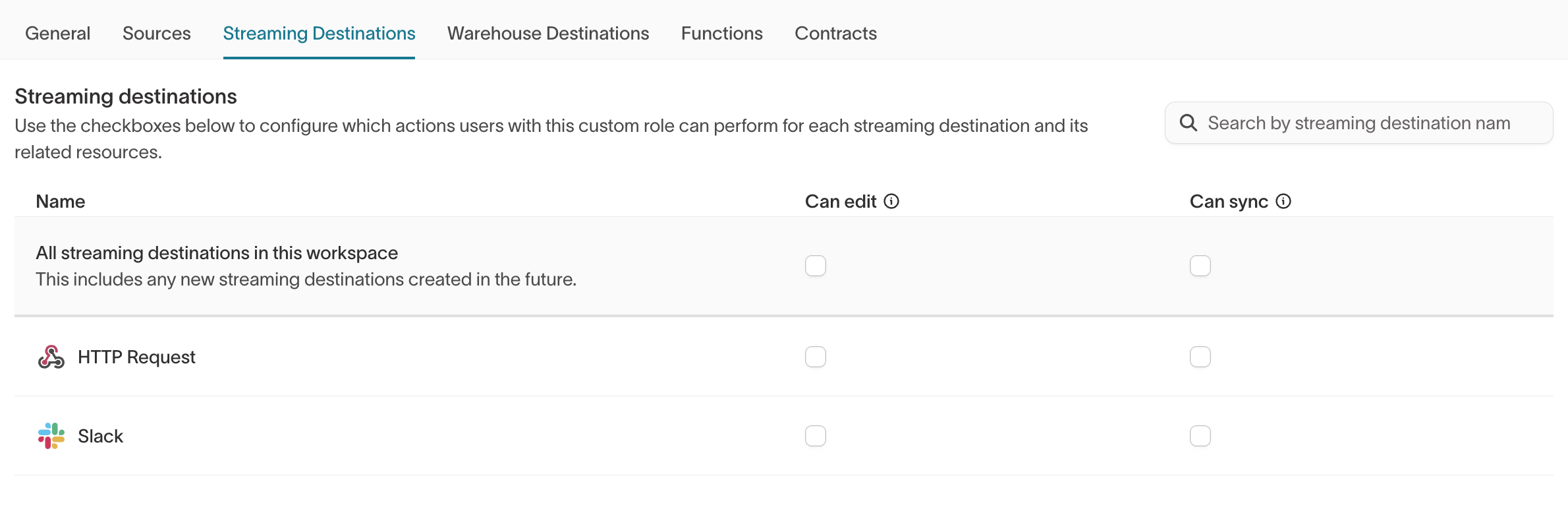
| Create new event streaming destinations | Create event streaming destinations and grant other groups permission to manage them. |
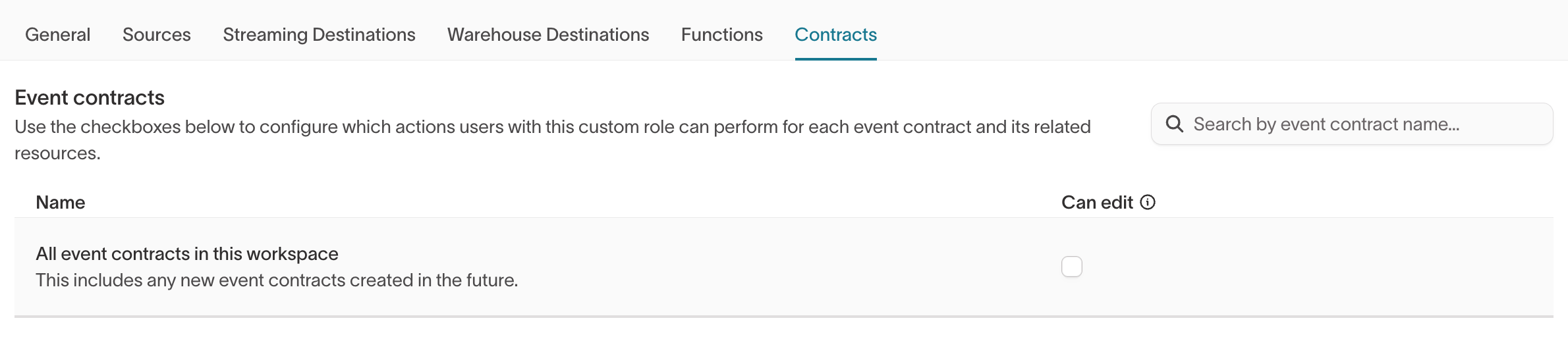
| Create new event contracts | Create event contracts for defining event schemas and data quality rules. |
| Create new event functions | Create event transformation functions. |
Per-resource grants
The remaining Events sub-tabs control what users can do with individual Event resources. Available grants depend on the resource type:
| Resource type | Can edit | Can sync | Can access data | Can run |
|---|---|---|---|---|
| Event sources | ✅ | ✅ | ✅ | — |
| Streaming destinations | ✅ | ✅ | — | — |
| Warehouse destinations | ✅ | ✅ | — | ✅ |
| Functions | ✅ | — | — | — |
| Contracts | ✅ | — | — | — |
- Can edit — Modify the resource's configuration.
- Can sync — Create and manage syncs involving the resource.
- Can access data — View live event data in the source's debugger and event inspector. Available only for event sources.
- Can run — Trigger runs. Available only for warehouse destinations.
Each sub-tab lists the resources of that type, plus an All [resource type] in this workspace row that also covers resources created later.

To create or manage an event sync, users need the required permissions for both the event source and event destination.
Workspace admins and groups with the pre-built Workspace editor role automatically receive all Events creation grants. Other groups can't create Event resources until you configure the creation grants.
Workspace admins also receive every per-resource grant. Workspace editors receive every per-resource grant except Can edit: Can sync and Can access data on event sources, Can sync and Can run on warehouse destinations, and Can sync on streaming destinations.
Subsets
Subsets divide a parent model into permissioned segments, such as by brand, region, or consent type.
Configure subsets in Customer Studio > Governance > Subset categories.
For example:
- An EU marketing team can build audiences using only EU data.
- An email marketing team can use only consented audiences.
When subsets are enabled, the role builder provides additional controls for applying grants such as View parent model data and Configure audiences & syncs to specific subset values.
How these controls work depends on whether the subset category is required.
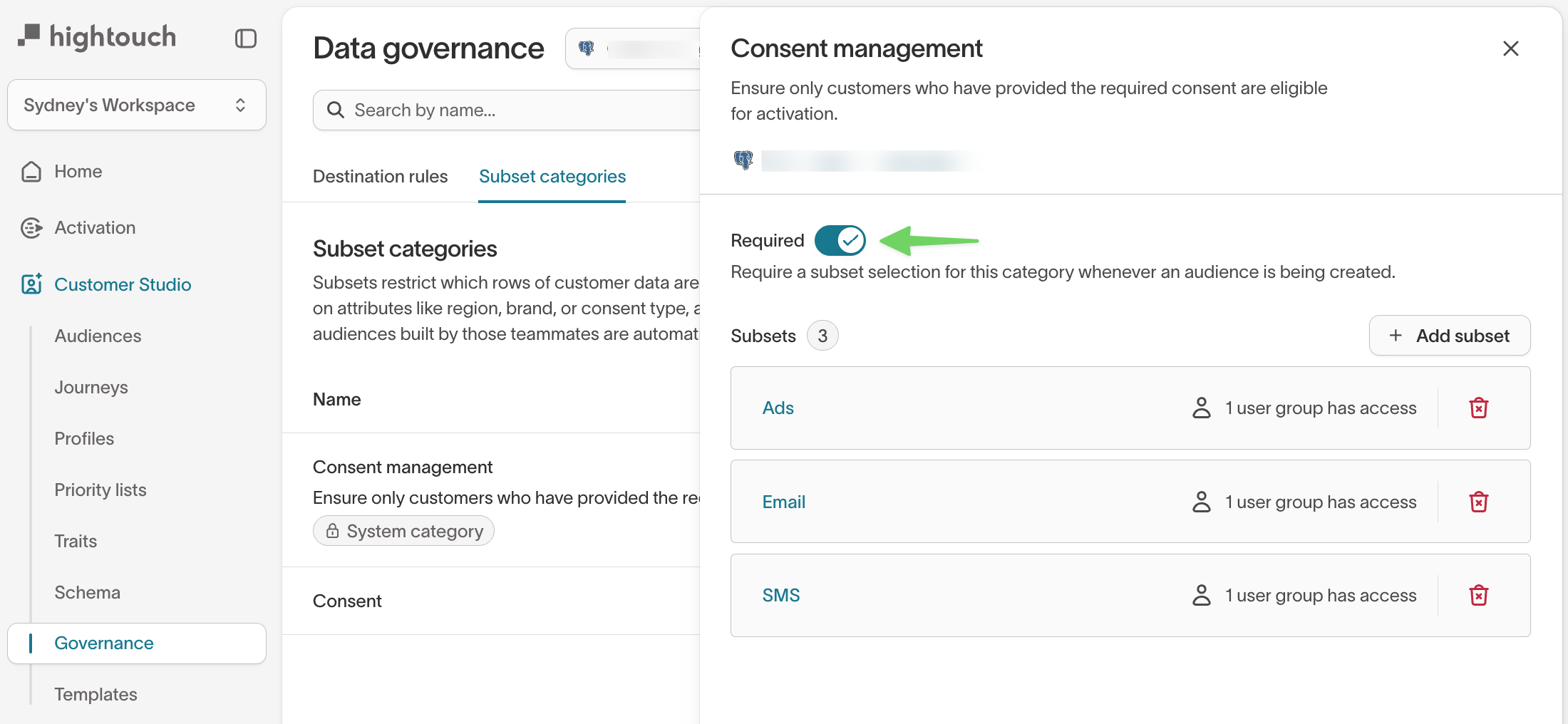
- Required subset category — Users can configure and use audiences only within the selected subset values. If you don't select any values, they can't configure or use any audiences.
- Optional subset category — Users can configure and use audiences with the selected subset values or without a subset.
Approval flows
Approval flows add a review step before publishing model or sync changes.
Enable approval flows in Workspace settings > Workspace under Require approvals > Syncs & Models.
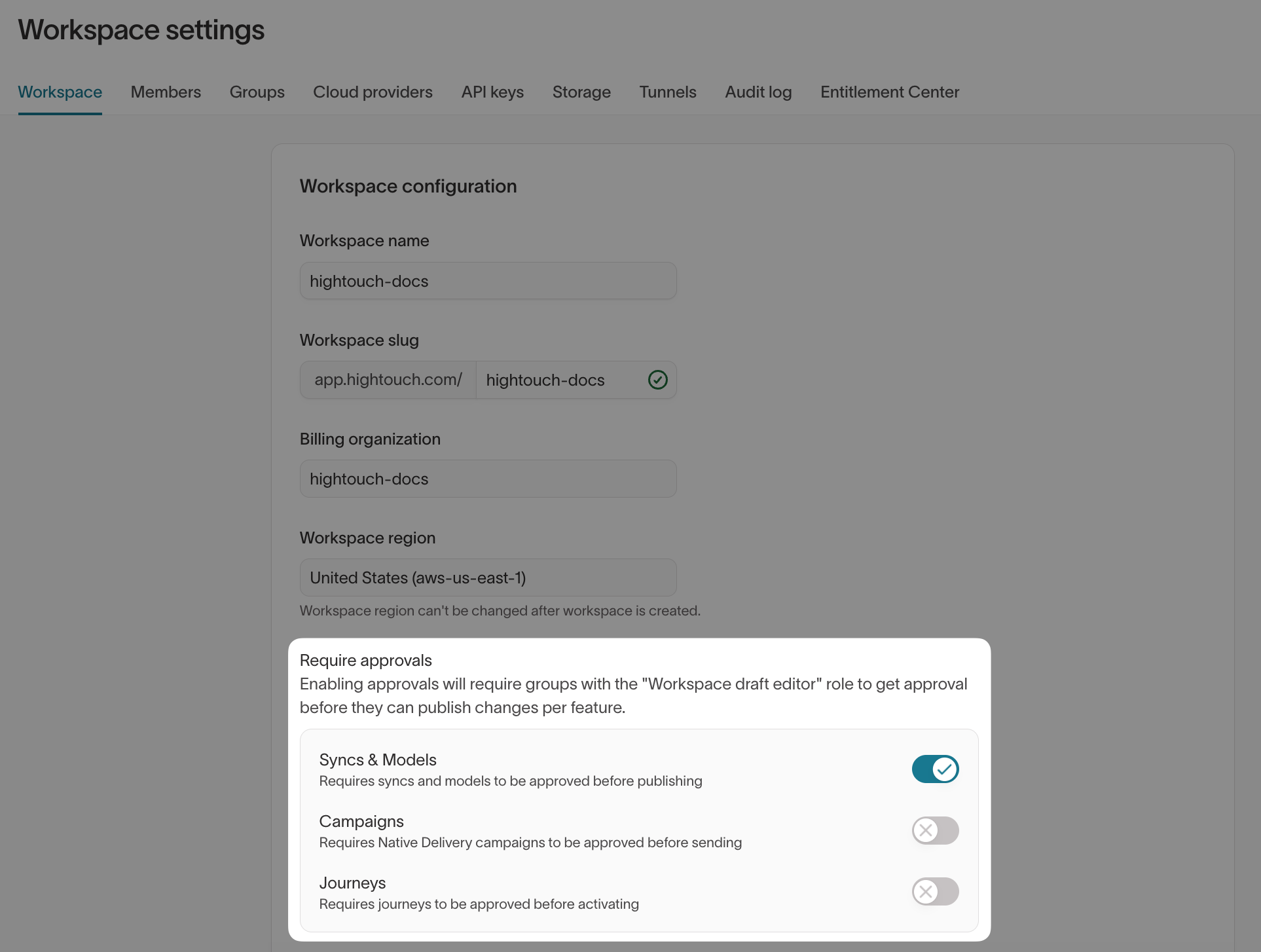
When approval flows are enabled, Configure models & syncs on the Sources and Destinations tabs splits into two grants:
- Draft models & syncs — Create or edit drafts. Users can't delete published resources.
- Approve models & syncs — Review and approve or deny drafts.
Together, these grants provide the same permissions as Configure models & syncs when approval flows aren't enabled.
Approval flows don't apply when creating or editing audiences in Customer Studio because audiences don't have drafts. Approval may still be required to sync an audience to a destination.
Draft models & syncs and Approve models & syncs are separate grants. To let users publish their own changes without another user's approval, assign both grants. The user creates a draft and then immediately self-approves it.
To approve a sync, users need Approve models & syncs for both the source and destination, granted through the same role.
FAQ
Can I hide resources from specific users?
Only in specific cases. Roles control what users can do with resources, not whether they can see them. By default, every member of a workspace can see its sources, destinations, models, and syncs, including their configuration.
Roles limit visibility in these cases:
- Row-level data — Users without View source data or View parent model data can see a resource but not the customer rows in it.
- Product sections — Groups without the relevant grants don't see Agents, Ad Studio, Lifecycle Studio, and Context Hub (Agents), or Native Delivery (Native Delivery).
- Spaces — In workspaces with spaces enabled, a role restricted to its assigned spaces can't see resources outside those spaces (Spaces).
To hide other resources from some users, place those resources in a separate workspace that those users' groups can't access.
What happens if a user belongs to more than one group?
Users can belong to multiple groups in the same workspace. They receive the combined permissions of all their group memberships.
Permissions from different groups don't combine to create new source-to-destination paths. For example, suppose:
- Group 1 can sync from source A to destination B.
- Group 2 can sync from source C to destination D.
A user in both groups can sync from A to B and from C to D. They can't sync from A to D or from C to B based only on those memberships.
Who can manage traits on a related or event model?
Traits and trait templates can belong to parent, related, or event models. The required permission depends on the associated parent model:
- Parent model — Users need Manage traits for that parent model.
- Related or event model — Users need Manage traits for a parent model connected directly or indirectly to that model. If the model is connected to multiple parent models, permission for any one of them is sufficient.
Users with Configure schema on the underlying source can manage traits and trait templates regardless of their Manage traits grants. This includes workspace admins, who receive Configure schema by default.
Next steps
Roles control who can take actions in a workspace, but they don't enforce organization-wide policies like consent requirements or PII handling.
- Manage users and groups to add users to the groups you assign roles to.
- Configure approval flows to require review before draft editors publish model and sync changes.
- Configure subsets to limit which customer rows a role can build audiences from.
- Configure destination rules to control what data can be sent to each destination, regardless of role.
- Set up environments to test syncs in a staging workspace before granting production access.