Hightouch manages workspace access through groups. Add users to groups, then assign each group a role in the workspaces it needs to access. Because access is never granted to individual users, set up users and groups first when you onboard your organization.
This guide covers how to invite users, assign users to groups, and give groups access to workspaces. To control what a group can do within a workspace, see Roles.
If you plan to connect Hightouch to an identity provider such as Okta, review the single sign-on (SSO) documentation before inviting users. SAML SSO and SCIM can automate user provisioning and group membership.
Users
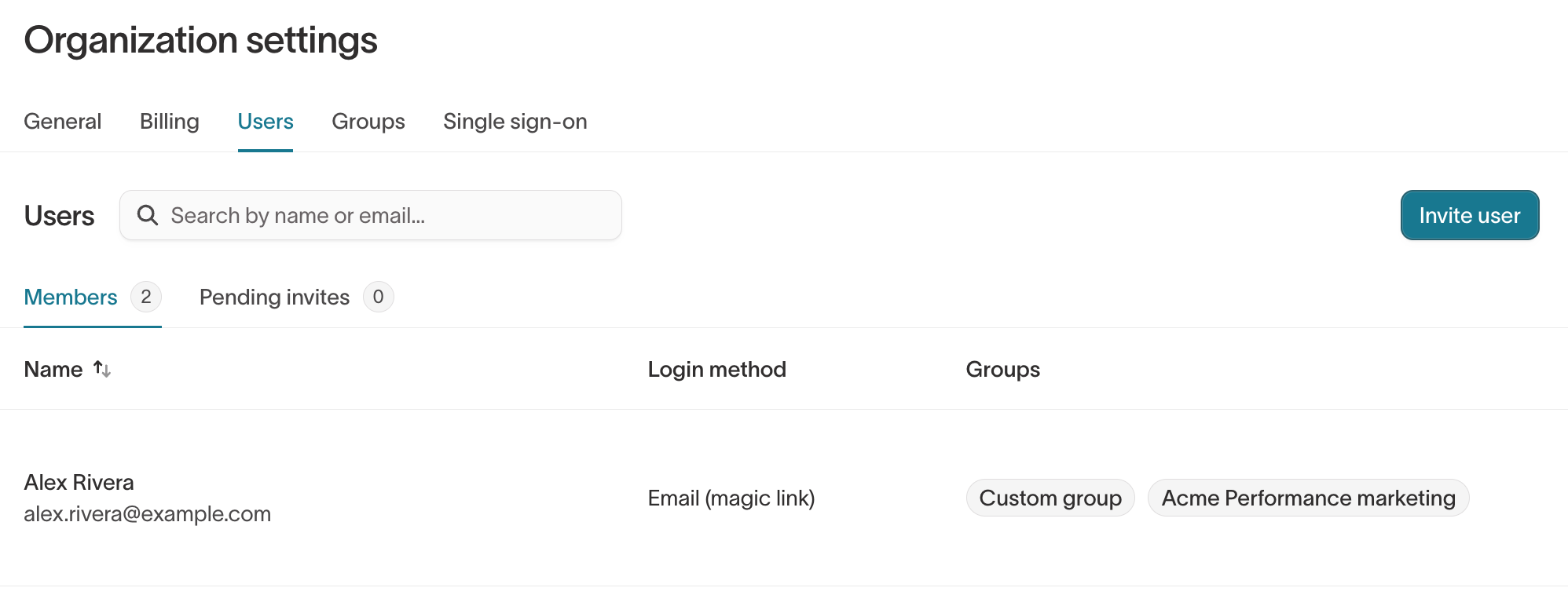
Go to Organization settings > Users to view everyone in your organization. The Members tab shows each user's login method and group memberships. Select a user to view more details.
Invite users
If your organization uses SSO, you don't need to invite users manually. Go to Organization settings > Single sign-on, copy the Hightouch login URL, and share it with your users. They can use this URL to sign in through your identity provider.
If your organization requires SSO or has manual invites turned off, the Invite user button is disabled and new users must authenticate through SSO.
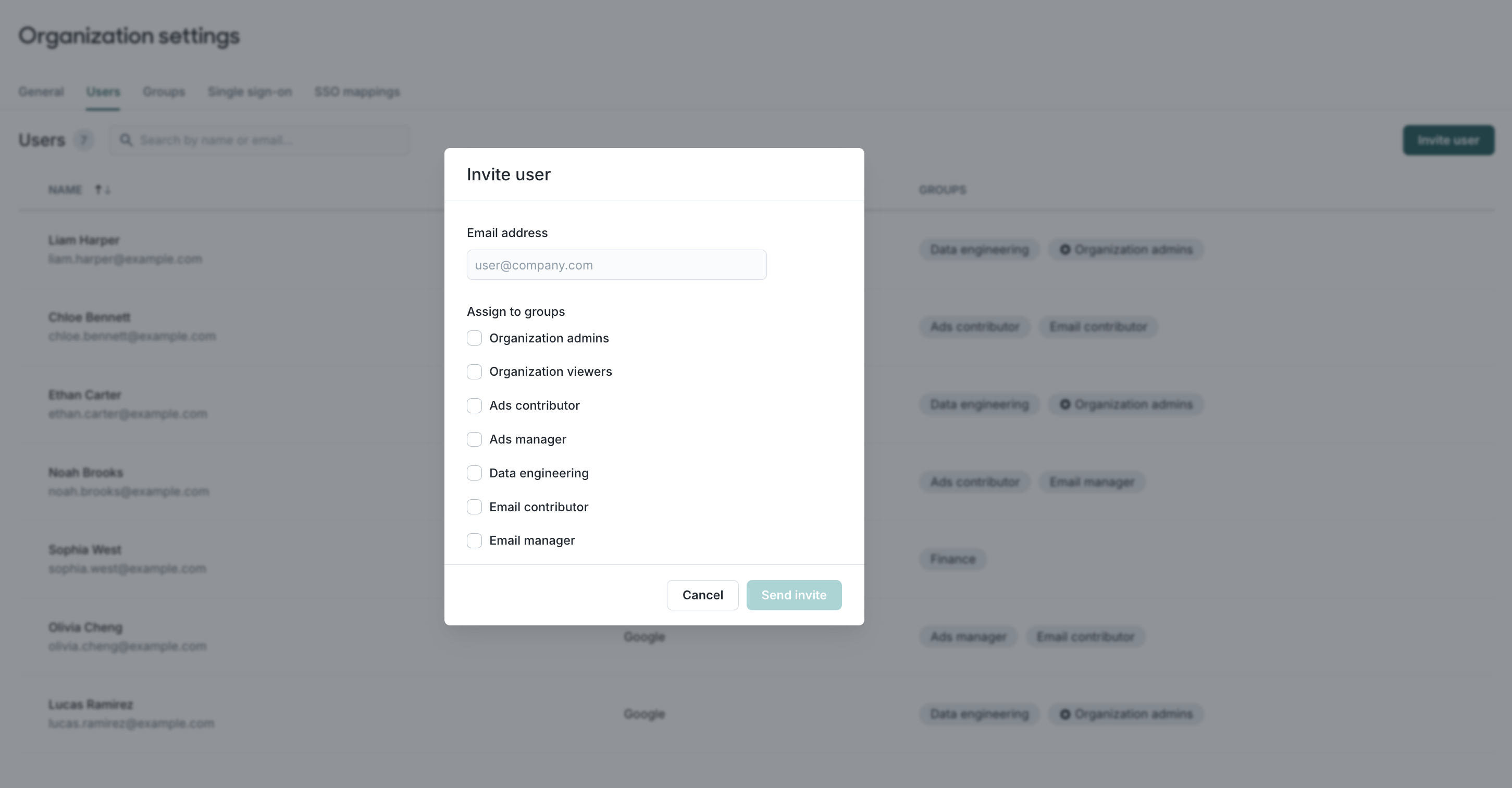
If your organization doesn't use SSO, members of the Organization admins group can invite users:
- Go to Organization settings > Users.
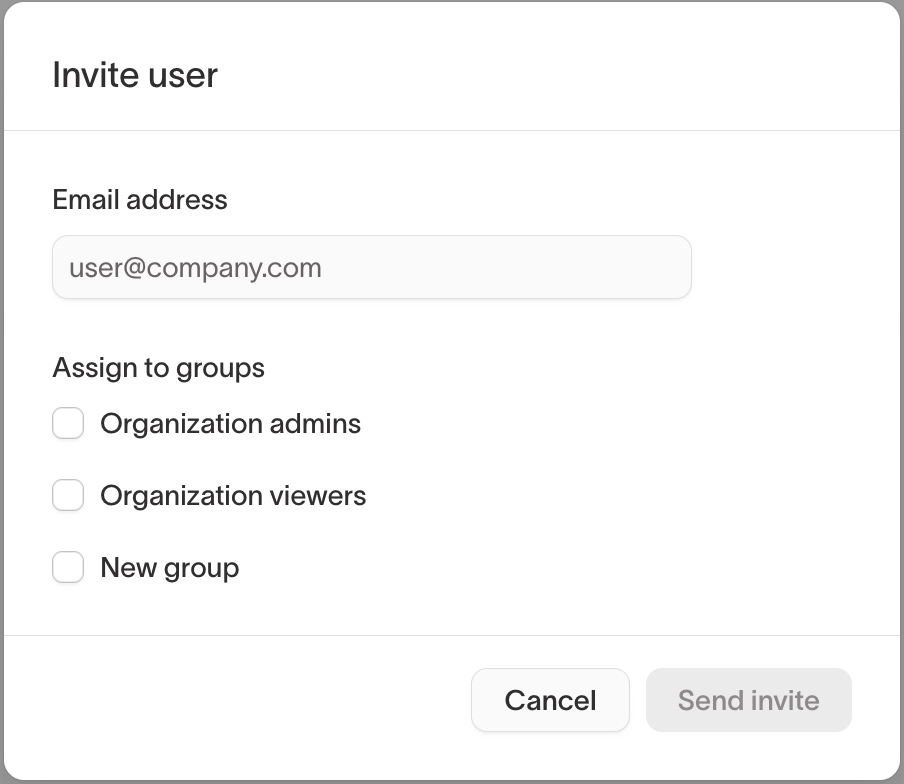
- Click Invite user.
- Enter the user's Email address.
- Under Assign to groups, select the user's groups. Without a group, the user has no workspace access when they first sign in.
- Click Send invite.
Invitations that haven't been accepted appear on the Pending invites tab of Organization settings > Users, along with how long each has until it expires. Invitations expire after 30 days. To withdraw an invitation, delete it from this tab. An organization can have up to 50 active invitations at a time.
Remove users
Only members of the Organization admins group can remove users. Go to Organization settings > Users, select the user, and click Remove user.
Removing a user doesn't prevent them from rejoining the organization later. They can rejoin if they receive another invitation or authenticate through your identity provider.
Groups
A group is a collection of users that share workspace access and permissions. Instead of assigning access to individual users, you add users to groups and configure access for each group. This makes it easy to update permissions for many users at once.
Every Hightouch organization includes two built-in groups. You can't delete or rename them, or change their workspace access:
- Organization admins have full access to all workspaces and can manage organization-wide settings, including users, groups, billing, and SSO.
- Organization viewers have read-only access to all workspaces. They can't make changes or manage organization settings.
The Organization admins group must always have at least one member. Using the Organization viewers group is optional.
Organization admins and workspace admins
Workspace admin and organization admin are different levels of access, even though both include "admin":
- Organization admin means belonging to the Organization admins group. It controls users, groups, billing, and SSO across the whole organization.
- Workspace admin is a role a group holds in a single workspace. It gives full control over that workspace's resources and settings, but not over users or groups.
| Action | Organization admin | Workspace admin |
|---|---|---|
| Invite or remove users | Yes | No |
| Create a group | Yes | No |
| Add users to a group or remove them | Yes | No |
| Give a group access to a workspace | Yes | No |
| Change the role of a group that already has access to a workspace | Yes | Only in workspaces they administer |
Assign users to groups
Only organization admins can add users to groups or remove them. Workspace admins can't, even in workspaces they administer.
If you use SSO group mappings, you can manage group membership through your identity provider. Otherwise, or if you need groups that your identity provider doesn't manage, you can assign users to groups directly in Hightouch.
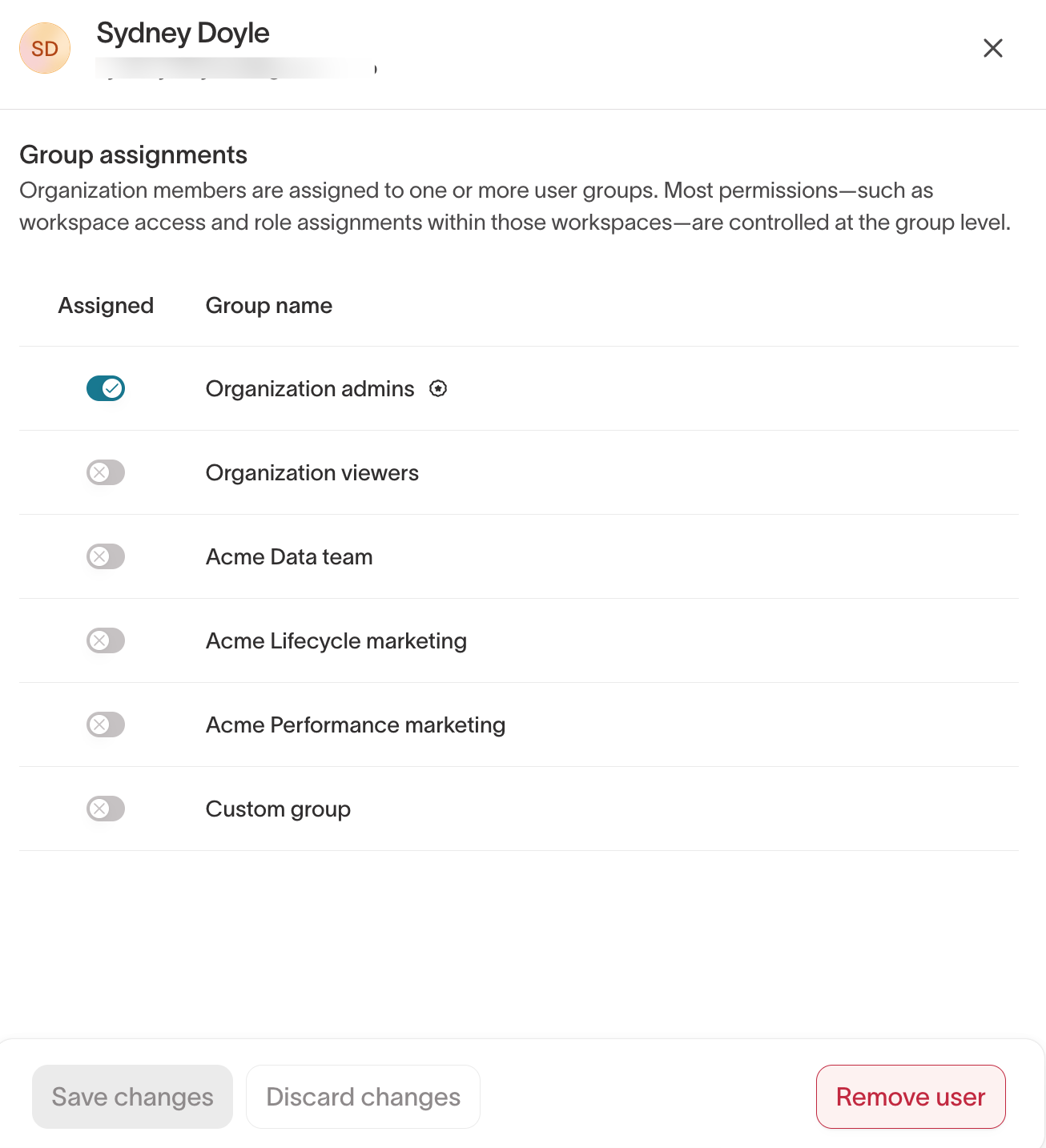
To update groups for one user:
- Go to Organization settings > Users.
- Select the user.
- Under Group assignments, use the Assigned toggle to add or remove the user from each group.
- Click Save changes.
To manage multiple users in a group:
- Go to Organization settings > Groups.
- Select the group.
- Open the Members tab.
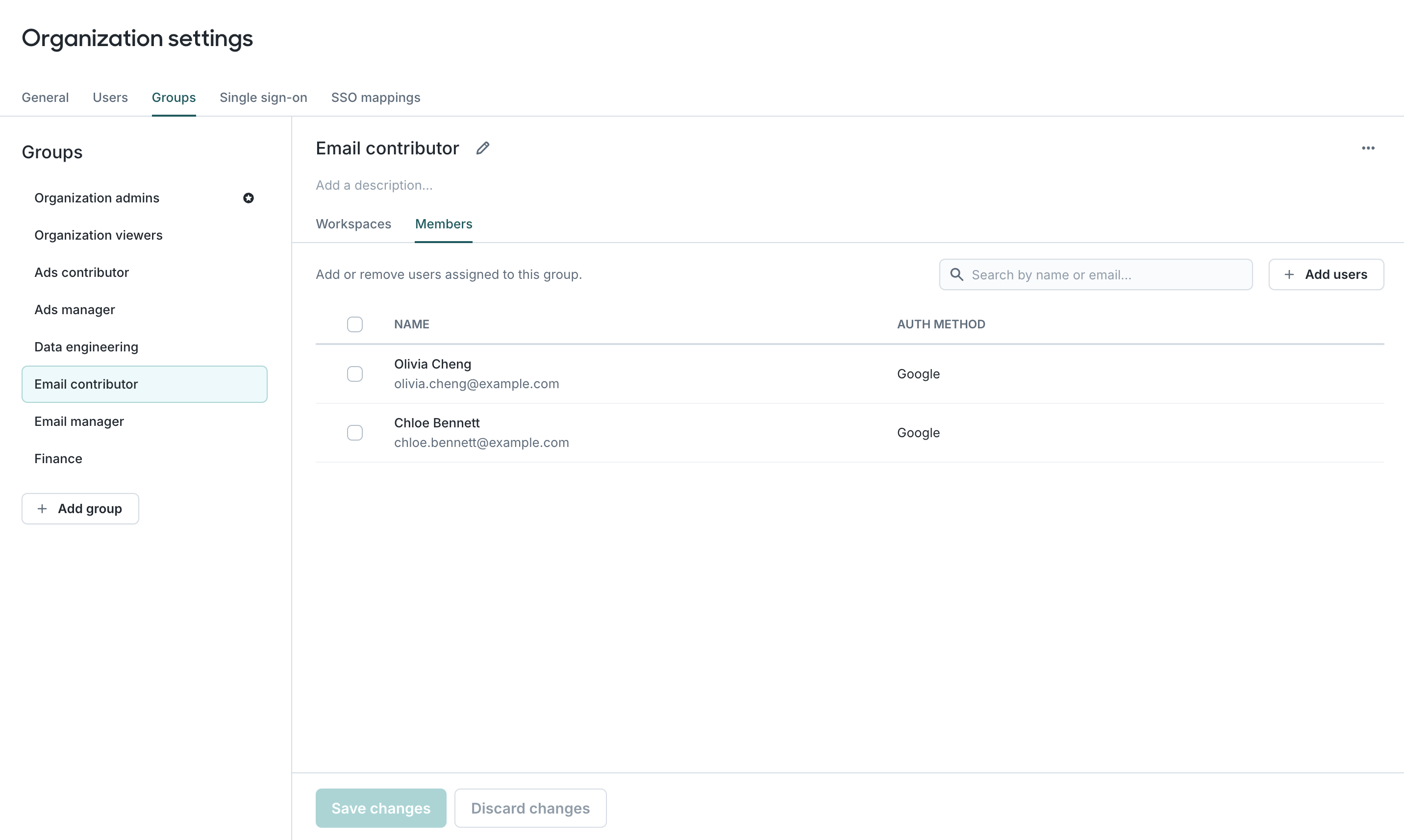
- To add members, click Add users, select the users, and click the Assign button. To remove members, select them and click the Remove button. Both changes take effect immediately.
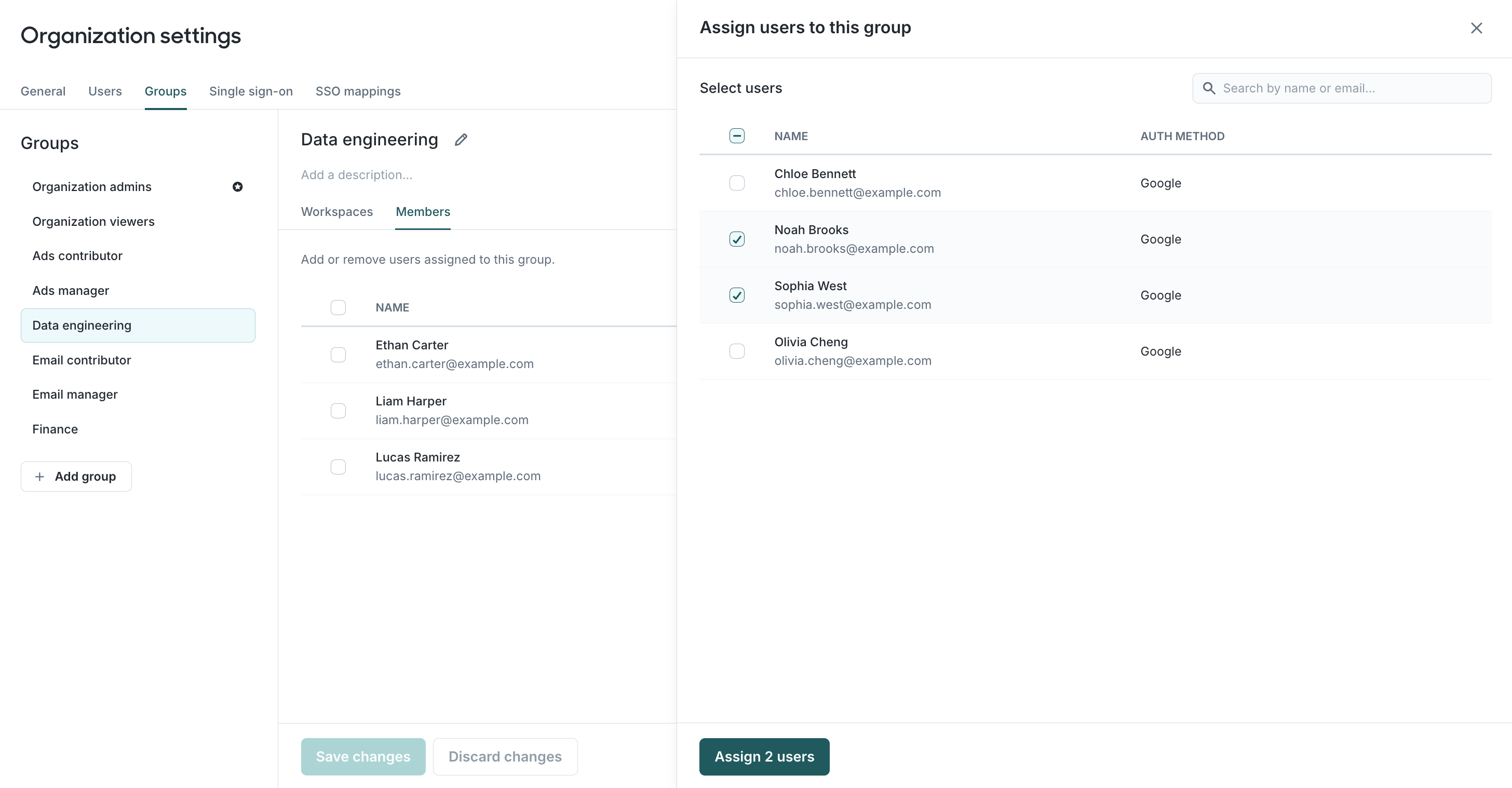
If your identity provider manages group membership through SSO group mappings, you can't remove mapped users from those groups in Hightouch. These memberships are labeled (assigned via SSO). You can still add users to additional groups in Hightouch.
Create a group
Only organization admins can create groups. Create groups for users who need similar workspace access. For example, you might create groups for Data Science and Growth Marketing, or organize groups by team, region, brand, or another structure that affects access.
Keep the number of groups manageable by reusing groups when users need overlapping permissions. Users can belong to multiple groups and receive the combined permissions of those groups. For example, instead of creating a separate Growth Marketing Analysts group, you could add those users to both Data Science and Growth Marketing.
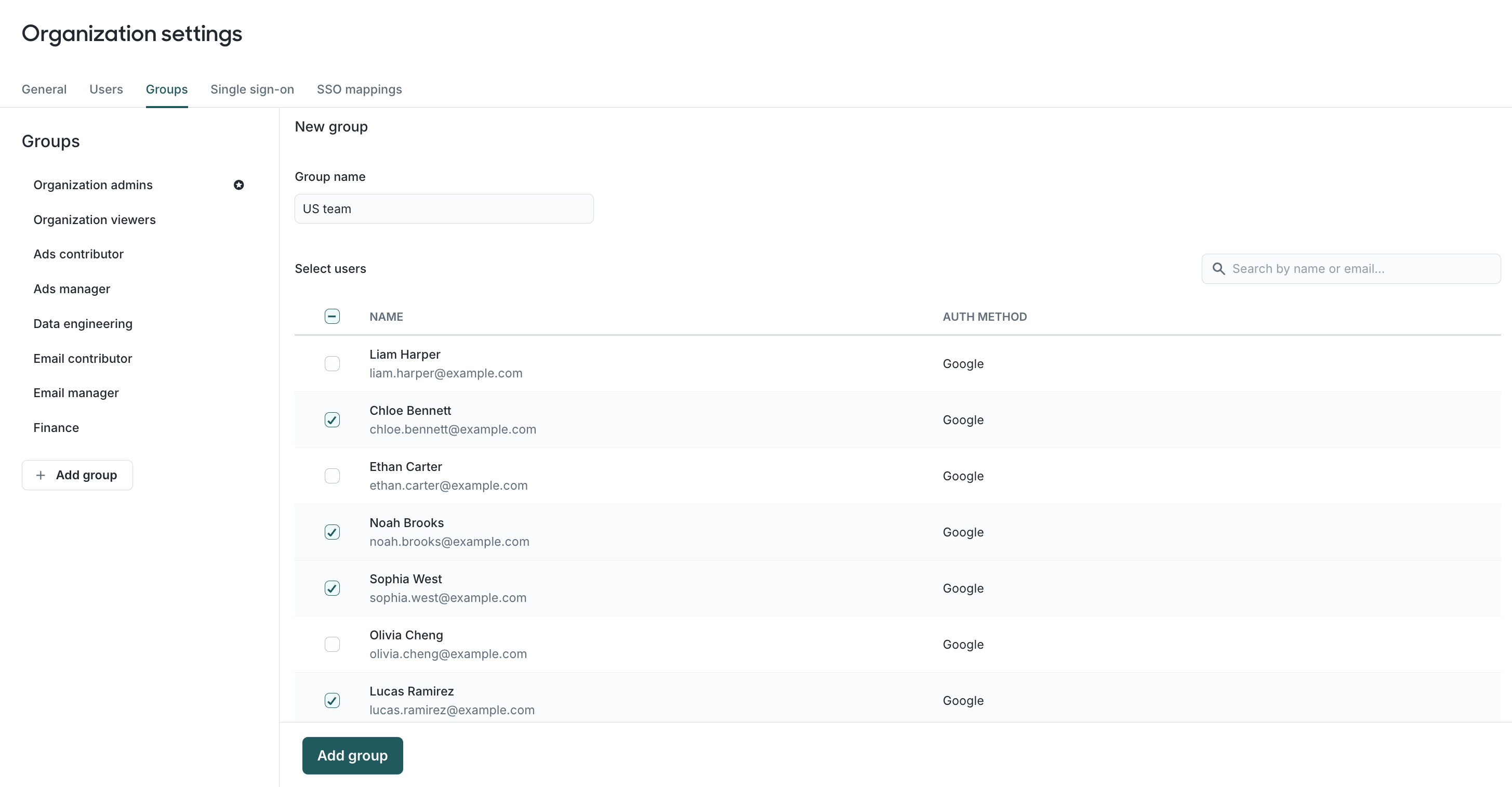
To create a group, go to Organization settings > Groups and click Add group. Enter a Group name, select its members, and click Add group.
Grant a group access to a workspace
Only organization admins can give a group access to a workspace. New groups don't have access to any workspaces by default.
To grant workspace access:
- Go to Organization settings > Groups.
- Select the group.
- Open the Workspaces tab.
- Use the Role dropdown to assign a role for each workspace the group should access.
- Click Save changes.
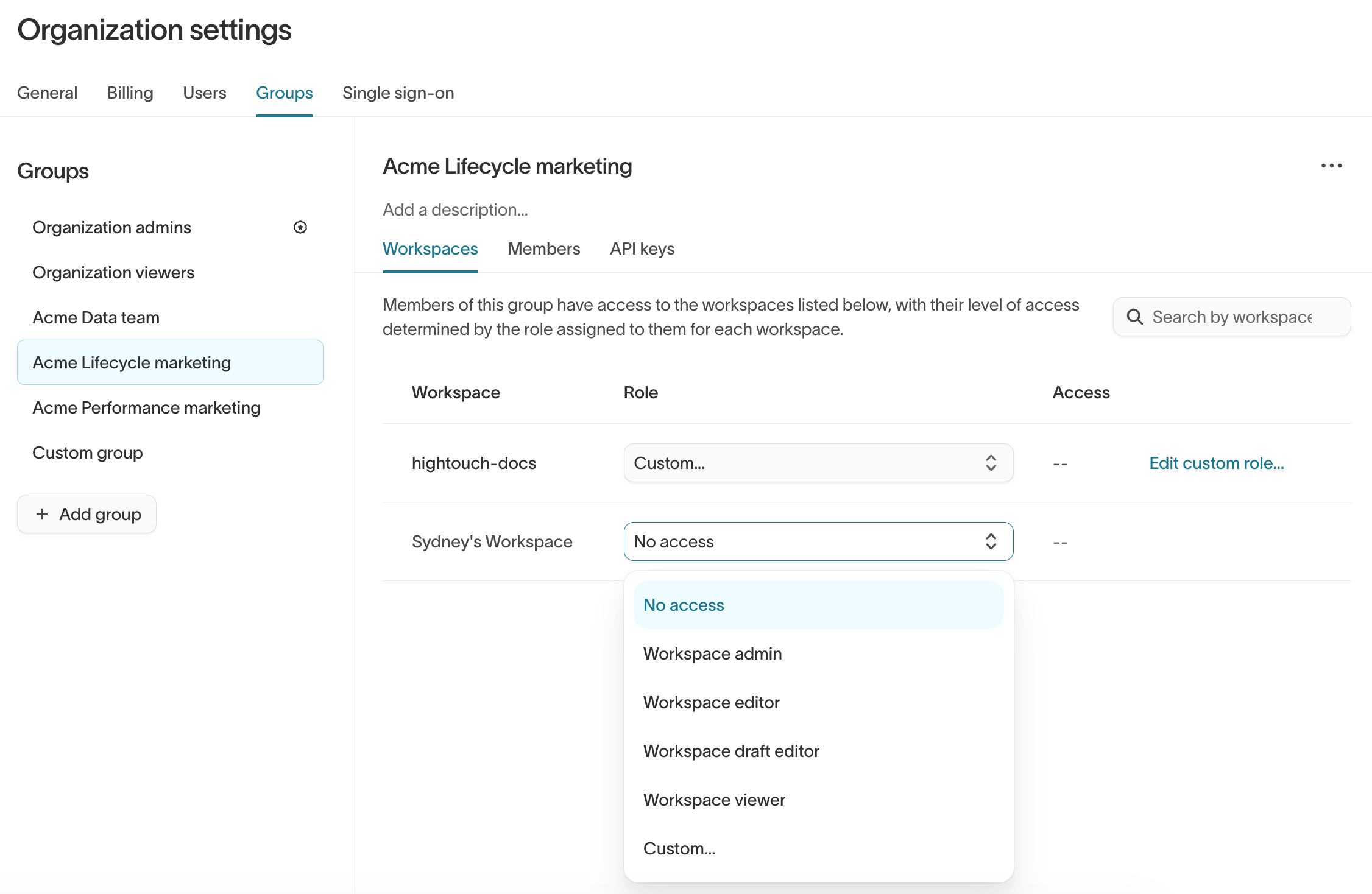
A role determines what the group can do within that workspace. You can assign a built-in role, such as Workspace viewer, or create a custom role. See Roles for details.
The Access column shows the destinations the group has permissions for in each workspace. Hover over a destination to see the group's grants for it. It doesn't include every grant or permissions for other resource types.
Change a group's role from workspace settings
Workspace admins can change the role of a group that already has access to their workspace.
Go to Workspace settings > Groups, select a new Role for the user group, and click Save changes. Hightouch asks you to confirm the changes before applying them.
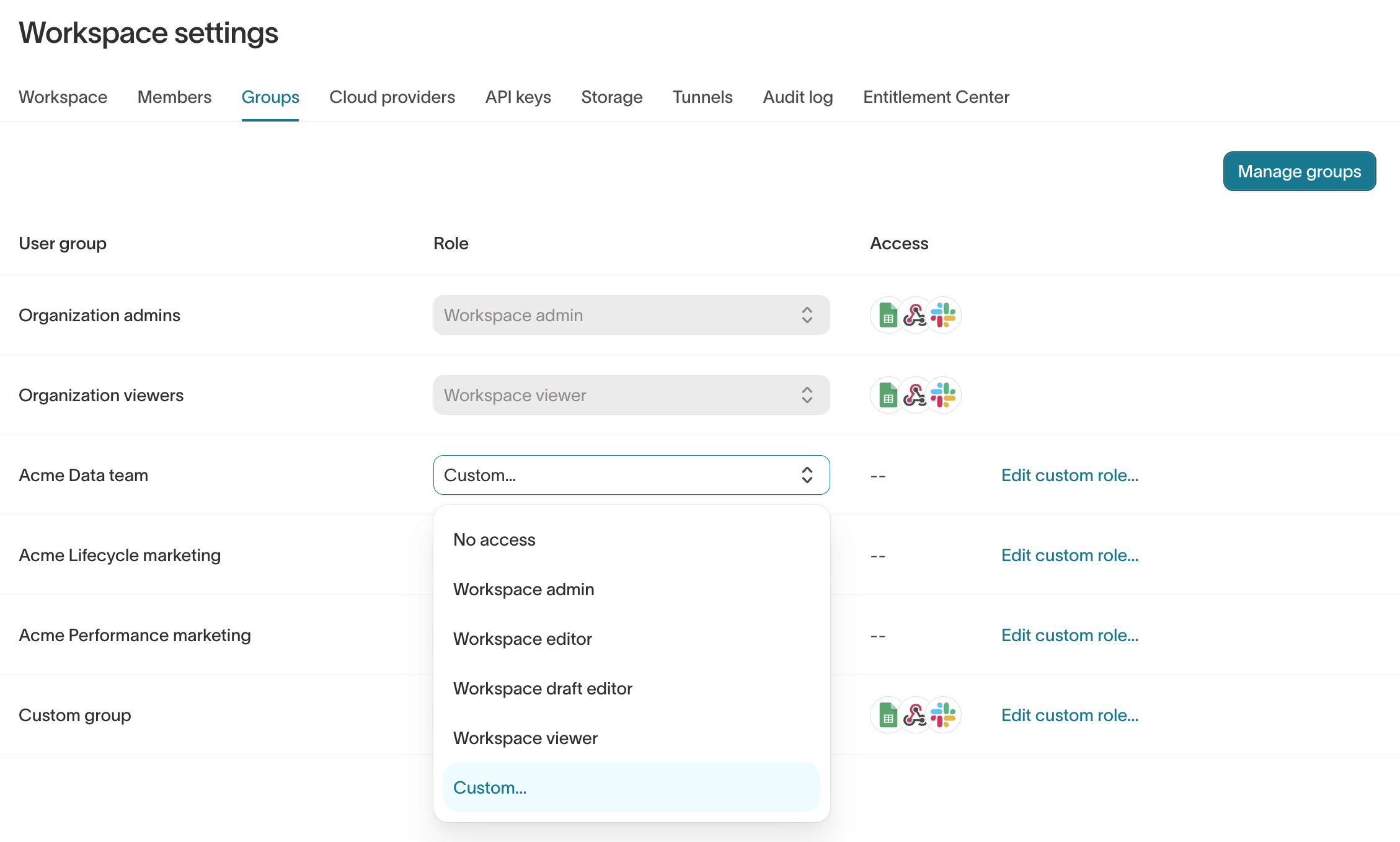
To give a group access to a workspace it can't currently access, an organization admin must assign it from Organization settings > Groups.
Some changes require an organization admin to reverse. This includes setting a group's role to No access or changing the admin role of a group you belong to.
Transfer organization admin access
When an organization admin changes roles or leaves your company, add a replacement to the Organization admins group before removing the existing admin. Organization admins control organization-wide settings, including SSO and SCIM configuration, billing, users, and group permissions.
Keep at least two active organization admins so another admin can manage access if one becomes unavailable.
Transfer access when an organization admin is available
If at least one organization admin can still access Hightouch, they can add a replacement from Organization settings.
If the new admin isn't a Hightouch user yet, invite them and select Organization admins under Assign to groups. They get organization admin access when they accept the invitation. If your organization requires SSO, invites are turned off, so have the new admin sign in through your identity provider first.
To make an existing user an organization admin:
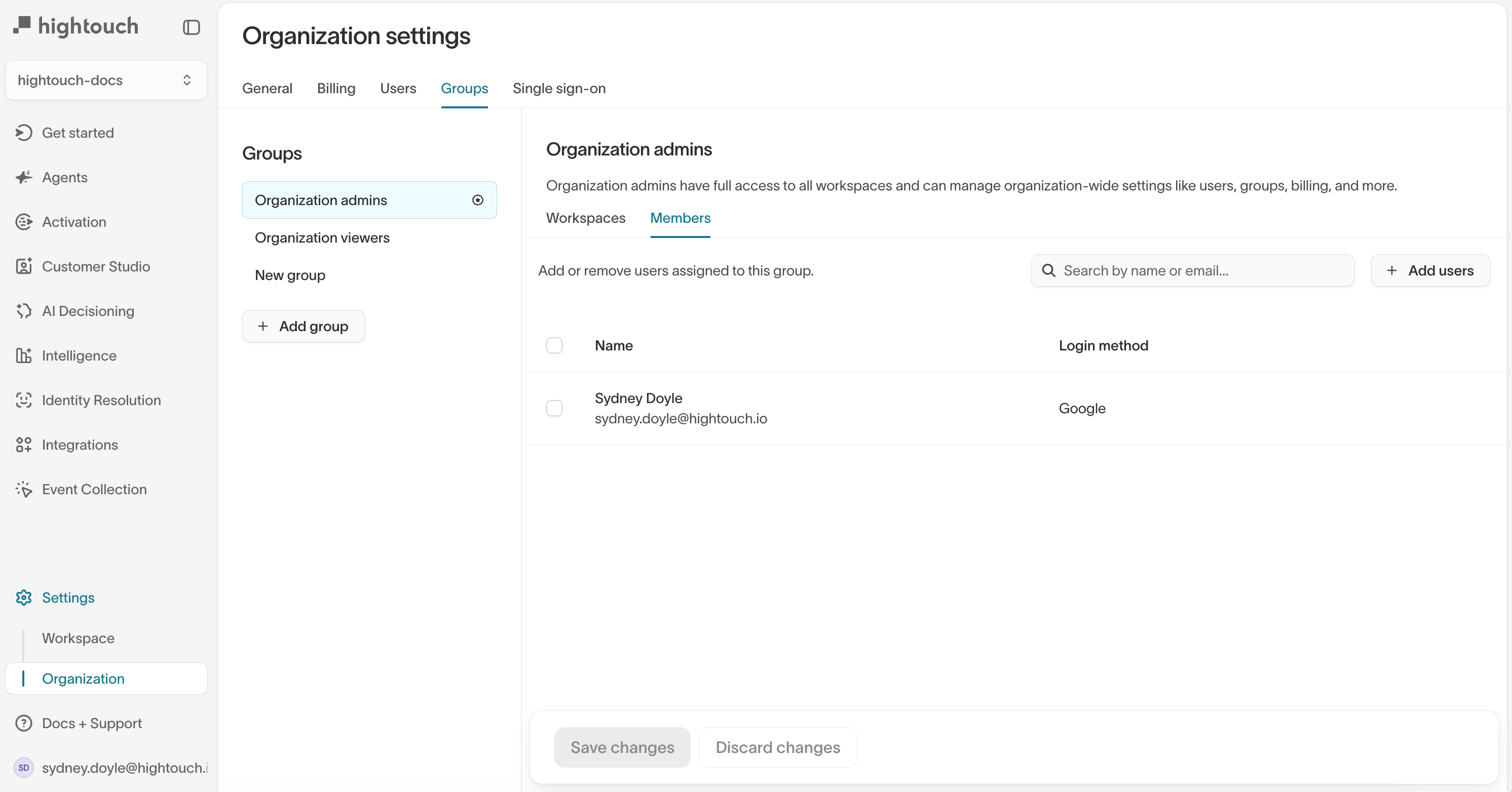
- Go to Organization settings > Groups and select Organization admins.
- Open the Members tab and click Add users.
- Select the new admin and click the Assign button.
The new admin has full organization admin access as soon as you assign them.
To remove a departing organization admin:
- Go to Organization settings > Groups and select Organization admins.
- On the Members tab, select the departing admin and click the Remove button.
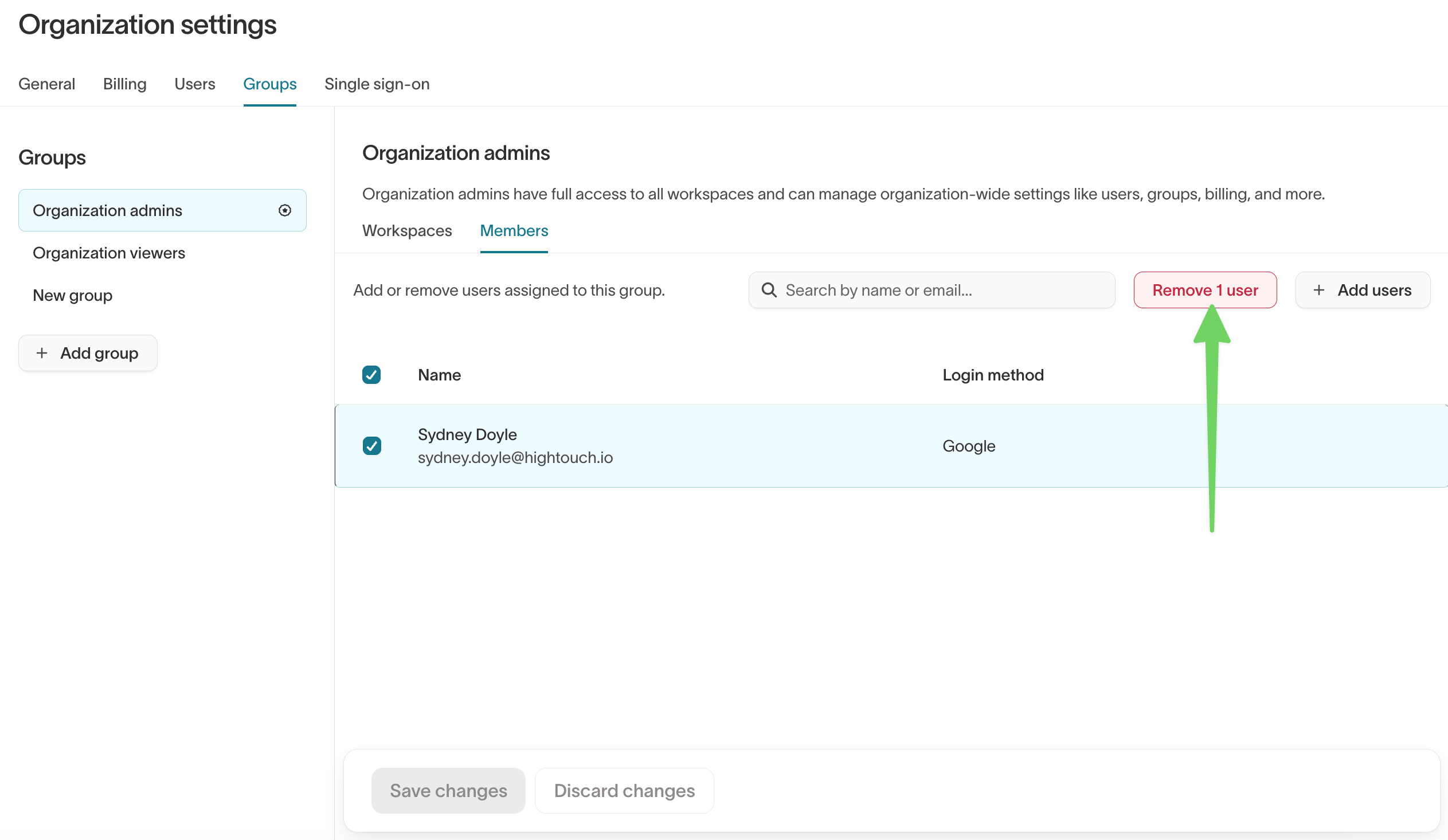
Hightouch requires at least one organization admin and blocks removing the last one. Add a replacement before removing the last remaining admin.
Transfer access with SSO and SCIM
If your organization uses SSO with SCIM provisioning, manage organization admin membership through your identity provider instead of directly in Hightouch:
- In your identity provider, such as Okta or Entra ID, confirm that a group is mapped to the Hightouch Organization admins group.
- Add the new admin to the mapped group and remove the departing admin.
- SCIM syncs the membership changes to Hightouch.
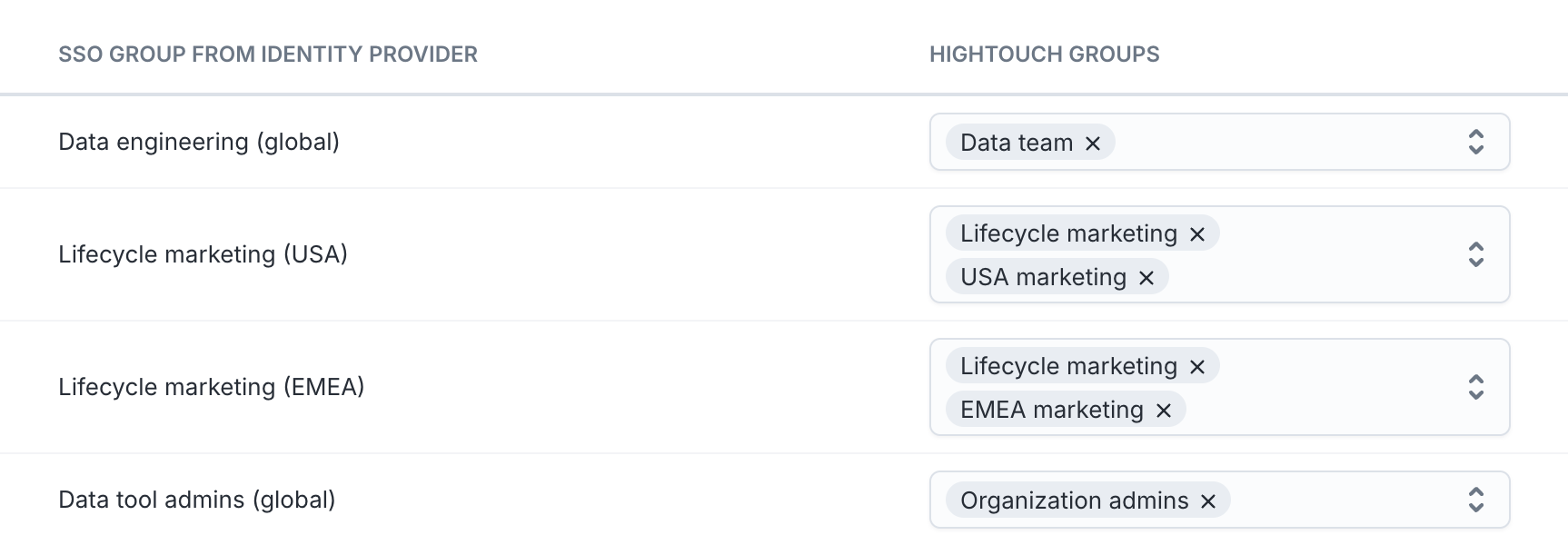
This keeps your identity provider as the single source of truth for admin access.
Recover access when no organization admins are available
If no organization admins at your company can access Hightouch, for example because all previous admins have left, Hightouch Support must help assign a new admin.
- Don't create a new organization. Your existing organization, workspaces, and configuration are still available.
- Have someone from your company from a verified company email address.
- Include:
- Your company name and Hightouch organization name or workspace URL
- The name and email of the new organization admin
- Relevant context, such as when the previous admins left
Because organization admins can manage billing and security settings, Hightouch may require additional verification, such as confirmation from an existing commercial or security contact on file, before assigning a new admin.