| Audience | Marketers (with support from data or platform teams) |
| Prerequisites |
|
Tags help you organize messages and variants, compare creative performance, and apply consistent structure across your AI Decisioning workspace.
Overview
Tags in AI Decisioning classify and group message variants so you can compare how different creative strategies perform across your agents.
Each tag consists of a key and a value. The key defines a category, such as tone or product, and the value describes a specific attribute, such as playful or sunglasses. Together, these pairs describe both what your message says and how it says it.
| Tag type | Description | Example use |
|---|---|---|
| Message tags | Describe the overall goal, topic, or focus of a message | Summer Promo, Loyalty Push, Flight Offers |
| Variant tags | Describe specific creative differences within a message | Emotional, Discount CTA, Travel Deals |
Once applied, tags let you break down performance in Insights to identify which themes, tones, offers, or structures drive engagement. Tags are most useful when multiple messages or variants share the same concepts, because that overlap makes it easier to compare results and identify patterns.
Consistent tagging also helps AI Decisioning learn from past performance, improving future recommendations and experiments.
Plan your tagging framework
Before you start tagging, decide what you want to learn from your campaigns — such as which offers, value propositions, or tones drive engagement. Planning your framework upfront helps you tag consistently from the start.
Decide what to tag
Your tags should capture:
- What the content says — for example, product, offer, or audience
- How it says it — for example, tone, urgency, or format
Guidelines
- Keep tag names short and consistent
- Use one value per tag type, such as one
Toneor oneOffer - Avoid duplicate concepts, such as
IncentiveandOffer - Don't recreate system fields like
channel,message, orsubject line - Create tags for any dimension you want to measure or control, such as business unit or product line
Tags describe content attributes, not user traits. It's okay if they
overlap. For example, a message might use the tag Career = Marketer while a
user profile also includes a career trait.
Choose message tags vs. variant tags
Use message-level tags for broad attributes that apply to the entire message, such as product, campaign theme, or business unit. Use variant-level tags for finer creative differences, such as subject line tone, CTA style, or emoji usage.

Start small, then expand
| Tag type | Recommended range | Notes |
|---|---|---|
| Keys | 3–8 | Focus on the main dimensions you want to measure, such as tone, offer, or motivator. |
| Values | 3–6 per key | Each value should apply to multiple messages. Avoid long lists of rarely used values. |
As you add new tags, Insights automatically updates results for past agents that use them.
Best practices
| Goal | Recommendation |
|---|---|
| Stay consistent | Use a standard naming pattern, such as Tone, Offer, or Audience. |
| Avoid duplicates | Regularly review tags on the Tags page to remove similar values. |
| Be specific | Use clear labels like CTA: Learn More instead of generic names like Email Test. |
| Align with goals | Create tags that reflect what you want to measure, such as conversion or engagement. |
| Use AI to assist | Generate tags quickly, then refine them for accuracy. |
| Review performance | Use Insights to identify which tags drive results. |
Keep a shared reference document for your team's approved tags, such as Promo Type, Tone, and Audience, to maintain consistency across agents.
Example tag structures
Financial company example
| Category | Key | Example values |
|---|---|---|
| Product | Product type | Checking, Savings, Credit Card, Mortgage |
| Product | Feature | No ATM Fees, Auto Transfers, 2% Cash Back |
| Expression & Style | Tone | Playful, Urgent, Reassuring, Empowering |
| Expression & Style | Motivator | Save Money, Earn Rewards, Gain Control, Simplify Life |
| Expression & Style | Narrative | Problem–Solution, Benefit-Focused, Storytelling |
| Incentive | Value prop | Low Fees, High Yield, Personalized Offers |
| Incentive | Offer | 10% Off, $100 Bonus, Free Trial |
| Incentive | CTA | Learn More, Apply Now, Get Started |
| Creative Structure | Message length | Short, Medium, Long |
| Creative Structure | Urgency | Low, Medium, High |
Streaming service example
| Category | Key | Example values |
|---|---|---|
| Product | Subscription plan | Basic, Standard, Premium, Bundle |
| Product | Feature | Ad-Free, Offline Download, 4K, Multi-Screen |
| Expression & Style | Tone | Inspirational, Humorous, Reassuring, Playful |
| Expression & Style | Motivator | Entertainment, Discovery, Relaxation, Family Fun |
| Expression & Style | Genre | Action, Comedy, Drama, Kids, Documentary |
| Incentive | Value prop | Free Trial, Exclusive Content, Personalized Recommendations |
| Incentive | Offer | 1 Month Free, 20% Off Annual Plan, Bundle Deal |
| Incentive | CTA | Watch Now, Start Free Trial, Subscribe Today |
| Creative Structure | Message length | Short, Medium, Long |
| Creative Structure | Emoji usage | None, Light, Heavy |
| Business Unit | Region | US, GB, FR, DE, AUS, NZ, JP |
Use these examples as a starting point. Choose the categories that fit your business, then expand over time.
Tag messages and variants
Once you've planned your tag structure, you can start applying tags while building or reviewing agents. Use the Agent view to tag messages in context, or the Tags page to manage tags across your workspace.
| Method | Best for |
|---|---|
| From an Agent | Adding or editing tags while building or reviewing a specific message |
| From the Tags page | Creating, standardizing, or bulk-editing tags across multiple agents |
Message tags
Message tags classify the overall purpose or focus of a message. You can add them directly from the message configuration view inside an agent.
- Go to
AI Decisioning > Agents > Select an Agent. - In the
Messagestab, choose a message. - Open the
Configurationtab. - Under
Tags, use the dropdowns to select existing tags or clickAdd tagto create new ones. - Click
Save changesto apply.

Examples
Product: BluelightMotivator: WellnessIncentive Type: Free giftValue Proposition: Convenience
You can also generate message tags with AI by clicking Generate tags with AI
under the tag list.
Variant tags
Variant tags help you compare creative differences within a single message, such as tone, offer, structure, or subject line style.
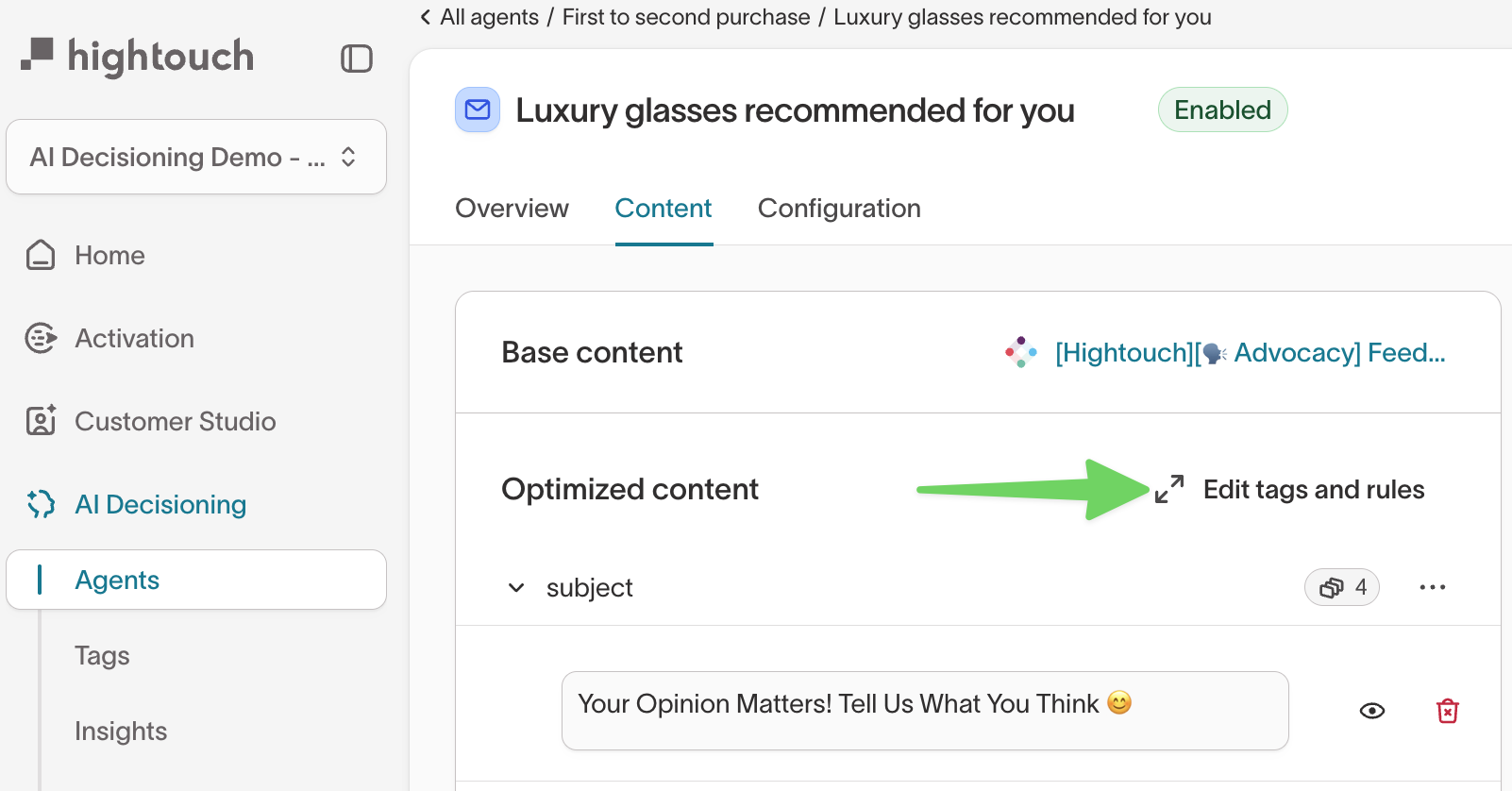
- Go to
AI Decisioning > Agents > Select an Agent. - In the
Messagestab, choose a message. - Open the
Contenttab. - Under
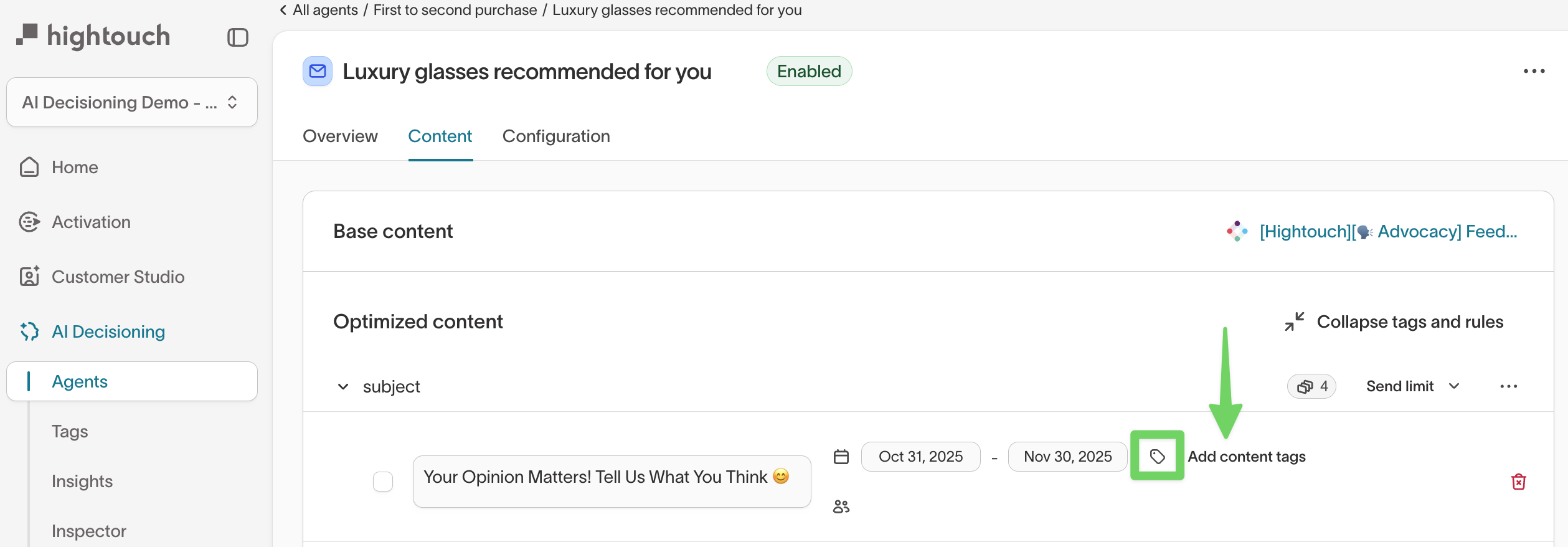
Optimized content, clickEdit tags and rules. - Hover over the tag icon next to a variant and click
Add content tags. - In the
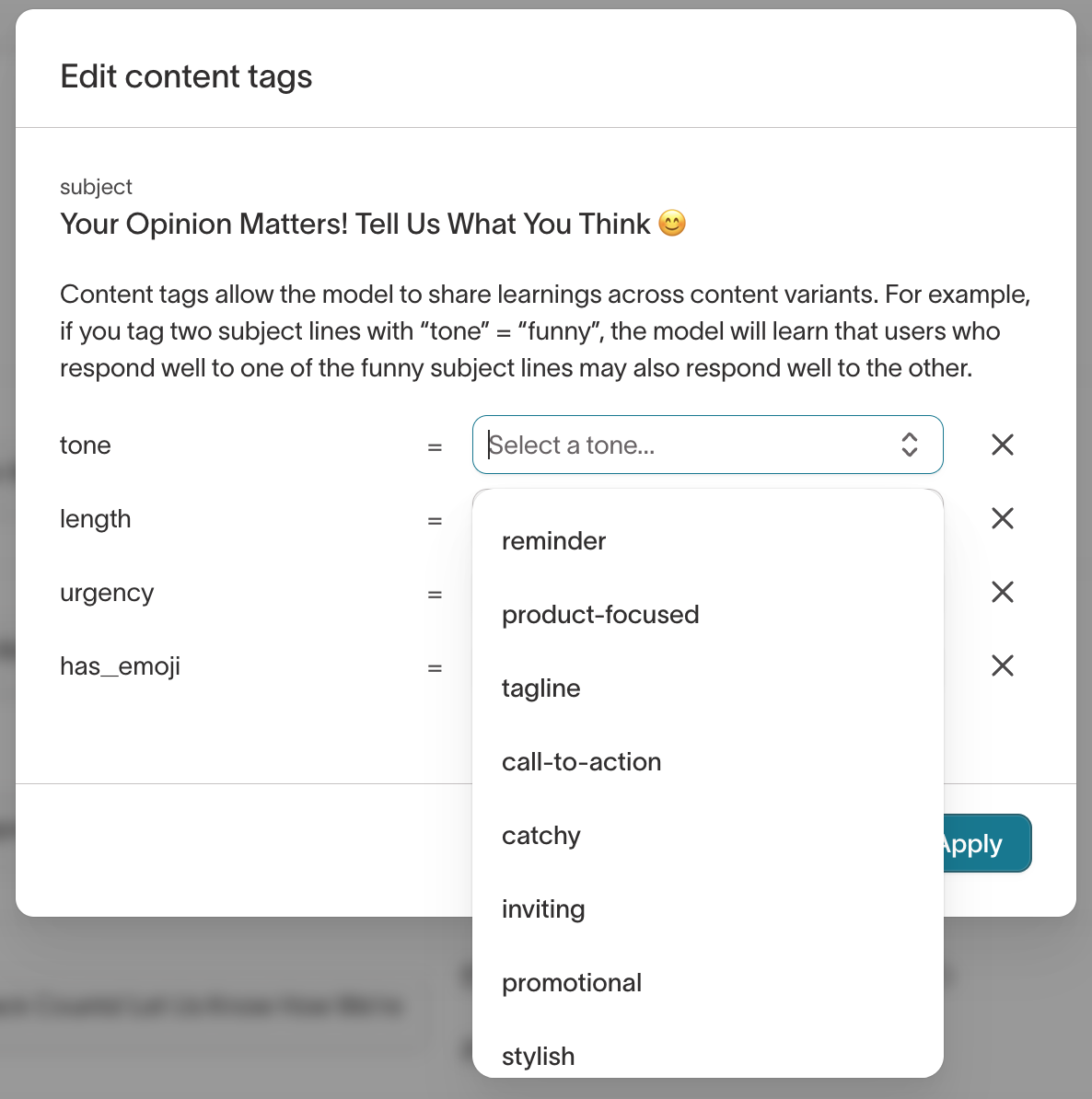
Edit content tagsmodal, use the dropdown to select existing tag values or type to create new ones. - Click
Applyto save your changes.
Examples
Length: ShortTone: Savings focusedUrgency: NormalHas emoji: Yes
Add variant tags while testing subject lines, images, or CTAs. These tags connect performance differences directly to specific creative choices in Insights.
Analyze tag performance
Use tags to understand how creative themes perform across agents and messages.
Insights
Once your messages and variants are tagged, you can measure how each tag performs across agents in Insights.
- Go to
AI Decisioning > Insights. - Select the
Creative Performanceview. - In the
Break down bydropdown, choose a tag key such asincentive_type,tone, ormotivator.
If your workspace uses these tag keys consistently, they'll appear as available breakdown fields.
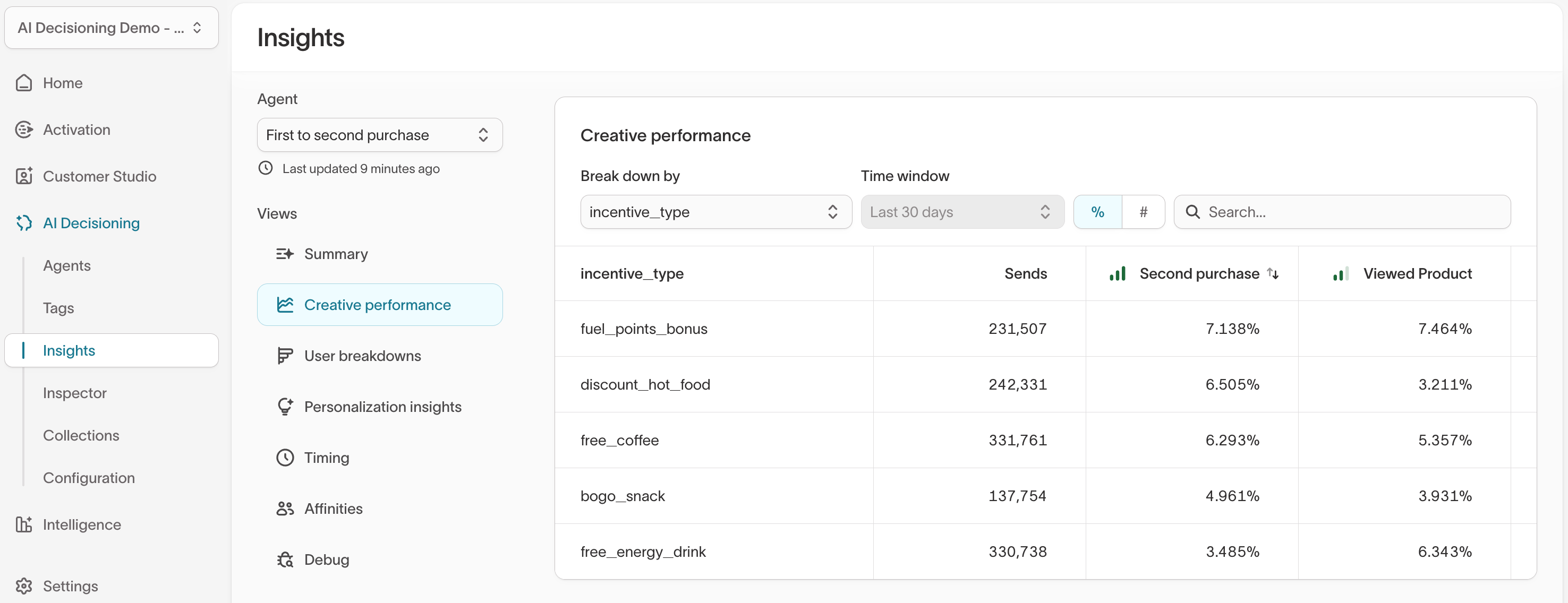
The table shows how each tag value performs across your agents and messages, including:
- Sends — total number of messages delivered for each tag value
- Key conversion events — such as purchases, sign-ups, or other tracked actions
- Engagement metrics — including click-through rate (CTR), open rate, or conversion rate
Example
Breaking down by incentive_type reveals which offers drive the strongest results. For example, fixed_discount may outperform free_shipping or free_gift in conversion rate, helping you understand which incentive types resonate most across audiences.
Drill-down views
You can also drill down into a specific message or variant to explore deeper insights:
- Personalization insights — Compare how engagement differs by user attributes such as device type, region, or affinity
- Timing insights — Identify when messages perform best by day or time of day
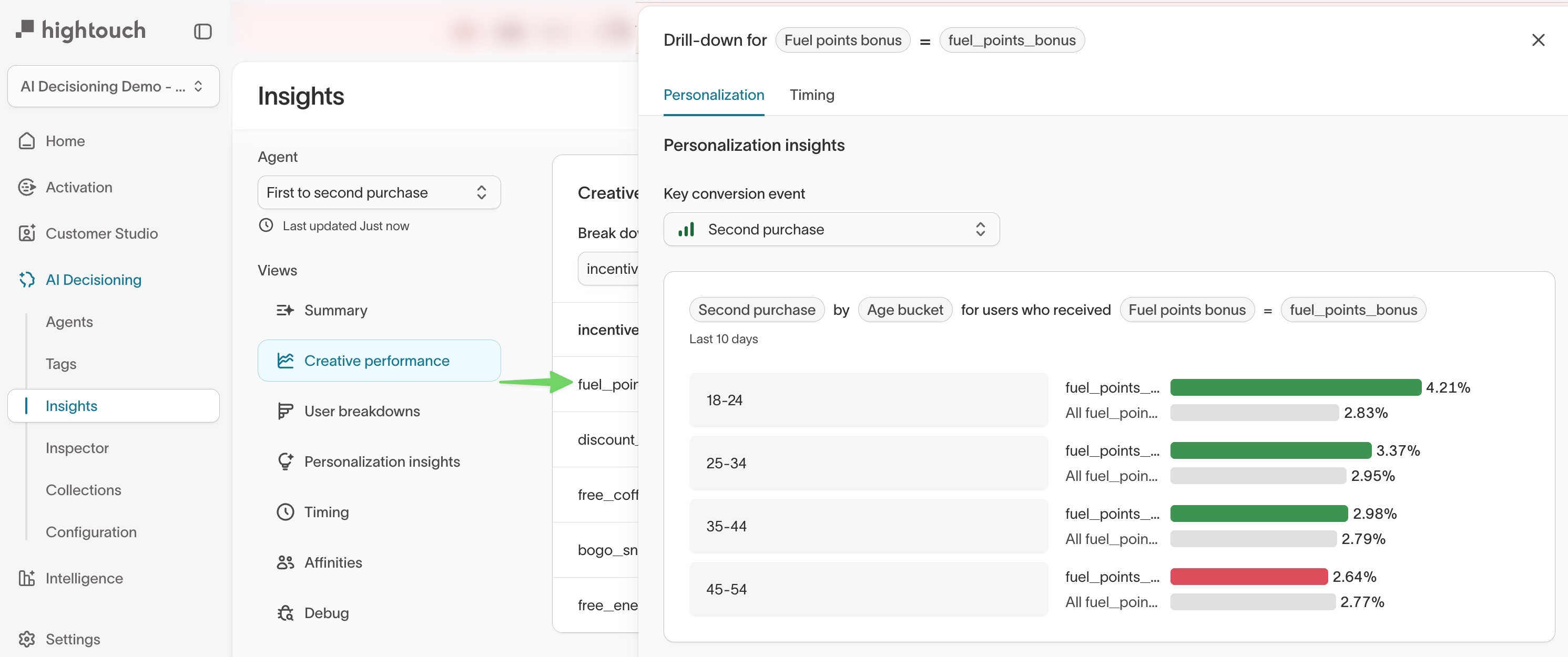
Use the Insights tab to evaluate your content strategy at scale. Tag-driven breakdowns connect creative attributes — such as incentive type, tone, or motivator — to measurable performance outcomes.
Content analysis
Each message also includes content-level insights to help you understand relationships between creatives.
In the message's Content tab, scroll to Content analysis to view:
- Tags — Applied tags such as
Motivator: EfficiencyorValue Proposition: Convenience - Similarity analysis — Messages with similar structure, tone, or intent
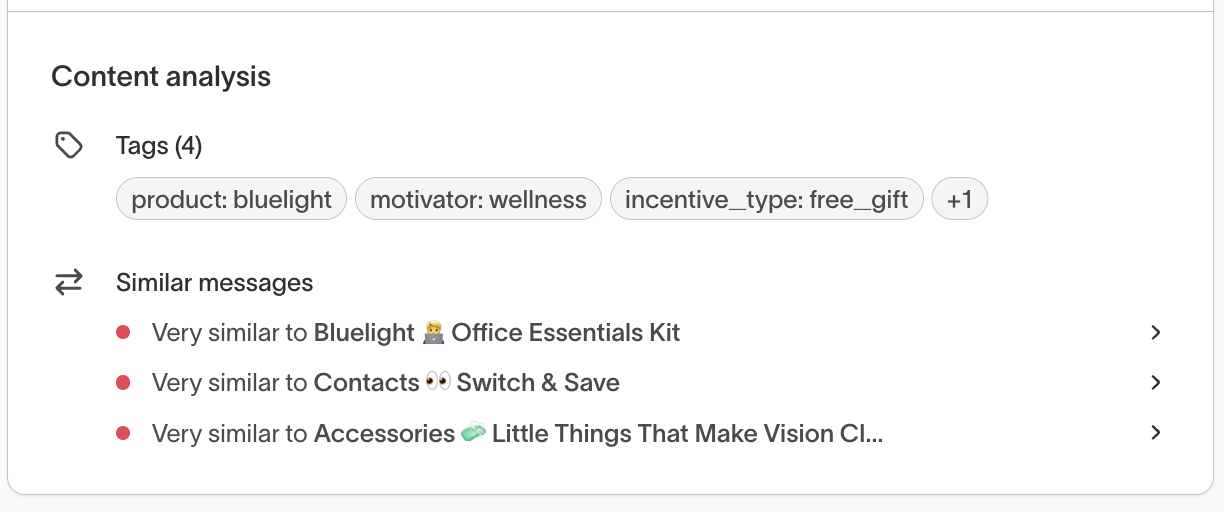
You can expand each comparison to see why messages are related. This helps you identify patterns in your creative library and understand how messages may influence model learning.
Content analysis focuses on creative similarity and reuse, while the Insights tab focuses on quantitative performance and impact. Use both to understand what works and why.
Manage and govern your tags
As your tagging system grows, use these tools to keep tags consistent, apply them efficiently, and extend their use beyond analysis.
Manage tags on the Tags page
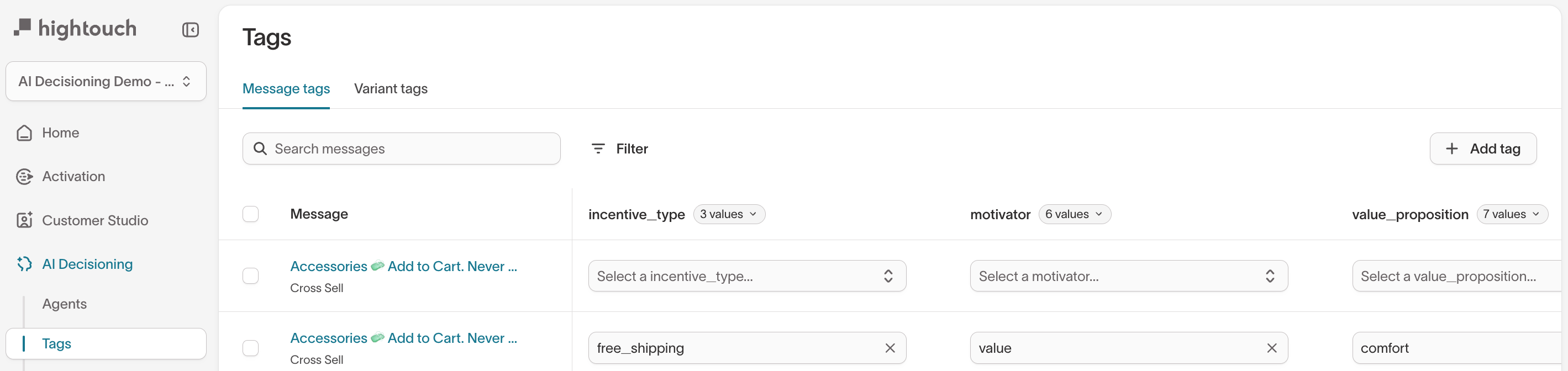
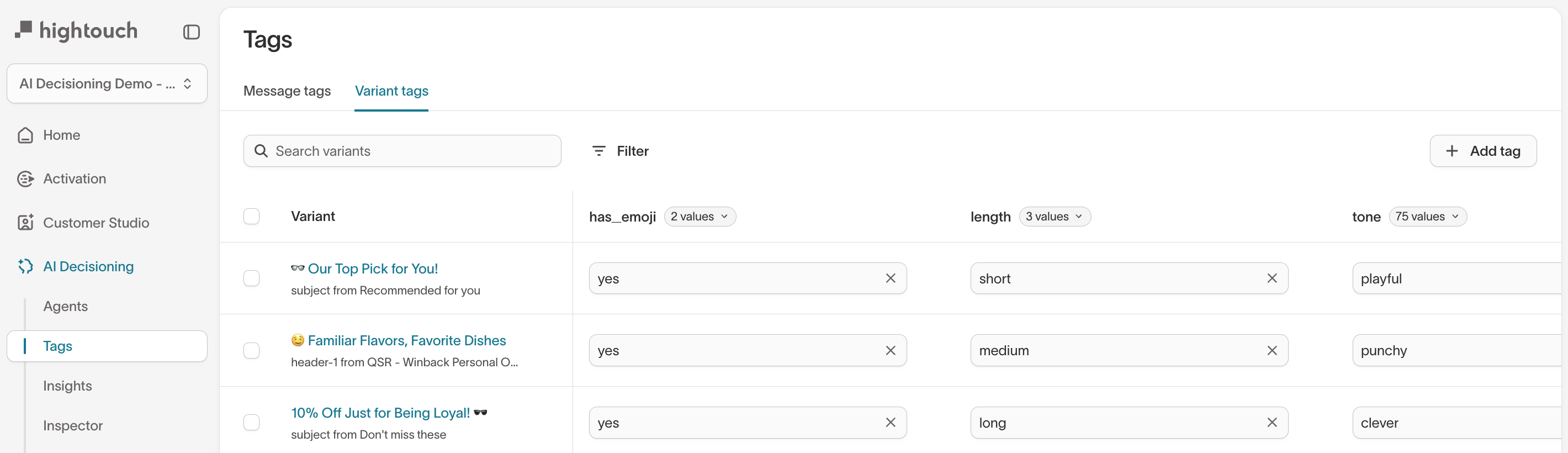
The Tags page (AI Decisioning > Tags) provides a centralized view of all tags in your workspace. Changes made here apply globally to every agent that uses the tag key.
The Tags page separates tags into Message tags, Variant tags, and Channel tags.
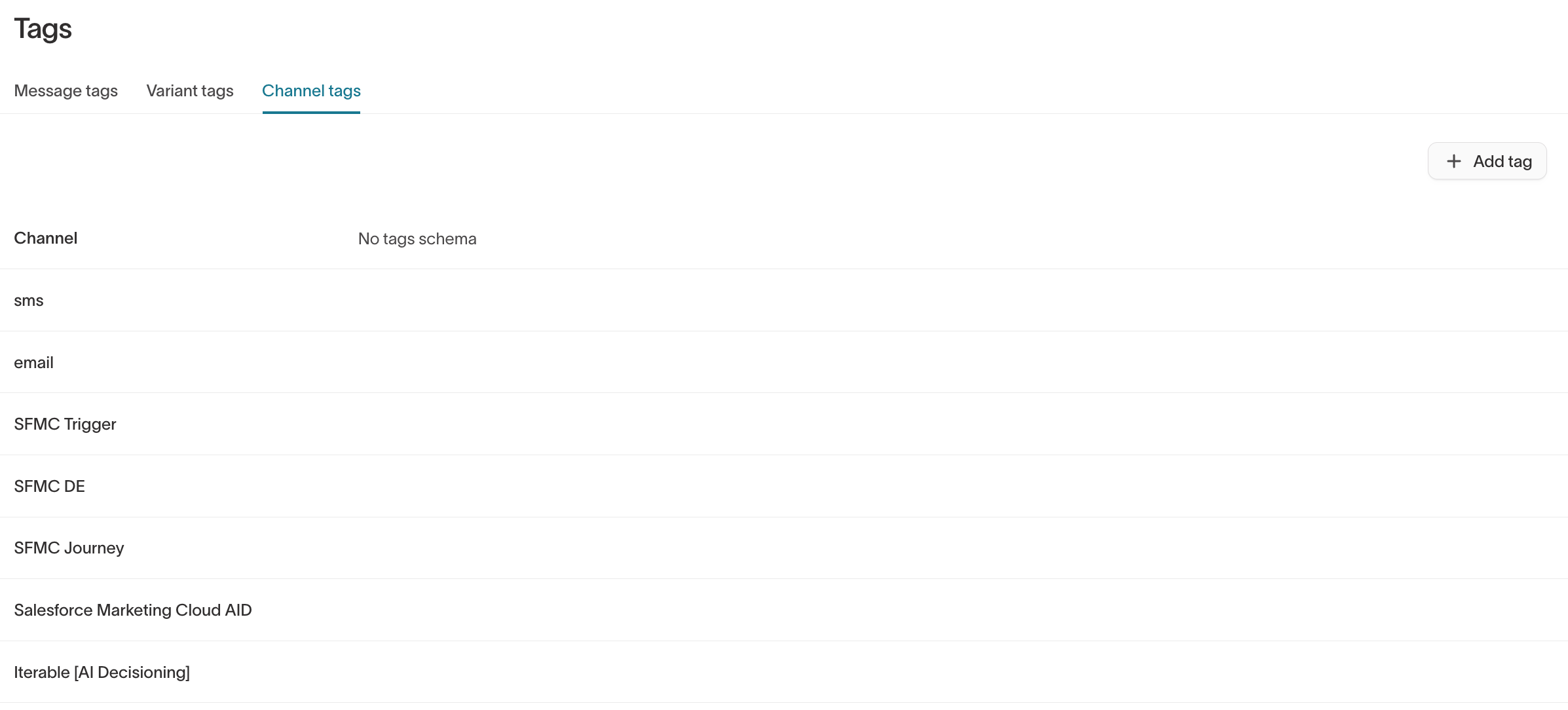
| Action | Description |
|---|---|
| View tags | Review all tag keys, such as product, tone, or incentive_type, and their allowed values. |
| Create tags | Define new tag keys and allowed values for messages or variants. |
| Edit tag values | Rename or remove values to keep naming consistent. (Tag keys can't be renamed — delete and recreate if needed.) |
| Add tag instructions | Specify when a tag or value should be applied to guide consistent tagging and improve AI suggestions. |
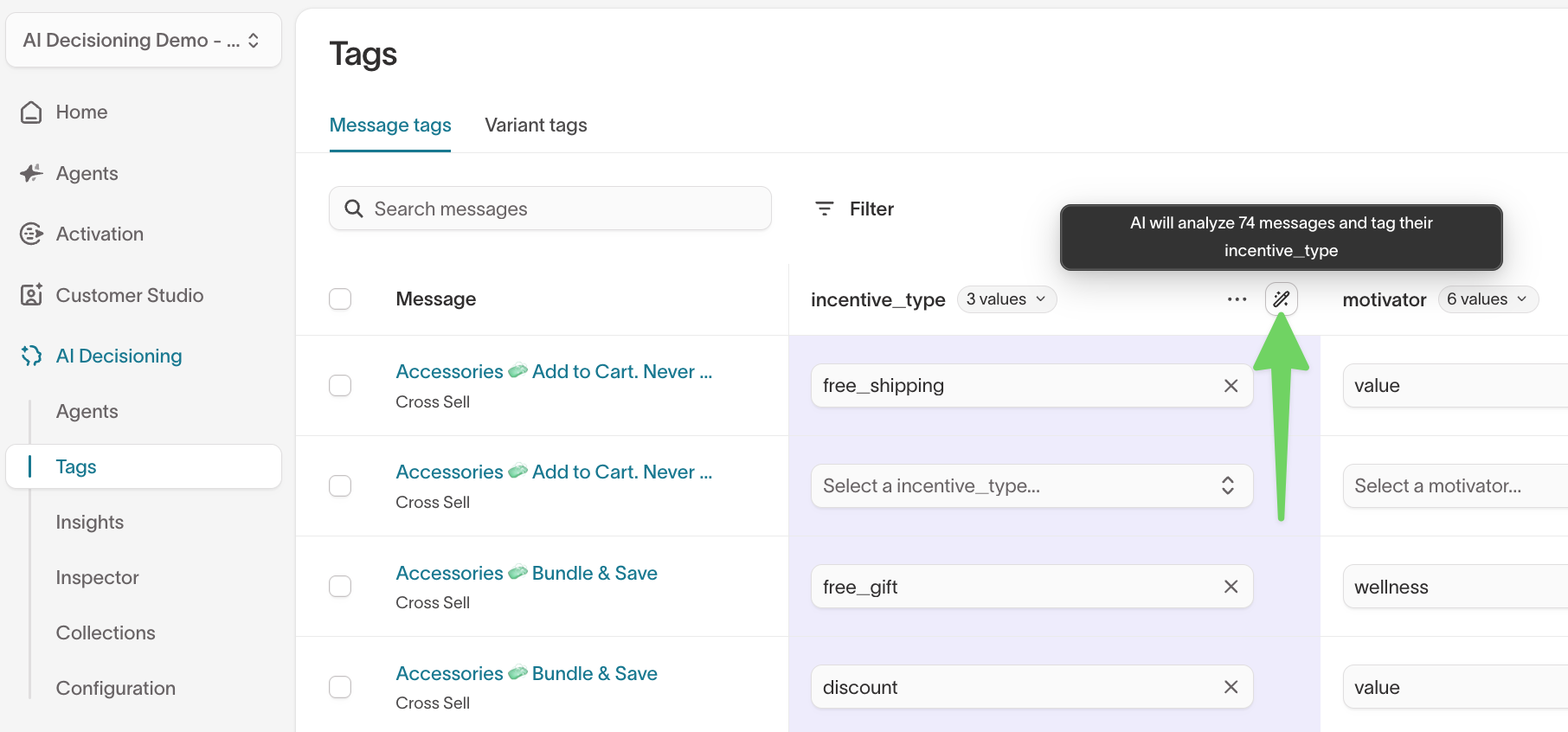
| Bulk apply tags with AI | Use AI to classify many messages at once for a selected tag key. |
| Check consistency | Confirm agents use the same key–value pairs, such as tone = playful or product = bluelight. |
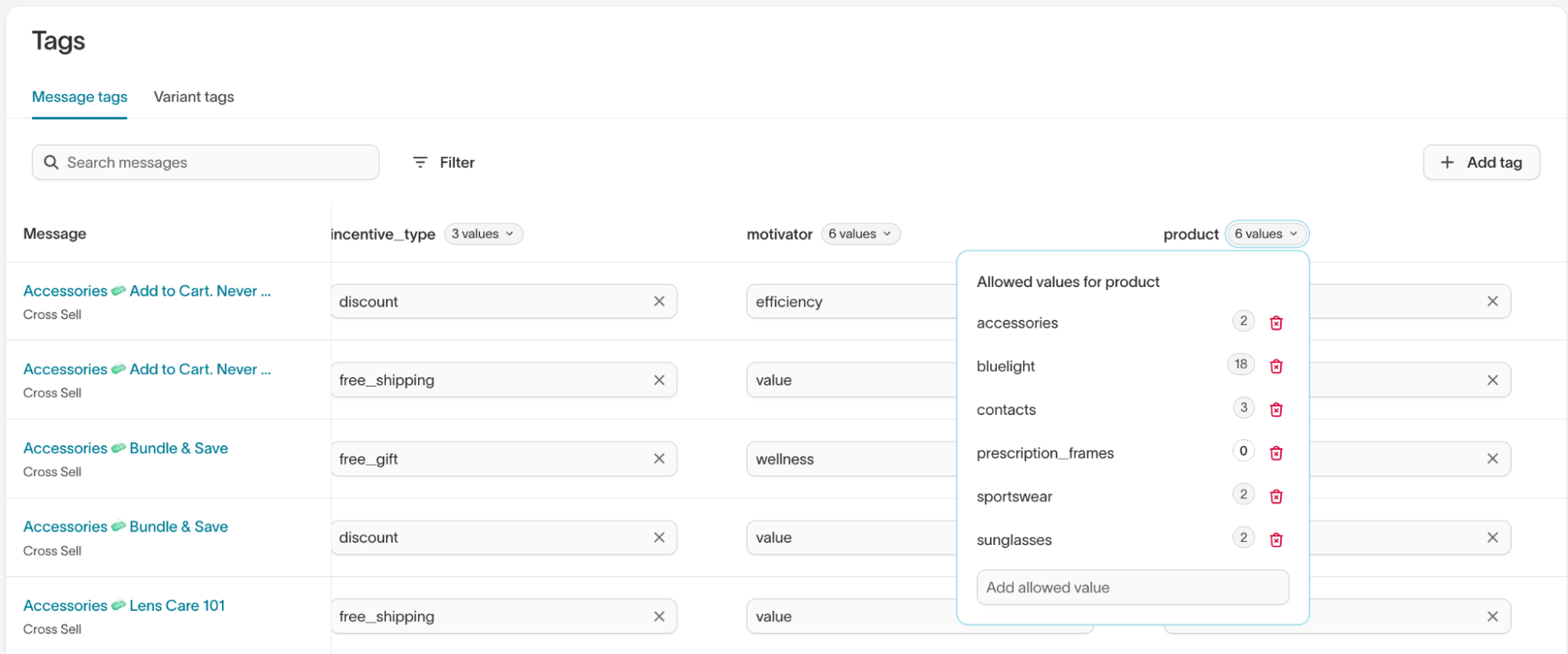
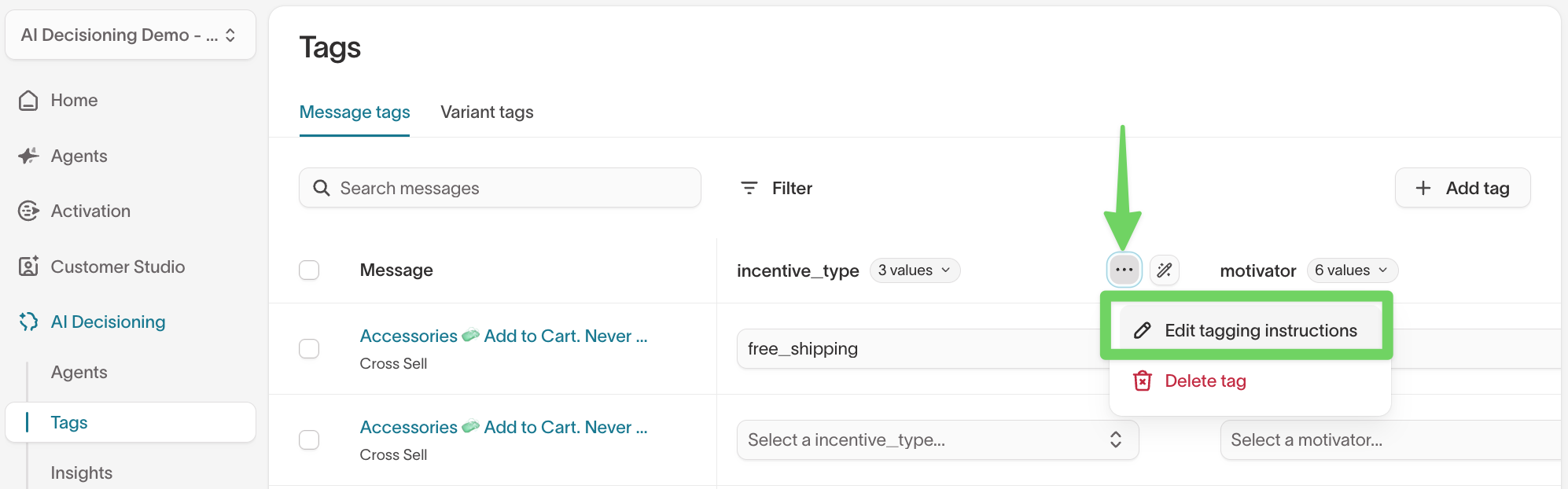
Add tag instructions
On the Tags page, hover over a tag key to reveal its options menu, then select Edit tagging instructions. In the Edit tag descriptions modal, add tag-level and value-level instructions that define when the tag — and each of its values — should be applied.
Clear instructions improve consistency across teams and help AI apply tags more accurately.

What to include in tag instructions
Effective tag instructions answer one question:
When should this tag or value be used?
Good instructions help people tag consistently and give AI the context it needs to distinguish between similar values.
Writing effective instructions
When writing tag or value instructions:
- Describe when to apply the tag or value
- Explain how it differs from other values
- Avoid generic definitions or restating the tag name
- Use short, directive language
Example: tag-level instructions
Tag: incentive_type
Good instruction Use this tag to classify the primary incentive offered in the message. Select the value that best represents the main benefit emphasized to the user.
Weak instruction Indicates the type of incentive.
Example: value-level instructions
Value-level instructions are most useful when values are similar or easily confused, messages include multiple incentives or concepts, or you use AI-assisted tagging.
Tag: incentive_type
-
discountUse when the message emphasizes a price reduction, percentage off, or limited-time deal. -
free_giftUse when the message highlights a free item added to a purchase, regardless of purchase amount. -
free_shippingUse when the message emphasizes waived shipping costs as the primary incentive.
Use AI to suggest and apply tags
AI can help you tag faster, whether you're working on a single message or tagging across your workspace.
Generate tags for individual messages or variants
When editing a message or variant, click Generate tags with AI to get suggestions based on your content.
- Click
Generate tags with AI. - Review the AI-generated tags.
- Edit or remove any that don't fit your naming conventions.
Example suggestions
- Message: "Earn double points on every booking this weekend" → AI suggests
Loyalty,Limited Time Offer - Variant: "Book now to unlock rewards faster" → AI suggests
Urgent CTA,Rewards Focused
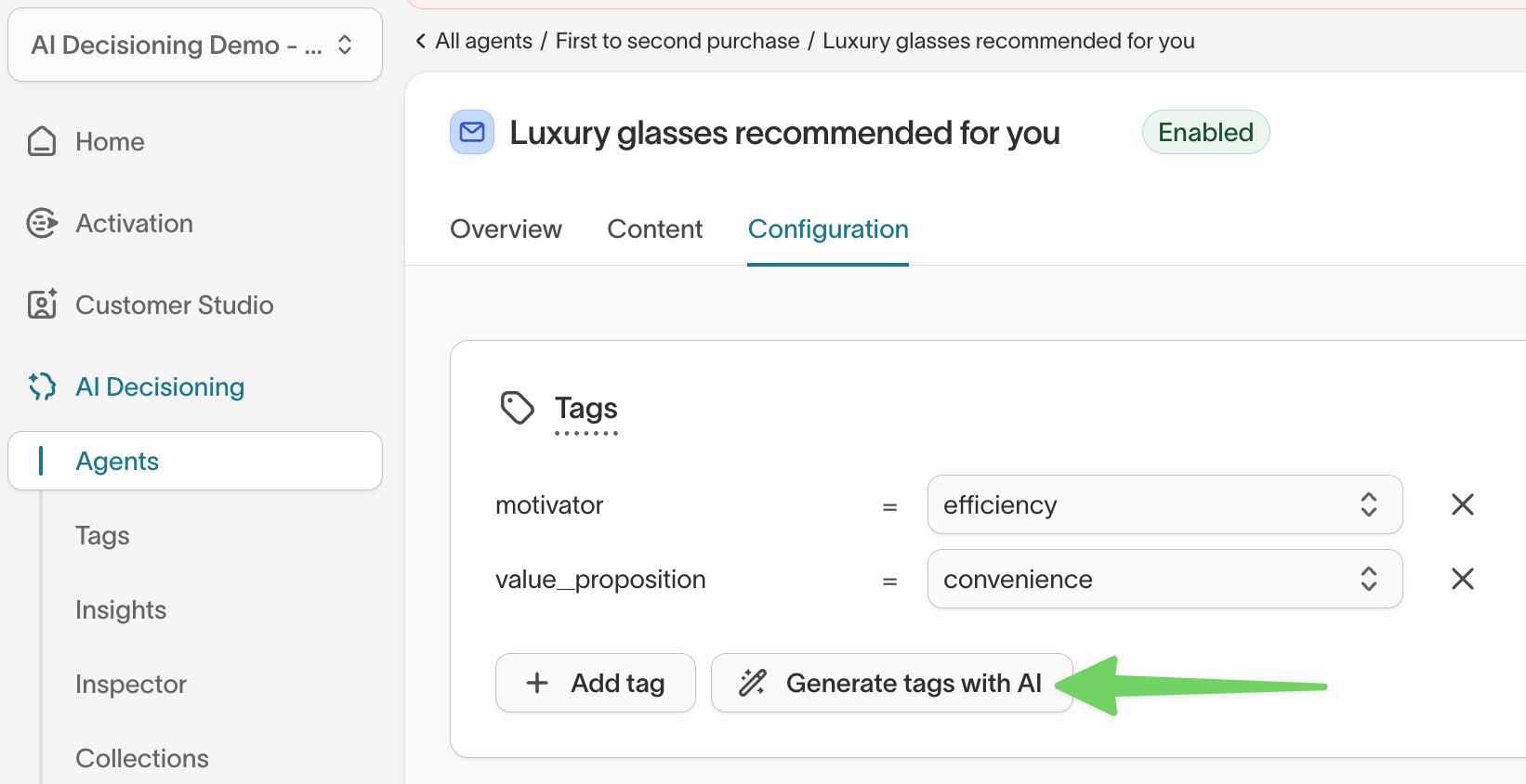
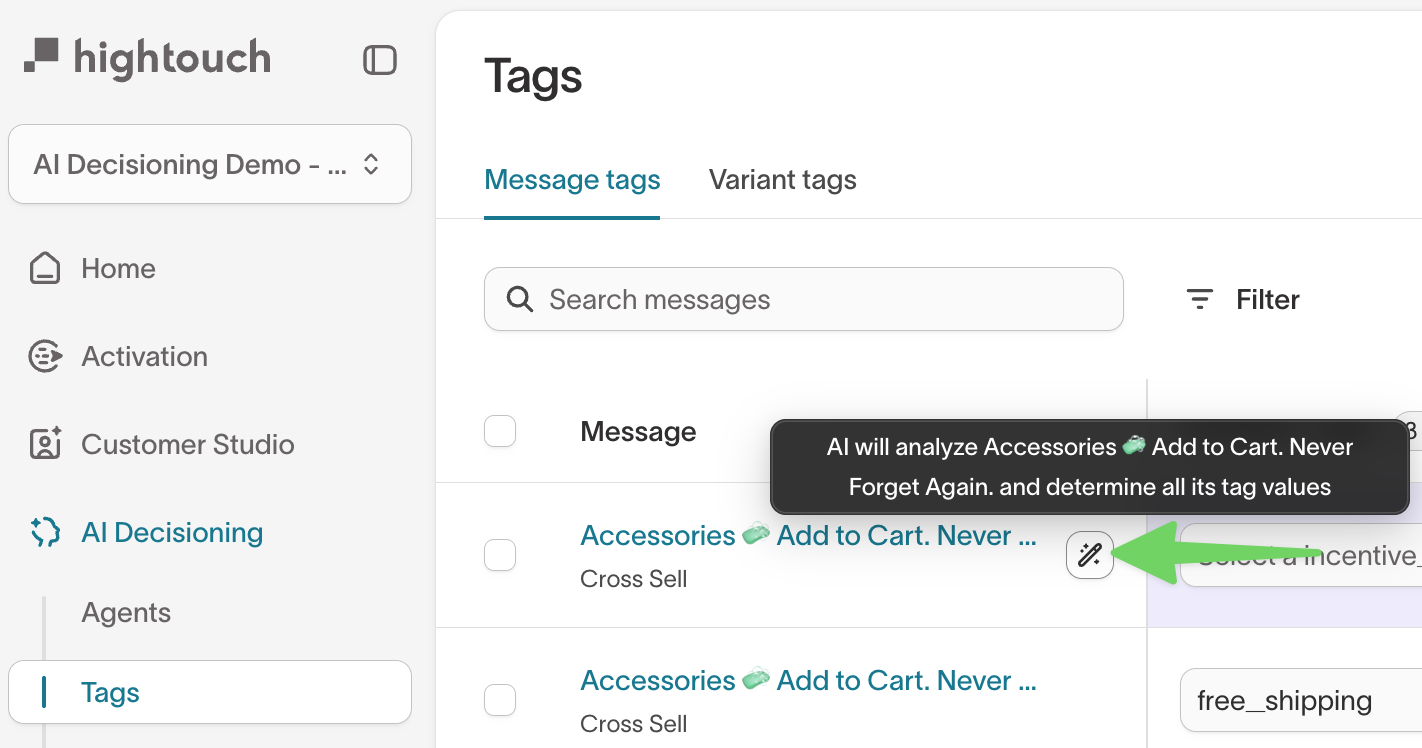
AI-suggested tags do not apply automatically. Always review suggestions before saving to ensure accuracy and consistency.
Bulk-apply tags on the Tags page
To tag many messages at once, select the messages, then use Actions to Let AI tag the selected messages or Manually tag them. To apply AI tags for a single tag key across messages, hover over the tag key and select the magic wand button.
Set send frequency caps using tags
You can also use tags to apply send frequency caps more granularly. This helps you control how often users receive messages within specific categories, such as by business unit or product line.
For example, if your agent includes messages across multiple business units, you can tag each message with a Business Unit value such as Insurance or Banking, then set separate frequency caps for each one. This helps prevent users from receiving too many messages from the same category, even when the overall agent-level cap has not been reached.
You can also set send frequency caps at the channel level (email, SMS, push, and so on). You do not need to tag whether a message is email, push, or SMS because AI Decisioning identifies the channel automatically.
Troubleshooting
| Issue | Likely cause | Resolution |
|---|---|---|
| Tags not appearing in Insights | Agents not synced or tags missing | Check that each message or variant includes at least one tag and that Insights is enabled. |
| Duplicate tags | Inconsistent naming, such as Loyalty vs. Loyalty Campaign | Delete duplicates on the Tags page. |
| Unclear AI suggestions | Inconsistent message naming or unclear tag definitions | Review your tag list, instructions, and message copy for clearer context. |
Tag visibility in Insights depends on your workspace's sync schedule. If you recently applied tags, wait for the next sync cycle before results appear.
Next steps
After tagging your AID messages and variants, explore related features: