Spaces is currently in early access. Contact your Hightouch team to request enablement for your workspace.
Overview
Spaces let you logically partition a single Hightouch workspace into multiple isolated sub-workspaces for different regions, brands, teams, or business units — while sharing the same underlying data models, schema, sources, and destinations.
This is useful when you have multiple teams that need to:
- Build and run campaigns independently without seeing each other's work
- Stay within a compliant, governed environment without accessing data outside their purview
- Work from a single shared customer schema rather than maintaining separate workspaces
Spaces solve a specific problem: you can already control what data a team can query (via subsets) and where they can send it (via destination rules), but without Spaces, all teams could still see and potentially edit each other's audiences and syncs.
Spaces close that gap by making audiences and syncs visible only within the Space they belong to.
How Spaces work
Spaces introduce a lightweight partitioning layer on top of a shared workspace:
| Layer | Shared or scoped? |
|---|---|
| Sources | Shared across all Spaces |
| Destinations | Shared across all Spaces |
| Schema and models | Shared across all Spaces |
| Audiences | Scoped to a specific Space |
| Syncs | Scoped to a specific Space |
Users access a Space by selecting it from the workspace/Space dropdown in the Hightouch UI. The interface then filters to show only the audiences and syncs that belong to that Space.
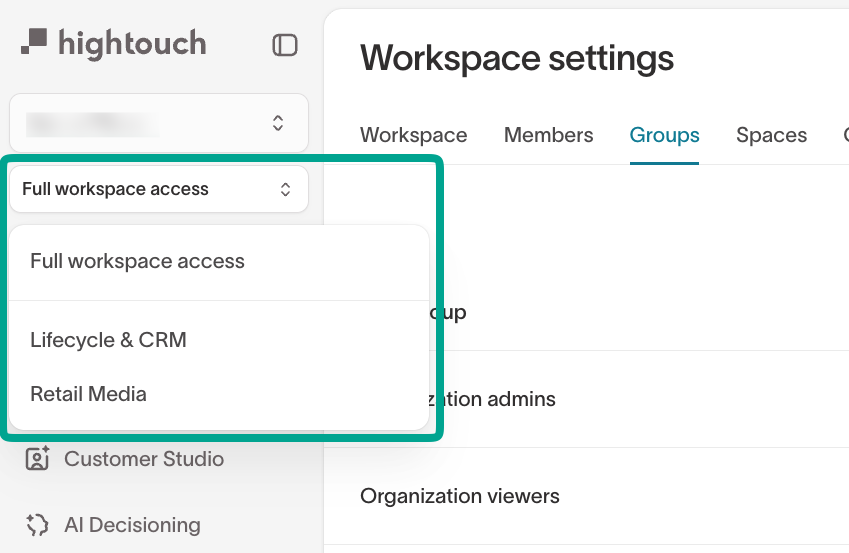
Workspace admins retain cross-Space visibility and can review, troubleshoot, and audit resources across all Spaces.
Space-scoped users (those whose user groups are assigned only to a specific Space) can only see and edit resources within that Space. They cannot view or modify audiences or syncs owned by other Spaces — even if the underlying data models are shared.
Before you begin
Spaces is in early access and requires enablement by your Hightouch team. Before requesting access, align internally on how you want to structure your organization within Spaces. Your Hightouch team can help you validate your design.
Common Space strategies
| Strategy | Example |
|---|---|
| By region or country | US, UK, EU, APAC |
| By brand | Brand A, Brand B |
| By local operator or venue | Individual restaurants, hotels, stores |
| By team or function | Lifecycle, Paid Media, CRM |
| By environment | Beta (experimentation), Production (live campaigns) |
Key design principles
- All Spaces in a workspace share the same schema and models — there is no per-Space schema isolation in the current release. See Plan your data model for guidance on designing a schema that serves multiple teams.
- Spaces can function as pure governance and UX partitions: even when all teams share the same data models and destinations, Spaces prevent teams from seeing or modifying each other's campaign assets
- Models should include a consistent filter field (for example,
country_code,brand_code,business_unit_id, oroperator_id) so you can apply subsets or audience filters within each Space
Request access
To enable Spaces for your workspace:
- Contact your Hightouch team.
- Provide the following:
- Which workspace should have Spaces enabled (workspace link or ID)
- The field(s) you use to distinguish business units or teams (for example,
business_unit_id,country_code,venue_id)
Once enabled, Spaces will appear under Settings → Workspace → Spaces in the Hightouch UI.
Create a Space
Once Spaces is enabled:
- Go to Settings → Workspace in Hightouch.
- Open the Spaces tab.
- Click Create Space.
- Give the Space a name (for example,
UK,Brand A,Lifecycle). - Optionally add a description to clarify ownership and scope.
Repeat for each Space you need.
Associate resources with a Space
Audiences and syncs are scoped to the Space they are created in.
Models and schema
Models, schema, sources, and destinations are configured at the workspace level and are shared across all Spaces. No additional setup is required at the Space level for these resources.
Confirm that your models include the filter field you plan to use to distinguish each Space's data (for example, country_code or brand_code). This field will be used to apply subsets or audience-level filters within each Space.
Audiences
- Switch to the correct Space using the workspace/Space dropdown.
- Build your audience as usual in Customer Studio.
- If you want strict data-level separation, apply required subsets or audience filters (for example,
country_code = 'UK') so the audience only pulls records relevant to that Space.
The audience will be owned by — and visible only within — the Space it was created in.
Syncs
- Create the sync from within the same Space as the audience.
- The sync will be scoped to that Space and visible only to user groups with access to it.
Assign user groups to a Space
Access to a Space is controlled through user groups, not individual users. Only users who belong to a user group attached to a Space can see or edit that Space's audiences and syncs.
There are two ways to assign user groups to a Space.
From the Spaces settings
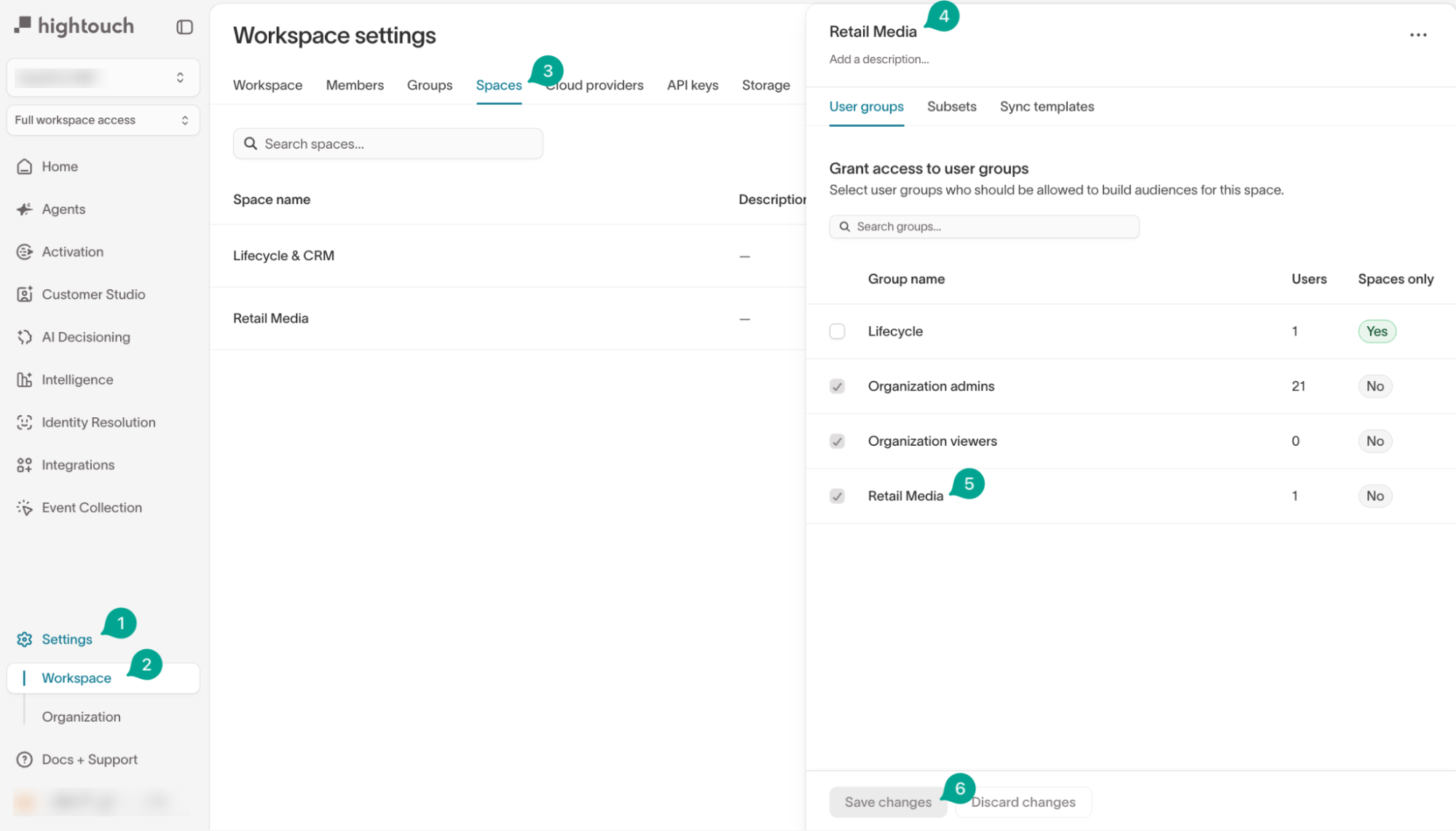
- Go to Settings → Workspace → Spaces.
- Create or select a Space.
- Open the User groups section in the Space configuration.
- Select the user groups that should have access to this Space (for example,
UK Marketing,Brand A CRM,Global Admins).
From the Groups settings
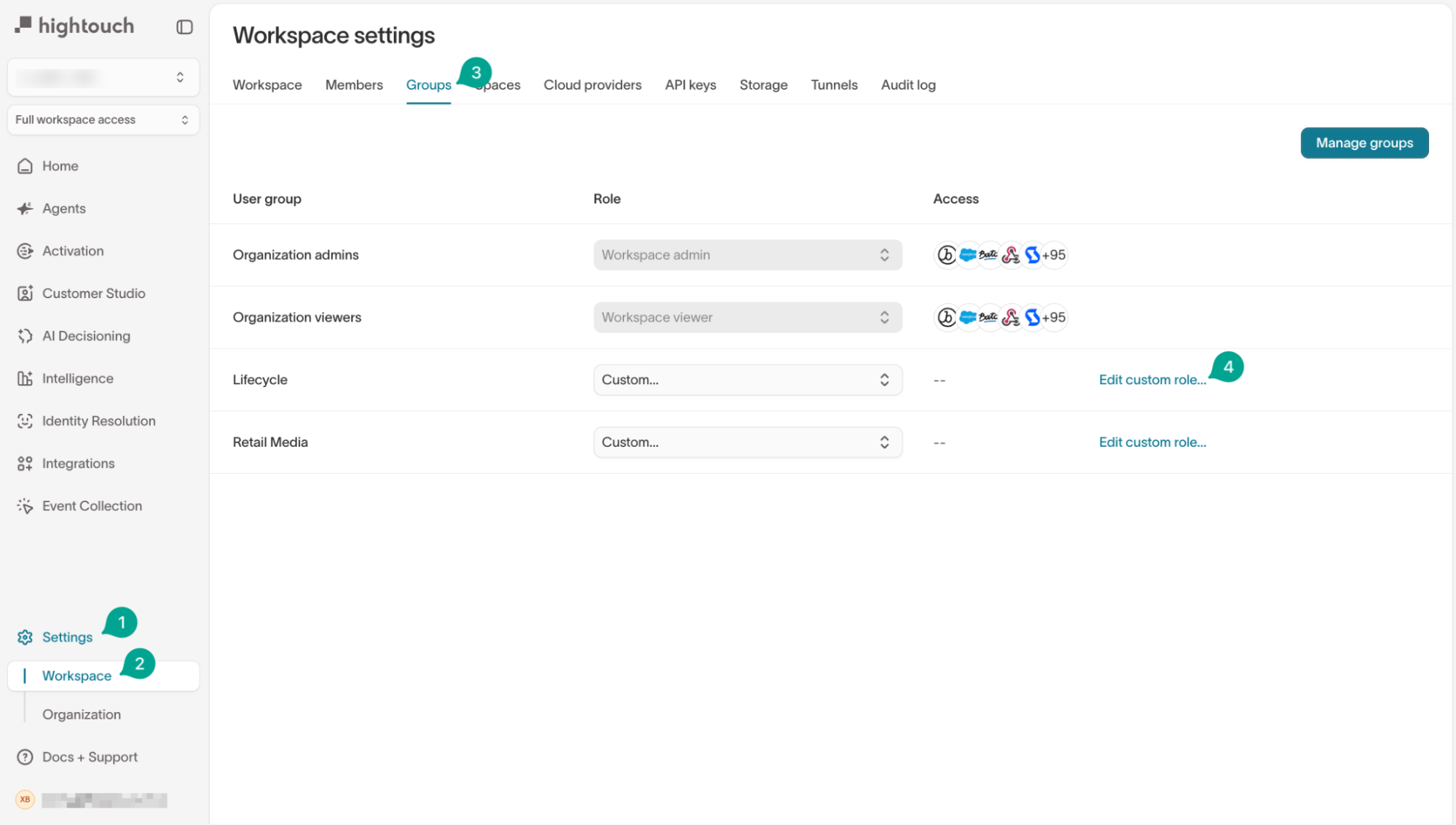
- Go to Settings → Workspaces → Groups.
- Edit an existing group or create a new one.
- In the Spaces section of the group configuration, assign the Space(s) this group should have access to.
User group membership is managed separately in your existing RBAC or user management settings, or via SSO/SCIM if configured.
Working in Spaces
Once configured, Spaces function as a filtered view of Customer Studio for each team.
Switching between Spaces
Use the workspace/Space dropdown to select the Space you want to work in. The UI scopes visible resources to that Space:
- Audiences — only those created in the selected Space
- Syncs — only those owned by that Space
This reduces the risk of accidentally touching another team's campaigns or violating compliance rules between legal entities or brands.
What local or Space-scoped teams can see and do
Teams with access to a single Space:
- See only the audiences, syncs, and related resources within their Space
- Cannot see or modify audiences or syncs that belong to other Spaces
- Build and manage their own campaigns using either a Space-specific subset of data, or the full shared schema filtered by their Space's configuration
What central or global teams can see and do
Teams with access to multiple Spaces (or all Spaces):
- Can review and audit local audiences and syncs across Spaces
- Can help troubleshoot issues for specific Spaces
- Continue to own the shared schema, models, and global governance rules (naming conventions, consent, promotion workflows)
Governance patterns
Global brand with local operators
Scenario: A global brand operates many local entities (for example, restaurants, venues, or stores). Each operator needs a simple audience builder for local campaigns, while the central team maintains control over data and governance.
Pattern:
- Create one Space per operator or logical cluster of operators
- Keep a Global or Support Space for the central team with full visibility
- Central team owns models, schema, and guardrails; local Spaces build and run their own audiences and syncs
- Local teams have no visibility into other operators' campaign assets
This reduces maintenance overhead — one workspace and schema — while giving each operator a focused, compliant experience.
Multi-brand or multi-region organization
Scenario: A single data platform powers multiple brands or regions, each with its own marketing team and campaigns.
Pattern:
- Create one Space per brand or region (for example,
Brand A,Brand B,UK,US) - Enforce Space-level filters or required subsets (for example,
brand_code,region_code) so each team only works with its own data - Use a Global Space for cross-brand analytics, experimentation, and coordination of global campaigns
Multi-team organization (separate teams, shared customers)
Scenario: Multiple teams (for example, Lifecycle, Paid Media, CRM) operate on the same underlying customers and schema, but need to work independently without affecting each other's campaigns.
Pattern:
- Create one Space per team or function
- Keep schema and models shared at the workspace level
- Use Spaces to isolate campaign assets (audiences and syncs)
- Apply clear naming conventions to reflect both Space and use case — for example,
[Lifecycle] Winback – 90d Lapsedor[Paid Media] High LTV Prospecting - For audiences that multiple teams share, standardize them in a Global Space or coordinate using Warehouse Sync Logs
Naming conventions
As your use of Spaces scales, consistent naming becomes important for auditability and onboarding.
Recommended practices:
- Include the Space name in audience and sync names — for example,
[UK],[Brand A],[Lifecycle] - Use consistent prefixes for test or experiment assets — for example,
[TEST],[EXPERIMENT] - These practices help prevent sprawl, support audit trails, and make it easier to onboard new teams
Current limitations
Spaces v1 is focused on a core set of capabilities for design-partner customers. The following are not yet supported:
- Per-Space schema isolation (schema and models are shared workspace-wide)
- Space-aware Journeys, Dashboards, or Charts
- Selectively hiding parts of the schema per Space
If your requirements fall outside what's described here, share them with your Hightouch team so they can feed them into product planning.