| Audience | How you’ll use this article |
|---|---|
| Organization admins | Configure which teams can create, run, or manage identity graphs. |
| Workspace admins | Grant the right users IDR access without over‑privileging sources, destinations, or credentials. |
Overview
Permissions for Identity Resolution (IDR) are managed through source-level permissions, not through a separate IDR permission system.
There are two important rules:
-
All users in a workspace can see all identity graphs.
There is currently no way to restrict visibility of specific IDR graphs. -
Only users with
Configure schemapermission on a source can create, edit, or delete identity graphs tied to that source.
Each identity graph is tied to exactly one source (for example, Snowflake, Databricks). Control over IDR is enforced at that source level.
Your ability to:
- Create identity graphs
- Edit identifier rules, models, or Golden Records
- Delete graphs
is determined entirely by whether your group’s role includes Configure schema for the underlying source.
New to Hightouch access control? Start with
Managing users and groups and
Roles.
How IDR permissions work
- Each identity graph is tied to exactly one source.
- Visibility
- All workspace users can view all IDR graphs.
- There is no per-graph or per-source visibility control for IDR.
- Create / edit / delete (CUD)
- Requires
Configure schemapermission on the source used by the graph. - This permission can be granted through:
- Workspace admin role (broad access), or
- A custom role scoped to specific sources (recommended).
- Requires
Permissions are evaluated per source. A user may:
- Be able to edit IDR graphs tied to Source A, and
- Not be able to edit graphs tied to Source B,
depending on whether their role includes Configure schema for those sources.
Default behavior and role mapping
View access
All users with access to the workspace can:
- Open the Identity Resolution list page
- Open any identity graph
- View tabs like
Summary,Runs,Models,Rules,Golden Records,Inspector,Configuration - Preview resolved data and Golden Records
There is currently no way to restrict view access to specific identity graphs.
Create / edit / delete access
By default:
- Workspace admins can create, edit, and delete IDR graphs because they have
Configure schemaon all sources. - Other users must have a custom role that grants
Configure schemaon the specific source tied to the identity graph.
To create, edit, or delete an IDR graph, a user must have:
Configure schemaon that source
Additional permissions (such as View source data or Configure models & syncs) may be required depending on broader responsibilities, but they do not control IDR graph CUD access.
Where you configure IDR access
IDR doesn’t have its own permissions screen. Access is always managed at the group level:
- Users gain IDR permissions through the groups they belong to
- Groups gain access through workspace roles and custom roles
You configure this via:
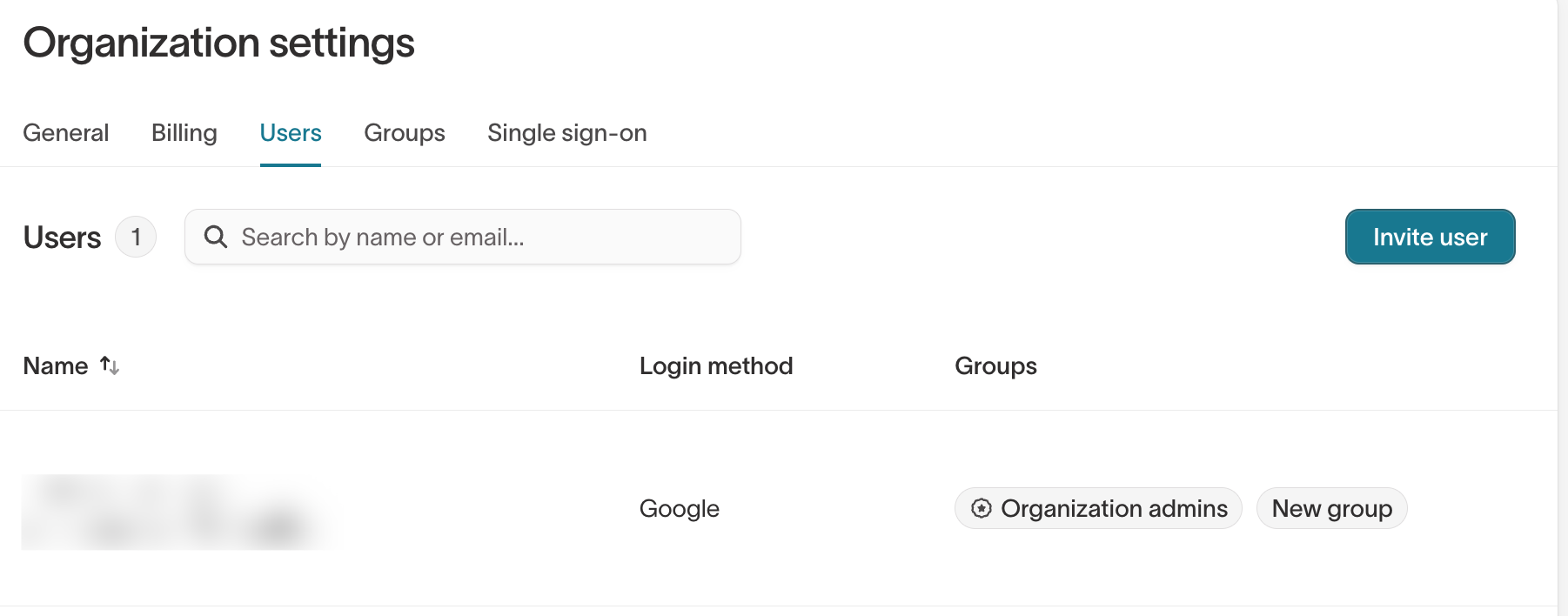
Settings → Organization → Users and groups- See which groups a user belongs to and which workspaces they can access.
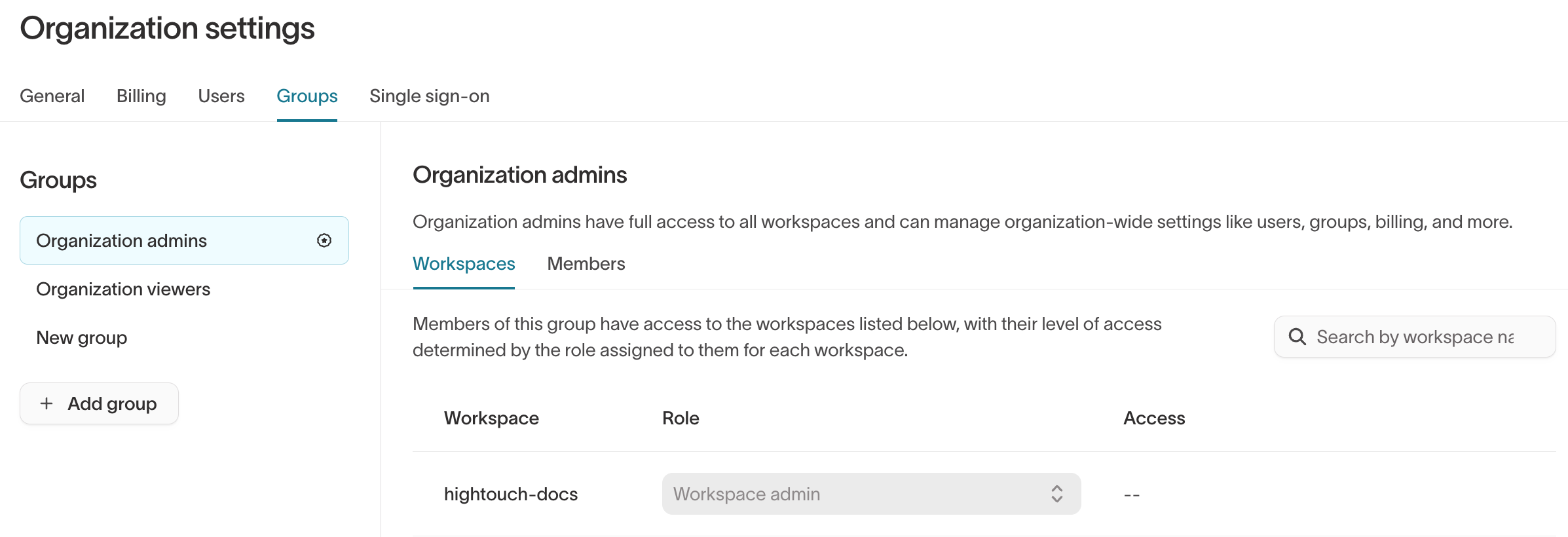
Settings → Organization → Groups- Define groups (for example, Data Platform, Marketing, Analytics).
- On the Workspaces tab, choose the role (Workspace admin/editor/viewer or Custom…) for each workspace.
- On the Members tab, add or remove users in each group.
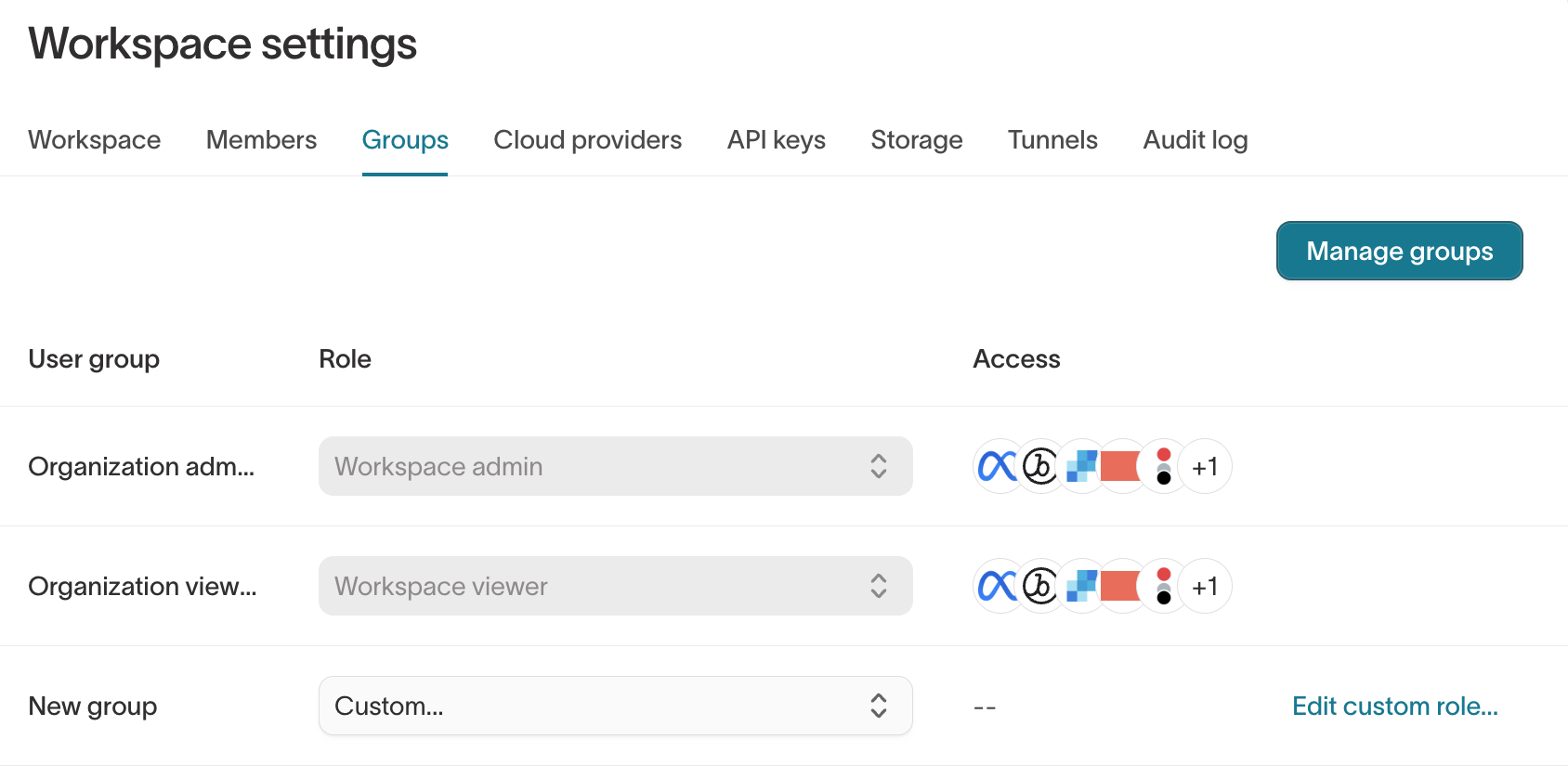
Settings → Workspace → Groups- See which groups have access to the current workspace and what their roles are.
Granting IDR edit access (Configure schema)
To let a team create and manage IDR without making them full Workspace admins, assign their group a custom role that includes Configure schema permission for the relevant source(s).
Option 1: Custom role with Configure schema (recommended)
- Go to
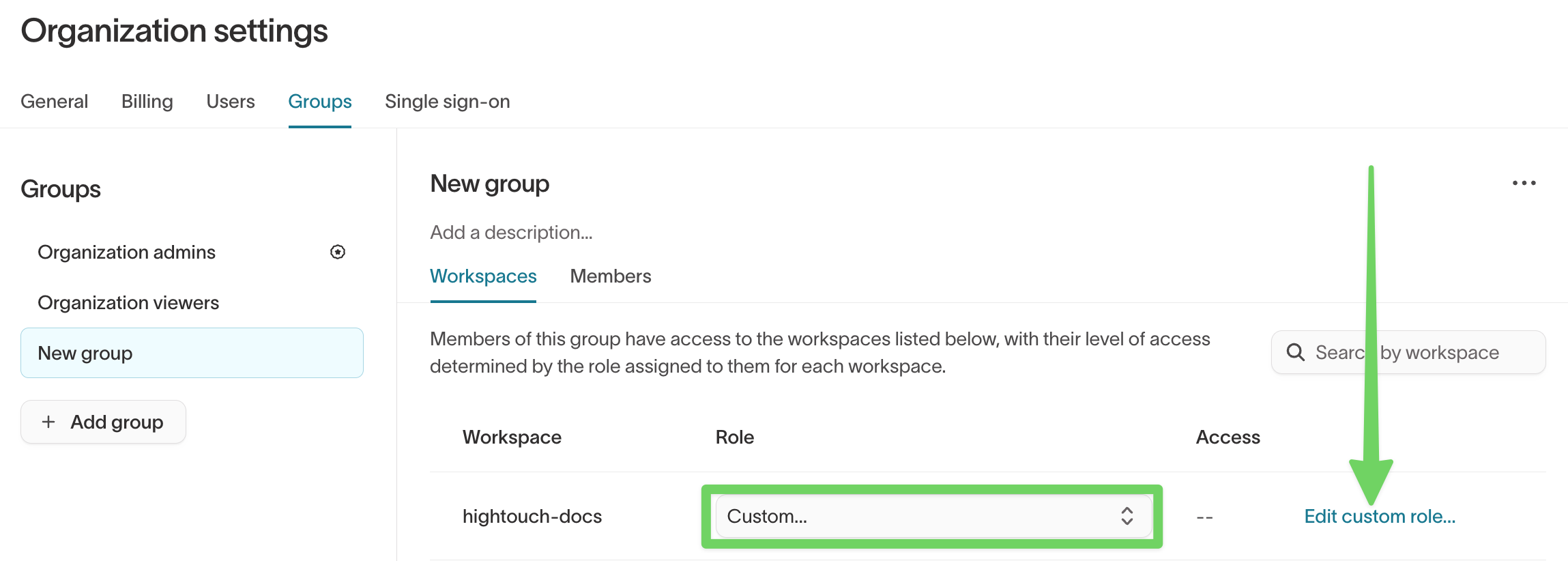
Settings → Organization → Groupsand open the group that should manage IDR. - In the group’s Workspaces tab, find the workspace and set the role to Custom….
- Click Edit custom role.
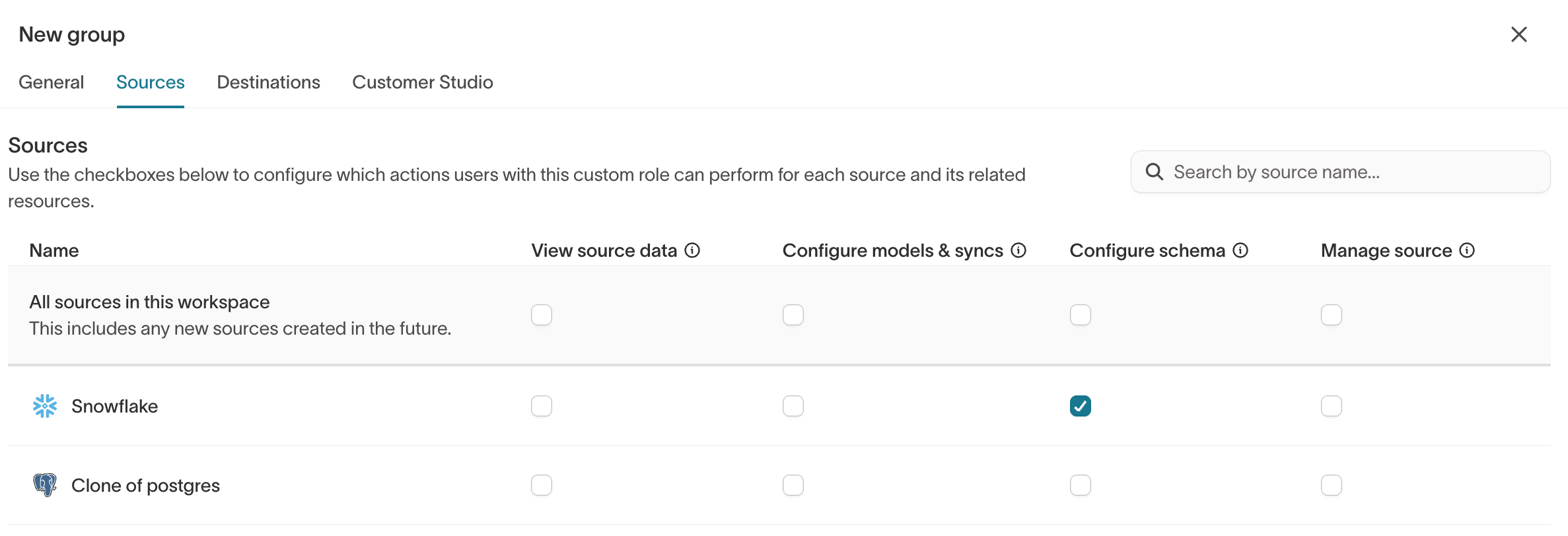
- In the custom role editor:
- Open the Sources section.
- For the source used by your identity graph:
- Turn on Configure schema.
- (Optional) Turn on View source data and Configure models & syncs if these users also own models/syncs on top of IDR outputs.
- Save the role.
You can also reach this custom‑role editor from Settings → Workspace → Groups by setting the group’s role to Custom… and clicking Edit custom role….
Result
Members of this group can now:
- Create identity graphs that use that source
- Edit graphs (models, identifier rules, Golden Record)
- Delete graphs and adjust Golden Record configuration for that source
IDR ownership stays with the data owners for that source, not with every Workspace admin.
Option 2: Make a group Workspace admin (simple, broad)
Workspace admins have full permissions across the entire workspace, including all sources, destinations, Customer Studio schema, subsets, destination rules, templates, and audit‑log visibility. Use this only for users who genuinely need broad administrative access.
- Go to
Settings → Organization → Groups. - Open or create a group that should own admin access for this workspace.
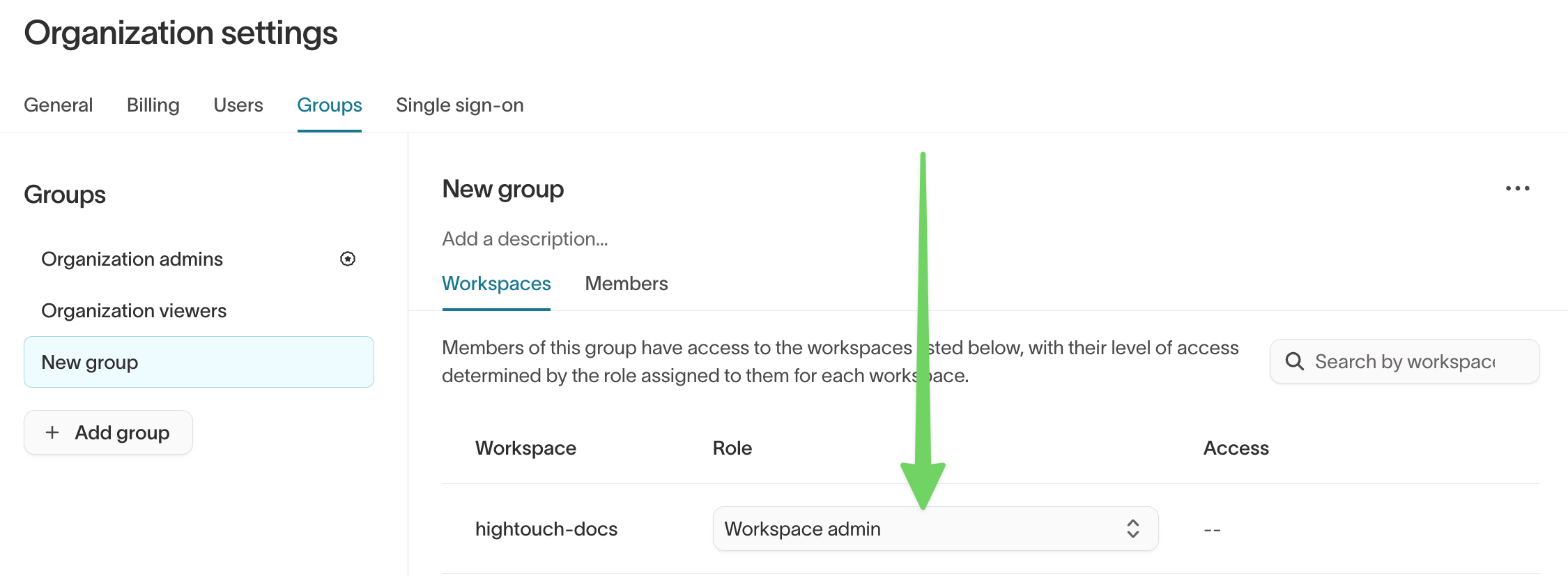
- In the group’s Workspaces tab, set the role for the workspace to Workspace admin.
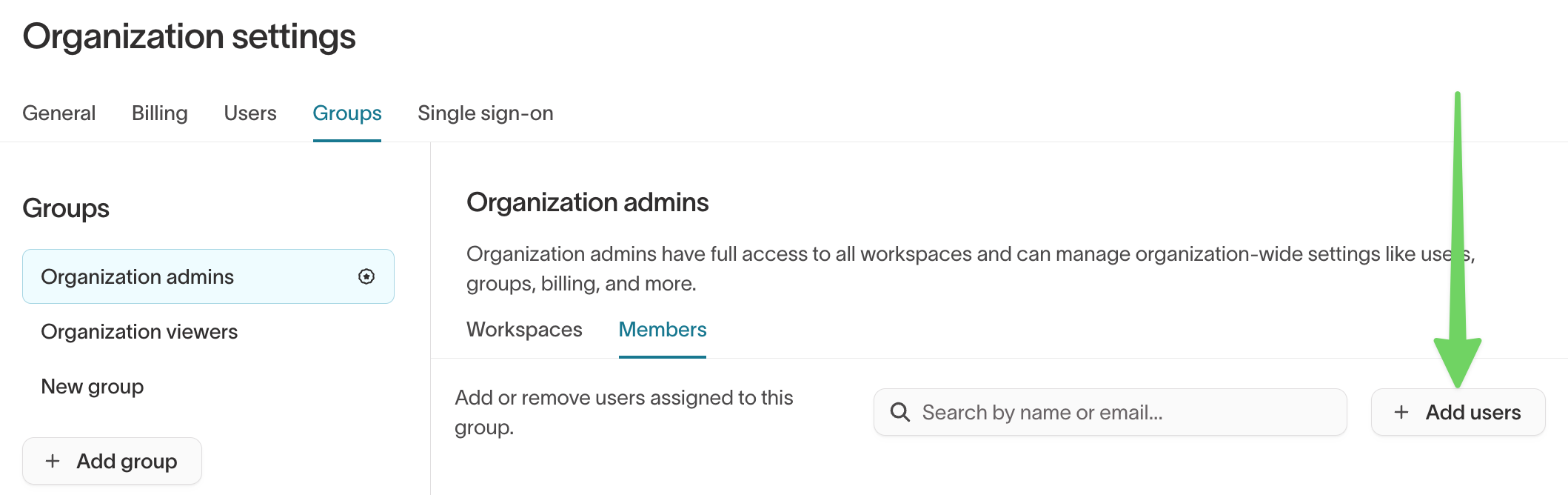
- In the group’s Members tab, click + Add users and add the Workspace admins.
These users now:
- Have Configure schema on all sources in that workspace
- Have full IDR access (create, edit, delete graphs and Golden Records)
- Can manage all other workspace resources
Organization admins are a special built‑in group. They inherit Workspace admin in all workspaces and can manage org‑wide settings like billing, SSO, and groups. Keep this group as small as possible.
How roles combine (multiple groups)
Users can belong to multiple groups. Their effective permissions are the union of all group roles.
Example:
- Group A → Workspace viewer
- Group B → Custom role with Configure schema for one source
The user can:
- View everything in the workspace (from Group A)
- Edit IDR only for that one source (from Group B)
This pattern works well for:
- Giving broad read-only access to many users
- Adding narrow edit rights where needed (for example, a specific source or set of destinations)
Destination permissions for IDR syncs
IDR permissions cover only the graph and Golden Record. To sync IDR outputs, users also need destination and sync permissions.
If a team will:
- Create syncs from
_resolved,_resolved_identifiers, or_golden_recordstables, or - Build Customer Studio audiences on top of IDR outputs and sync them downstream,
then their group’s custom role must also include:
Settings → Organization → Groups→ open the group.- Click Edit custom role.
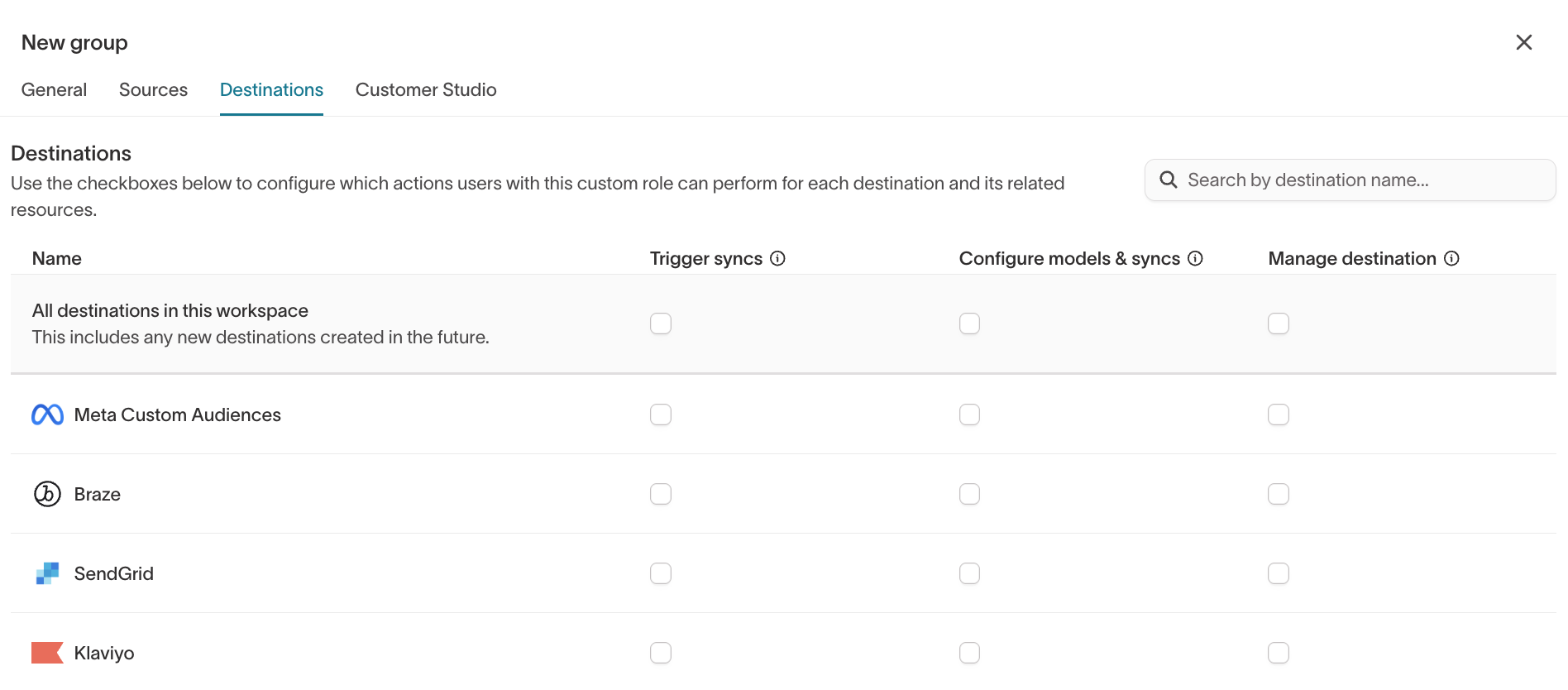
- Under Destinations, grant:
- Manage destination for the appropriate destinations.
- Create / edit / run syncs as required by your governance model.
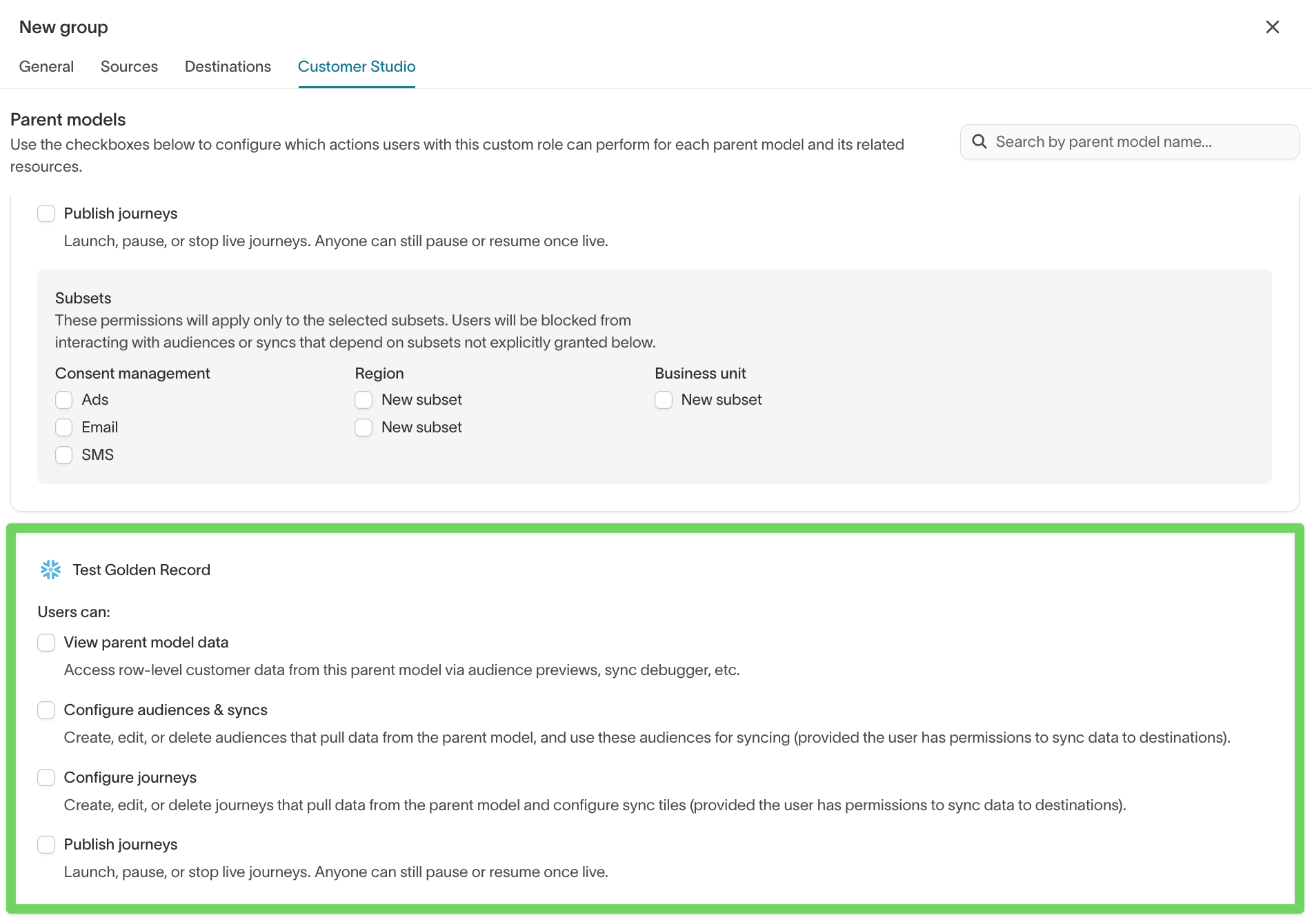
Customer Studio permissions (if you use Customer Studio)
If Customer Studio is enabled:
- The IDR Golden Record table is often the parent model.
- Many marketers should work in Customer Studio only, without direct IDR/source access.
Recommended split:
- Data / platform teams
- Own IDR graphs and Golden Record via Configure schema on sources.
- Marketing teams
- Use Customer Studio-specific roles that:
- Let them create/edit traits, audiences, journeys
- Do not include source‑level Configure schema
- Use Customer Studio-specific roles that:
Configure this in the same custom role:
Settings → Organization → Groups→ open the marketing group.- Click Edit custom role.
- Under Customer Studio, grant:
- Access to the relevant parent model(s) (Golden Record)
- The audience/trait actions they need
- Keep Configure schema on sources turned off for this group.
Troubleshooting
“I can’t create an identity graph”
Likely:
- Your groups don’t include Configure schema for the source.
- You’re only a Workspace viewer or Workspace editor.
Fix:
- Ask a Workspace admin or Organization admin to:
- Add you to a group whose custom role includes Configure schema for that source, or
- Make you a Workspace admin (if broad access is acceptable).
“I can view IDR graphs but can’t edit them or Golden Records”
Likely:
- You have read‑only access (for example, Workspace viewer or a role with only View source data).
Fix:
- Have an admin:
- Extend your group’s custom role to include Configure schema for that source, or
- Move IDR ownership to a separate group and add you there.
“I don’t see any identity graphs at all”
Likely:
- You don’t have read access to the source(s) IDR uses.
- You’re not in any group with access to this workspace.
Fix:
- Confirm you are:
- In at least one group with access to the workspace
- In a group whose role includes read permissions on the relevant sources